Menu Preview
Menu Preview
Menu Preview is an operational view of a published menu in the Management Center. It shows your menu as structured for ordering: categories, products, and containers (size and variant groupings). You can also update product availability directly from the preview.
Menu Preview is available at the brand level and the store level. At the brand level, you see the menu as authored with brand-wide availability settings. At the store level, you see the same structure with store-specific price, availability, and visibility on top.
Menu Preview requires the Menu V2 permission for your user role. Contact your PAR representative if you do not see the Preview option.
Accessing Menu Preview
In the Management Center, navigate to Brand or Store > Menu > Menu Preview.
If your brand or store has multiple menus, use the drop-down menu at the top to select the appropriate menu.
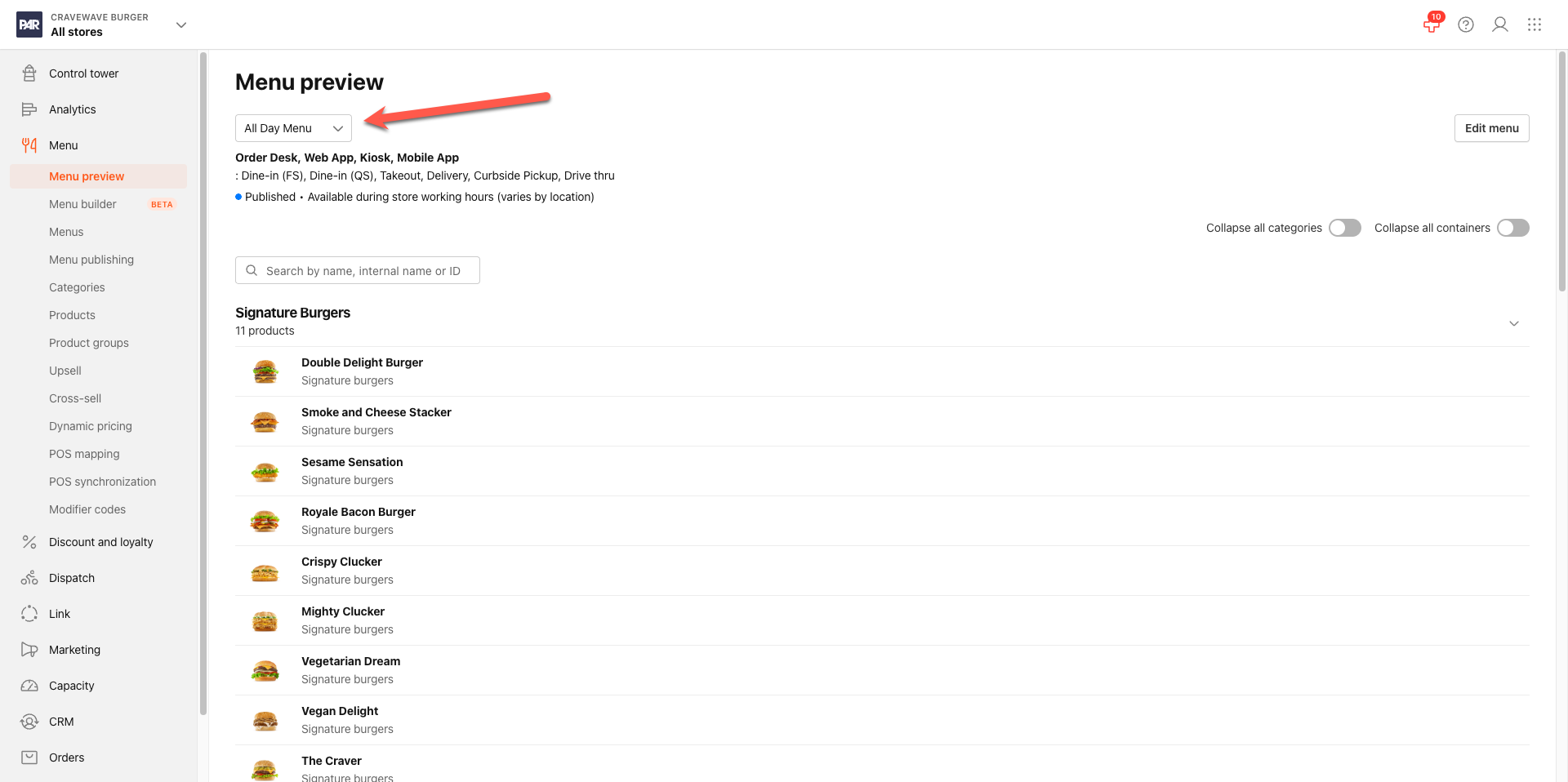
- When Menu Preview loads, the header displays a menu selector and two global collapse toggles. Categories load below.
- Use the menu selector at the top of the page to switch between menus. It shows the menu name and internal name (if available). Select the dropdown arrow to view additional menus. Up to 6 appear at a time; scroll to see more.
- Use the search field to filter products by name. The list updates as you type.
- Menu Preview uses infinite scroll. Scroll down to load additional categories and products.
Collapsing and Expanding Categories
You can collapse and expand categories to focus on specific sections of a large menu.
Collapse or expand a single category
Select the chevron on the category header to collapse or expand that category. Collapsing a category hides its products; the category header remains visible. Other categories are not affected.
Selecting a category name opens the category in edit mode. The chevron and the category name perform different actions.
Collapse or expand all categories at once
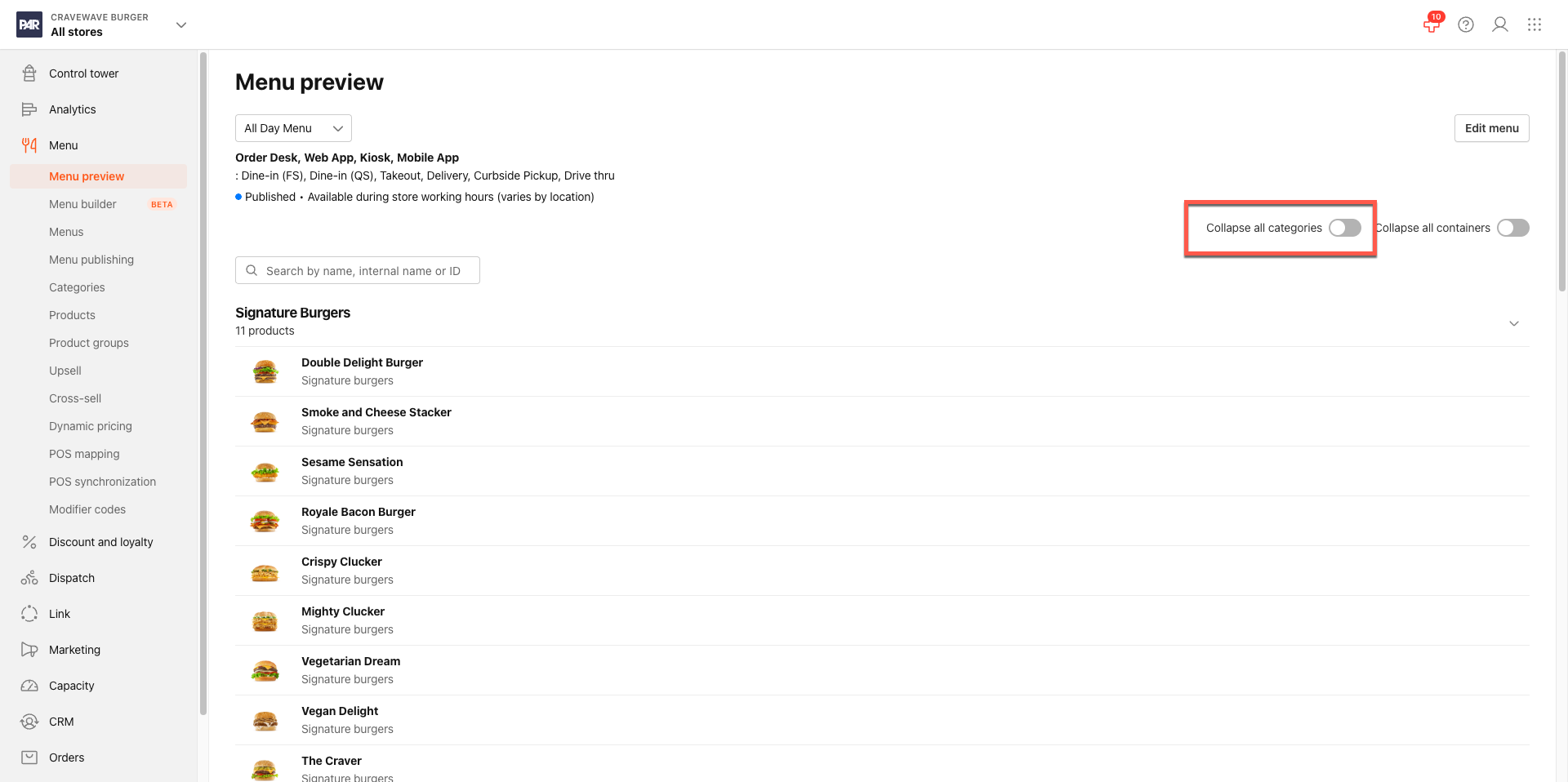
Use the Collapse all categories toggle in the Menu Preview header to collapse or expand every category on the page, including categories not yet loaded by scroll.
Turning the toggle on collapses all categories; turning it off expands them. Flipping the toggle also resets any individual category overrides you made during the current session.
The Collapse all categories preference is saved to your user profile and restored the next time you open Menu Preview.
This preference applies to both brand-level and store-level Menu Preview. Changing it in one view changes it in the other. Individual category collapse states are not saved. They reset when you reload the page or flip the global toggle.
Collapsing and Expanding Containers
A container is a product that groups size or variant options, such as a drink available in Small, Medium, and Large. Each size appears as a nested row under the container. You can collapse containers to hide those rows and make the product list easier to scan.
Collapse or expand a single container
Select the chevron on the container row to collapse or expand the size rows under it. Other containers are not affected.
Collapse or expand all containers at once
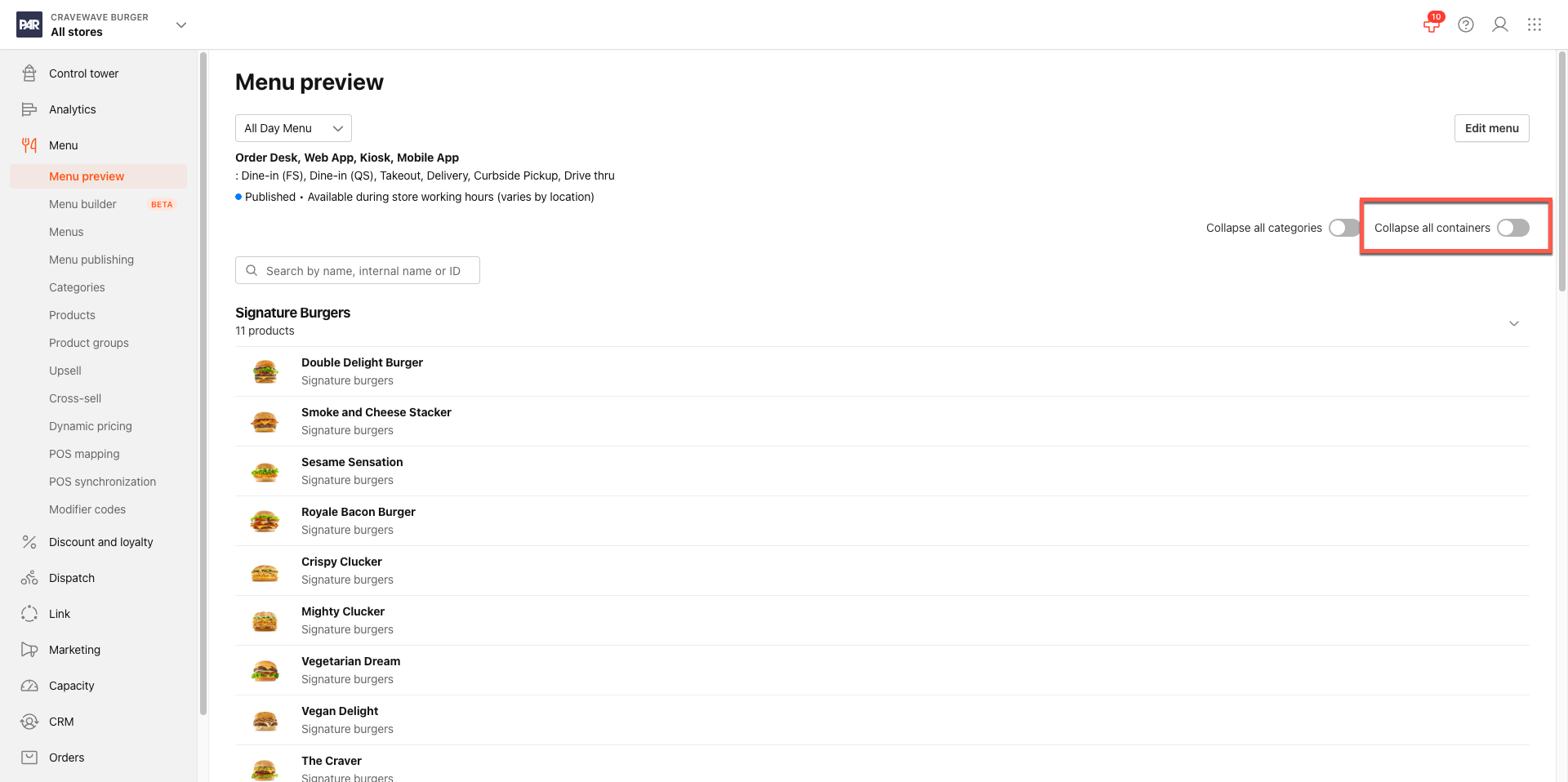
Use the Collapse all containers toggle in the Menu Preview header to collapse or expand every container on the page.
Turning the toggle on collapses all containers; turning it off expands them. Flipping the toggle also resets any individual container overrides you made during the current session.
The Collapse all containers preference is saved to your user profile and restores the next time you open Menu Preview. It is independent of the Collapse all categories toggle; you can use them separately.
This preference applies to both brand-level and store-level Menu Preview. Individual container collapse states are not saved. They reset when you reload the page or flip the global toggle.
Toggling Product Availability
Each product row has an eye icon you can use to turn a product on or off. At the brand level, changes apply to the brand-wide menu. At the store level, changes apply only to that store.
You can also toggle availability for individual size products nested under a container. Select the eye icon on the size row. Changes appear in the list immediately.
Viewing and Editing Product Details
Select any product row (not the chevron) to open the product drawer. The drawer shows the full product detail, including its availability setting and any associated size or modifier options.
You can toggle availability directly in the drawer; the change reflects in the product list right away. Keep the drawer open and select a different product row to switch to that product's details. At the store level, certain fields in the product drawer are read-only because they are managed at the brand level.
