Link: Bulk Marketplace Menu and Hours Sync
Overview
PAR Link lets you sync menu content, prices, and store operating hours to all of your connected marketplace locations at once, directly from the Link Status page. Instead of opening each store and triggering a sync manually, you can push updates to every eligible location on a marketplace in a single action.
The Link Status page shows each store's most recent menu/price sync and opening hours sync results, including the outcome and timestamp. You can see at a glance which stores are current and which need attention, without clicking into stores one by one.
There is nothing to configure. This feature is available to all PAR Ordering customers with access to Link Status.
Bulk sync actions run per marketplace tab. One action updates the marketplace on the active tab only. It does not update all connected marketplaces at once. To update multiple marketplaces, run the sync on each tab separately.
Prerequisites
- You must have access to Link Status in Management Center. Access follows the existing Link permission group. No additional permission is required for bulk sync.
- At least one store must be connected to and enabled for a marketplace on the Link Status page.
Where to Find It
Path: Management Center → Brand (All Stores) → Link → Link status
The Link Status page is organized by marketplace tab. A tab appears only for marketplaces where your brand has at least one enabled store, so you see only the marketplaces you're connected to.
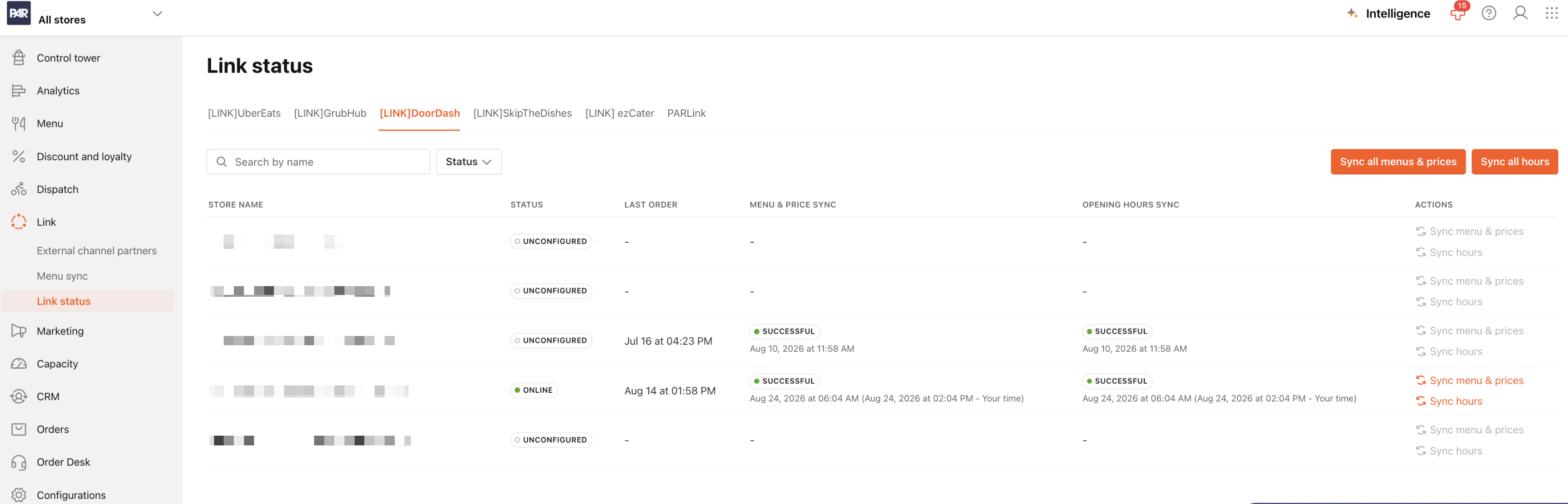
The Link Status Page
Sync Columns
Two columns appear in the store list on each marketplace tab:
| Column | What It Shows |
|---|---|
| Menu & price sync | The result and timestamp of the most recent menu and price sync for that store |
| Opening hours sync | The result and timestamp of the most recent opening hours sync for that store |
Reading Sync Status
Each sync column shows a status badge and a timestamp:
| Badge | Meaning |
|---|---|
| Successful | The last sync of that type completed successfully |
| Unsuccessful | The last sync of that type failed |
| In progress | A sync is currently running (displays a spinner) |
| - | No sync of this type has been recorded for this store yet |
Timestamps show the store's local time, with your Management Center profile timezone in brackets:
Aug 24, 2026 at 10:00 AM (Aug 24, 2026 at 04:00 PM - Your time)
When you and the store are in the same timezone, the timestamp displays as a single value.
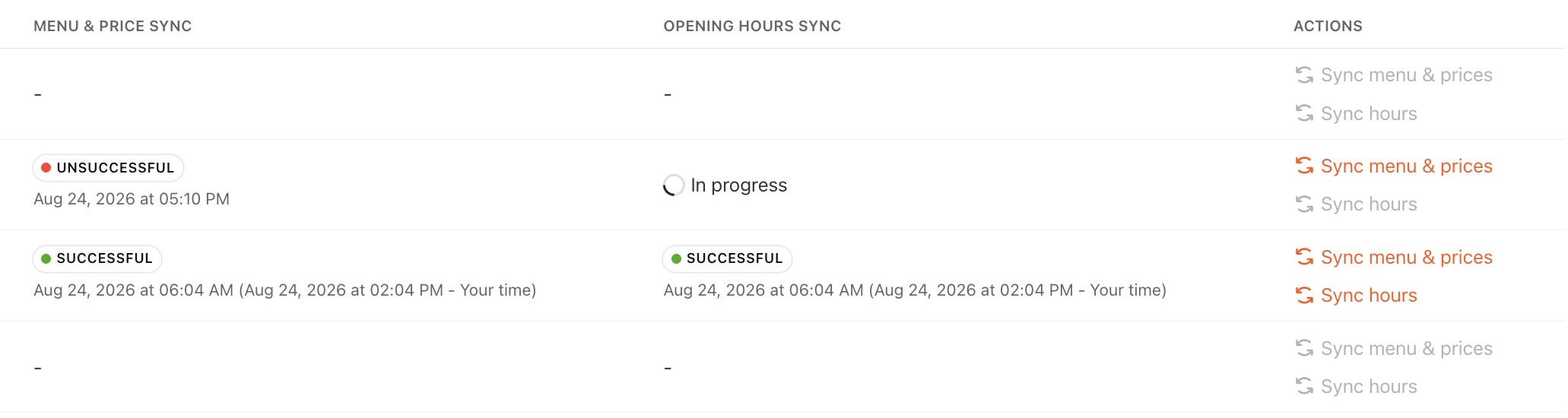
The sync columns reflect the results of all menu and hours pushes to the marketplace, not just syncs you trigger manually. A menu published from brand level or a POS price change will also appear in these columns.
Reading the Status Column
The Status column reflects what the marketplace reports about the store. It does not determine whether a store can be synced.
| Value | Meaning |
|---|---|
| Online | The marketplace reports the store as live and taking orders |
| Offline | The marketplace reports the store as temporarily unavailable. An offline reason appears in the store detail panel. |
| Disabled | The store is turned off for this marketplace |
| Unconfigured | The marketplace has no store state for this location, usually because setup is incomplete |
| Unsupported | The connector does not report store state for this marketplace (currently SkipTheDishes and ezCater). These stores can be synced normally. |
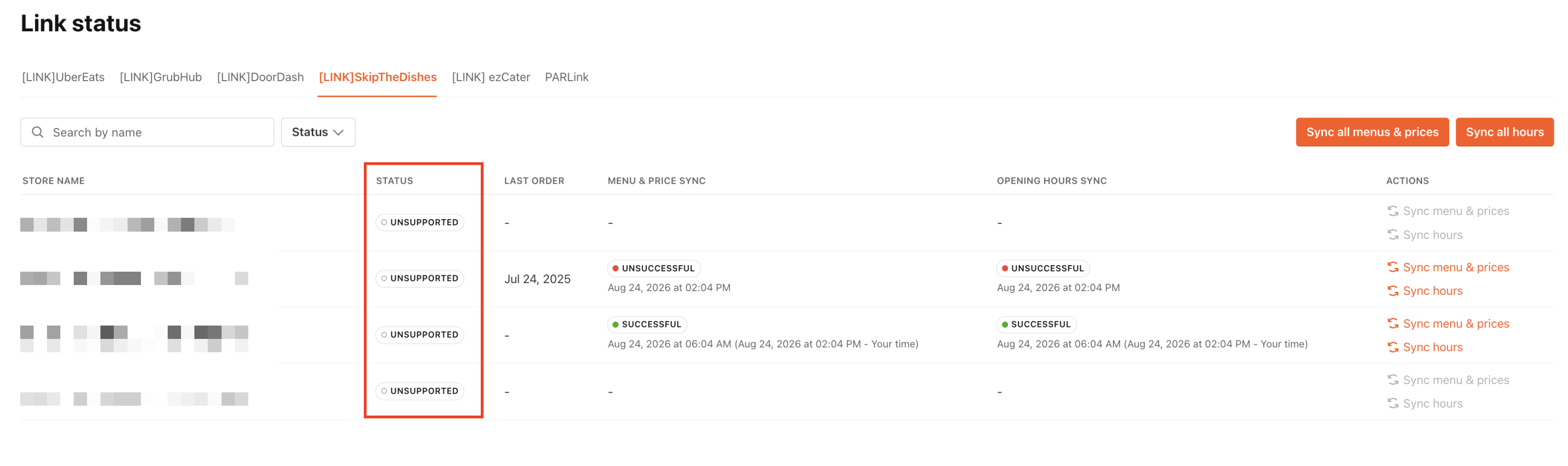
Running a Bulk Sync
Two buttons appear at the top right of each marketplace tab:
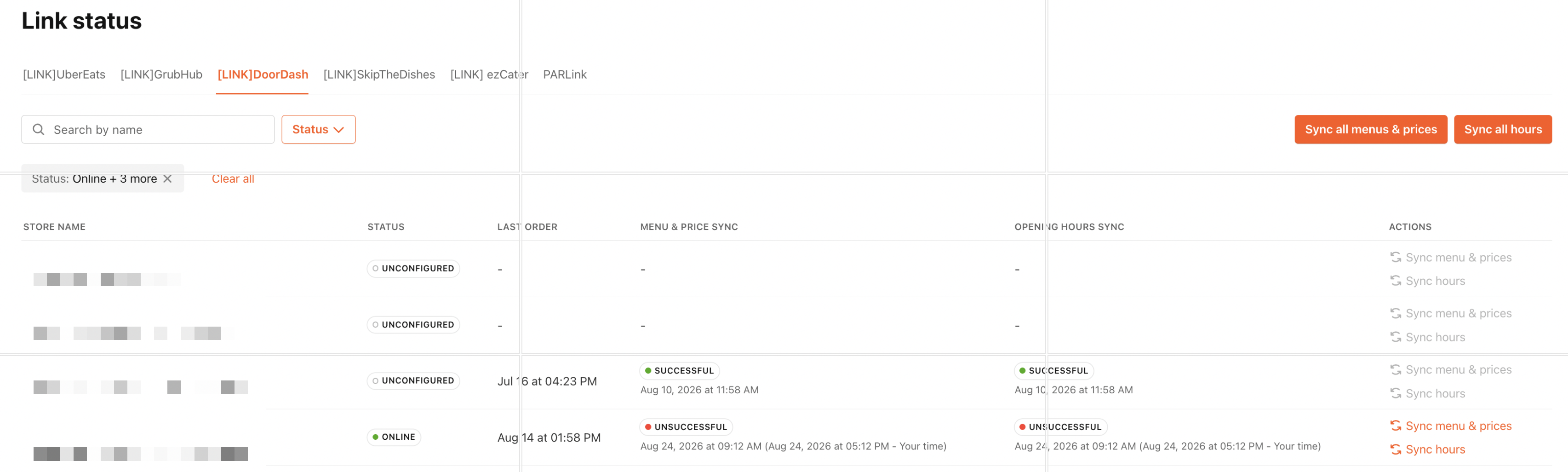
- Sync all menus & prices
- Sync all hours
Click either button to start a sync for all eligible stores on the active tab. While the sync runs, the button displays a live counter (Synced X of Y) that updates as each store resolves. When the last store finishes, the counter holds briefly, then the button returns to its normal label. Store rows update in place as results come in. You don't need to refresh the page.
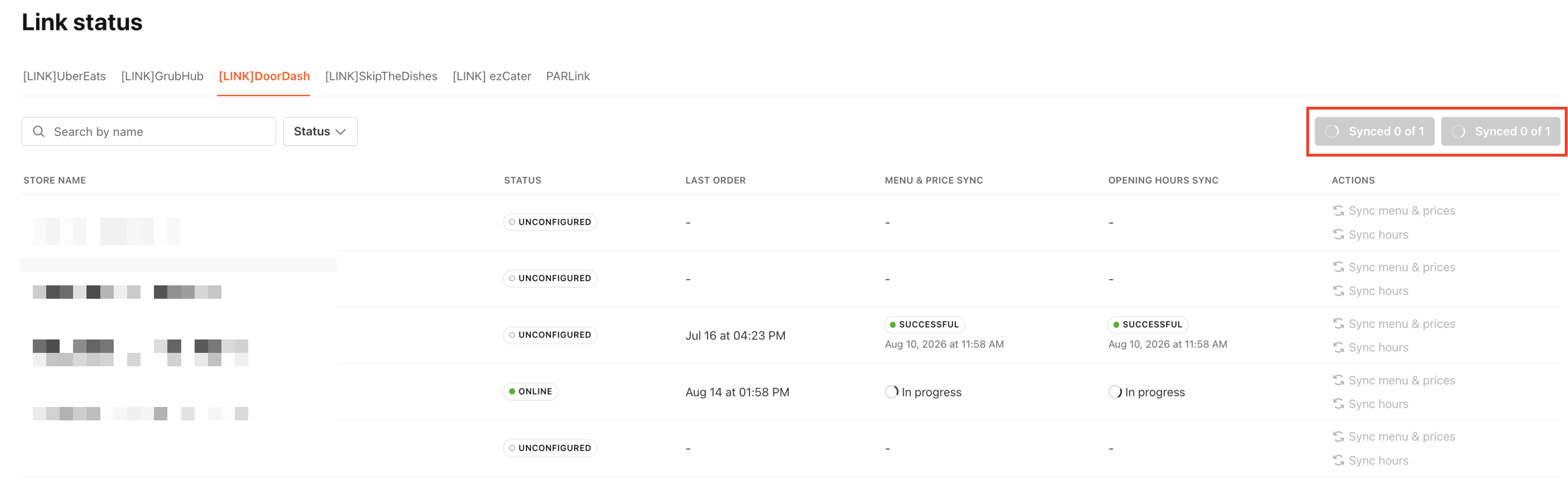
The two buttons are independent. You can start an hours sync while a menu sync is still running; each tracks its own counter.
Which Stores Are Included
A bulk sync targets every store on the active tab that meets both of these conditions:
- The store's Link connection is Enabled (the Allow orders via {marketplace} toggle in the store detail panel is on)
- The store has a store ID assigned by the marketplace
The Status column value (Online, Offline, Unconfigured, Unsupported) does not affect whether a store is included.
| Store state | Included in bulk sync? |
|---|---|
| Enabled, Status = Online | Yes |
| Enabled, Status = Offline | Yes |
| Enabled, Status = Unconfigured | Yes |
| Enabled, Status = Unsupported (SkipTheDishes / ezCater) | Yes |
| Enabled, but no marketplace store ID | No |
| Disabled | No |
Excluded stores are skipped silently and are not counted in the X of Y total. If a tab has 30 enabled stores and 5 disabled stores, the counter reads /30.
A bulk sync runs on up to 1,000 enabled stores per tab. If your brand exceeds this number on a single marketplace, not every store will be queued in one run.
When Buttons Are Greyed Out
The bulk sync buttons are unavailable when:
- There are no eligible stores on the tab (no enabled stores with a marketplace store ID)
- A sync of the same type is already running on that tab
- The store list for the tab is still loading
Running a Per-Store Sync
Every store row has two individual actions:
- Sync menu & prices
- Sync hours
Click either to trigger a sync for that store only. The row's sync status updates in place, moving to In progress, then to Successful or Unsuccessful, without a page reload. Per-row actions do not show a confirmation message; the row itself shows the result.
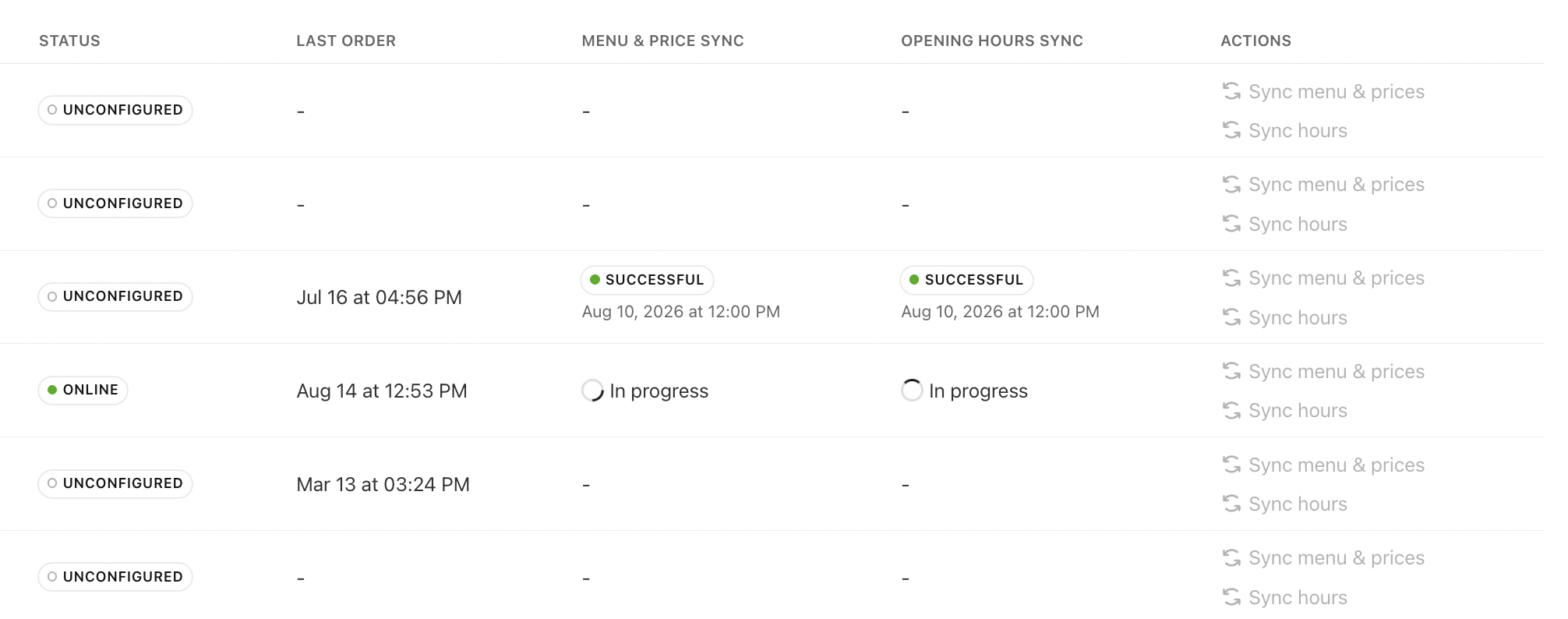
Per-row actions are unavailable on stores that are not eligible (Disabled or missing a marketplace store ID).
Viewing Results in the Store Detail Panel
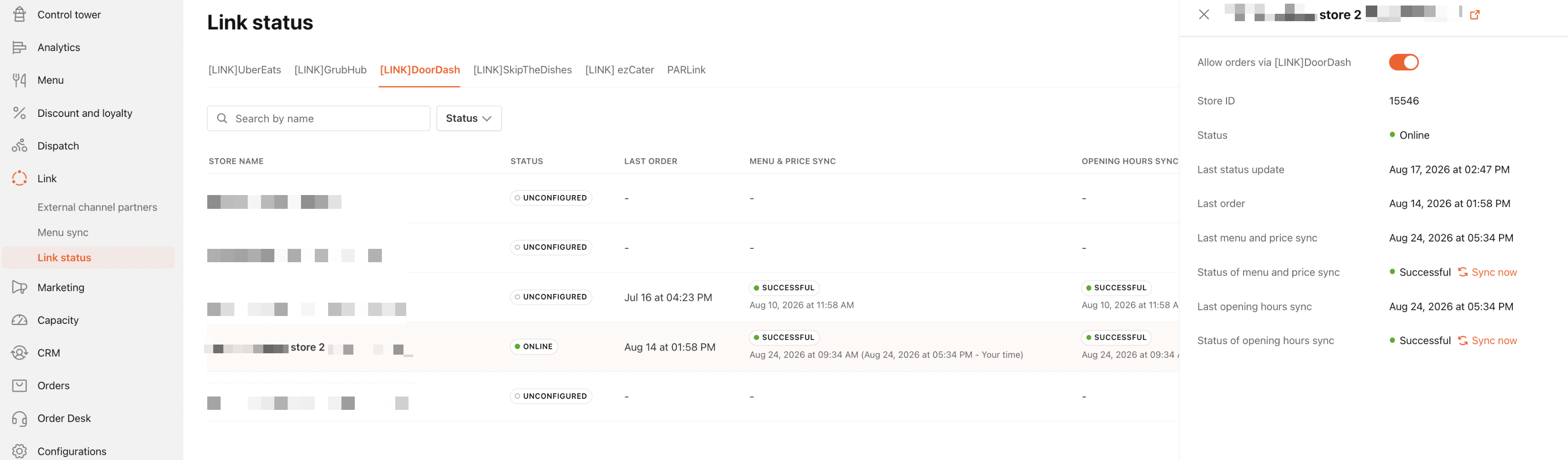
Clicking a store row opens the store detail panel. The panel shows the same sync results as the list view and includes Sync now links for both menu and hours. Unlike the row actions, a sync triggered from the panel shows a confirmation message when it finishes.
Marketplace Support
Not all sync types are available on every marketplace. Columns and buttons appear only for the sync types the connector supports.

| Capability | Supported on |
|---|---|
| Menu & price sync | All marketplaces |
| Opening hours sync | All marketplaces except ezCater |
| Store status reporting | All marketplaces except SkipTheDishes and ezCater (which show Unsupported) |
On marketplaces where a sync type is not supported, the corresponding column and button are hidden.
System Messages
The following messages may appear during or after a sync:
| When | Message | Type |
|---|---|---|
| Bulk sync, all stores succeeded | Sync completed for {count} stores | Success |
| Bulk sync, some stores failed | {failed} of {total} stores failed to sync | Error |
| Bulk sync, some stores still pending | {unknown} of {total} stores are still syncing — status unknown, try again later | Info |
| Bulk sync, no eligible stores | No enabled stores to sync on this marketplace | Info |
| Per-store sync from panel, succeeded | Menu sync completed successfully | Success |
| Per-store sync from panel, failed | Menu sync failed, please try again | Error |
| Per-store sync from panel, still pending | Sync is taking longer than expected — status unknown, try again later | Info |
About "Status Unknown"
A status unknown message does not mean the sync failed. PAR Link checks for a confirmed result for up to 6 minutes. If the marketplace has not responded within that window, the status is reported as unknown. The sync is still processing and will complete on its own.
Wait a few minutes and reload the page to see the actual result. Do not re-trigger the sync immediately.
Frequently Asked Questions
- Does one click sync all of our connected marketplaces? No. Bulk actions are scoped to the marketplace tab you're on. To sync UberEats and DoorDash, run the sync on each tab separately.
- Do we need to run a sync after every menu change? No. Menu and price changes already push automatically to active marketplaces when they come through, whether via POS sync or by distributing and publishing a menu from brand level. The bulk and per-store sync buttons on this page are for ad-hoc use: re-pushing after a failure, or confirming a store is current while troubleshooting.
- Do the bulk sync actions run on a schedule? No. The bulk actions are manual only. Someone has to click the button. This is separate from the automatic push that happens when a menu change is made.
- Will a bulk sync update stores that are paused (Disabled)? No. Disabled stores are excluded from bulk runs. Their menus and hours remain as they are until the store is re-enabled.
- Will a bulk sync run on a store showing Offline or Unconfigured? Yes, as long as the store's Link connection is Enabled and it has a marketplace store ID. The Status column does not block syncing.
- Can we sync only the stores we've searched or filtered? Not in the current version. A bulk sync always covers every eligible store on the tab, regardless of any active search or filter. The ability to sync only filtered results is planned for a future release.
- Can we retry just the stores that failed? Not as a single action in the current version. You can re-run the full bulk sync, or use the per-row action on each store that shows Unsuccessful. A retry-failures action is planned for a future release.
- Can we see sync history? No. Only the most recent result per sync type per store is available.
- Why don't I see an hours column on one of my marketplace tabs? That marketplace's connector does not support hours sync. Currently, this applies to ezCater.
- Why does a store show "Unsupported" instead of a status? SkipTheDishes and ezCater do not report store state to PAR. The store is connected and can be synced normally. This is expected behavior, not an error.
- Can I leave the page while a bulk sync is running? You can switch tabs. The sync continues running and the counter is waiting when you return. If you close or reload the page, the counter stops, but any syncs already sent to the marketplace will still complete.
- How long does a bulk sync take? It depends on your store count and marketplace response times. Stores are processed 5 at a time, and each can take up to a few minutes. A 30-store brand typically takes minutes rather than seconds.
