Searching and Managing Orders
This article explains how to find, view, and manage orders in the Management Center.
The Orders section gives you two ways to work with order data. Use Order Lookup to search for a specific order using partial customer-supplied information, such as a name or a rough date range. Use Orders Overview to browse and monitor your full order history using structured filters.
Order Lookup
Use Order Lookup to find a specific order when a customer contacts you with only partial information. For example, if a customer calls about a refund and can only give you their name and an approximate order date, you can use Order Lookup to locate the order quickly.
To open Order Lookup, go to Orders > Order Lookup in the Management Center.
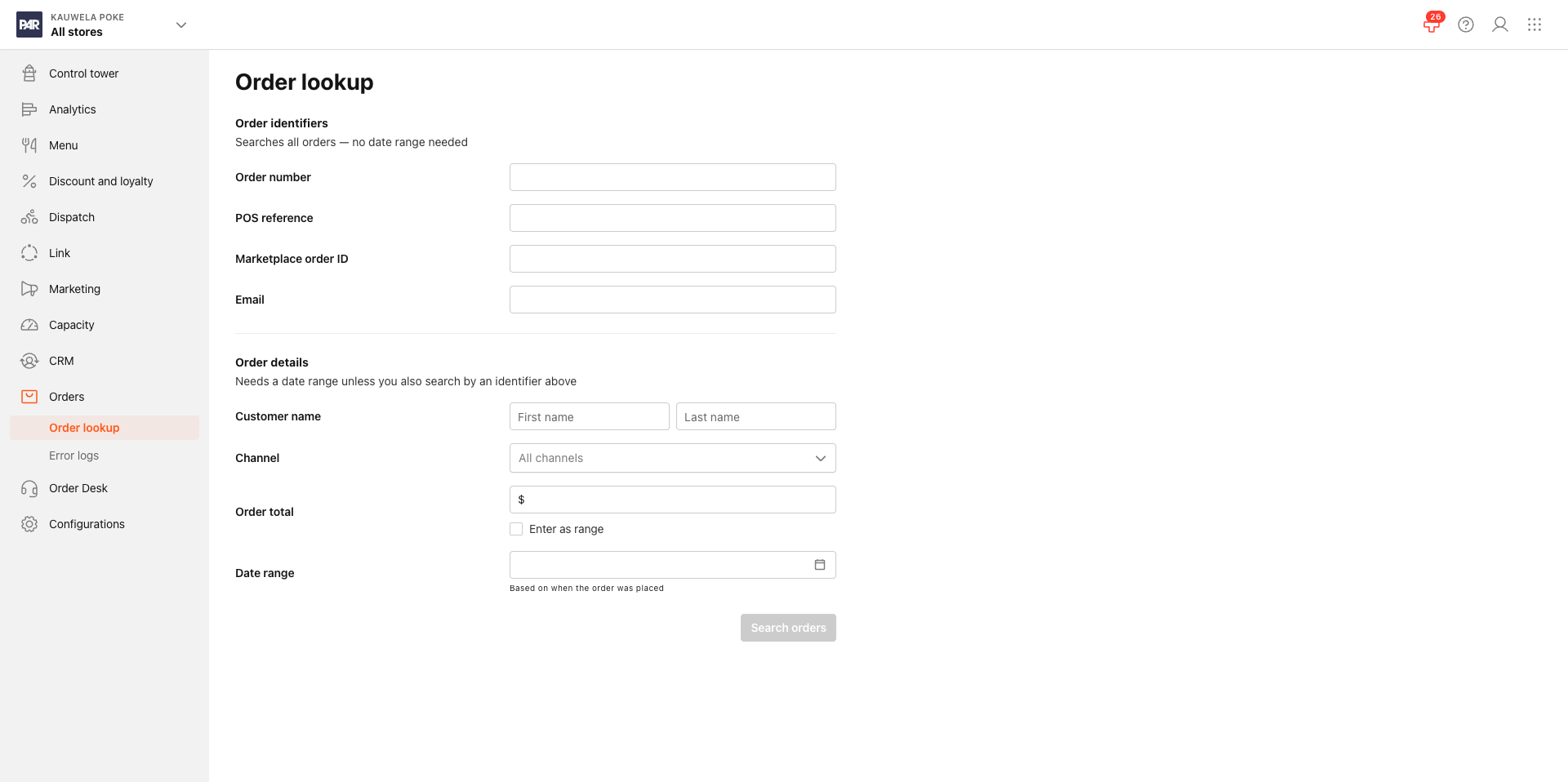
Search Fields
The form is divided into two groups of fields. You can fill in any combination. You do not need to complete every field.
Identifiers
| Field | Description |
|---|---|
| Order number | The order's unique code or internal ID |
| POS reference | The POS ticket ID or POS ticket code |
| Marketplace order ID | The external order reference from a third-party marketplace |
| The customer's email address |
Details
| Field | Description |
|---|---|
| First name / Last name | Partial names are accepted |
| Channel | Filter by order channel: mobile, web, kiosk, Ordering API, or a third-party marketplace. Select one or more. |
| Order total | Enter an exact amount, or set a minimum and maximum range |
| Date range | Filters results to a specific window of time. The range cannot span more than 6 months. |
All filled fields are combined with AND. Entering a last name and a channel returns only orders that match both criteria, not orders that match only one.
How to Search for an Order
- Go to Orders > Order Lookup.
- Enter any combination of search fields.
- If you do not enter an order number, POS reference, marketplace order ID, or email address, you must enter a date range before you can run the search.
- Select Search.
- Results appear in a table below the form, showing up to 1,000 matching orders. If your search returns more than 1,000 results, a message appears at the top of the table. At the brand level, an Export button also appears. See Exporting Order Search Results.
- Select any row to open the order details panel. See Viewing and Editing Order Details.
Orders Overview
Use Orders Overview to browse and monitor your full order history using structured filters. Unlike Order Lookup, this page displays orders by default. You can narrow your view using the filter bar.
To open Orders Overview:
- Store level: Go to Orders > Overview.
- Brand level: Orders Overview is embedded in the Control Tower dashboard.
Use the filter bar to narrow results by channel, order type, payment method, order status, payment status, and time range. You can also use the quick search box to search by keyword across your filtered results.
At the store level, you can delete an order directly from the Orders Overview table. This option is not available from Order Lookup.
Select any row to open the order details panel.
Viewing and Editing Order Details
Select any order row from Order Lookup or Orders Overview to open the order details panel. From here, you can view order information, update the order state, and edit delivery details.
The following information is available in the order details panel:
- Customer name
- State: You can set the order state to Received, Accepted, In-Kitchen, Ready for Delivery, or Rejected.
- Address: Expand this field to see the street address, post code, city, and any additional address details.
- Delivery dates: Expand this field to see the in-kitchen time (when the order entered preparation), pick-up time (when the driver started delivery), and delivery time (when the order arrived at the delivery address).
- Order data: Expand this field to see all items, modifiers, and combos in the order, including quantities and prices.
You can only edit delivery times while the order is still active, meaning before it has been delivered.
When you are done making changes, select Save.
Refunding or Cancelling an Order
From the order details panel, you can refund or cancel an eligible order. The Management Center determines whether Refund or Cancel is available based on the order's current status.
- Open an order by selecting a row from Order Lookup or Orders Overview.
- Select Refund or Cancel, depending on which option is available for that order.
- Complete the confirmation prompt.
The order status updates automatically in the results table. You do not need to re-run your search.
Exporting Order Search Results
If your Order Lookup search returns more than 1,000 results, you can export the full result set as a downloadable file.
Export is only available at the brand level. It is not available from the store-level Order Lookup page.
- Run a search in Order Lookup.
- If more than 1,000 results match your criteria, a message appears and an Export button becomes available in the results table.
- Select Export. A confirmation message appears.
- The file is processed in the background. It is not downloaded immediately from this page.
- To access your file, go to Analytics > Data Export > One Time. Your export will appear there once processing is complete.
The export uses the same search criteria and date range as your most recent search. Date ranges cannot exceed 6 months.
