Split Tips
Split Tips lets you define how a guest's tip on a delivery or catering delivery order is distributed across your staff roles. When a guest tips on a qualifying order, PAR Ordering automatically calculates each role's share and routes it to your point of sale (POS) as a separate line item. This means clean, per-role reporting without manual calculations.
This is a back-of-house configuration. Guests see no change to the tip prompt at checkout.
Prerequisites
Before you configure Split Tips, confirm the following:
- Tips must be enabled on the order type. The Tip distribution section does not appear on order types where tips are turned off.
- The order type must be Delivery or Catering Delivery. Split Tips is not available for pickup, dine-in, or other order types.
- If you want each role's share to appear as a separate line item in POS reporting, you need the surcharge or service charge IDs already created on your POS system before you begin. You add those IDs in a separate step.
- To configure tip distribution at the brand level, you need the Manage Brand Order Types permission.
- To configure tip distribution at the store level, you need the tip store permission.
- To configure POS surcharge IDs, you need the Manage Store Groups permission.
Supported POS Systems
Split Tips works with every POS that PAR Ordering currently supports.
To route each role's share to a separate line item in POS reporting, your POS integration must support surcharge or service charge configuration. This is available on Toast and PAR POS, as well as select other supported integrations. If you are unsure whether your POS supports this, contact your PAR representative.
On POS systems without surcharge routing configured, role amounts route to the standard tip field. Your total tip is always preserved.
On orders fulfilled by a brand's own delivery fleet rather than a DSP, the driver's calculated portion falls back to the native tip field. No DSP surcharge applies to these orders.
Configure Tip Distribution
Configuration happens in two places in the Management Center:
- In Order Types, you set the percentage each role receives.
- In POS Integration settings, you map each role to a POS surcharge or service charge ID. This step is required for per-role line items in POS reporting.
Step 1: Set Role Percentages
You can set role percentages at the brand level or the store level. Store-level settings take priority. To configure at the store level, navigate to your store's Order Types and follow the same steps.
-
In the Management Center, go to Configurations > Order Types.
-
Select the Delivery or Catering Delivery order type you want to configure.
-
Select the General tab.
-
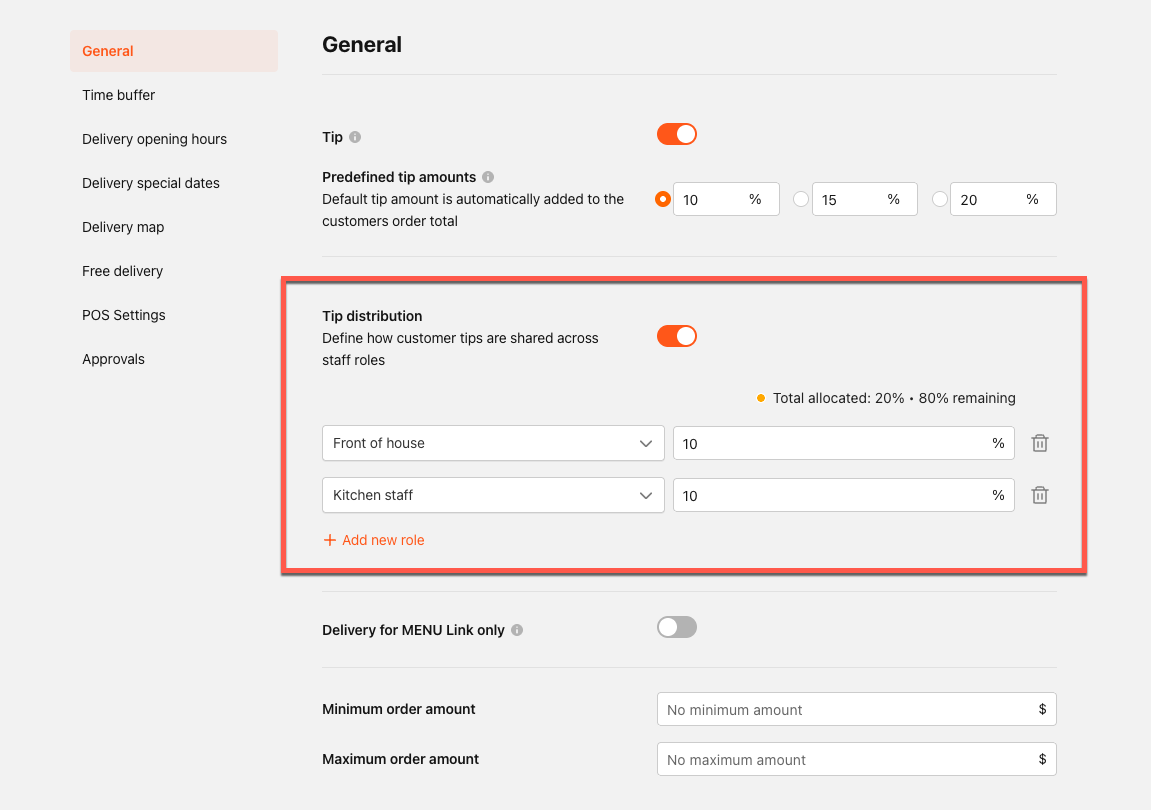
Turn on the Tip distribution toggle. If you turn this toggle off and back on without saving first, your previously entered percentages are cleared.
-
Enter a percentage for each role you want to include:
- Driver
- Restaurant management
- Kitchen staff
- Front of house
- Confirm the percentages total exactly 100%. The form validates this requirement before saving.
- Click Save.
Configuration changes apply to the next order placed. Orders already in progress at the time of a change use the configuration that was active when the order was submitted.
Step 2: Map Roles to POS Surcharge IDs
This step is required only if you want each role's share to appear as its own line item in POS reporting. If you skip this step, role amounts route to the standard tip field. You can configure these IDs at the store group level or the individual store level. Store-level IDs take priority over store group IDs.
-
In the Management Center, go to Configurations > Store Groups.
-
Select the store group you want to configure.
-
Select the Integrations row under Purposes.

-
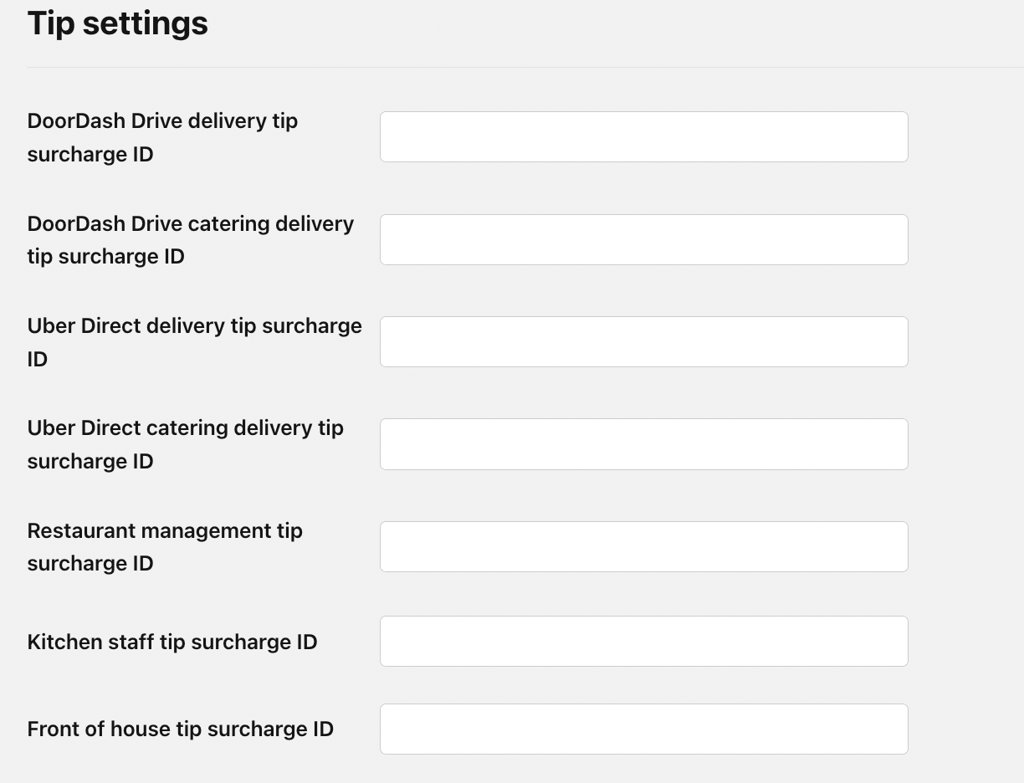
Scroll to the Tip settings section.
-
Enter the surcharge or service charge ID for each staff role: There is no separate Driver field. The driver's split portion routes through the DoorDash Drive and Uber Direct surcharge ID fields, which are also in this section. If you previously configured those fields, they have moved here and have not been removed. Leave a field blank for any role that should continue routing to the standard tip field.
- Restaurant management tip surcharge ID
- Kitchen staff tip surcharge ID
- Front of house tip surcharge ID
- Click Save.
Make sure each ID you enter already exists in your POS system. If you enter an invalid or deleted ID, the order fails at submission time. Verify each ID in your POS admin before saving.
How Tip Distribution Works
When a guest places a delivery or catering delivery order with a tip greater than $0.00, PAR Ordering calculates each configured role's dollar amount. The calculation uses a largest-remainder method to ensure all role amounts add up exactly to the guest's full tip. No cents are lost or duplicated.
Each amount is then routed as follows:
- If you configured a surcharge or service charge ID for a role, that amount is sent to your POS as a separate surcharge line item.
- If a role has no surcharge ID configured, that role's amount is added to the standard tip field.
- If an order has a $0.00 tip, no split is calculated.
- If a role's calculated amount on a specific order rounds to $0.00, nothing is sent for that role. No zero-dollar line appears in the POS.
For delivery orders dispatched through DoorDash Drive or Uber Direct, only the driver's allocated share is forwarded to the delivery service provider. The guest's full tip is not forwarded.
View Split Tips Reports
After Split Tips is enabled, you can access tip distribution data in Analytics.
-
In the Management Center, go to Analytics > Data export.
-
Click Export data.
-
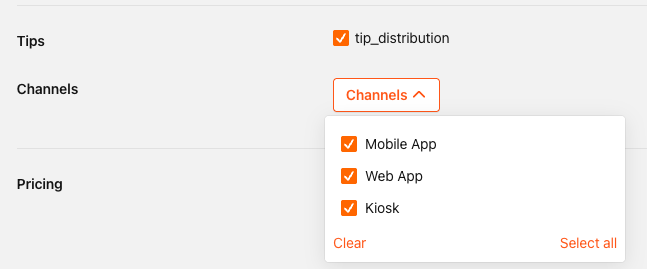
Select Tip distribution as the report type.
-
Select the channels you want to include.
-
Click Generate.
The report includes two sheets:
- Tip distribution summary shows aggregated totals by day and channel.
- Tip distribution by store shows totals by day, store, and channel.
Both sheets include columns for Driver, Restaurant management, Kitchen staff, Front of house, and a total.
The Tip distribution report covers Web, Mobile, and Kiosk orders only. Third-party marketplace orders are excluded. Canceled, voided, and fully refunded orders are also excluded.
Troubleshooting
| Symptom | Likely cause | What to check |
|---|---|---|
| An order fails to submit with a "tip surcharge" error | A configured surcharge ID is invalid, does not exist, or was deleted from the POS | Verify the ID in your POS admin and update the field in POS Integration settings for that store or store group |
| A role's tip routes to the standard tip field instead of appearing as a separate POS line item | The surcharge ID for that role is blank, or Tip distribution is not enabled on the order type | Confirm the Tip distribution toggle is on and the role's surcharge ID field is populated |
| Tip distribution percentages do not save | Percentages do not total exactly 100% | Adjust the values so they total 100% and click Save |
| The delivery service provider receives the full tip instead of only the driver's share | Tip distribution is not enabled, or the order type is not Delivery or Catering Delivery | Check the Tip distribution toggle and confirm the order type is Delivery or Catering Delivery |
| The driver's DSP tip is lower than expected | Expected behavior. When Split Tips is enabled, DSPs receive only the driver's calculated share, not the full guest tip | Confirm the driver percentage in the brand's tip distribution config. This is not a routing error |
| An order fails with a price mismatch on submit | A role's surcharge amount is present on the submit call but missing or different on the calculate call | Confirm the surcharge ID is correctly configured, then escalate if the mismatch persists |
| Surcharge ID fields are not visible on the POS integration page | The fields moved to the new Tip settings section | Scroll to the Tip settings section on the POS integration settings page |
