PAR ID
PAR ID is a single login that works across participating PAR products, so you do not need a separate login for each one. Once PAR ID is enabled for your product environment, you sign in with your PAR ID. You can use the same PAR ID for other participating PAR products where PAR ID is enabled and you already have access.
Note: PAR ID is enabled in phases across PAR products. You see the updated sign-in experience only after PAR ID is enabled for your environment. To ask about timing, contact your PAR representative.
PAR ID changes how you sign in, not what you can access. Your roles, permissions, and product access stay the same. Having a PAR ID does not automatically grant you access to other products. The user invitation process does not change.
Start from your usual product login page. What happens next depends on how you signed in before.
| If you... | Then... |
|---|---|
| Already have a PAR ID | Use your existing PAR ID account when you see the PAR ID sign-in option. |
| Use your organization's single sign-on (SSO) | Continue through your organization's identity provider as directed. Follow any organization-specific sign-in requirements. |
| Use a product username, email, or password | Follow the onboarding instructions shown during sign-in to create a PAR ID account. You do not need a password reset unless the sign-in flow tells you to. See Sign In by Product below. |
Sign In by Product
The steps below are product-specific instructions to help you get set up and sign in with PAR ID. Expand the section for the product you use.
PAR Punchh
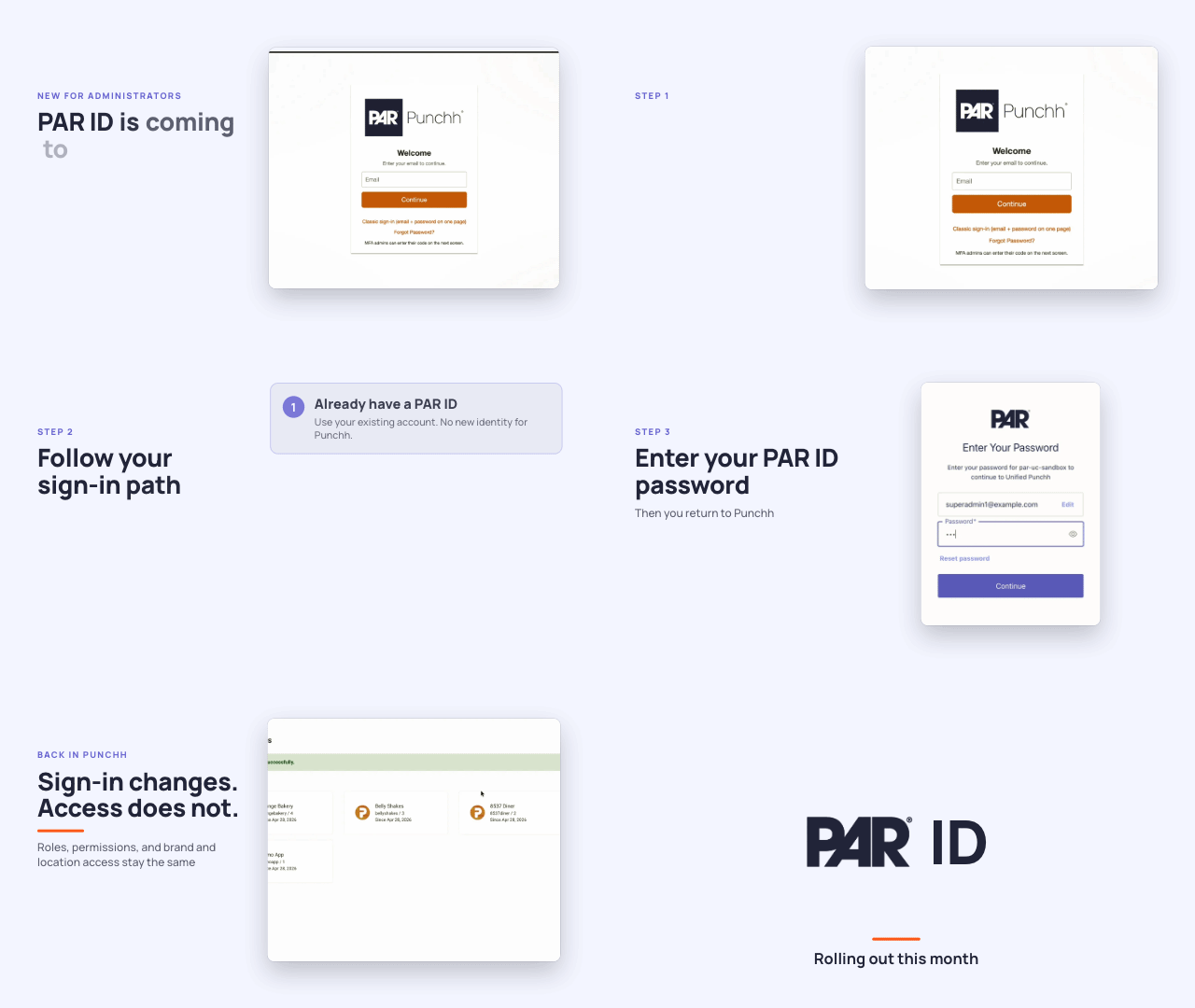
- Open Punchh from your usual sign-in link.
- On the Welcome screen, enter your email and select Continue.
- Depending on your account status, you see one of two screens:
- Punchh Sign in screen — enter your password and select Login.
- PAR Enter Your Password screen — enter your password and select Continue.
- Follow any onboarding instructions shown on the screen. Punchh migrates your account to PAR ID automatically.
Note: If you entered the wrong email, select Use a different email on the Punchh Sign in screen, or select Edit next to the email on the PAR Enter Your Password screen.
You do not need to complete any separate migration steps. After you sign in, you go to your Punchh dashboard with the same access you had before.
Note: Users who have not moved to PAR ID yet can keep signing in through the existing Punchh login page during the transition. Over time, PAR ID becomes the single sign-in experience for all users.
If you have trouble signing in, select Classic sign-in (email + password on one page) to use the standard sign-in form. You can also contact PAR Support for help.
PAR OPS - Back Office
In the next release, PAR OPS moves to PAR ID, a single sign-in that works across all PAR products. You are asked to upgrade the first time you sign in. This is a one-time setup. Your PAR OPS access does not change, only the way you sign in.
Migrate your account
- Sign in the way you always have. Enter your current username and password, then select Sign In. A screen with two options opens.
- Choose an option:
- Migrate Existing Account (left): Select this option if you do not have a PAR ID yet. Most people should choose this option. It walks you through migrating your PAR OPS login to PAR ID.
- Log In with Existing PAR ID (right): Select this option if you already set up a PAR ID through another PAR product, such as Ordering, Pay, or Punchh. It links your existing PAR ID credentials to PAR OPS.
- If your account does not have a linked email address, you are prompted to add one:
- If you have a company email, enter it in the email fields and select Save Email and Continue.
- If you do not have a company email, select Continue Without Email.
- Create your new login. A username is already filled in, based on your current one. Choose and enter a password, then select Continue.
- A message confirms that your account has been migrated. Select Log Out. You return to the login screen.
Sign in with your PAR ID
- On the login screen, enter your new PAR ID username in the login field and select Sign In. A secure login screen opens.
- Enter your new password and select Continue.
From now on, sign in with your PAR ID username and password. With PAR ID, you get stronger account security and one sign-in that works across all PAR products.
PAR OPS - Insights and Delivery
PAR OPS Insights and Delivery uses the same sign-in page URL you use today, with a new look and a two-step sign-in flow with PAR ID.
-
Go to your usual PAR OPS Insights and Delivery sign-in page.
-
Enter your Company and Username, then select Continue. Your browser remembers both for 30 days.
-
Follow the on-screen flow depending on your account status:
Not yet migrated: A Password field appears on the same page. Enter your current password and select Login. Your account migrates to PAR ID automatically.
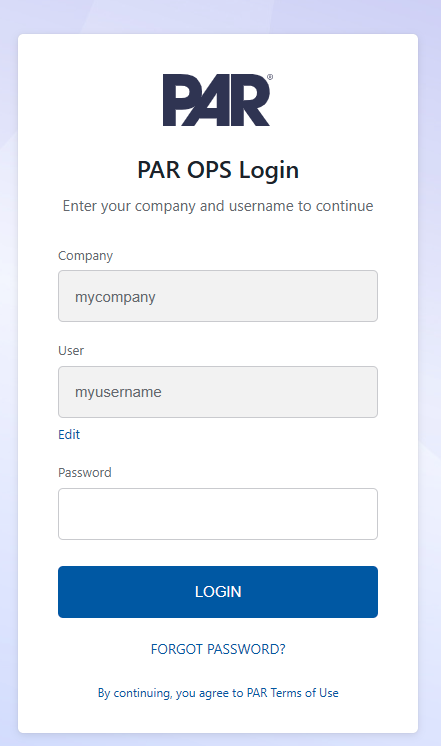
During migration, you may see one of these screens:
If... Then you see... Your password meets PAR ID requirements and your username is available Nothing extra. Migration happens automatically. Your password is weak or temporary An Update your password screen. Choose a new password, and you go directly into PAR OPS. Your username already exists in PAR ID and it is yours A prompt to sign in with that PAR ID to link the two accounts. Your username is taken by someone else, or is not allowed A Choose a username screen. The new username replaces your PAR OPS login.
Already migrated: You are redirected to the PAR ID sign-in page. Enter your password and select Continue. You are then returned to PAR OPS, signed in.
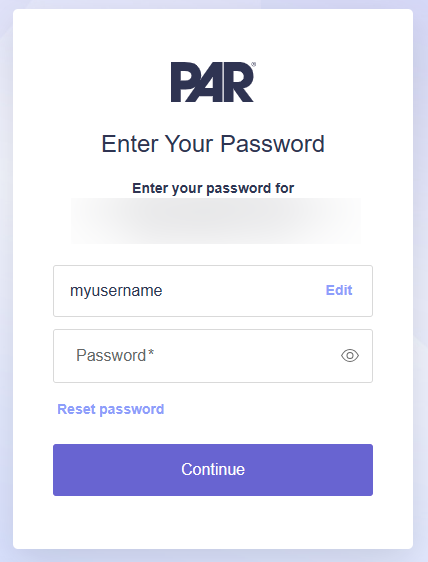
- After signing in, you go to PAR OPS Insights and Delivery with the same access you had before.
Note: If you have an active PAR ID session in your browser, you are signed in automatically without seeing the sign-in form.
PAR Ordering
PAR Ordering uses an email-based sign-in flow with PAR ID. You sign in through the Management Center at manage-us.menu.app/login.
Your First Sign-In
The first time you sign in, you receive an invitation email to set up your PAR ID and activate your access.
- Open your invitation email and select Set Password. You are redirected to the PAR ID login page (
login.prod.unified.partech.com). - Select Reset your password and enter your email address. Select Send.
- Check your inbox for a password reset email.
- Open the email, select the reset link, and set your new password. Select Update to confirm.
- After your password is set, select Back to par-ordering-mc-prod-us to return to the Management Center.
Note: If the link in your invitation email doesn't work or has expired, go to manage-us.menu.app/login, enter your email address, and select Forgot Your Password to request a new email. Invitation links expire after 24 hours.
Signing In After Setup
Once your PAR ID is set up, sign in from the Management Center login page.
- Go to
manage-us.menu.app/login. - Enter your email address and select Send.
- You are redirected to the PAR ID login page. Enter your password and select Continue.
- After signing in, you go to the Management Center with the same access you had before.
FAQ
Can I use the same PAR ID across PAR products?
Yes. You can use the same PAR ID across participating PAR products where PAR ID is enabled and you have been granted access.
Do I need to create a new PAR ID for each product?
No. If you already have a PAR ID, use that account. If you do not, follow the onboarding instructions during your first sign-in to that product.
Does PAR ID change my permissions?
No. PAR ID changes how you sign in. Your roles, permissions, and product access stay the same.
How do I reset a password for another user?
When you reset another user's password, a password reset link is sent. PAR ID no longer uses temporary passwords.
I forgot my password. What do I do?
On the PAR Enter Your Password screen, select Reset password. You receive an email with a link to reset it.
Why haven't I received my password reset or verification email?
Check the address you entered, your spam or junk folder, and any company email quarantine. If the page offers a Resend option, request a fresh message. If it still doesn't arrive, contact PAR Support.
My reset or verification link expired. What do I do?
Return to the sign-in page and request a new link. If that option isn't available, contact PAR Support.
Why am I seeing an extra security check after I enter my password?
If a code prompt appears, enter your multi-factor authentication (MFA) code. If the check keeps repeating or you can't complete it, contact PAR Support.
I'm seeing "too many attempts" or a temporary sign-in block. What do I do?
Pause your sign-in attempts and follow the instructions on the screen. If the message persists, contact PAR Support.
What does "Remember me for 2 weeks" do?
This option saves your sign-in in your current browser for two weeks. Leave it unchecked on a shared or public device.
How do I sign out?
Open the account menu in the top-right corner of your product dashboard and select Sign out.
What information should I share when I contact PAR Support about a sign-in issue?
Share the product name, the time and time zone, and the exact message you saw. Keep your password, verification codes, recovery codes, and full reset links private.
I can sign in, but I cannot access a product or location. What should I do?
Signing in and product access are separate. Contact your organization's account owner or PAR Support to review your access.