Ordering
The Ordering tab contains sub-tabs that pertain to orders and how they are handled.
General
Settings that control how the system behaves during common ordering functions.
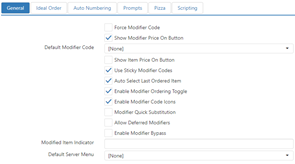
- Force Modifier Code: Register will require that a modifier code be selected prior to selecting a modifier.
- Show Modifier Price On Button: Modifier price will be displayed on the button on the 'Modify' screen when the modifier will carry a charge based on the Modifier Groups > Free setting.
- Default Modifier Code: Use the drop-down list to select a default modifier code (as configured on the Modifier Codes page).
- Show Item Price On Button: Buttons with a button behavior of 'Order Item' will display the item of the configured item.
- Use Sticky Modifier Codes: Selected modifier code remains selected after a modifier is ordered.
- Auto Select Last Ordered Item: When an item is ordered, it is automatically selected in the order list with the assumption that the employee will be selecting associated modifiers.
- Enable Modifier Ordering Toggle: Pressing a modifier button adds the modifier to the selected item, but pressing it a second time removes the modifier. (Normal behavior: Pressing a modifier button multiple times adds multiple copies of the modifier to the item.)
- Enable Modifier Code Icons: Displays icons on modifier buttons that show whether the modifier is included or excluded.
- Modifier Quick Substitution: Pressing a modifier button with a modifier selected in the 'Order List' panel replaces the selected modifier with the new one. When this box is checked, the Modifier Code drop-down list is displayed, allowing you to select a default modifier code (as configured on the Modifier Codes page) when using quick substitution.
- Allowed Deferred Modifiers: Allow cashiers to defer adding required modifiers to ordered items until the order is sent to the kitchen.
- Enable Modifier ByPass: Reduces the number of times "Done" is pressed on the System Modifier Panel when all the modifier group requirements have already been fulfilled.
- Note: Does not apply to Items > Modify Panels
- A modifier group requirement is considered fulfilled when:
- Flow is not required
- Modifier group has minimum number of modifiers
- Modifier group has maximum number of modifiers
- Edit Sent Items – Enable Adjustments to Item Size and Smart Elements: Applies the "Edit All Sent Items" button behavior to the order workflow, enabling one-click edits to an entire order.
- Modified Item Indicator: Symbol that will be printed on kitchen chits and displayed on kitchen displays for items that have been modified. Characters are limited to 8-bit ASCII (nos. 32–255). For a list of ASCII characters, see http://www.asciitable.com/.
- Default Server Menu: Default menu to display on the Register; can be overridden by Items Bulk Price Update
Allows the user to update multiple item prices across all channels.
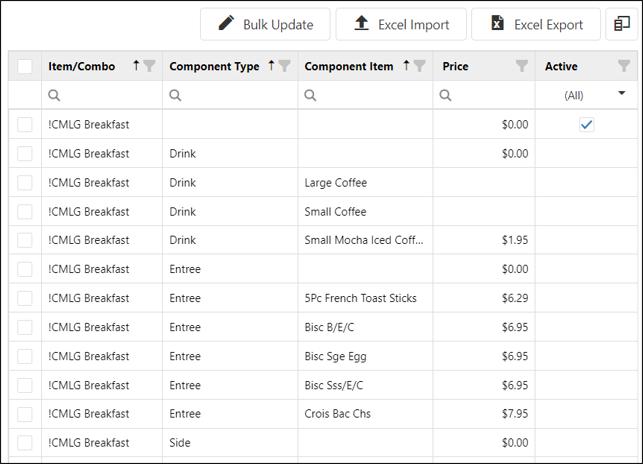
- Bulk Update: Allows for the manual update of multiple item prices at the same time.
- Excel Import: Allows for the import of updated item prices via Excel spreadsheet.
- Excel Export: Downloads a copy of current saved/published item prices in Excel. Includes all items with nested combo components.
- Column Chooser Icon
 : Controls which columns are displayed in the item grid on the Settings Editor UI. Options include:
- Item/Combo
- Component Type
- Component Item
- PAR POS ID
- Alternate ID
- Description
- Revenue Center
- PLU
- Item Groups
- Active
- Category
- Jobs > Menus and Registers > Menu.
Ideal Order
Configuration settings for defining an ideal order, which is used for suggestive selling in Customer Portal and reporting.
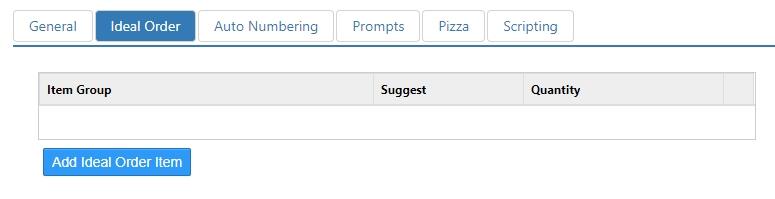
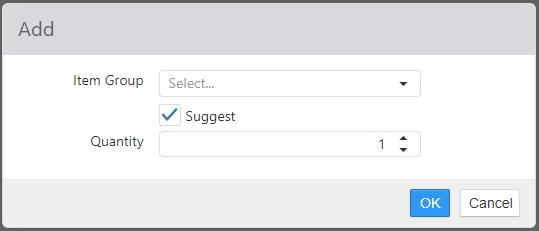
- Item Group: Item group containing the items that must be included for the order to qualify as an ideal order.
- Suggest: When item group requirement is not satisfied the associated menu items are to be displayed on Customer Portal prior to the customer completing their order.
- Quantity: Number of items from the selected group that must exist for the order to qualify as an ideal order.
Auto Numbering
Options controlling how a particular group of items are automatically numbered when added to an order.
NOTE: Auto Numbering overrides Consolidate Like Items. Any place where Auto Numbering is selected to display (i.e. receipts, order list...) will not consolidate like items, regardless of Consolidate Like Items settings.
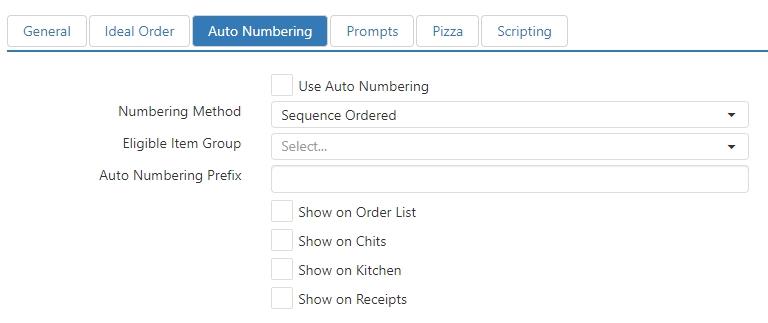
- Use Auto Numbering: Automatically number item of the selected item group.
- Numbering Method: In what order items will be numbered
- Sequence Ordered: The order that items are placed in the order list.
- Kitchen Print Priority: Based on an item's Sort Priority settings (found in the Printing tab of the Item dialog).
- Auto Numbering Item Groups: Item groups containing items that are to be numbered when ordered.
- Add Auto Numbering Item Group (button): Used to add item groups to the list – contains Item Group and Auto Numbering Prefix
- Show on Order List: Display the prefix and number on the register's order list.
- Show on Chits: Print the prefix and number on kitchen chits.
- Show on Kitchen: Display the prefix and number on the kitchen display.
- Show on Receipts: Print the prefix and number on the order receipt.
Prompts
Defines message or confirmation dialogs that can be displayed when particular items are ordered.

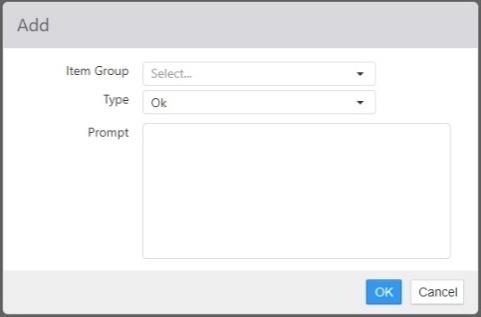
- Item Group: Item group containing the items that will result in the prompt being displayed.
- Type:
- Ok: Dialog that includes a single OK button for dismissing the dialog and ordering the item.
- Ok Cancel: Dialog includes both an OK button, which dismisses the dialog and orders the item, and a Cancel button, which dismisses the dialog and does not order the item.
- Yes No: Dialog includes both an Yes button, which dismisses the dialog and orders the item, and a No button, which dismisses the dialog and does not order the item.
- Prompt: Message to appear on the dialog when the prompt is displayed.
Pizza
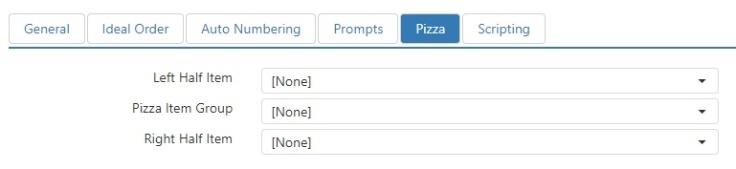
NO LONGER USED.
Scripting
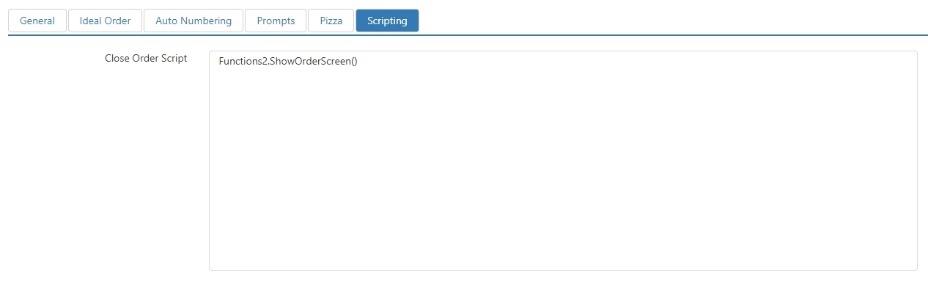
Script that is to be executed any time an order is closed, either by the 'Close Order' button behavior or automatically via the lane when the order is tendered in full.