Items Bulk Price Update, Key Ingredients & Keyboard Shortcuts
Items Bulk Price Update
Allows the user to update multiple item prices across all channels.
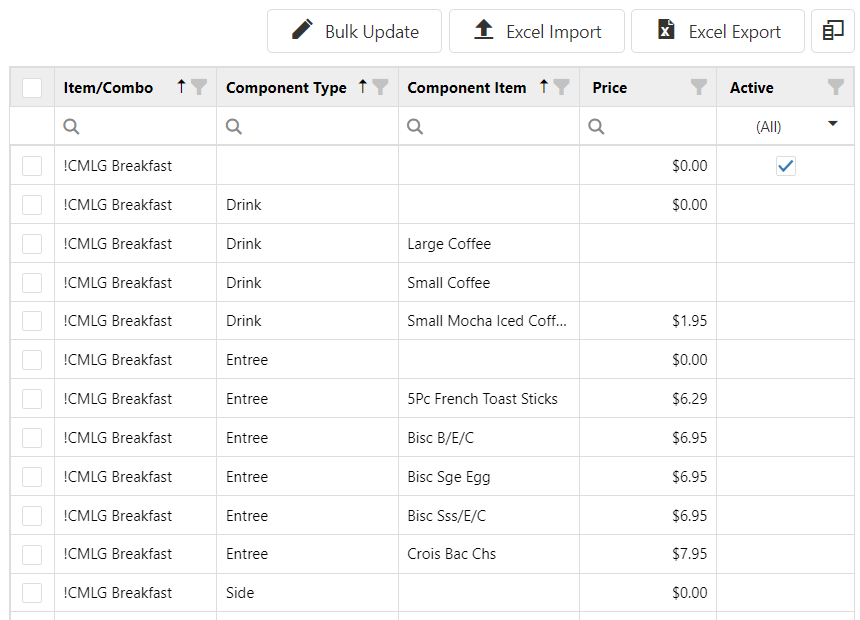
- Bulk Update: Allows for the manual update of multiple item prices at the same time.
- Excel Import: Allows for the import of updated item prices via Excel spreadsheet.
- Excel Export: Downloads a copy of current saved/published item prices in Excel. Includes all items with nested combo components.
- Column Chooser Icon
 : Controls which columns are displayed in the item grid on the Settings Editor UI. Options include:
- Item/Combo
- Component Type
- Component Item
- PAR POS ID
- Alternate ID
- Description
- Revenue Center
- PLU
- Item Groups
- Active
- Category
Key Ingredients
Key ingredients print on the kitchen chit or display on Key Ingredient Summary control and are intended to communicate common prep items or ingredients for different order items.
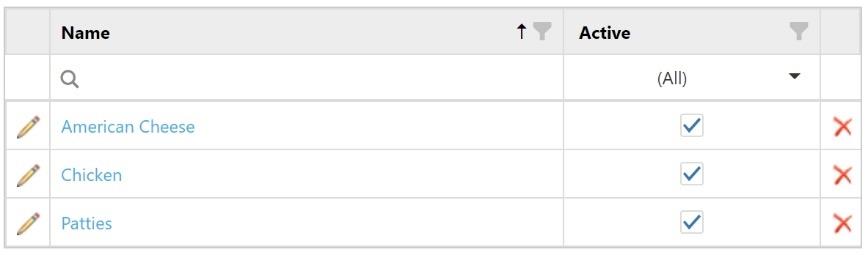
Click the Add New Key Ingredient button to add a new key ingredient. Click the name of an existing key ingredient to edit it.
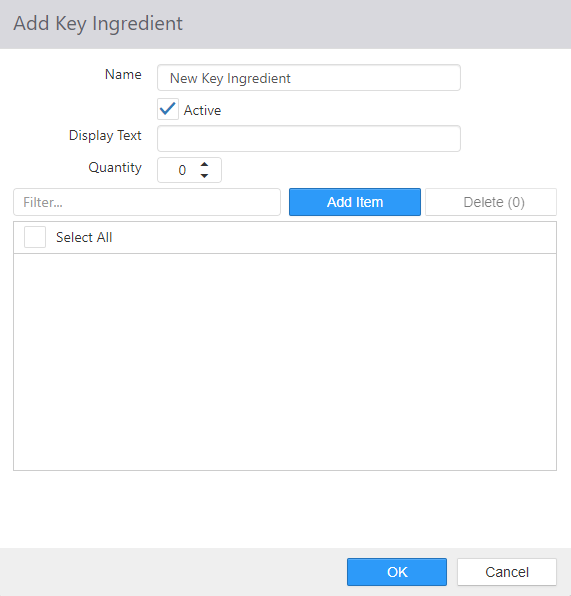
- Name: Name of the Key Ingredient.
- Active: Check Active if this Key Ingredient should be displayed.
- Display Text: Text that is to be displayed on kitchen chit.
- Quantity: Number of times each qualifying item counts towards the quantity displayed.
- Add Item: This will open a dialog box to allow you to select relevant items.
- Delete: Select the food item you want to remove from the Key Ingredient list.
- Select All: A way for the user to select and delete all of the key ingredients currently in the list.
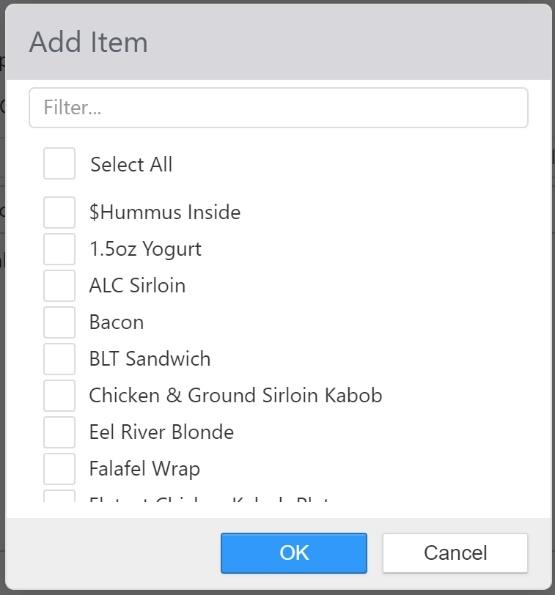
Note: To select items you can type the name into the Filter section or scroll through the list.
Keyboard Shortcuts
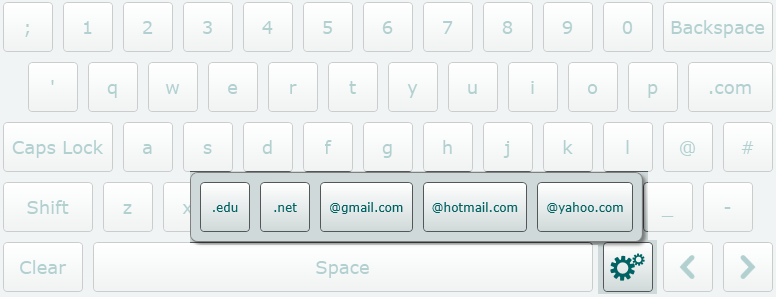
Keyboard shortcuts are used to create shortcut buttons for common input values on the keyboard that displays on the Register and a text field is selected.
The shortcuts are available by selecting the gears button.
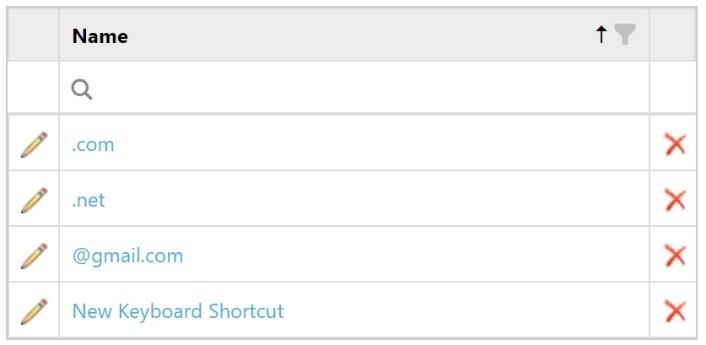
Click Add to create a new keyboard shortcut. Click the name of a keyboard shortcut in the list to edit it.
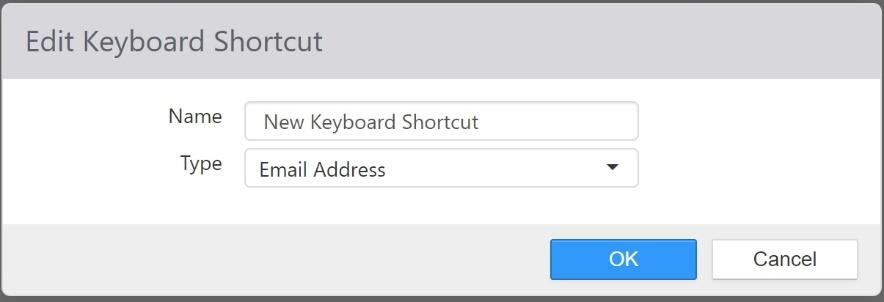
- Name: Name of the Keyboard Shortcut
- Type: Data type for which the shortcut applies.
