Payment
The Payment tab contains sub-tabs with options pertaining to payment processing for credit cards, gift cards, and other non-cash payment types.
Rounding
Settings pertaining to how payments are rounded.

- Enable Rounding: Automatically rounds the order balance due when a cash payment is applied.
Credit Options
Configuration settings related to integrated credit card processing.
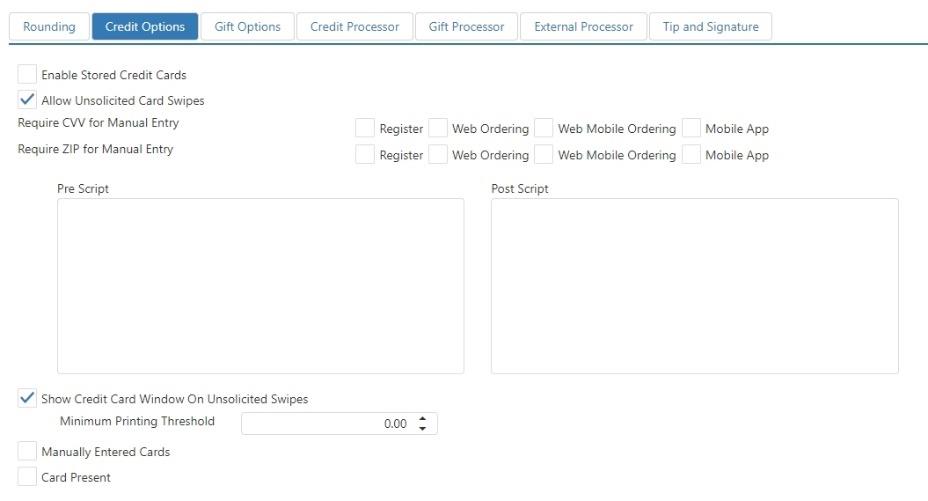
- Enable Stored Credit Cards: Credit cards can be stored on customer accounts, for the purpose of future date order deposits, and/or 'Save Card to Party' button behavior. Requires tokenization to be enabled.
- Allow Unsolicited Card Swipes: Credit cards can be swiped at any time in order to initiate the 'Credit Card' button behavior.
- Require CVV for Manual Entry: CVV is required for manually entered cards on the checked terminal types.
- Fail Transactions on CVV Mismatch: If the CVV entered does not match the credit card's CVV, the transaction will fail.
NOTE: This control is only available when the Credit Processor is First Data.
- Fail Transactions on CVV Mismatch: If the CVV entered does not match the credit card's CVV, the transaction will fail.
- Require ZIP for Manual Entry: Billing zip code is required for manually entered cards on the checked terminal types.
- Fail Transactions on ZIP Mismatch: If the zip code entered does not match the credit card's zip code, the transaction will fail.
NOTE: This control is only available when the Credit Processor is First Data.
- Fail Transactions on ZIP Mismatch: If the zip code entered does not match the credit card's zip code, the transaction will fail.
- Pre Script: Script to execute after an unsolicited card swipe, but prior to displaying the credit card dialog or processing the card.
- Post Script: Script to be executed after processing an unsolicited card swipe.
- Show Credit Card Window on Unsolicited Card Swipes: Display the credit card dialog, allowing the employee to change the amount prior to processing. Requires selecting the Done button on the credit card dialog.
- Minimum Printing Threshold: Credit card transaction amount under which credit drafts will not be printed.
- Manually Entered Cards: Minimum Printing Threshold applies to manually entered credit cards.
- Card Present: Minimum Printing Threshold applies to swiped credit cards.
Gift Options
Configuration settings related to integrated gift card processing.
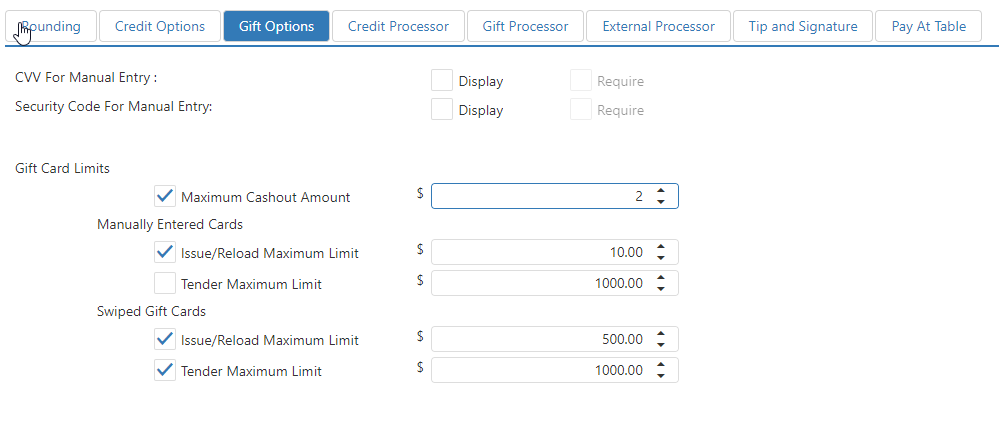
- CVV For Manual Entry:
- Display: Display the CVV field on the gift card dialog.
- Required: CVV value must be entered prior to processing manually entered gift cards.
- Display: Display the CVV field on the gift card dialog.
- Security Code For Manual Entry:
- Display: Display the security code field on the gift card dialog.
- Required: security code value must be entered prior to processing manually entered gift cards.
- Display: Display the security code field on the gift card dialog.
- Gift Card Limits: Transaction maximums for gift card use, issuance, and reloading and cash out
- Maximum Cashout Amount: If the Enforce checkbox is checked and an amount is entered, this value will be used to validate against the value of a gift card that can be cashed out.
- Note: Only applies when configured with Paytronix, Valutec, SVS, and Elavon EMV gift cards.
- Manually Entered Cards: These limits apply to transactions for gift cards that are entered manually into the Register application.
- Issue/Reload Maximum Limit: If the Enforce check box is checked, the dollar amount in the Limit field is the most that can be added to a new or reloaded gift card in one transaction.
- Tender Maximum Limit: If the Enforce check box is checked, the dollar amount in the Limit field is the most that can be charged to a gift card in one transaction.
- Swiped Cards: These limits apply to transactions for gift cards that are swiped on a card reader.
- Issue/Reload Maximum Limit: If the Enforce check box is checked, the dollar amount in the Limit field is the most that can be added to a new or reloaded gift card in one transaction.
- Tender Maximum Limit: If the Enforce check box is checked, the dollar amount in the Limit field is the most that can be charged to a gift card in one transaction.
- Maximum Cashout Amount: If the Enforce checkbox is checked and an amount is entered, this value will be used to validate against the value of a gift card that can be cashed out.
NOTE: If the Enforce check box is checked, but the Limit is left at $0.00, then no transactions of that type will be allowed by the system.
Credit Processor
Payment processor configuration for integrated credit card processing. Each processor has a unique set of data fields that must be filled in.

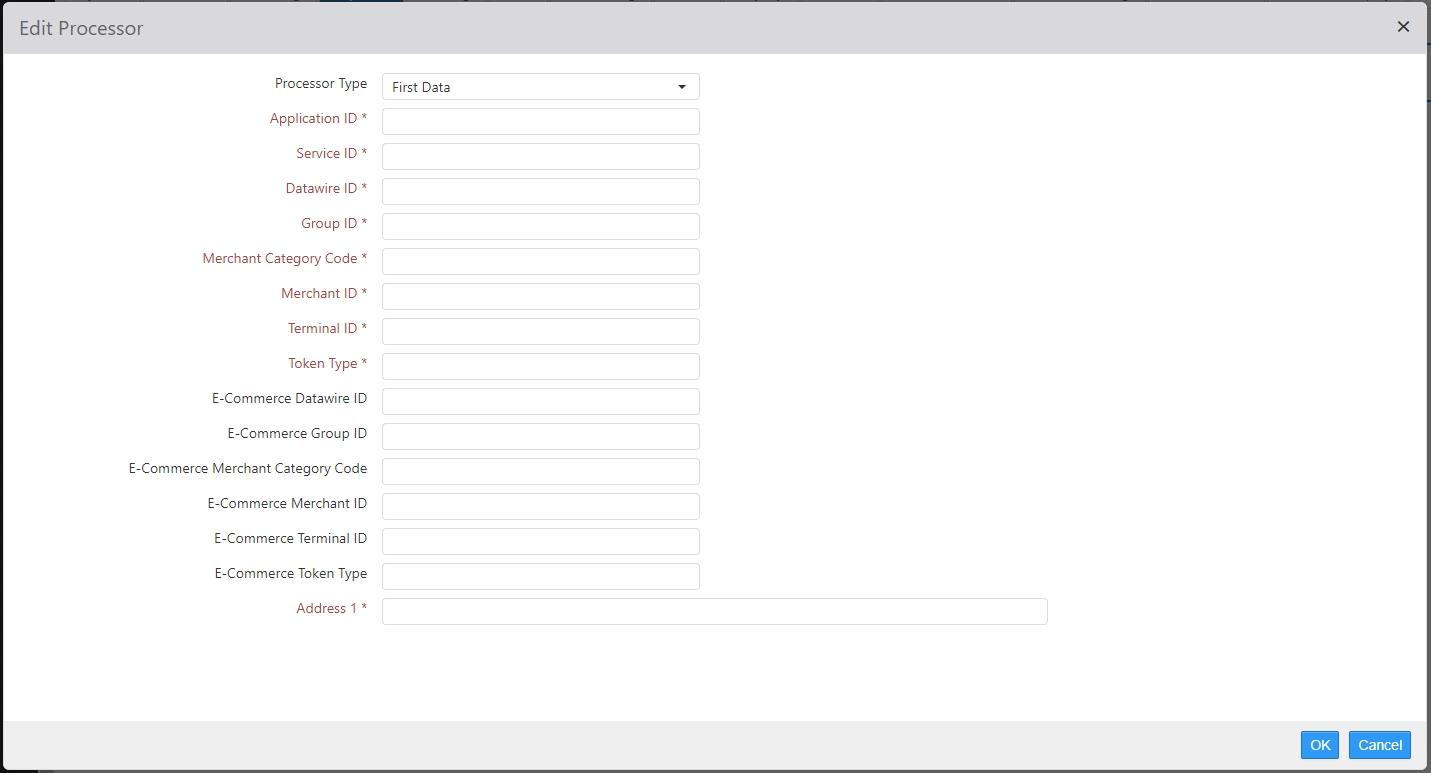
- Processor Type: When you select a processor in this drop-down list, an Edit dialog is displayed. The information that must go into the fields on this dialog is provided to you by the credit processor.
Credit processor Edit dialog, Heartland (example)
Gift Processor
Payment processor configuration for integrated stored value processing. Each processor has a unique set of data fields that must be filled in.

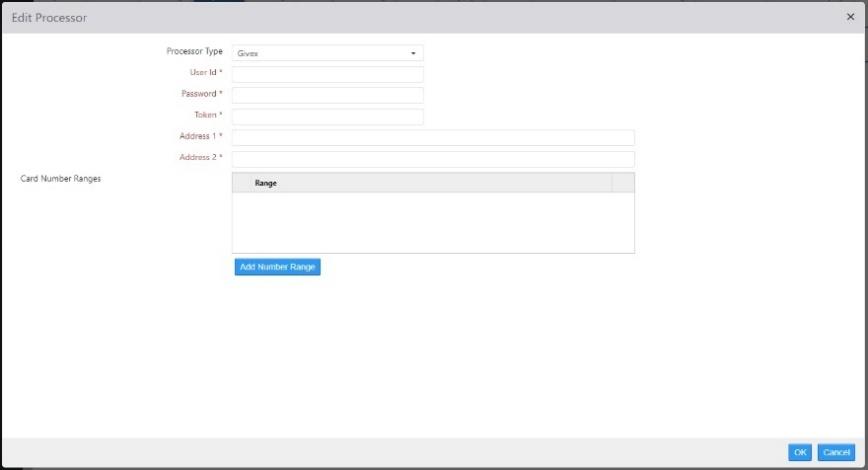
- Processor Type: When you select a processor in this drop-down list, an Edit dialog is displayed. Each gift processor will have a different dialog. The information that must go into the fields on this dialog is provided to you by the gift card processor.
Gift processor Edit dialog, Givex (example)
External Processor
Configuration of non-integrated payment processors.
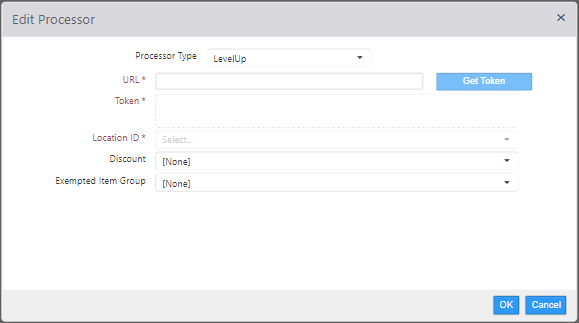
Processor Type – LevelUp

- Processor Type: Selecting LevelUp doesn't automatically open the Edit dialog. Click Edit to open the dialog and enter the information provided to you by LevelUp.
- URL: Enter http://api.thelevelup.com/
- Get Token: Select Get Token to request tokens from LevelUp with LevelUp provided Credentials
- Token: Requested token displayed.
- Location ID: Select corresponding Location ID from drop-down list.
- Discount: Select LevelUp discount from drop-down list. (This is mandatory)
- Exempted Item Group: Select item group from drop-down list. Default set to None.
External processor Edit dialog, LevelUp (example)
Processor Type – Punchh
Punchh external processor settings are accessed via Admin Portal > Integrations Portal. Please see the Integrations Portal User Guide for detailed configuration information.
For Punchh Single Scan Payment to work on the POS, the location must be configured with Punchh Loyalty and Punchh External Payment.
Note: The Punchh application must also be enabled for QR code payment
Tip and Signature
Settings to control the tip and signature prompt on the register main screen or customer display.
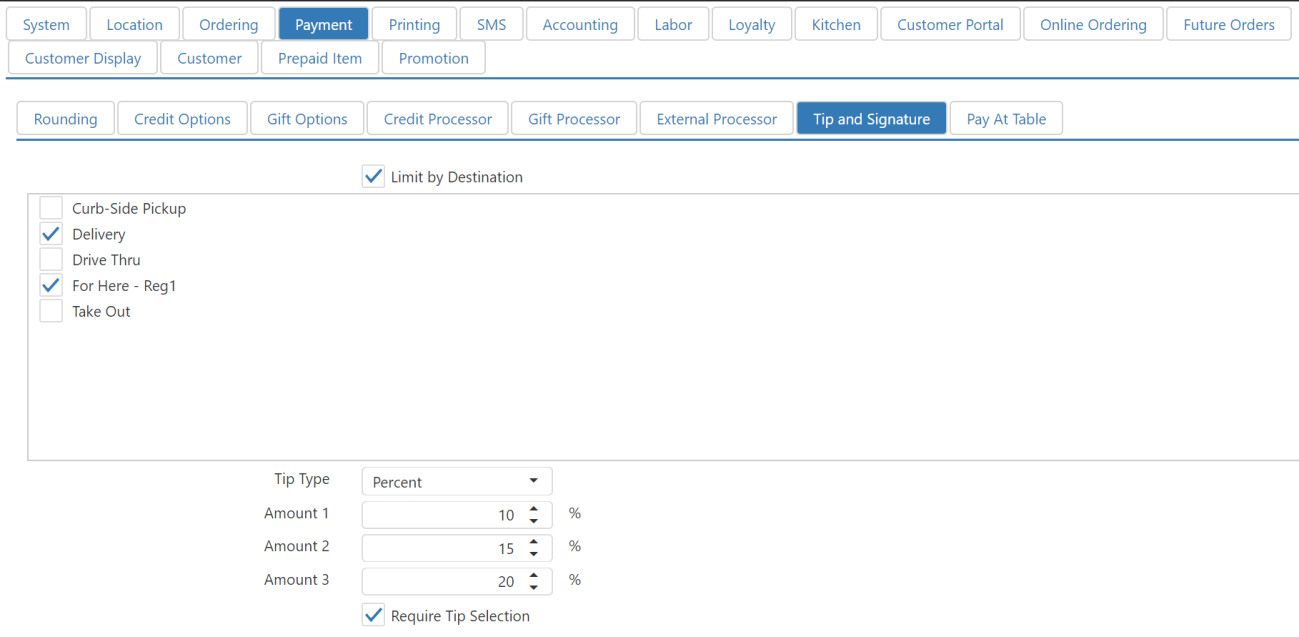
- Dialog Placement:
- Customer Display: The tip and signature prompt is displayed on the customer display.
- Main Screen: The tip and signature prompt is displayed on the register main screen.
- Limit by Destination: Limit the display of the tip and signature prompt to orders for particular destinations (as configured on the Destinations page).
- Tip Type:
- Percent: The tip prompt displays tip amounts that are percentages of the order price.
- Fixed Amount: The tip prompt displays fixed tip amounts.
- Amount N: The amounts (in either percentage or dollar amount) to display on the tip prompt.
- Require Tip Selection: [Placeholder in Admin Portal, implementation at Register in a later release] Enable/disable the ability to require tip selection on the Tip and Signature screen to increase the likelihood of adding a tip to the order.
Pay At Table (5.0m+)
These settings allow guests to pay their check at the table for more efficient transactions and a heightened guest experience. Check details can be reviewed on the payment device and the check can be paid in full or split among multiple guests at the same table.
Note: PAR Pay must be the payment provider. As of the 5.0m Release, only the Ingenico Move 5000 device is supported for Pay at Table.
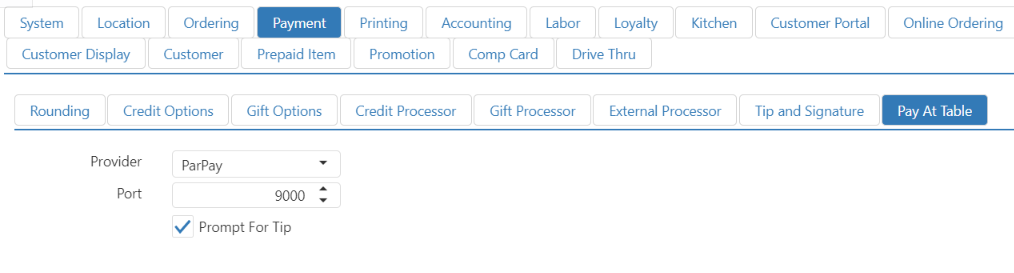
- Provider: PAR Pay
- Port: Port the payment device is connected to.
- Prompt for Tip: Check if guest should be prompted by the payment device for a tip.
