Destinations
Destinations are used to communicate to the kitchen how to package the order, and also determine how items are routed to the kitchen via printer groups and video groups.
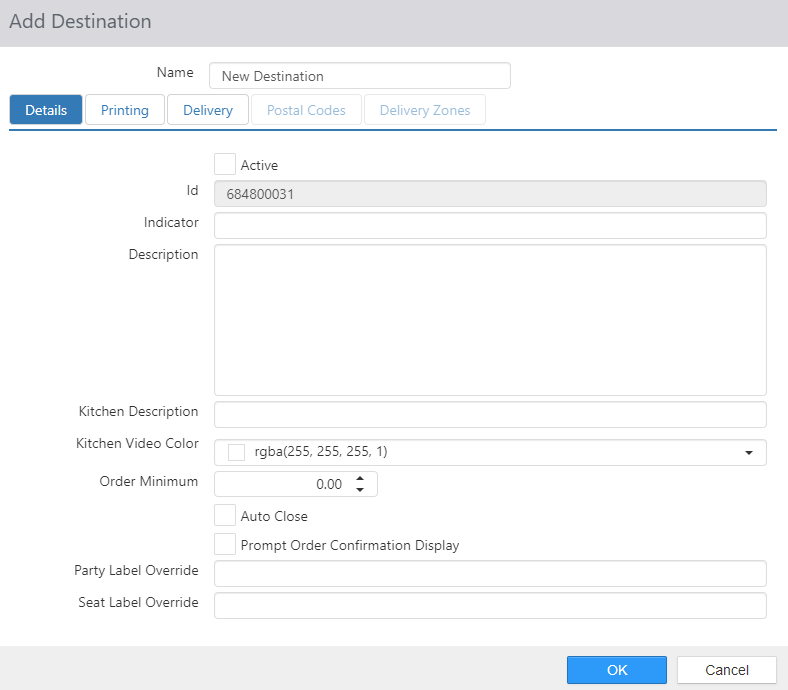
- Name: Name of the destination
Details Tab
- Active: Destination can be assigned to orders.
- Id: Auto generated destination ID.
- Indicator: Prints in front of the item name on the kitchen chit.
- Description: When entered, replaces the destination name in Customer Portal.
- Reminder Message: NO LONGER USED
- Kitchen Description: When entered, replaces the destination name displayed on kitchen chit and kitchen video display.
- Kitchen Video Color: Color of the destination name displayed on kitchen video display.
- Order Minimum: Order sub-total minimum required.
- Auto Close: Auto close order when order is sent to the kitchen and there is no balance due.
- Prompt Order Confirmation Display: When checked, the system prompts the user to select an OCD based on the specific destination. Only OCDs that are eligible and claimable for the selected destination are displayed.
- Party Label Override: When entered, changes the Table caption to the entered text in the Pivot Seat control, on the Order list, and on the kitchen chit.
- Seat Label Override: When entered, changes the Seat caption to the entered text in the Pivot Seat control, on the Order list, and on the kitchen chit.
Printing Tab
Receipt
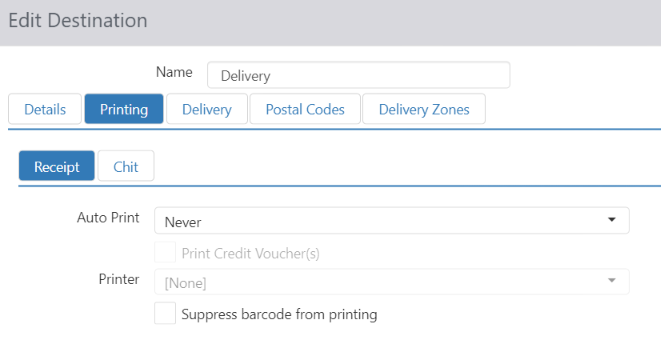
- Auto Print: Automatically print order receipt.
- Never: Do not auto print.
- Immediate: Print when future order is received.
- On Send to Kitchen: Print when order is sent to kitchen.
- Print Credit Voucher(s): And includes credit drafts when auto print is enabled.
- Printer: Printer to print to when auto print is enabled.
- Suppress barcode from printing: Prevents a loyalty redemption barcode from printing on the customer receipt to prevent earning double loyalty rewards on 3rd party orders.
Chit
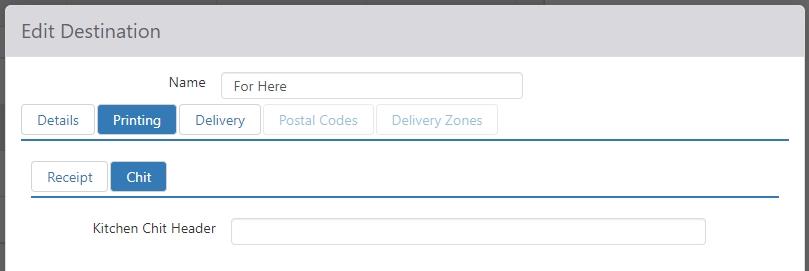
- Kitchen Chit Header: The header that is printed at the top of each kitchen chit.
Delivery Tab
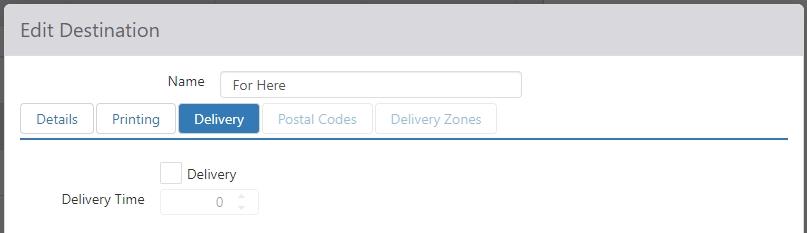
- Delivery: Destination is delivery specific and delivery address will be required.
- Delivery Time: Average delivery time in minutes, used to calculate approximate delivery driver arrival time.
Postal Codes Tab
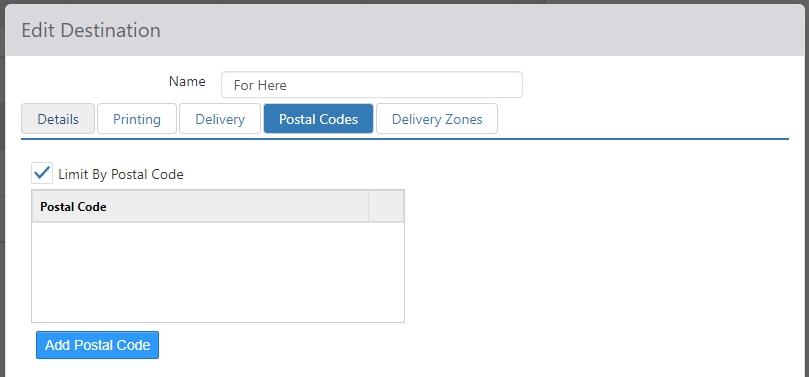
NOTE: The Postal Codes tab is only available if the Delivery check box on the Delivery tab is checked.
- Limit by Postal Codes: Limit delivery address to specific postal codes.
- Postal Code List: Valid postal codes.
Delivery Zones Tab
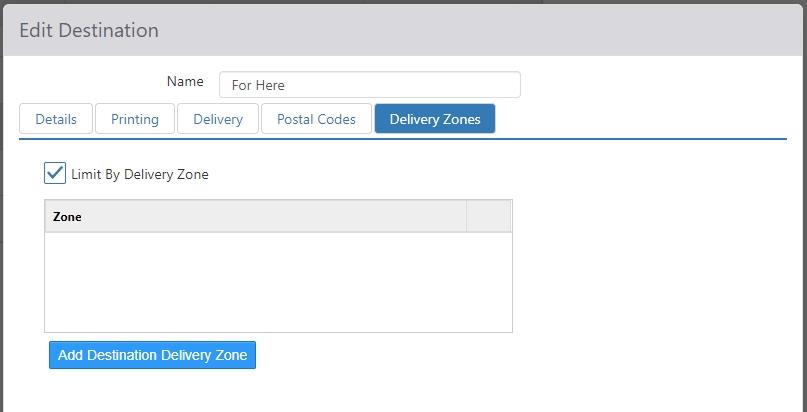
NOTE: The Delivery Zones tab is only available if the Delivery check box on the Delivery tab is checked.
- Limit by Delivery Zones: Limit delivery address to specific delivery zones.
- Delivery Zone List: Valid geographical areas.
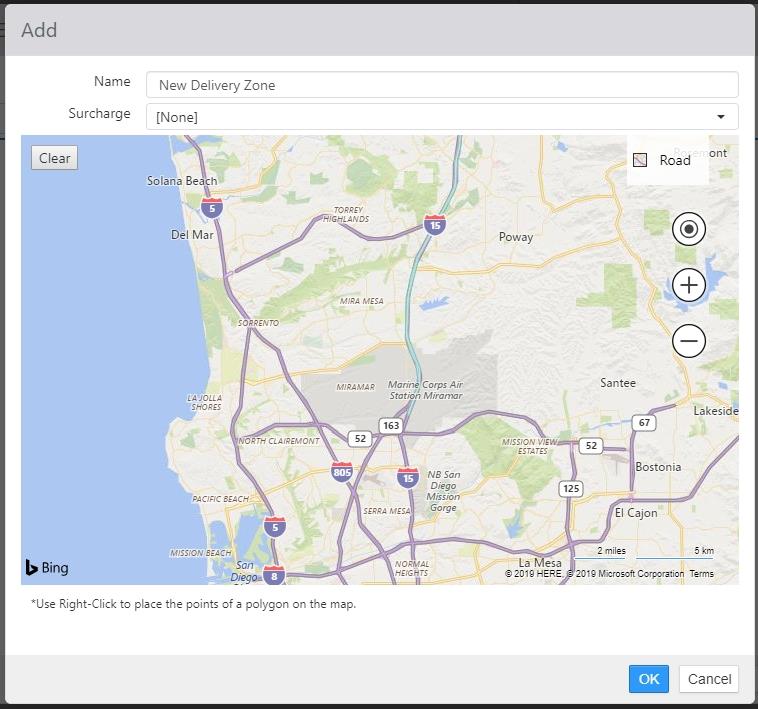
Clicking the `Add Destination Delivery Zone' button at the bottom of the list opens the Add dialog, where you can specify the Name, Surcharge, and area of a delivery zone.