Printing: General, Receipt & Chit
The Printing tab contains sub-tabs with controls that pertain to how the system prints receipts, chits, credit drafts, and other related items.
General
Contains a printing control for the daily sales report.

- Generate Register Daily Sales Report at End-of-Day: Print a copy of the daily sales summary report on the primary register when the end of day process runs.
Receipt
Contains printing controls for register receipts in three sections:
- Receipt Header
- Receipt Body
- Receipt Footer
Print size options include:
- Standard
- Double Height
- Double Width
- Double Height + Double Width
Print style options include:
- Normal
- Bold
Receipt Header Section
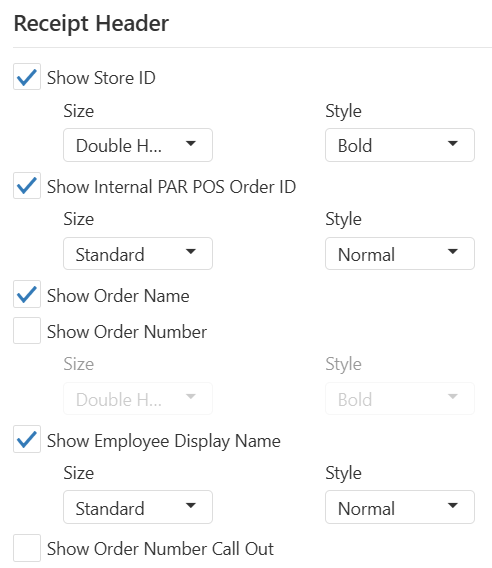
- Show Store ID: Prints Store ID on receipt header
- Show Internal PAR POS Order ID: Prints PAR POS Order ID on receipt header
- Show Order Name: Prints the Order Name in the receipt header
- Show Order Number: Prints Order Number on receipt header
- Show Employee Display Name: Prints employee's name in the receipt header
- Show Order Number Call Out: Prints Order Name on receipt header
Receipt Body Section
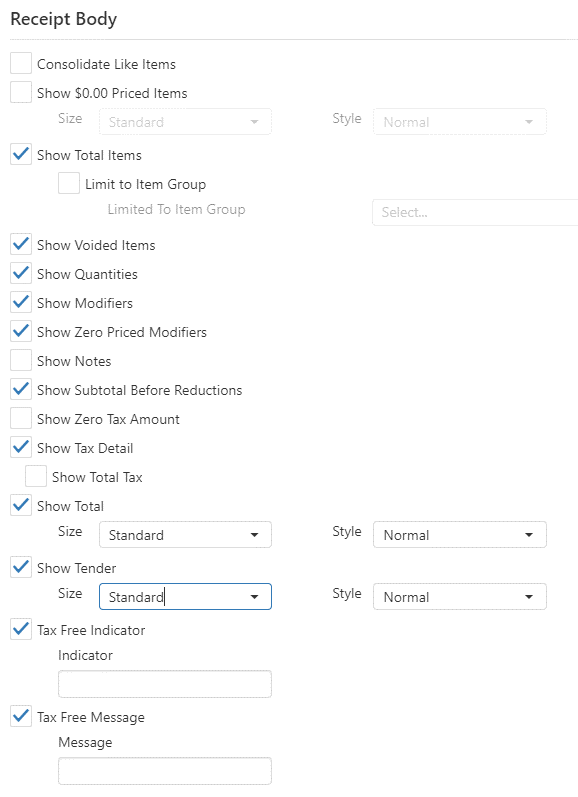
- Consolidate Like Items: Order items of the same item, with the same modifiers, are printed as a single item on the receipt with a quantity to the left.
- Show $0.00 Priced Items: Prints items with a $0.00 price, but not the price itself
- Show Total Items: Prints the total number of items ordered on the receipt.
- Limit To Item Group: Limits the item total to a particular Item Group (see Item Availability Item Groups)
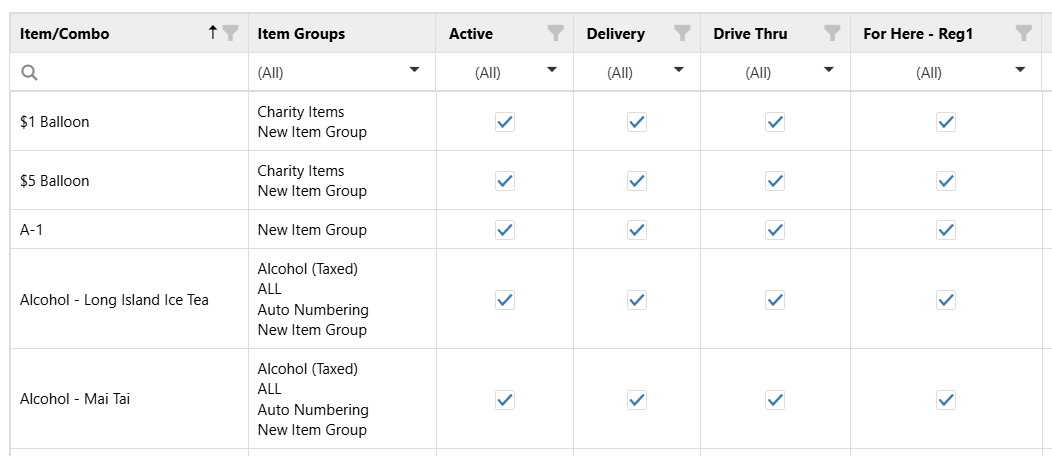
The Item Availability screen gives users the ability to quickly turn an item "on" or "off" depending on the item supply at the restaurant by utilizing the Active checkbox. Item availability may also be set for specific order channels (Delivery, Drive-Thru, etc.) by using the checkbox in their respective columns.
- Show Voided Items: Prints items that have been deleted after they were sent to the kitchen.
- Show Quantities: Prints quantity to the left of all order items.
- Show Modifiers: Prints modifiers indented under each order item.
- Show Zero Priced Modifiers: Includes modifiers that do not carry a charge.
- Show Notes: Prints order item note directly under the order item.
- Show Subtotal Before Reductions: Order sub-total prints prior to promotions or discounts.
- Show Zero Tax Amount: Prints tax line when total tax collected is equal to zero.
- Show Tax Detail: Prints total for each tax collected on the order.
- Show Total Tax: When Print Tax Detail enabled, also prints tax total.
- Show Total: Print Order Total on receipt.
- Show Tender: Prints the tender type on receipt.
- Tax Free Indicator: Prints the character or string entered in this field next to any item that is not subject to tax.
- Tax Free Message: Prints a configurable message for tax free items.
Receipt Footer Section
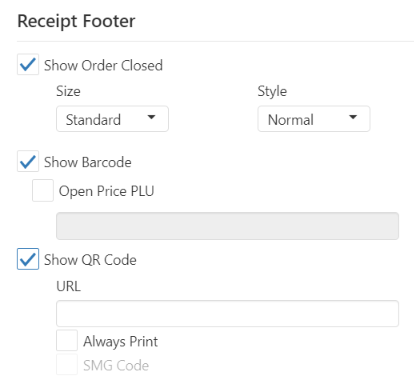
- Show Order Closed: When selected, prints "Order Closed" at bottom of receipt (default = off)
- Show Barcode: Bar code is printed in the receipt footer, to be used to recall the order.
- Open Price PLU: Prints alphanumeric string in barcode form on receipt footer
- Show QR Code: Prints QR code at bottom of receipt (default = unchecked)
- URL: URL to be embedded in QR code (must be valid URL)
- Always Print: Ensures QR code is printed on every receipt (default = unchecked)
- SMG Code: Survey code to be added to receipt for customer surveys (default = unchecked, disabled if URL field is empty)
Chit
Contains printing controls for kitchen chits in four sections:
- Chit Header
- Chit Body
- Chit Footer
- Print Options
Size options include:
- Standard
- Double Height
- Double Width
- Double Height + Double Width
Style options include:
- Normal
- Bold
Chit Header Section
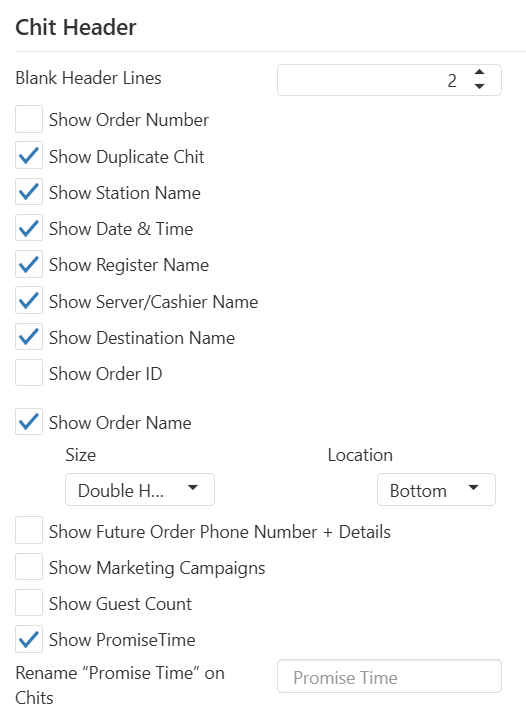
- Blank Header Lines: Number of blank lines at the top of the kitchen chit.
- Show Order Number: Prints the order number in chit header.
- Show Duplicate Chit: Prints "Duplicate" on the chit header if multiple have been printed.
- Show Station Name: Prints the station name on the chit header.
- Show Date & Time: Prints the date/time on the chit header.
- Show Register Name: Prints the register name on the chit header.
- Show Server/Cashier Name: Prints the server/cashier name on the chit header.
- Show Destination Name: Prints the order destination on the chit header.
- Show Order ID: Prints order ID in the chit header.
- Show Order Name: Prints Order Name on chit
- Size: Choose from available size options
- Location: Location where Order Name prints on chit ("Top", "Bottom", or "Both")
- Show Future Order Phone Number + Details: Prints the guest's phone number with other future order details.
- Show Marketing Campaigns: Prints all marketing campaigns associated with the order.
- Show Guest Count: Prints the order guest count at the time the order was sent.
- Rename "Promise Time" on Chits: Can replace the "Promise Time" text on chits as desired (12 characters maximum, supports alphanumeric characters)
Chit Body Section
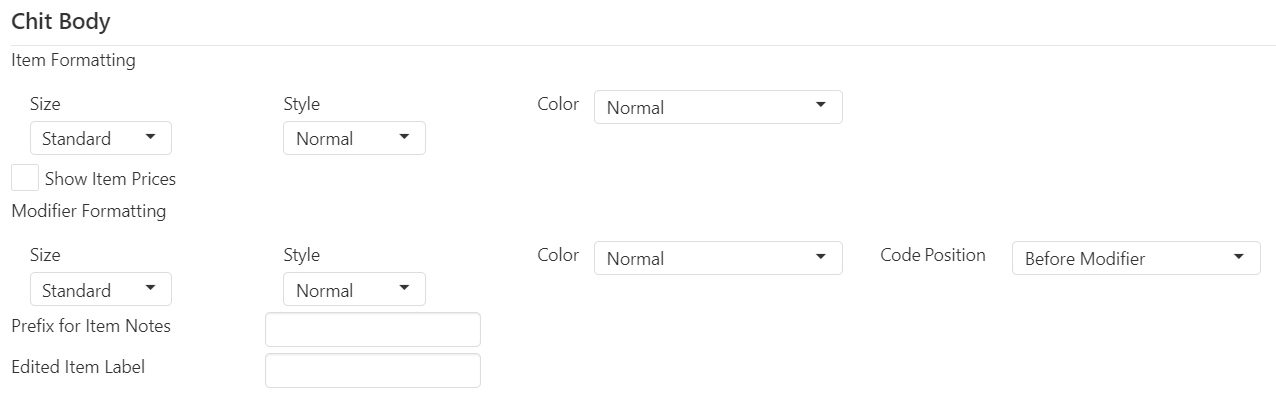
- Item Formatting:
- Size: Choose print size from available size options
- Style: "Normal" or "Bold"
- Color: Choose print color option
- Normal: Order item modifiers print in black
- Red: Order item modifiers print in red (if supported by printer)
- Reverse: Order item modifiers are printed with a black bar behind white text
- Show Item Prices: Order item price is printed to the right of the item.
- Modifier Formatting:
- Size: Choose print size from available size options
- Style: "Normal" or "Bold"
- Color: Choose print color option
- Normal: Order item modifiers print in black
- Red: Order item modifiers print in red (if supported by printer)
- Reverse: Order item modifiers are printed with a black bar behind white text
- Code Position:
- Before Modifier: Modifier code abbreviation appears before the modifier
- After Modifier: Modifier code abbreviation appears after the modifier
- Prefix for Item Notes: If item notes are used (via the `Note' button in Layout), prefix to be printed on the chit.
- Edited Item Label: Configurable label to print next to edited items on the chit.
Chit Footer Section
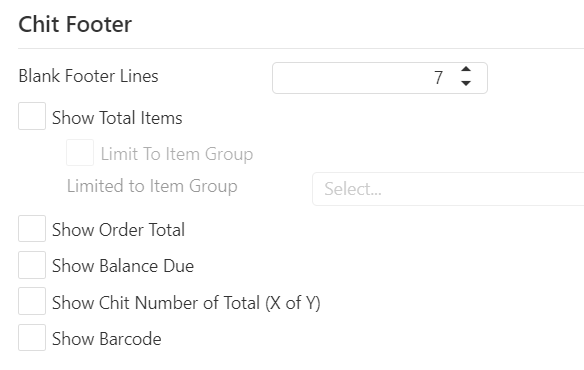
- Blank Footer Lines: Number of blank lines at the end of the kitchen chit.
- Show Total Items: Prints the total number of items ordered at the bottom of the chit.
- Limit To Item Group: Limits the item total to a particular Item Group (see Item Availability Item Groups).
The Item Availability screen gives users the ability to quickly turn an item "on" or "off" depending on the item supply at the restaurant by utilizing the Active checkbox. Item availability may also be set for specific order channels (Delivery, Drive-Thru, etc.) by using the checkbox in their respective columns.
- Show Order Total: Prints the order total at the bottom of the chit.
- Show Balance Due: Prints order balance due at the bottom of the chit.
- Show Chit Number of Total (X of Y): Prints the chit number (X) and the total number of chits printed (Y) at the bottom of each chit.
- Show Barcode: Prints a barcode on the chit that represents the order ID. Barcode can be scanned at the register to recall the order to help track speed of service.
Print Options Section
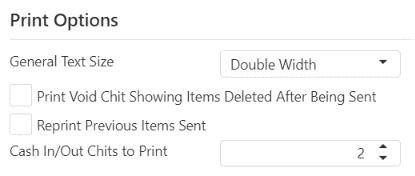
- General Text Size: Font size of order items and modifiers.
- Print Void Chit Showing Items Deleted After Being Sent: Print kitchen chit showing voided items when items are deleted after being sent to the kitchen.
- Reprint Previous Items Sent: Reprints items that were previously sent to the kitchen on chits for orders that items were later added to.
- Cash In/Out Chits to Print: Number of detail chits to print when a Cash In/Out is performed via the `Manage Drawers' screen.
Bag Chit Options Section
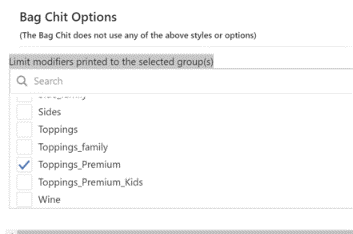
Use this section to limit bag chit printing to only the selected modifier groups: