Item Availability, Item Groups & Item Size Groups
Item Availability
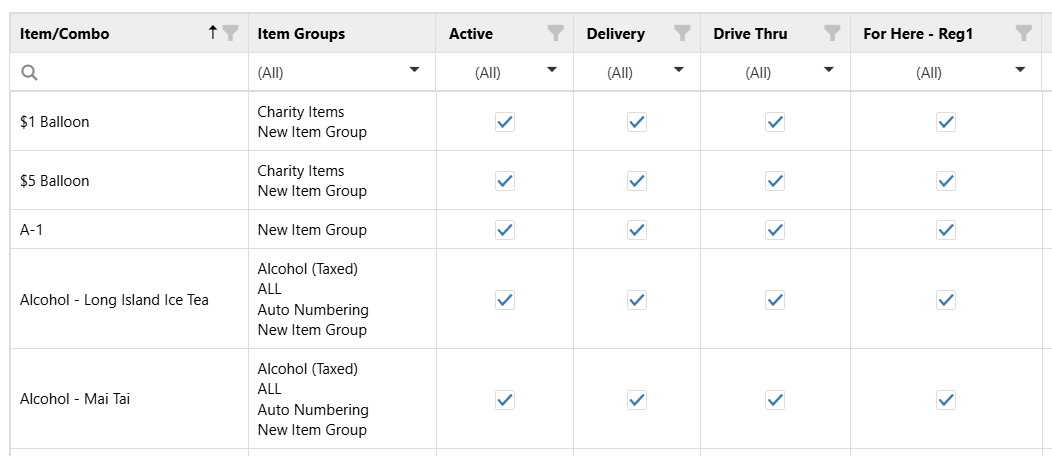
The Item Availability screen gives users the ability to quickly turn an item "on" or "off" depending on the item supply at the restaurant by utilizing the Active checkbox. Item availability may also be set for specific order channels (Delivery, Drive-Thru, etc.) by using the checkbox in their respective columns.
Item Groups
Item groups are collections of items with common characteristics, used for item validation or qualifications in various areas of the system. There are also various item group related reports available in both the Register and the Admin Portal.
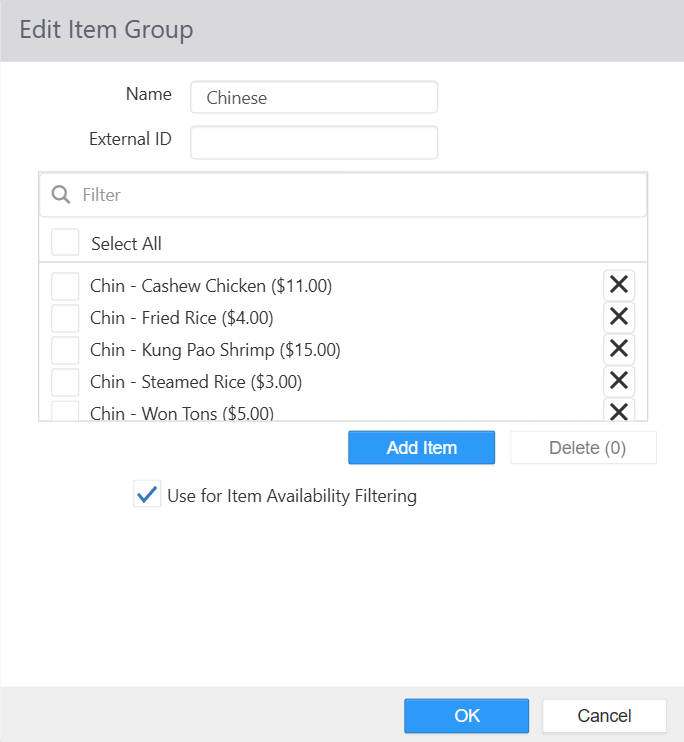
- Name: Name of the item group.
- External ID: External identifier to be used by third party integrators.
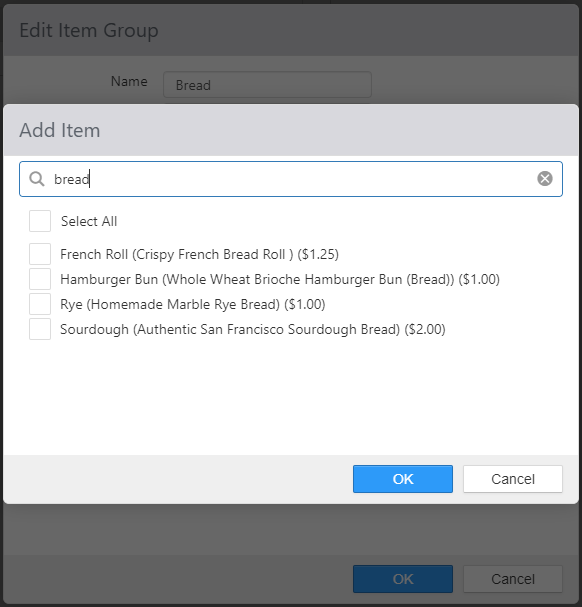
- Selected Items: To select items either check 'Select All' or select 'Add Item' button and choose which items apply to this group within the Add Item dialog box below. Item Description is now displayed in addition to Item Name.
- Use for Item Availability Filtering: Allows cashiers to easily filter and manage item availability on the register through Item Groups.
Item Size Groups
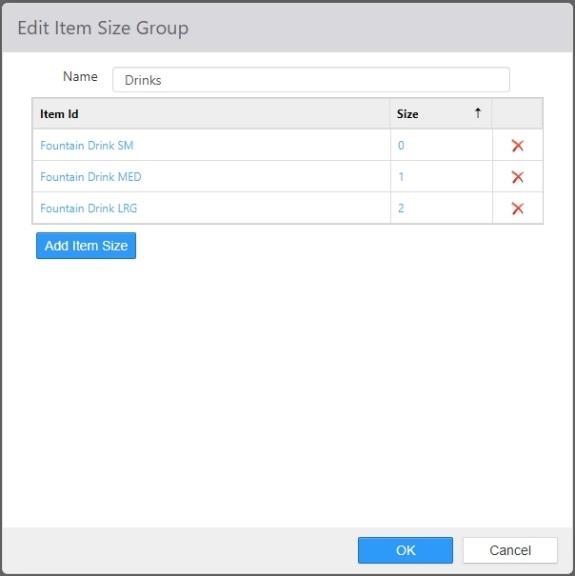
Item size groups are a way to organize items by size (for example, "Small Beverage" 0, "Medium Beverage" 1, "Large Beverage" 2). Item Size Groups are used in conjunction with the 'Change Item Size' button behavior, which allows the user to change the size of the selected item up or down.
-
Name: Name of the item size group.
-
Item Sizes list: The items that make up the sizes of the item group.
- Item: Items included in the group.
- Size: The size of the item in the group, from 0 to n.
NOTE: The smallest size is always zero (0). - Edit link: Click to open the Edit dialog.
-
[Add] link: Click to open the Add dialog.
-
[Delete] link: Select an item and click to delete the item from the item group.
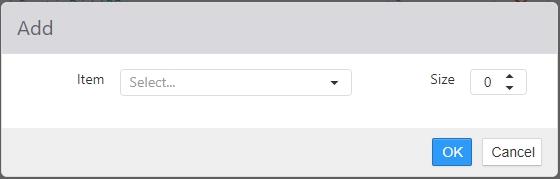
NOTE: The Add and Edit dialogs operate in exactly the same way. -
Item: Select the item using the drop-down list.
-
Size: Set the size. Zero (0) is always smallest.
