PAR POS: Included Ingredient Import and Sync
When you import a PAR POS menu or run a targeted sync, PAR Ordering automatically reads included modifier data from PAR POS and uses it to build each product's Included Ingredients list and per-product preselection settings. You don't need to configure anything manually.
This feature applies to brands with a PAR POS integration only. Brands using other POS systems continue to configure included ingredients manually in the Management Center.
How It Works
PAR POS tracks which modifiers come with an item (IsIncluded) and which ones it adds to the order automatically (AutomaticallyAdd). PAR Ordering reads those flags in two places:
- When you import a PAR POS menu through POS Import or Menu Builder, included modifier data is written to each product as part of the import.
- If you have an existing menu, you can pull updated included ingredient data from PAR POS at any time using the sync buttons in the Management Center, without running a full reimport.
Import a PAR POS Menu with Included Ingredients
When you import a PAR POS menu, the import:
- Populates the Included Ingredients tab for each parent product based on what PAR POS reports
- Applies per-product preselection settings to product groups. A product group shared between two parent products can carry different preselections for each.
You don't need to open the Included Ingredients tab after the import. It's configured as part of the import process.
Badges in POS Import and Menu Builder
During import, products that PAR POS marks as included modifiers appear with visual badges to help you confirm the configuration before you complete the import:
| Badge | Meaning |
|---|---|
| PRESELECTED | PAR POS counts this modifier as included in the item price |
| AUTO-ADDED | PAR POS adds this modifier to the order automatically (also shows PRESELECTED) |
If you adjust a preselection before completing the import, your change is what gets imported.
Sync Included Ingredients for an Existing Menu
If your brand already has a menu in PAR Ordering and you want to pull included modifier data from PAR POS without running a full reimport, use one of the two sync options below.
Both sync options replace POS-sourced included ingredient rows and per-product preselections. This action cannot be undone. Manually added included ingredient rows are not affected.
Sync All Products (Brand Level)
Use this option to update included ingredient data across your entire menu.
- Navigate to Brand (All stores) > Menu > POS synchronization.
-
Click Sync Included Ingredients for All Products.
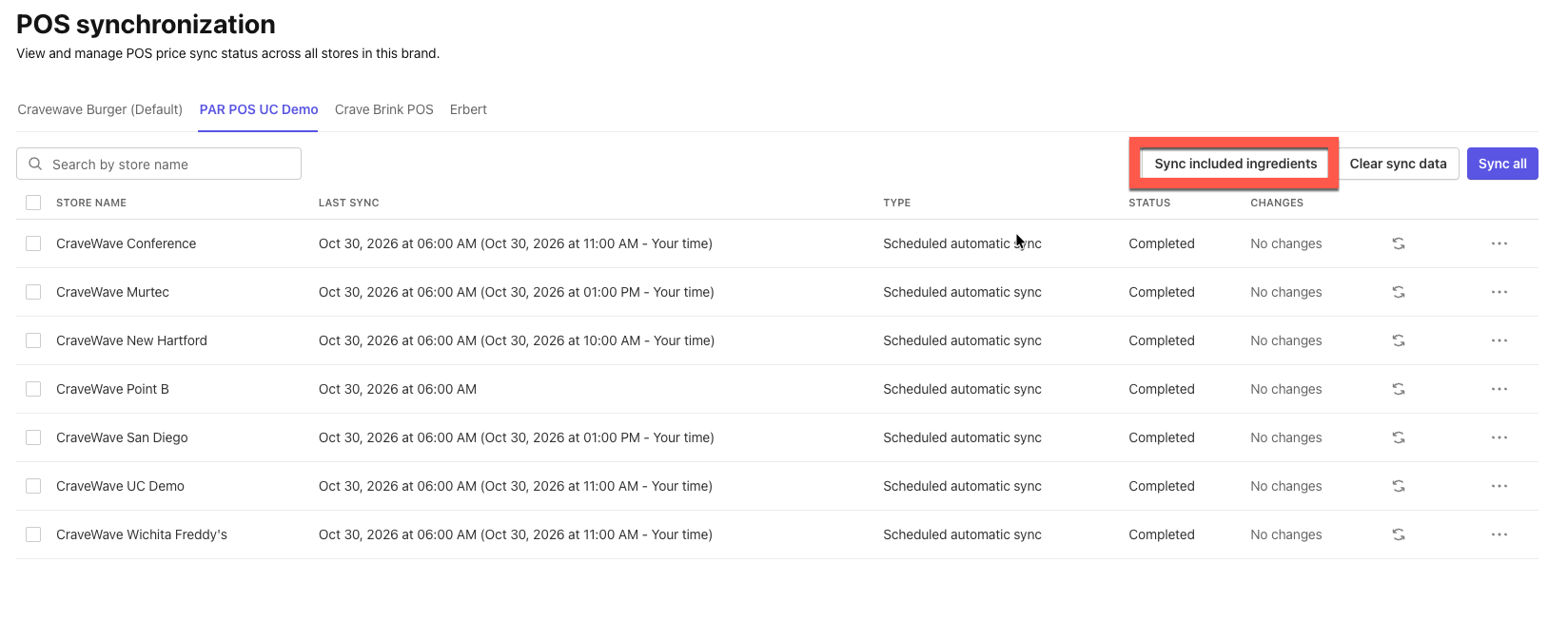
- Review the confirmation dialog. Note what the sync will overwrite and what it will leave alone.
- Check Yes, I understand.
- Click Sync now.
Sync a Single Product
Use this option to update included ingredient data for one product only.
- Navigate to Brand (All stores) > Menu > Products > [product name] > Included Ingredients.
-
Click Sync Included Ingredients.
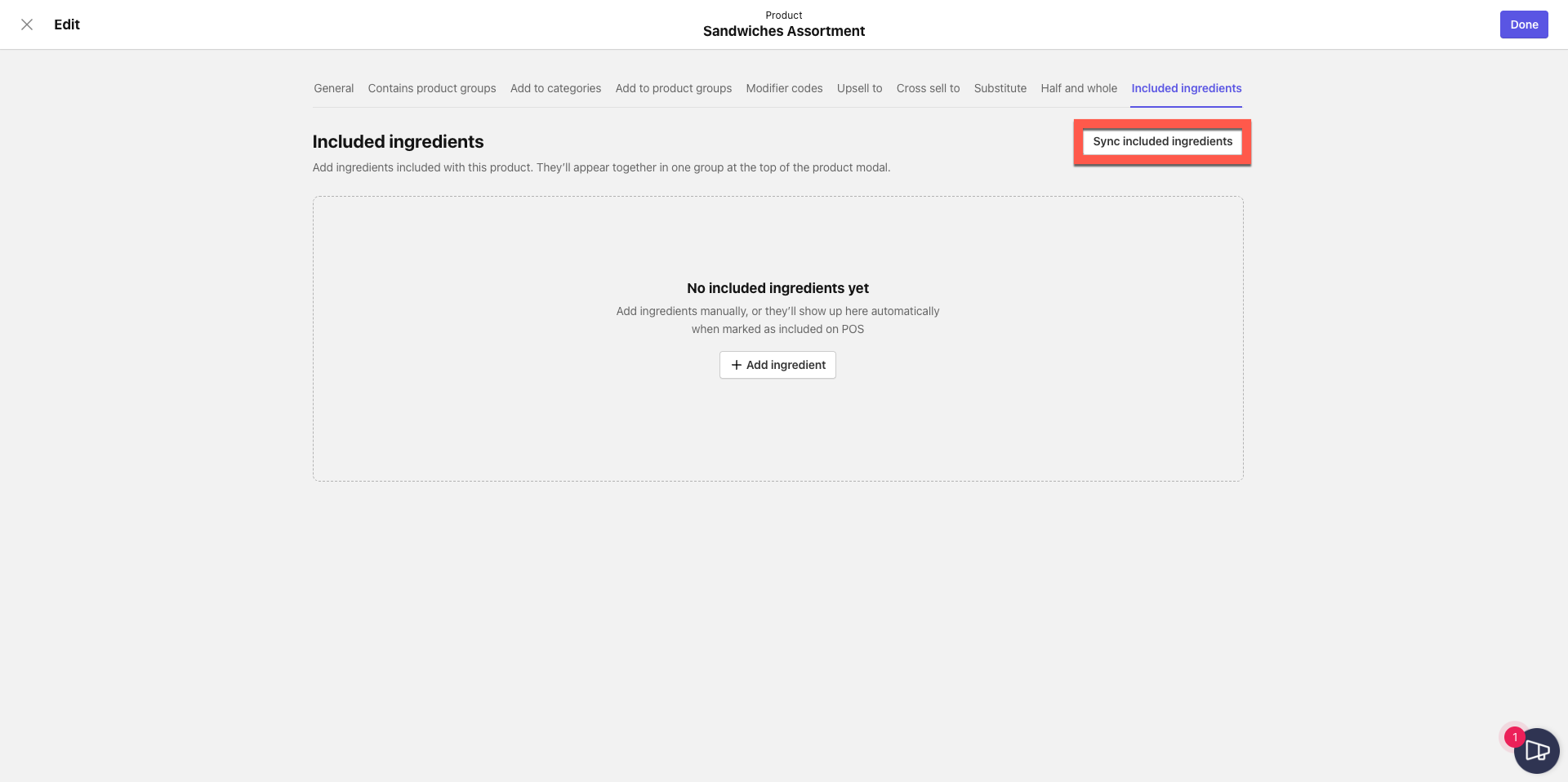
- Review the confirmation dialog.
- Check Yes, I understand.
- Click Sync now.
What Syncs and What Doesn't
| What the sync updates | What the sync leaves alone | |
|---|---|---|
| Included ingredients | POS-sourced rows (replaced in full) | Manually added rows |
| Preselections | Per-product preselections on affected product groups | Group-level preselection settings |
| Item data | Nothing | Prices, availability, names, and all other item attributes |
- If PAR POS removes a modifier from an item's included modifiers list, that modifier drops out of the product's POS-sourced rows on the next sync run.
- Products not mapped to a PAR POS item are skipped and reported.
- The brand-level sync runs only when you trigger it manually. It does not run on a schedule.
Notes
- This feature is available for brands with a PAR POS integration only. The sync buttons are hidden for brands on other POS systems.
- Included ingredient data is sourced from your integration store group's PAR POS location. There is no per-store configuration or cross-store reconciliation.
- Menus imported without included modifier data import exactly as they do today.
- Marketplace channel rendering and pricing for included ingredients are handled separately and are not part of this feature.