Configuring Included Ingredients with Products
Overview
Included ingredients are items that come bundled with a parent product. Examples include an included cheese on a sandwich or a topping your POS already flags as part of the item. No price is shown on included ingredient rows in the ordering UI, regardless of how the underlying item is priced in your catalog.
How included ingredients appear to guests depends on whether ingredient grouping is enabled for your brand:
- Grouping off (default): Included items stay in their original modifier groups. A selection summary appears in the product modal showing the guest which included items are currently selected, with quick options to remove or swap.
- Grouping on: Included items are pulled out of their original groups and displayed together in a dedicated section at the top of the product modal.
Ingredient grouping is a brand-level display setting. See Configure Ingredient Display for instructions on enabling it.
How Included Ingredients Work
Each included ingredient has a lock state (locked or unlocked) that controls whether the guest can remove that item at ordering time. The source of the included ingredient (manual configuration or PAR POS import) determines which lock behaviors are available, whether the item can be removed from the group, and how it is priced for the guest.
The table below describes how each ingredient source behaves.
| Source | Removable from Group | Lockable | Unlockable | Default Lock State | Guest Price |
|---|---|---|---|---|---|
| Manual (non-PAR POS) | Yes | Yes | Yes | Unlocked | As configured on the placement |
| Included via PAR POS | No | Yes | Yes | Unlocked | $0 for the first unit; additional quantity charged normally |
| Auto-added via PAR POS | No | No | No | Locked (fixed) | $0 for the first unit; additional quantity charged normally |
- Removable from group refers to whether a brand-level Management Center user can remove the item from the included ingredients configuration. Guest behavior at ordering time is controlled by the lock state, not this setting.
- Locked items and swapping: A locked ingredient cannot be removed by the guest. However, if the modifier group the ingredient belongs to supports swapping, the guest can swap a locked item for a sibling product in that group.
- Checkout validation: If the guest somehow reaches checkout without a required locked ingredient in their cart, the order is rejected. PAR Ordering re-validates locked ingredient presence before payment.
Before You Start
- Included Ingredients requires the v2 (NMG) menu model. Contact your PAR representative to confirm your brand is on v2 before configuring this feature.
- You must be a brand-level Management Center user to configure included ingredients. Store-level users can view the Included Ingredients tab but cannot make changes.
- Ingredients must already exist as placements under the parent product before you can add them as included ingredients. You cannot add items that are not already in the product's modifier groups.
- Included Ingredients is only available for products that use the standard windowed product modal. Products that use the full-screen layout (such as pizza builders) do not display included ingredients. See Notes.
- If your brand uses PAR POS, included and auto-added items sync automatically. You do not need to add them manually, though you can adjust lock states for included (non-auto-added) items.
Configure Ingredient Display
By default, included ingredients stay in their original modifier groups during ordering. You can enable ingredient grouping to pull all included items into a single dedicated section at the top of the product modal instead.
Ingredient grouping is a brand-level setting managed in your Menu Configuration.
- In the Management Center, navigate to Menu > Configuration.
- Locate the ingredient grouping setting and enable it.
- Save your configuration.
The change applies to all products in your brand that have included ingredients configured.
Configure Included Ingredients per Product
Automatically Add Included Ingredients
When your brand uses PAR POS, included and auto-added ingredients are imported directly from your POS configuration. You do not need to add these items manually.
After import, you can review the imported ingredients and update lock states for included items:
- In the Management Center, navigate to Menu > Products and open the product that you want to review.
- Select the Included Ingredients tab.
- Review the list of imported ingredients. Items flagged as auto-added display a fixed locked state and cannot be modified.
- For items that were included (not auto-added), select the lock icon in the row to toggle the lock state between locked and unlocked.
- Click Save.
Auto-added items imported from PAR POS are permanently locked. You cannot change their lock state or remove them from the included ingredients group.
Manually Add Included Ingredients
If your brand uses a different POS system, there is no automatic import for included ingredients. You define them manually in the Management Center.
-
In the Management Center, navigate to Menu > Products and open the product that you want to configure.
-
Select the Included Ingredients tab.
-
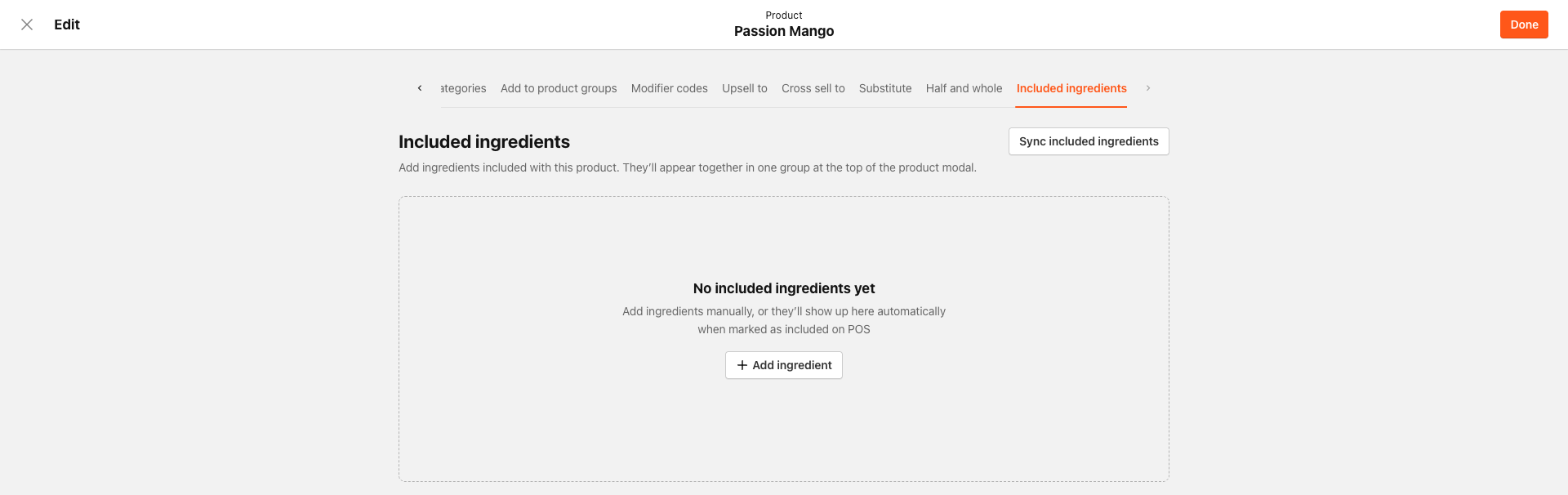
If no ingredients have been added yet, the tab displays an empty state. Click Add Ingredients to open the ingredient selection dialog.
-
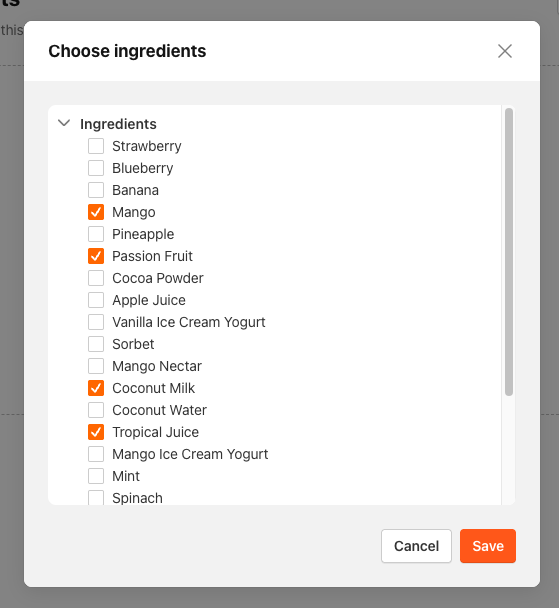
In the dialog, select each ingredient that you want to include with this product. Click Save when finished.
-
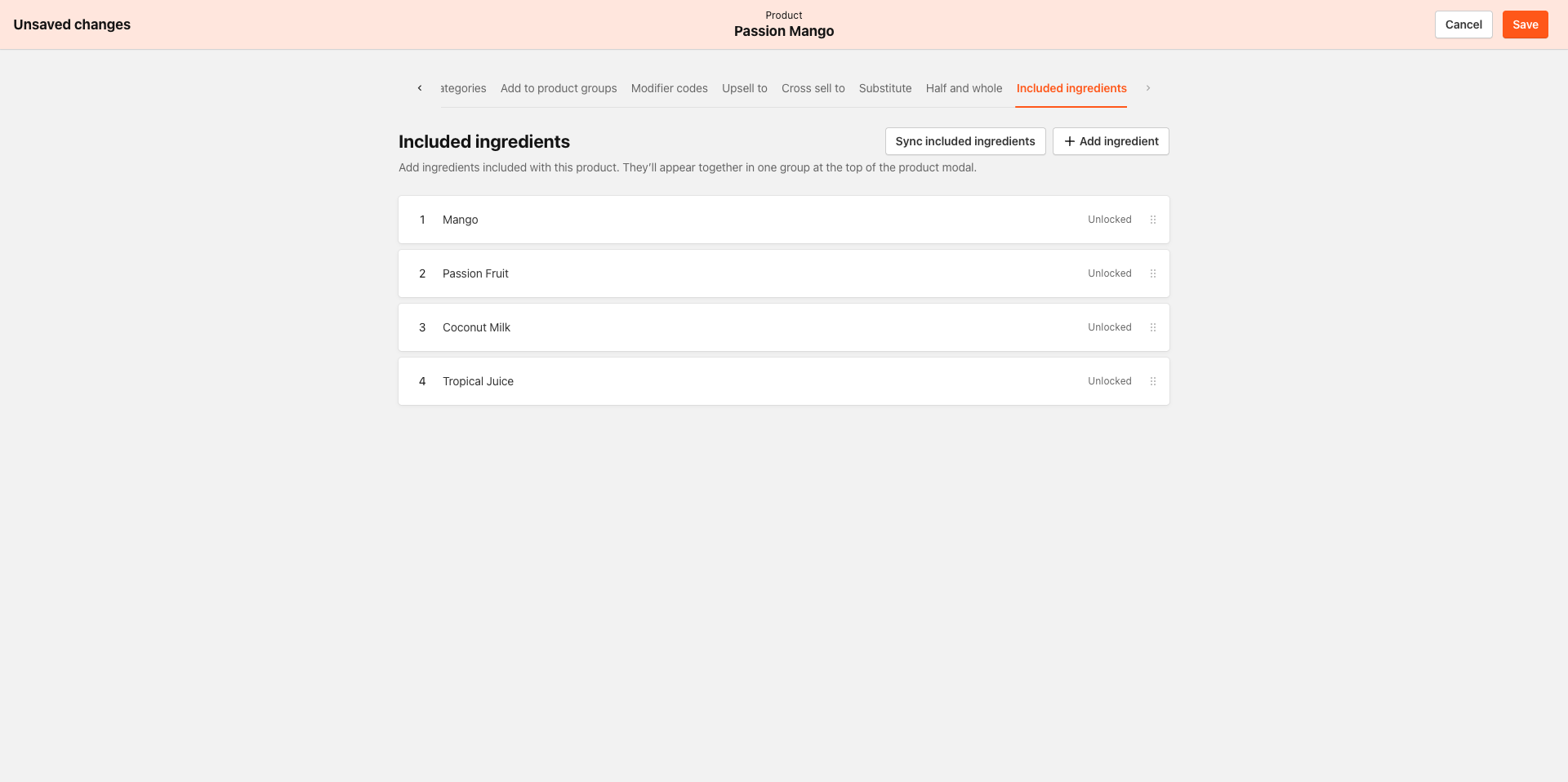
Click Save on the product page.
-
In the Included Ingredients list, locate each ingredient row and set the lock state as needed:
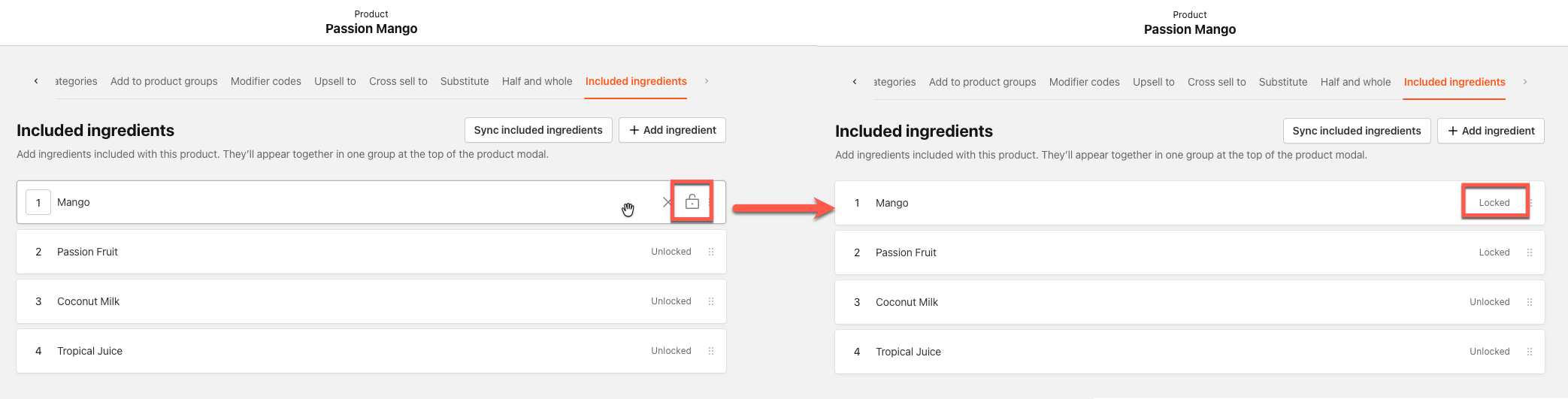
- Select the lock icon to lock an ingredient. A locked ingredient cannot be removed by the guest at ordering time.
- Deselect the lock icon to unlock the ingredient. An unlocked ingredient can be removed by the guest.
- To remove an ingredient from the included ingredients group, select the X on the ingredient row.
- Click Done.
You can update the group name displayed to guests by editing the Group Name field at the top of the Included Ingredients tab.
Guest Experience
How a guest sees included ingredients in the product modal depends on whether ingredient grouping is enabled for your brand.
Grouping Off (Default)
Included items remain in their original modifier groups. A compact selection summary appears in the product modal listing the guest's currently-selected included items. From the summary, the guest can remove or swap an item without scrolling through modifier groups to find it.
Grouping On
All included items are pulled into a single "Ingredients" section (or your brand-configured group name) at the top of the product modal. The guest sees every included item together before any other modifier groups.
Lock State Behavior
Regardless of which display mode is active:
- Unlocked ingredients show a remove option. The guest can remove them.
- Locked ingredients do not show a remove option and cannot be removed. If the modifier group supports swapping, the guest can swap a locked item for another product in that group.
- No price is shown on any included ingredient row in the ordering UI.
Notes
- Full-screen product modal: Products that use the full-screen layout (such as pizza builders) do not display included ingredients. Server-side lock enforcement and pricing still apply at checkout, but the included ingredients section does not appear in the ordering UI for those products.
- Kiosk and Mobile: Included ingredients are not yet displayed on Kiosk or in the Mobile app. Server-side pricing and lock enforcement apply at checkout regardless of which channel the guest orders from.
