Product-Level Menu Serving Times: Configuration and Key Rules
Product-level serving times let you make an individual menu item available only during specific recurring day-of-week and time windows. For example, you can configure a breakfast sandwich to be available Monday through Friday from 7:00 AM to 11:00 AM, or a daily special to be available on Mondays only. You set this directly on the product, without creating or duplicating a separate menu.
Configure Product-Level Serving Times
To configure serving times for a product:
-
Navigate to Menu > Products > [Product Name].
-
Select the General tab.
-
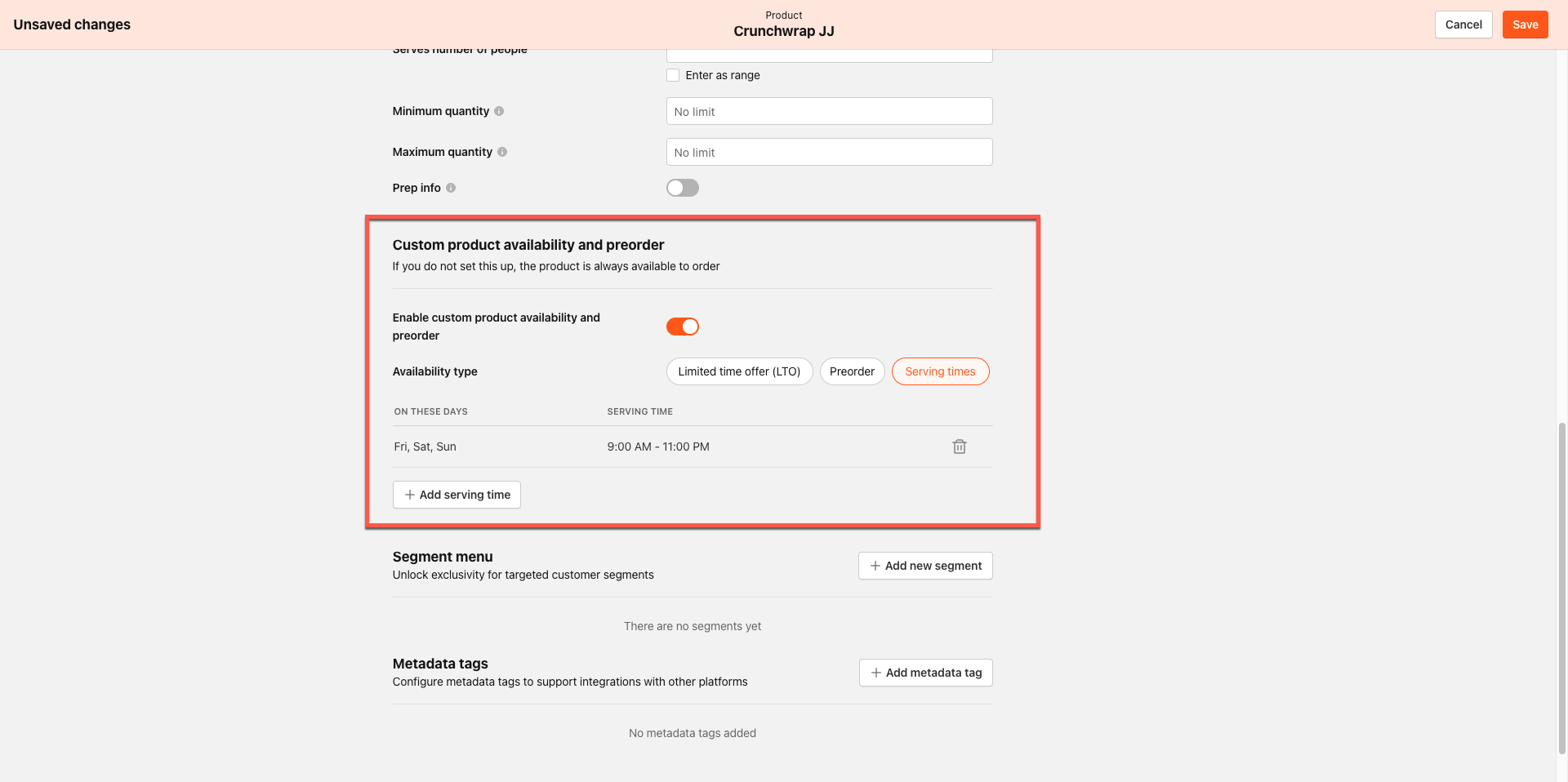
Toggle on Enable custom product availability and preorder.
-
Under Availability type, select Serving times.
-
Click Add serving time.
-
In the dialog, select one or more days of the week, then set a start time and an end time.
- Times default to 9:00 AM – 11:00 PM in 5-minute increments.
- To configure an overnight window (for example, 10:00 PM to 2:00 AM), enter an end time that is earlier than the start time. Overnight windows are valid.
- Click Add.
- Repeat steps 4–6 to add additional windows as needed.
- To remove a window, click the delete icon on that window's row.
- Click Save.
After saving, the product is available to customers only during the configured time windows.
On the customer-facing Web App, a product configured with serving times displays an availability label outside its window (for example, "Available Mon–Fri" or "Available from 11:00 AM") and offers a Change pickup time button so customers can select a valid time slot.
Serving times availability messaging and add-to-cart gating are supported on the Web App only. Kiosk and Mobile App do not currently display serving times availability messaging or restrict the add-to-cart action. See Known Limitations for details.
Customer Experience (Web App)
When a customer browses a menu containing a product with serving times configured:
- During a window: The product appears and can be added to the cart like any other item.
- Outside a window: The product card shows an availability label indicating when the item is next available (for example, "Available Mon–Fri" or "Available from 11:00 AM"). The Add to cart button is not shown.
- In the product modal: The full window is shown (for example, "Available Monday–Friday, 11:00 AM–3:00 PM"), along with a Change pickup time button. Selecting it opens the pickup time picker, scoped to only the days and time slots during which the product is available.
If a customer has an out-of-window product in their cart at checkout (for example, if the window closed after the item was added), the order is rejected. The add-to-cart state is a convenience check; the final availability check happens server-side at the time of checkout.
Key Rules and Validations
- Serving times, Limited time offer, and Preorder are mutually exclusive. Only one can be active on a product at a time. Switching modes removes the previous mode's configuration.
- At least one valid window is required. If you select Serving times but do not add any windows, the save is blocked with an inline error.
- Two windows cannot share the same day with overlapping times. The Add serving time dialog rejects an overlapping window before it reaches save. If an overlapping window somehow reaches the API, the entire product save rolls back, not just the new window.
- Setting an end time earlier than the start time creates a valid overnight window (for example, Monday 10:00 PM to Tuesday 2:00 AM).
- Availability is evaluated against the customer's selected pickup time, not the current clock time. An ASAP order placed at 9:00 AM for a product with an 11:00 AM–3:00 PM window is gated, even if the store is open.
- Product-level serving times do not inherit from or interact with store-level menu serving times. Each layer operates independently.
Known Limitations
- Kiosk and Mobile App: Availability messaging and add-to-cart gating based on serving times are built for the Web App only. Kiosk and Mobile App receive the serving times data but do not currently display availability labels or restrict the add-to-cart action.
- Limited time offer and Preorder do not have an equivalent order-time re-check. The server-side validation that re-checks serving times at checkout applies to serving-times products only. Limited time offer and Preorder rely on the availability flag set when items are added to the cart.
