Store-Level Menu Serving Times: Configuration and Key Rules
How Store-Level Menu Serving Times Work
To configure Serving times:
-
Navigate to Configurations > Stores > [Store] > Menu Products > Edit Menu > [Menu]
-
The serving times section is in the menu edit view.
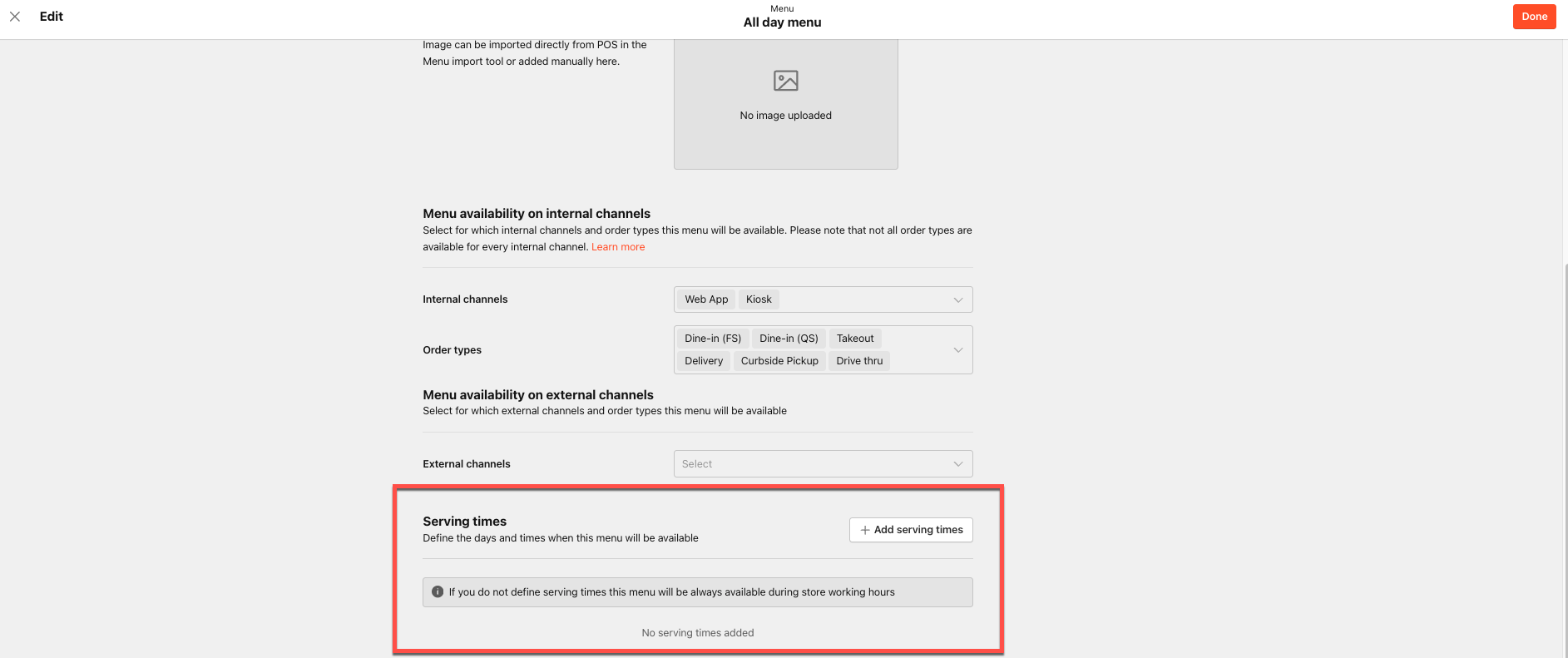
-
Click Add serving time.
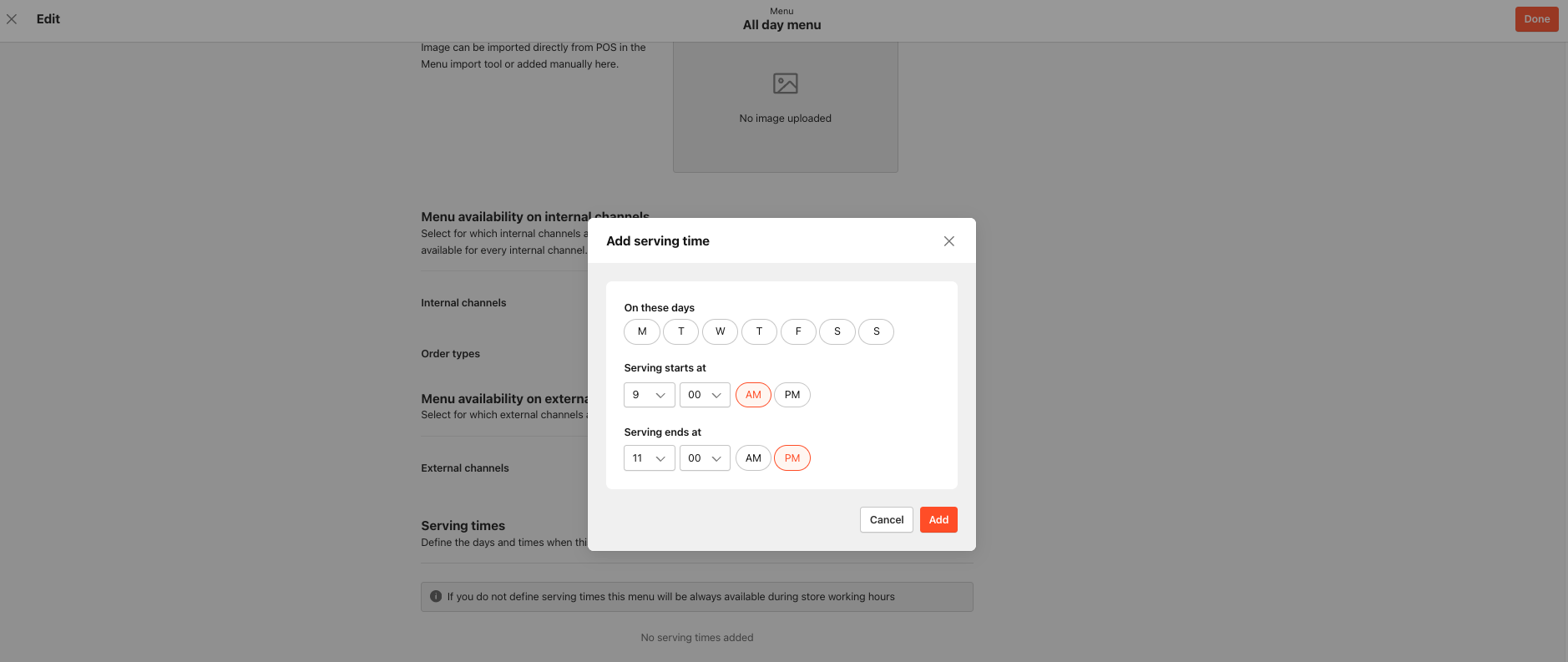
- Select the days and start and end times.
- Click Add.
-
Use the trashcan icon to delete any serving times.
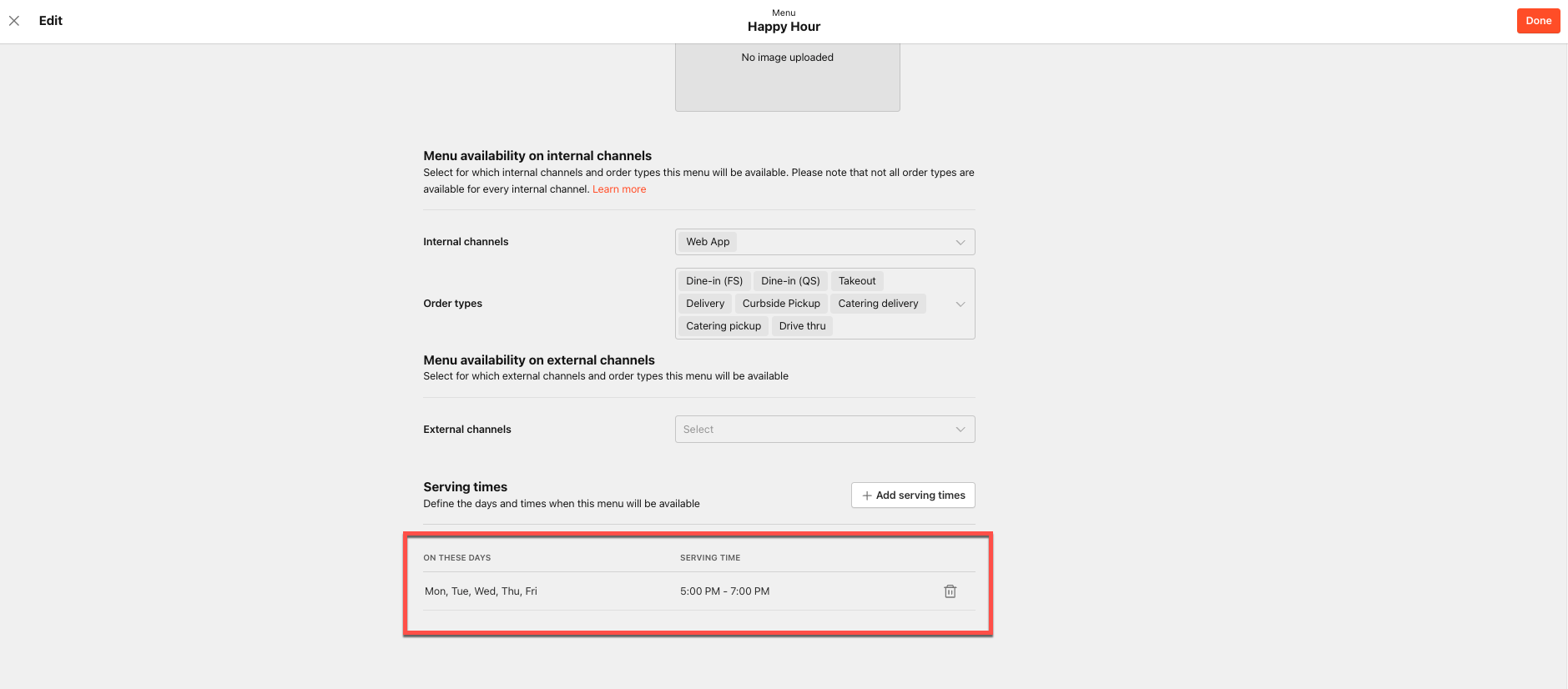
What you can do at the store level:
- Set serving times (weekdays + start/end time) that override brand-level serving times for that specific store
- Add multiple serving time periods for a menu (e.g., Mon–Fri 10:00–14:00, Sat–Sun 12:00–16:00)
- Remove serving times from a menu at the store level
Key rules & validations:
- If no store-level serving times are set, the menu is served during the store's opening hours.
- Serving time periods cannot overlap — error: "Menu cannot be served in multiple time periods in the same day. Choose different days and try again."
- Serving times cannot fall outside the store's opening hours — error: "Serving times can't be outside store working hours. Choose different times and try again."
- Store-level serving times are independent from brand-level changes at the brand level; they do not affect the store once a store-level override exists.
- After publishing, changes to serving times at the store level will return the menu to "Ready for Publishing" status.
Once you change serving times at the store/venue level, that menu becomes out of sync with the brand menu for serving times, and brand-level distribution will no longer push serving time updates to that store.
