Web & Mobile: Assets
Assets are the images, logos, icons, and illustrations that appear in the web and mobile apps. Upload them in the Assets section of the Customization Center.
This article gives the requirements and design guidance for each asset. For what each setting controls in the Customization Center, see Customizations. Loyalty assets are covered in Web & Mobile: Loyalty.
Note: File names shown in this article are naming examples, not strict requirements.
Home screen image
The hero image shown on the home page. It sets the visual tone of the app's first impression. Use it to showcase your brand or promote your offerings.
Web
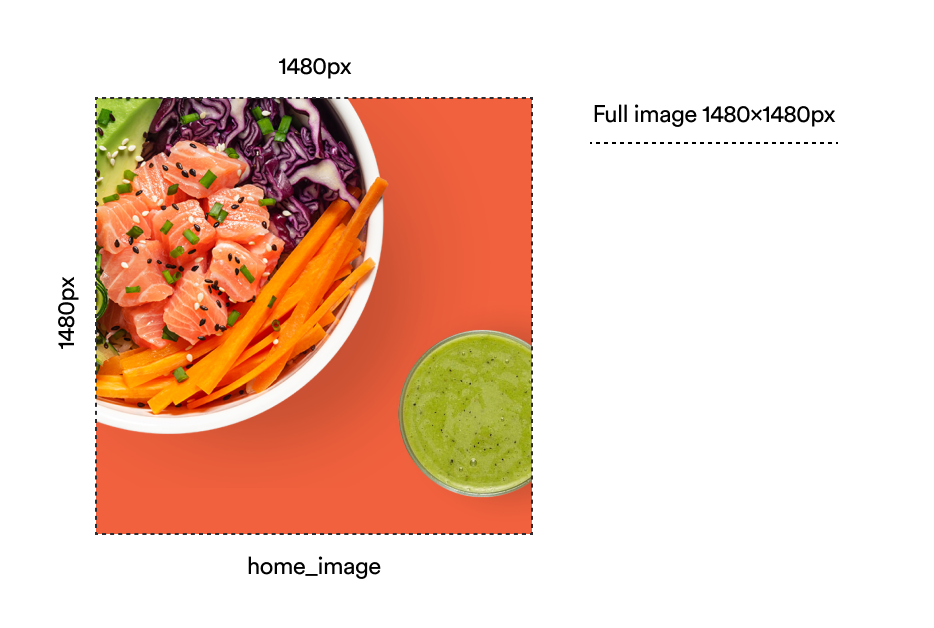
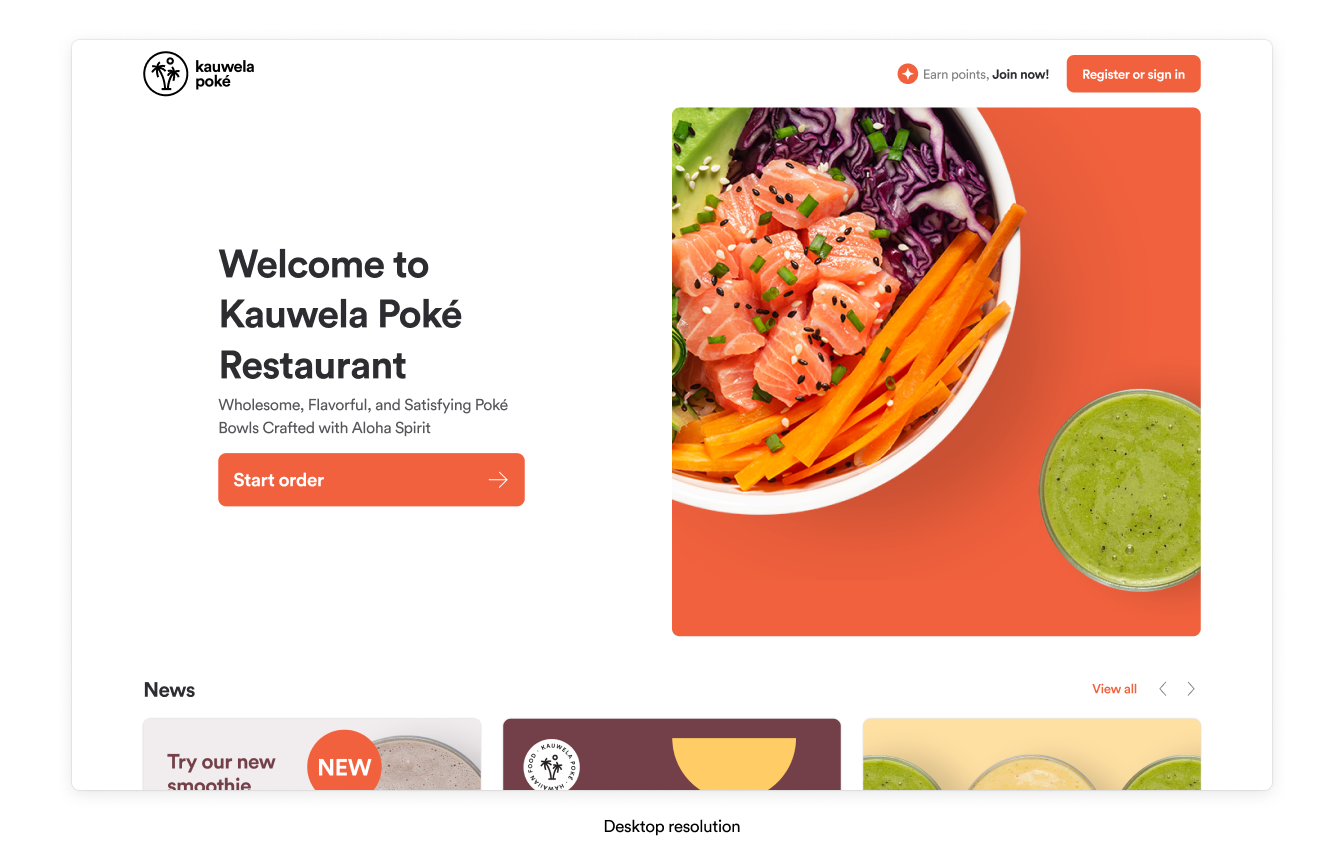
The home screen image is square and visible across desktop, tablet, and mobile resolutions.
- Aspect ratio: 1:1
- Image size: 1480x1480px
- Maximum size: 1 MB
- Image format: JPG
- Example file name:
home_background
Mobile
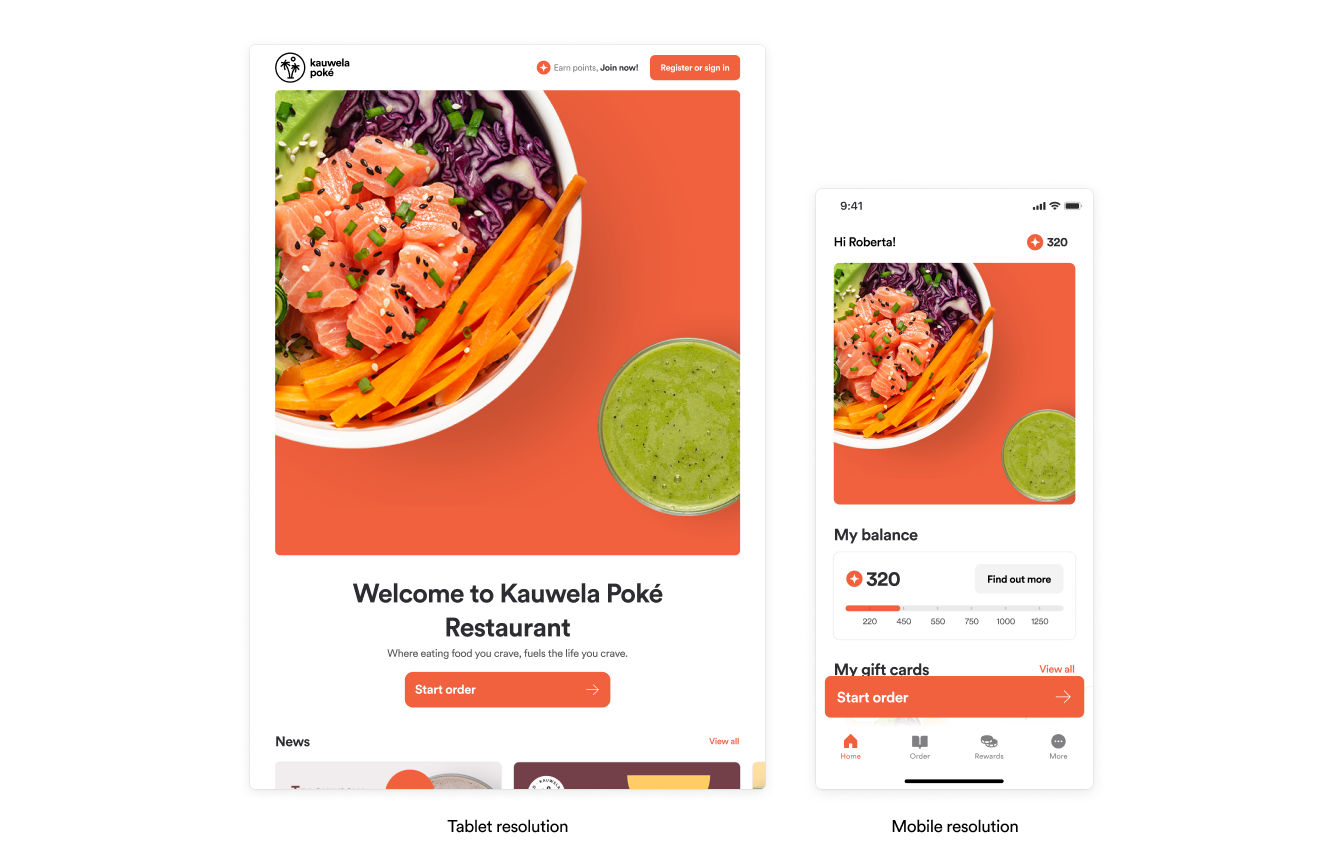
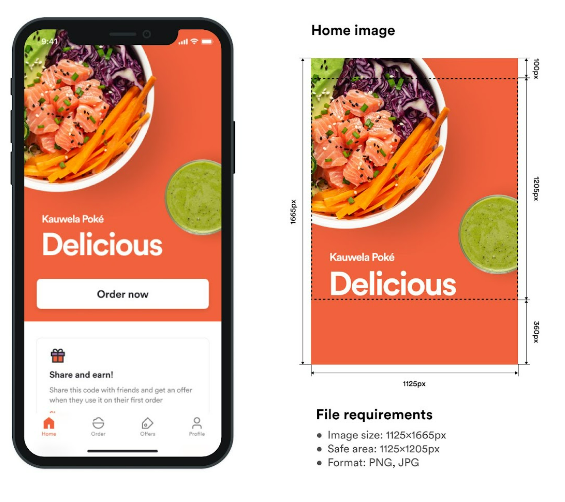
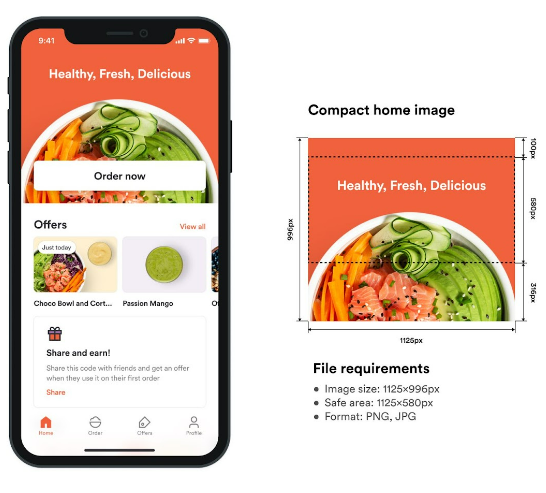
Choose between a regular and a compact home image. Do not place text or a logo outside the safe area, because buttons and the status bar cover it. Brands with loyalty have a smaller safe area because the loyalty points component also covers part of the image.
| Regular | Compact | |
|---|---|---|
| Image size | 1125x1665px | 1125x996px |
| Safe area (no loyalty) | 1125x1205px | 1125x580px |
| Safe area (with loyalty) | 1125x1026px | 1125x357px |
| Format | PNG, JPG | PNG, JPG |
| Example file name | hero_image.png |
hero_image_compact.png |
Brand logo
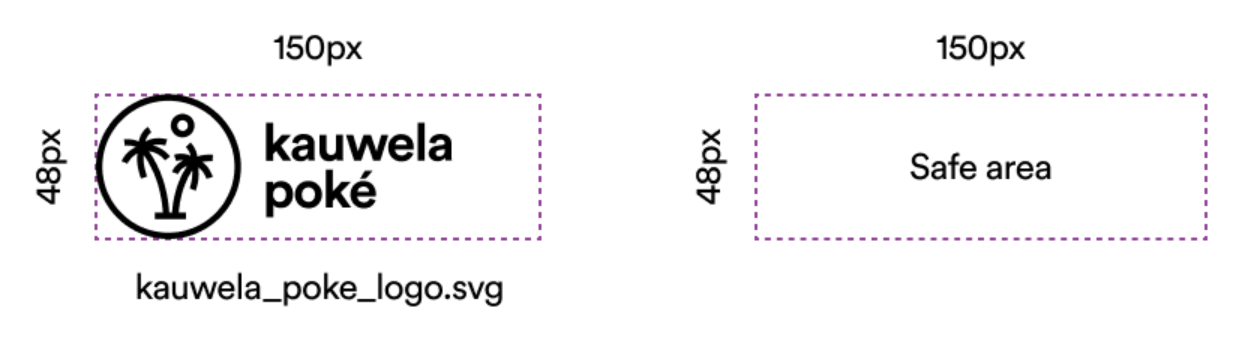
The symbol of your brand. It appears in the header, the scan modal, and the app install banner.
- Safe area: 150x48px for SVG, 300x96px for PNG and JPG
- Maximum width: 150px
- Maximum size: 128 KB
- Image format: SVG (recommended), PNG, or JPG
- Example file name:
brandname_logo
Use a file with a transparent background for the best result on different background colors.
Do:
- Align the logo to the left edge.
- Keep the logo at the full width of the safe area.
Don't:
- Leave empty space on the sides.
The logo can have space at the top or bottom. It is automatically positioned within the maximum width of its container.
Icons
Order type icons
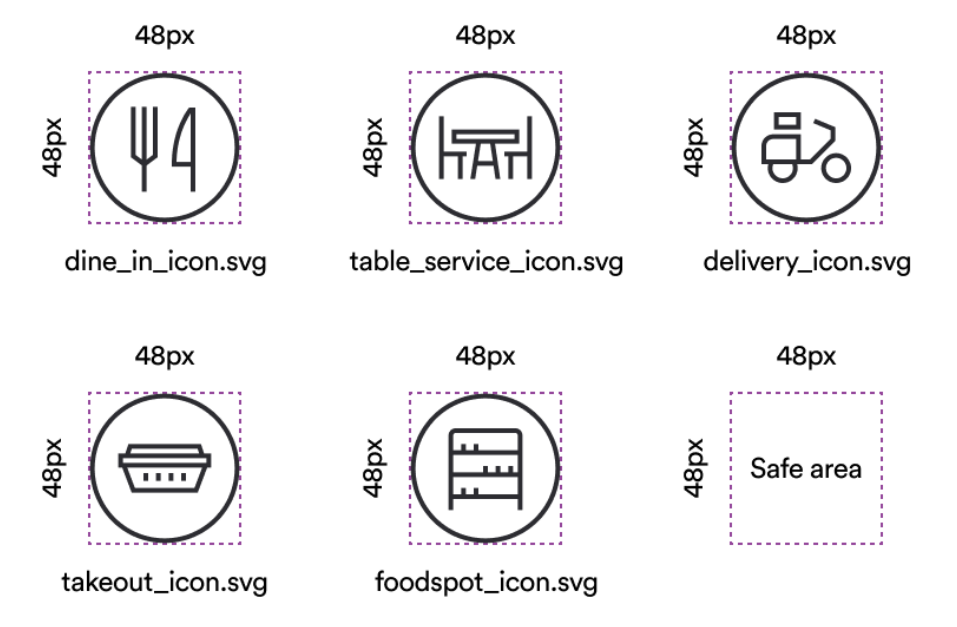
A placeholder image for each order type a venue offers, shown on the home page and in order-type selection screens. Create an icon for each order type your brand uses.
- Aspect ratio: 1:1
- Image size: 48x48px
- Maximum size: 128 KB
- Image format: SVG
- Example file name:
order_type_name_icon
Tab bar icons
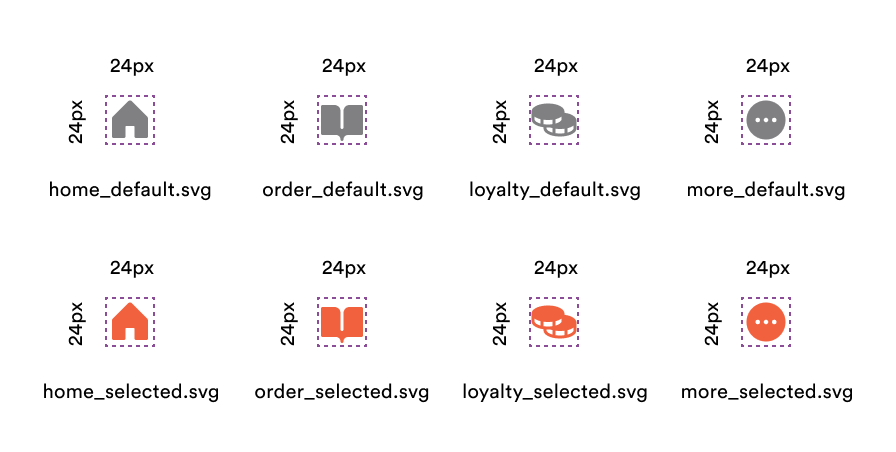
The icons in the navigation bar on mobile resolutions. Create a default and a selected icon for every tab (Home, Order, Loyalty, More, and My Code).
- Aspect ratio: 1:1
- Image size: 24x24px
- Maximum size: 128 KB
- Image format: SVG
- Example file names:
page_name_default,page_name_selected
Map pins
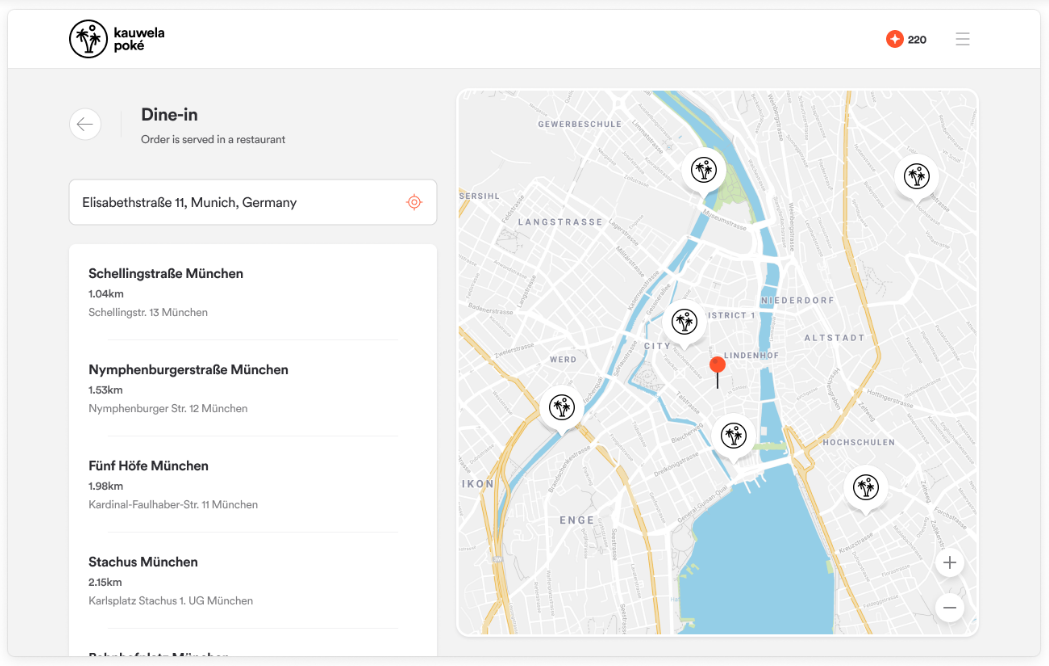
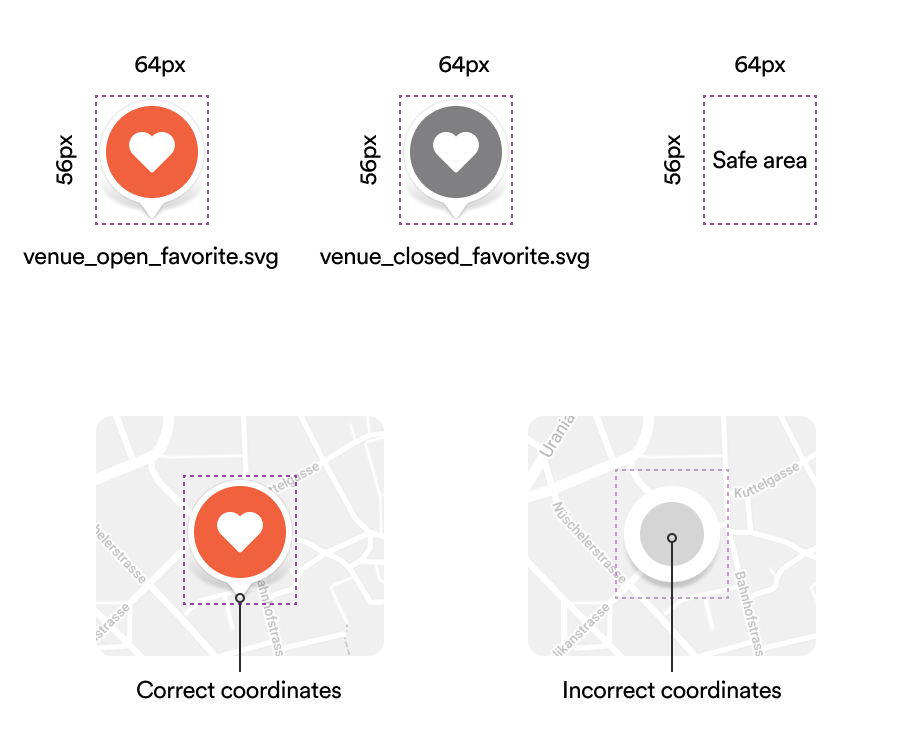
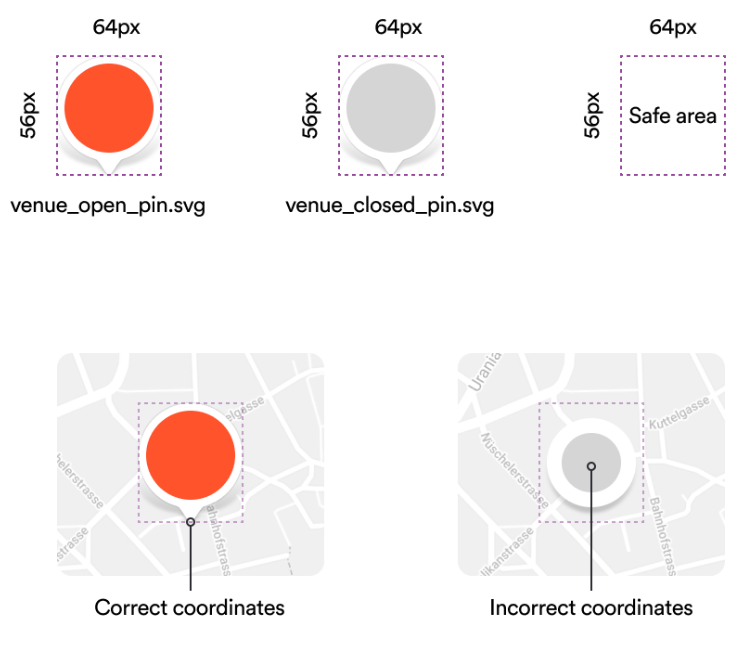
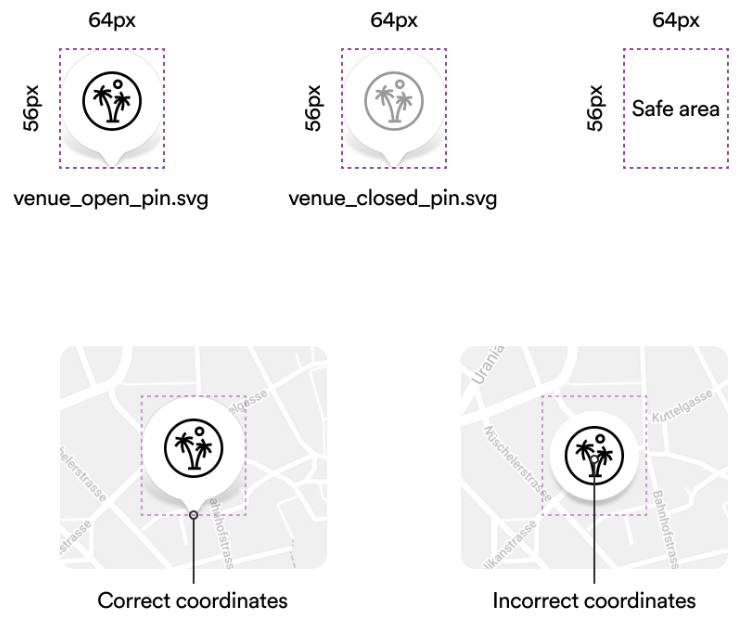
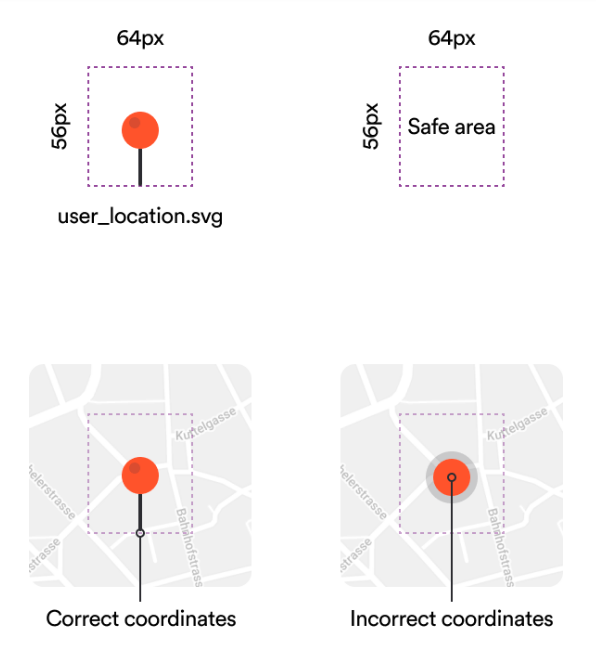
Custom pins on the store finder, delivery details, and delivery tracking maps. The tip of the pin marks the exact coordinates, so the asset is always fixed to the bottom edge of its container.
- Image size: 56x64px
- Image format: SVG
- Example file names:
venue_open_pin,venue_closed_pin,favorite_store_open_pin,favorite_store_closed_pin,user_location_pin
| Pin | When it appears |
|---|---|
| Store Location (Open) | A venue during its opening hours |
| Store Location (Closed) | A venue outside its opening hours, or one that is not operating |
| Delivery Destination | The customer's location, from their browser location or an address they choose in the search field |
| Favorite Store (Open / Closed) | A venue the customer saved as a favorite |
Favicon
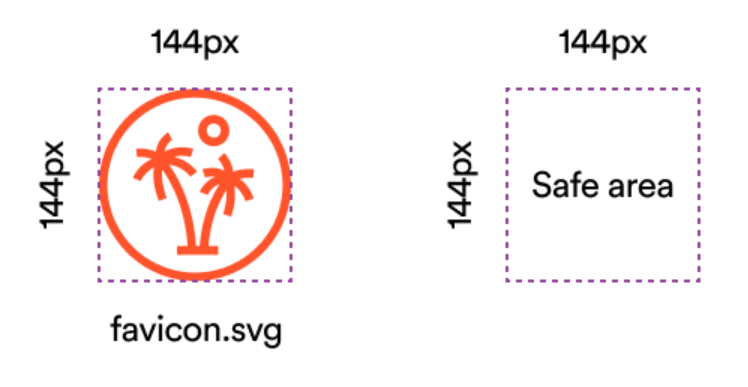
The small icon shown in the browser tab.
- Aspect ratio: 1:1
- Image size: 144x144px
- Maximum size: 128 KB
- Image format: SVG, PNG, or JPG
- Example file name:
favicon
Illustrations
You can use the PAR Ordering default illustrations for the mobile app, or upload your own.
Splash screen logo
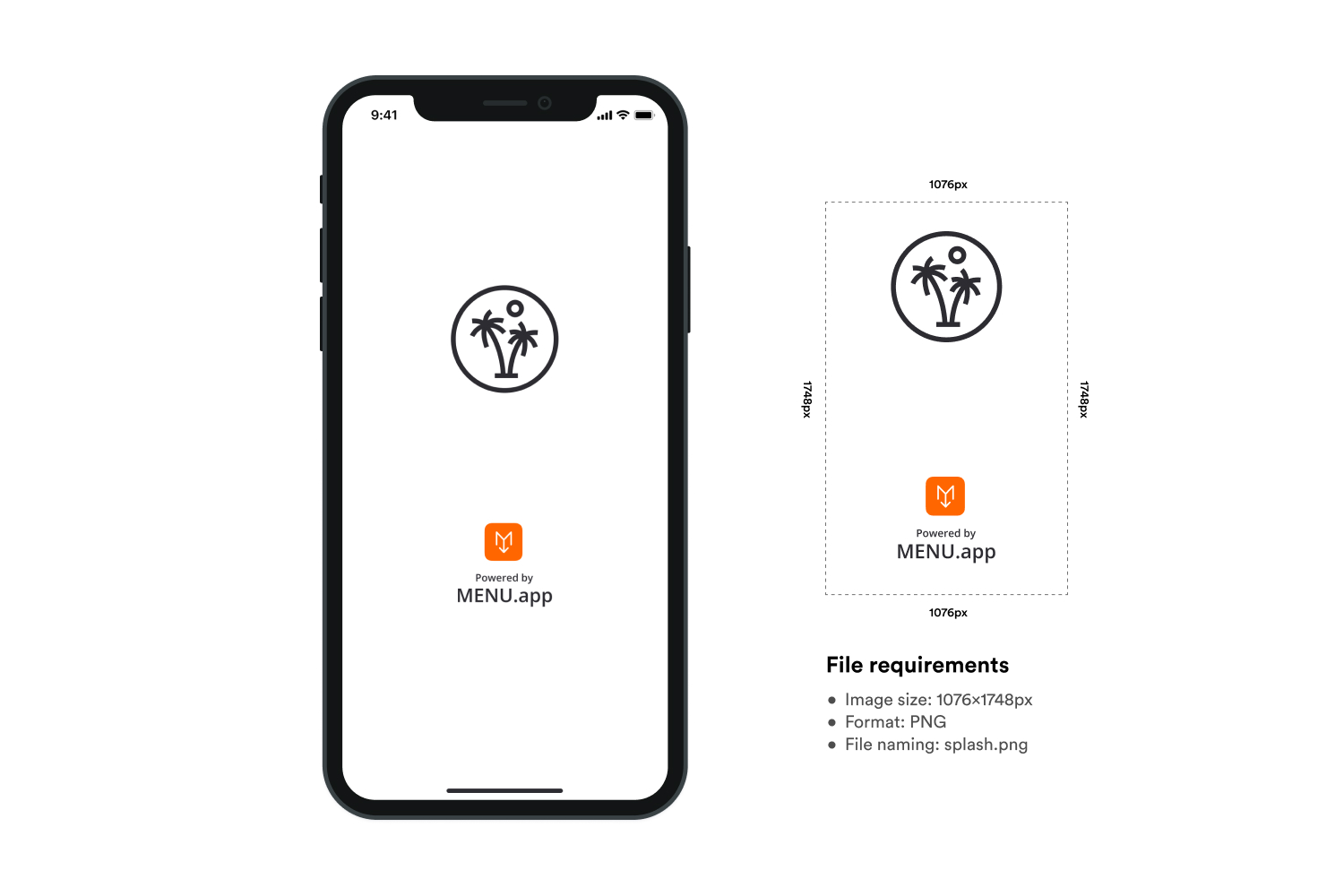
The first thing customers see after they launch the app. Use your brand logo with a transparent background. To change the splash screen background color, go to Colors > Background Splash Screen. This illustration must be custom.
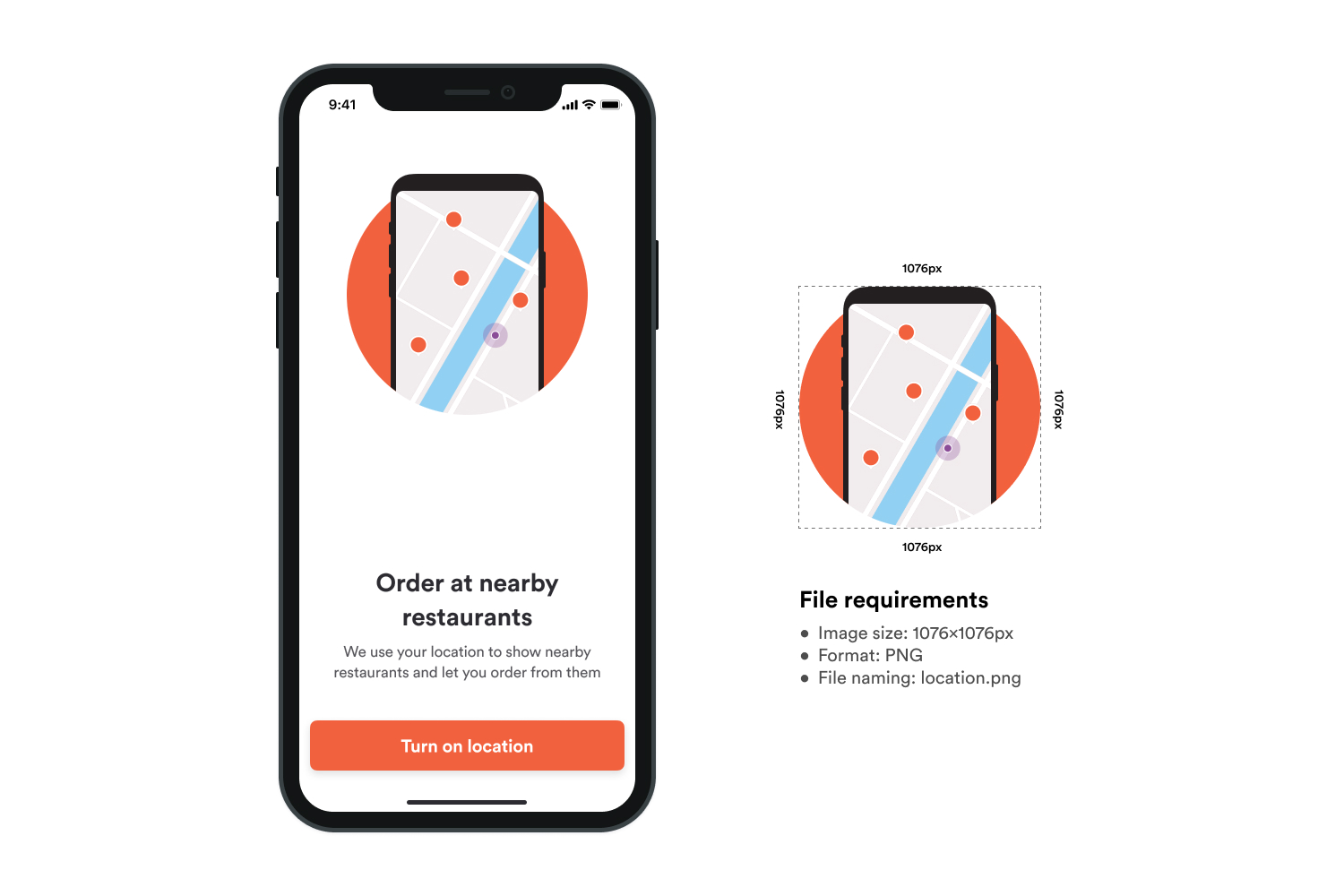
Location permission
Shown on the location permission screen. It explains that the app needs the device location to find the nearest restaurant.
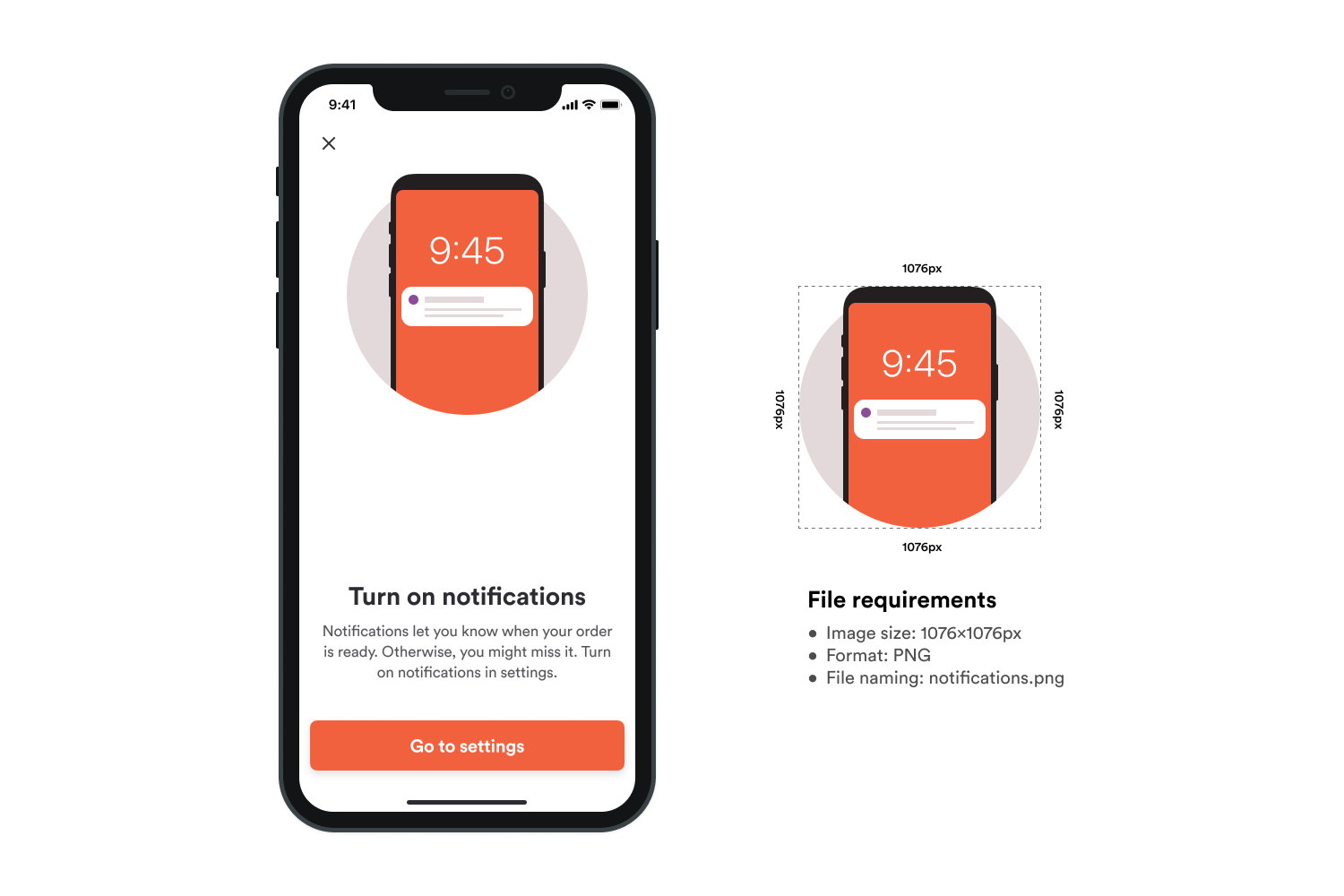
Notification permission
Shown on the notification permission screen. It explains that turning on notifications lets customers know when their order is ready.