Web App Store Finder
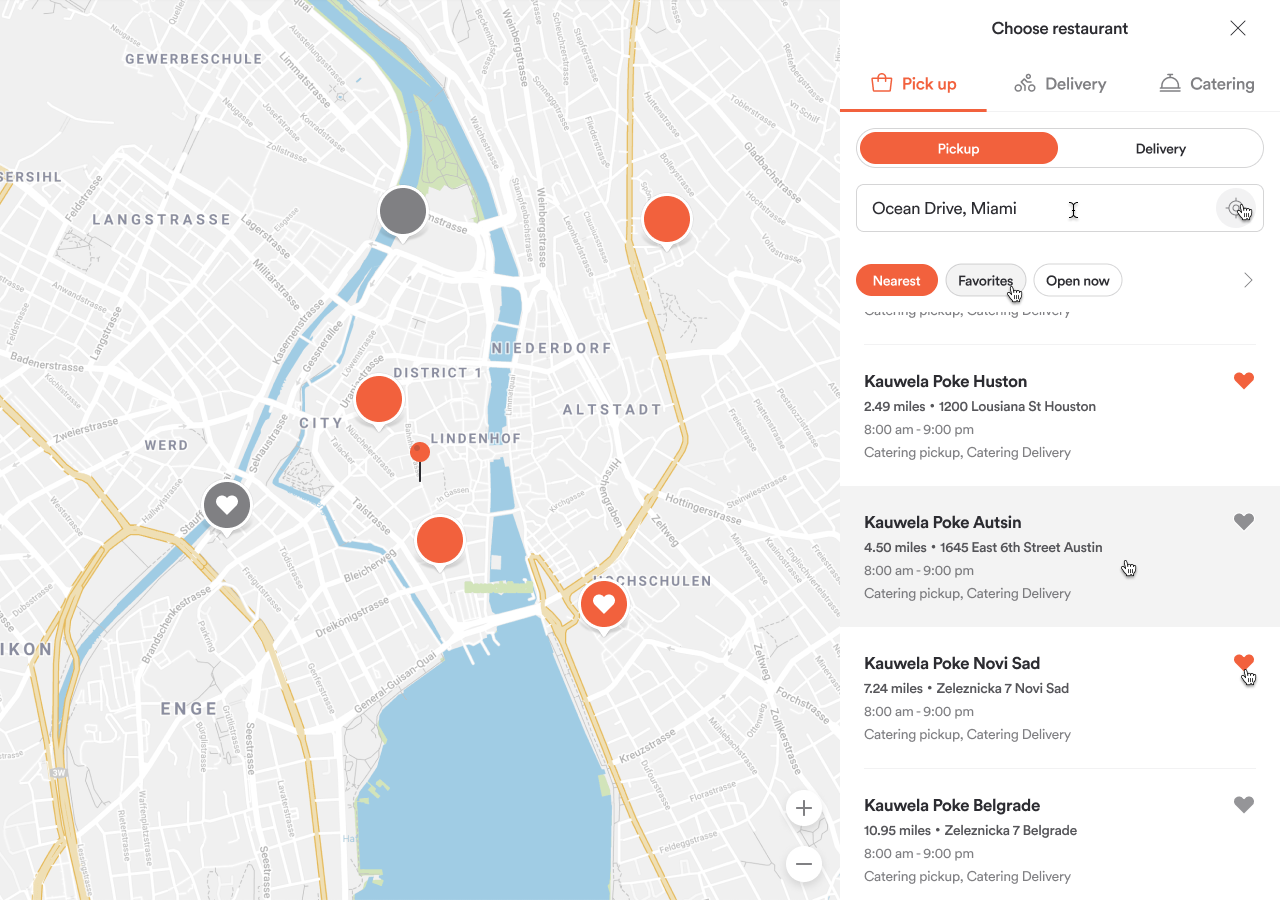
Welcome to the Store Finder! This guide will help you understand how to find and select a store for Pickup, Delivery, or Catering orders.
Accessing the Store Finder
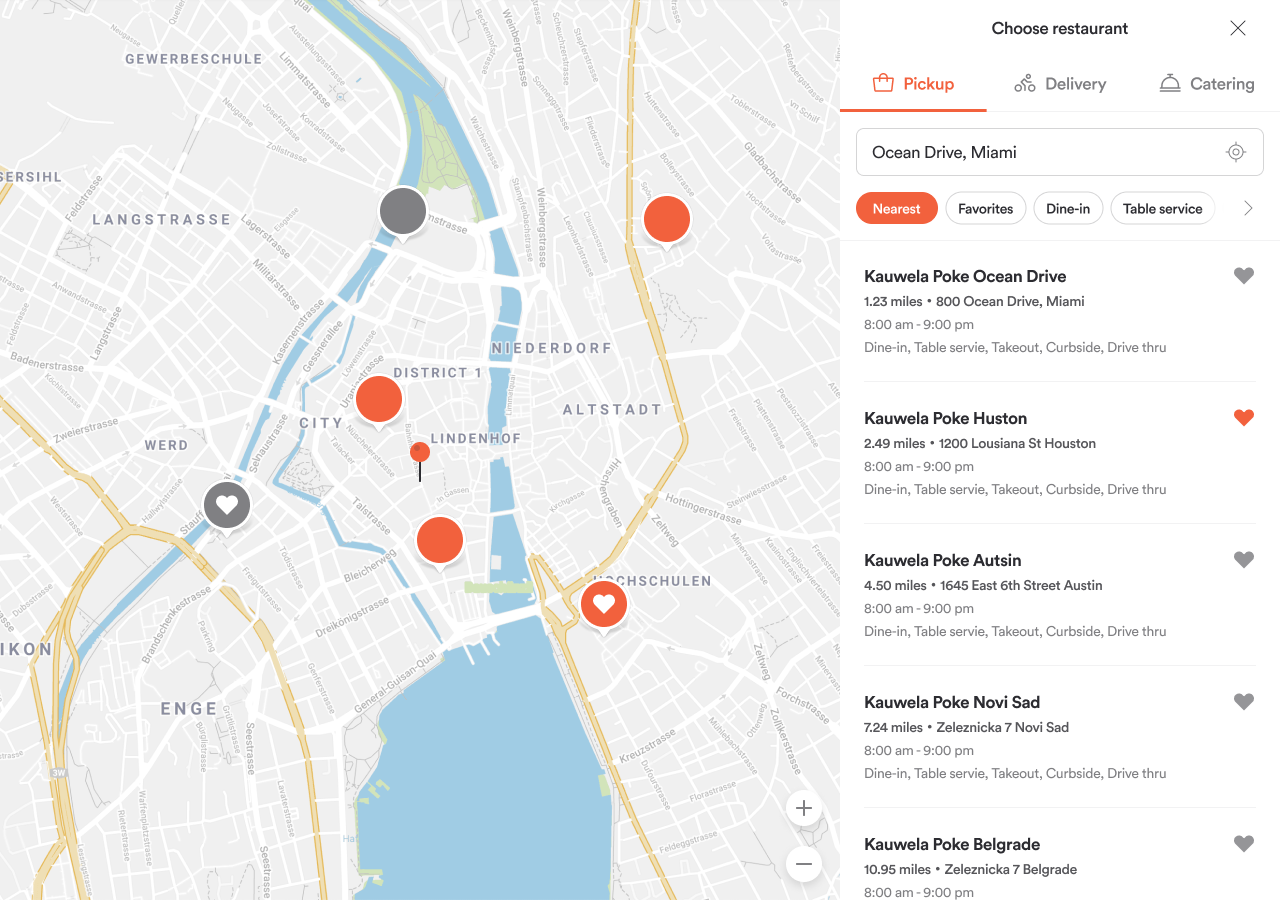
You can open the Store Finder by:
- Selecting Order Pickup, Delivery, or Catering from the home screen.
- Using the top navigation bar on the restaurant menu page (Desktop & Mobile).
- Visiting the Rewards page (Mobile only).
The Store Finder opens as a modal over the current page.
Order Types Supported
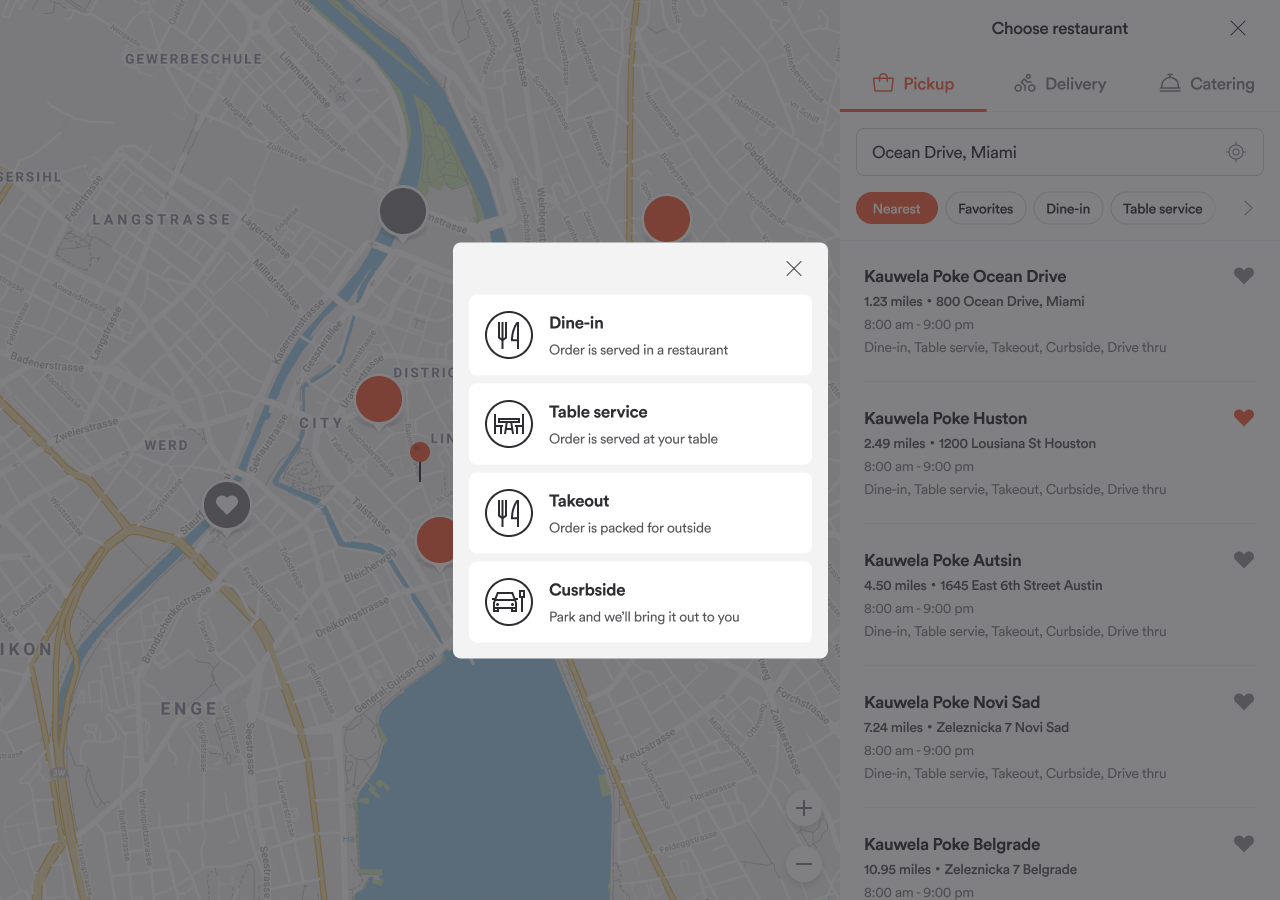
- Pickup: Includes Table Service, Dine-In, Takeout, Curbside & Drive Thru.
- Delivery
- Catering: Catering Pickup and Catering Delivery
Location Input & Permissions
- First-time users are prompted to allow location access.
- If allowed, location is auto-filled and used for future visits.
- If denied, users can manually select a city or enter an address.
- Auto-location button triggers location detection or prompts permission.
Filters
- Nearest: Default filter showing closest restaurants.
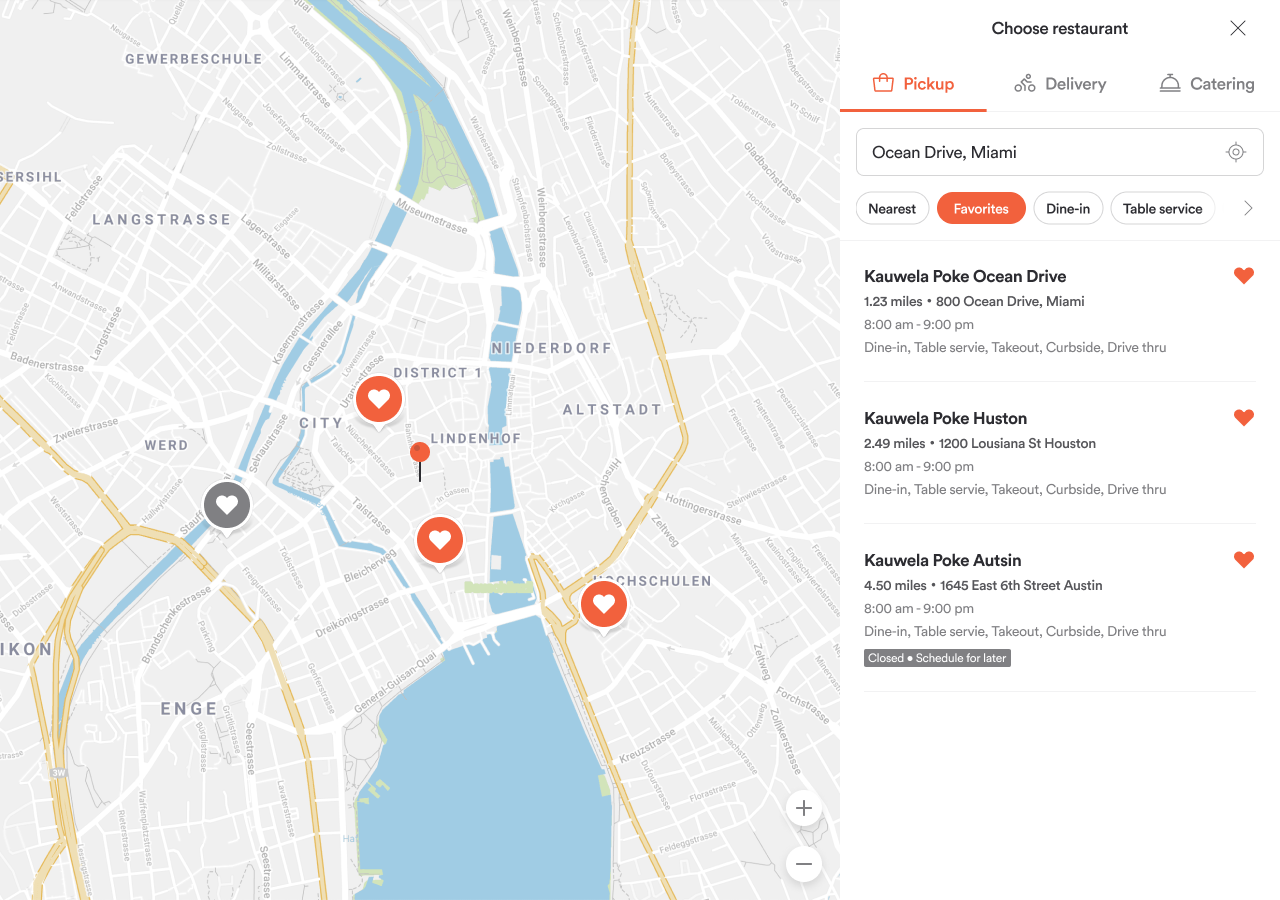
- Favorites: Shows user-marked favorite restaurants.
- Open Now: Displays currently open restaurants.
- Order Type Filters: Filter by Dine-In, Table Service, Takeout, Curbside, Drive Thru.
Restaurant Cards
Each card shows:
- Name, Distance, Address, Hours
- Available order types
- Status (Open, Closed, Offline)
- Favorite icon (if enabled)
Selecting a Restaurant
- Selecting a restaurant may prompt sub-order type selection.
- Once selected, users are redirected to the menu page.
Saving Settings
- Store selection is saved automatically.
- If changing stores with an active cart, a warning is shown.
Delivery Specifics
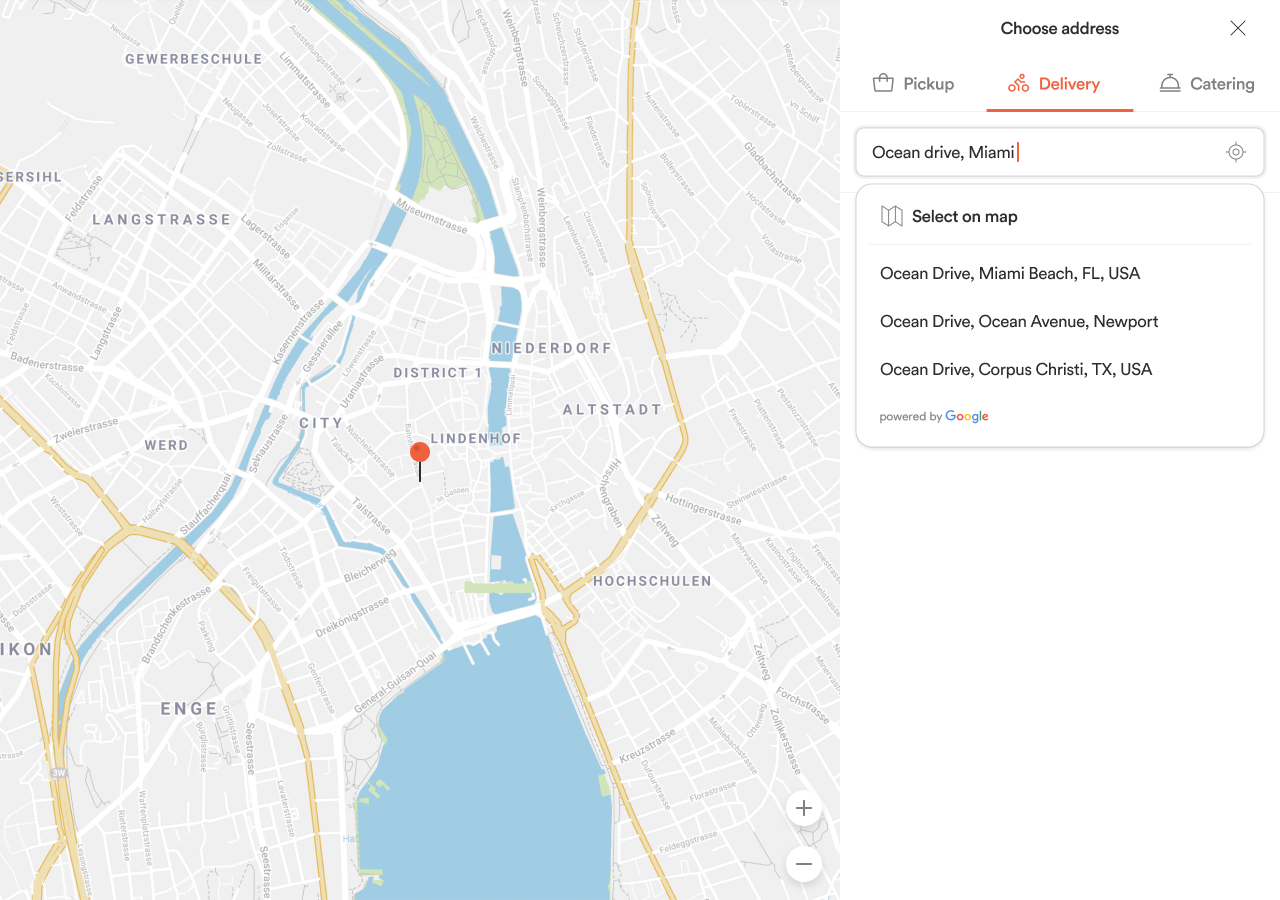
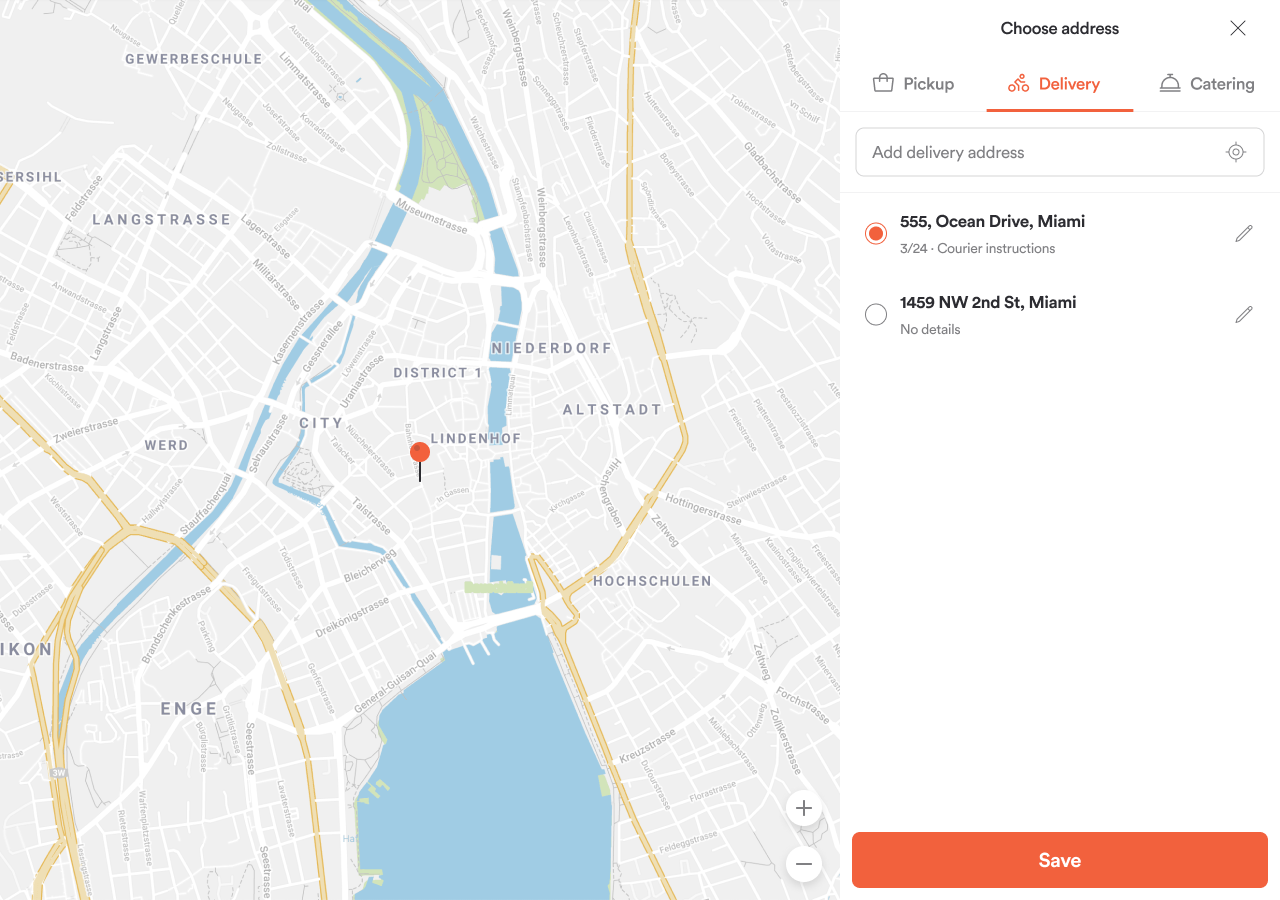
- Users can add or select delivery addresses.
- Address must be within a delivery zone.
- Saved addresses are editable and deletable.
- Invalid addresses cannot be used.
Catering Specifics
- Behaviors mirror Pickup or Delivery depending on type.
- Sub-order type toggle shown if both Catering Pickup and Delivery are enabled.