Quick Add: Add Items Directly to Cart
Overview
Quick Add lets guests add eligible products to their cart with a single tap or click, without opening the product details modal. When enabled, any product with no required modifier selections is added to the cart immediately from the menu.
This feature is available on the Web App for brands using Menu v2.
Enable Quick Add
Required role: Brand Manager
To enable Quick Add for your brand:
- In the Management Center, navigate to Configurations > Menu.
- Locate the Quick Add Products toggle and turn it on.
- Click Save.
Once enabled, Quick Add applies to all eligible products on your menu.
Quick Add is off by default.
How Quick Add Works
When Quick Add is enabled, PAR Ordering checks whether a product requires modifier selections before adding it to the cart.
| Product type | What happens when a guest taps or clicks |
|---|---|
| No modifiers | Added to the cart immediately. The product details modal does not open. |
| Optional modifiers only | Added to the cart immediately. The product details modal does not open. |
| Required modifiers or choices | The product details modal opens. The guest must complete the required selections before the product is added to the cart. |
Quantity: If a guest taps or clicks the same eligible product multiple times, the quantity on that cart line item increments with each tap. The product details modal never opens.
Cart feedback: When a product is added, the standard cart feedback appears: the cart badge and total update, and the mini-cart reflects the new item. The product details view does not appear.
What Guests See
When Quick Add is enabled, eligible products display a quick add button directly on the menu card. The same button style appears across Quick Add menu cards, Favorites cards, and cross-sell suggestions.
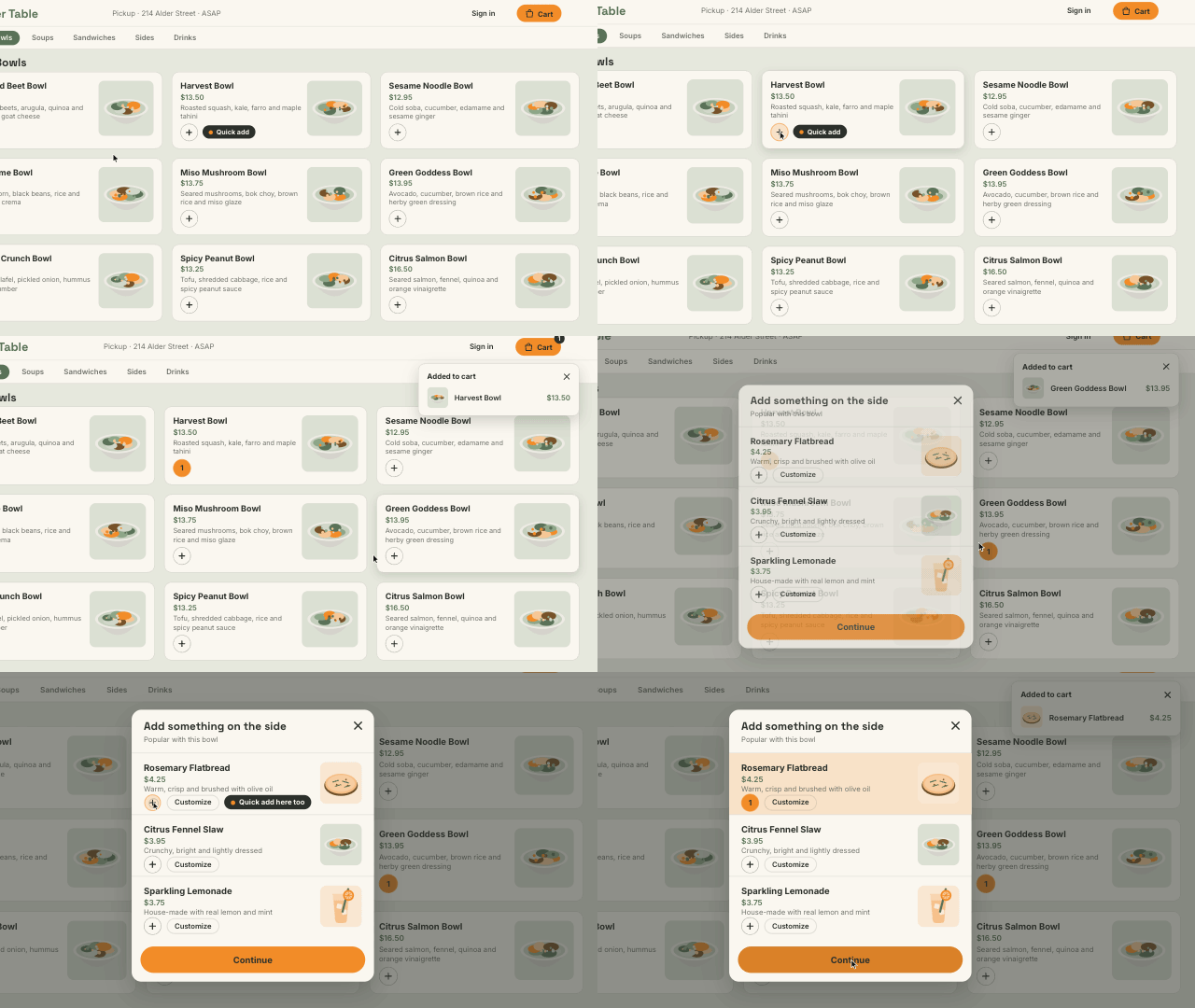
Example only. Your menu appearance may vary.
Favorites
On the Favorites home screen carousel and the Favorites page, each favorite item card shows a + Add to order button. When a guest taps it:
- The button shrinks to a circle with a loading indicator.
- On success, a checkmark appears briefly, then the button returns to + Add to order.
- If the item requires changes (such as a required modifier), the product card opens as usual so the guest can complete their selection.
Cross-Sell Suggestions
In the People also added section and the cross-sell dialog, each suggestion shows one of two buttons:
- + Add to cart: for products with no required choices. Tapping it adds the item immediately. The button shows Added with a checkmark while the product is in the cart.
- Customize: for products that require options or selections. Tapping it opens the product modal so the guest can make their choices before adding.
Cross-sell suggestions appear on the Web App only. They are not currently supported on Kiosk.