Menu Search
Menu Search lets guests find items on the ordering app by name. Instead of scrolling through long menus, they type a few characters and the menu filters down to what matches.
Prerequisites
Menu Search is available on the PAR Ordering web app only. It is not available on kiosk. To enable this feature, you must have the Menu Configuration manage permission in the Management Center.
| Requirement | Detail |
|---|---|
| Channel | PAR Ordering web app only (not kiosk) |
| Level | Brand (applies to all venues under the brand) |
| Permission required | Menu Configuration manage permission in the Management Center |
| Menu setup | No additional per-item configuration needed. Works with your existing menu as-is. |
Enable Menu Search
Menu Search is off by default. Follow these steps to turn it on for your brand.
- In the Management Center, go to Brands > Configurations > Menu.
-
Locate the Menu item search setting.
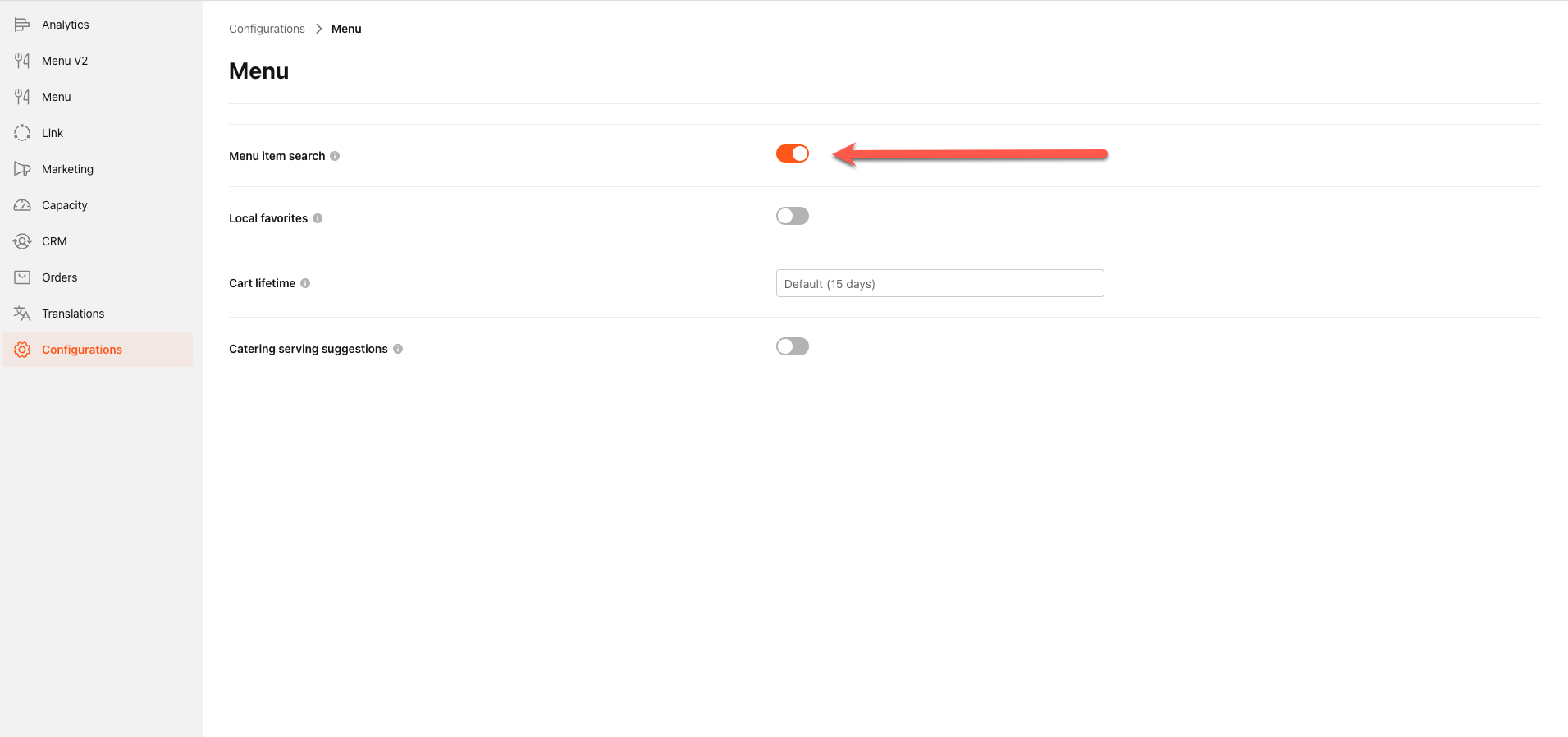
- Toggle it on.
- Click Save.
The change takes effect immediately for your brand's ordering app. No menu republish or deploy is required.
To turn off Menu Search, toggle the setting off and click Save. If you leave the page with unsaved changes, a prompt asks you to confirm. Selecting Cancel reverts the toggle to its previous state.
Guest Experience
When Menu Search is enabled, a search control appears in the menu.
Desktop and Tablet
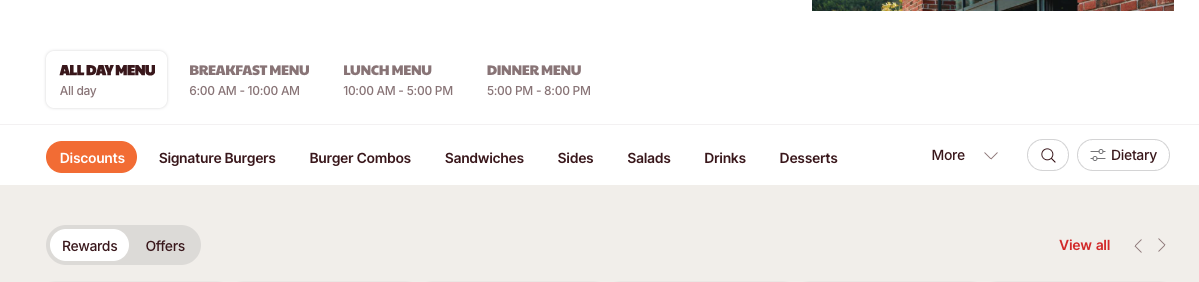
- A magnifier icon appears next to the menu category navigation bar.
- The guest taps or clicks the icon to expand the search field. The category tabs and dietary filter button slide aside to make room.
- As the guest types, the menu filters to show only items whose name matches the search term.
- Tapping the clear (✕) button or pressing Esc collapses the search field and restores the full menu.

Mobile
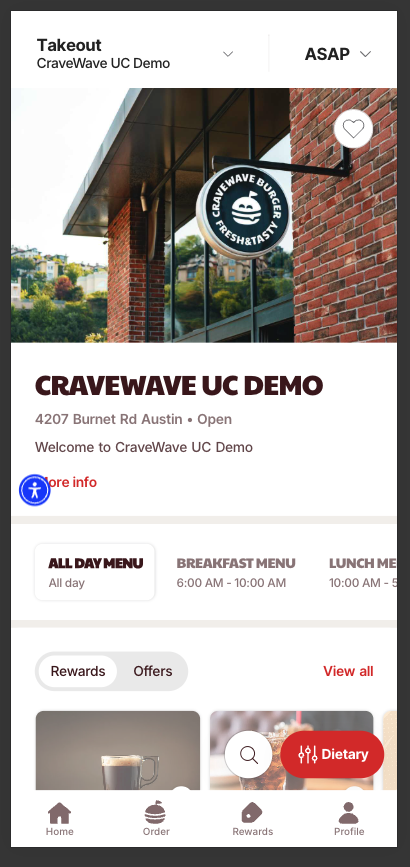
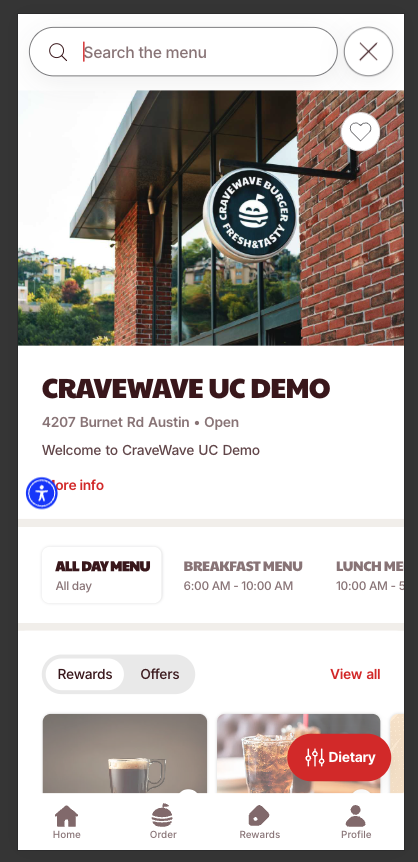
- A full-width search field appears below the day-part menus.
- As the guest types, the menu filters to show only items whose name matches the search term.
- Tapping the clear (✕) button empties the field and restores the full menu instantly.
While a search is active, the Recommendations, Discounts, and Favorites sections are hidden. These sections reappear automatically when the guest clears the search field.
How Search Works
- Search matches any part of an item name. Typing “burg” returns “Cheeseburger.”
- Matching is case- and accent-insensitive. “Creme” finds “Crème Brülée.”
- Only the day-part menu currently in view is searched. If the guest switches day-parts, the search clears and the new menu shows in full.
- If nothing matches, the guest sees a message saying no items were found.
Limitations
- Search only looks at item names. Descriptions, ingredients, modifiers, and allergen and dietary tags are not searched.
- You can only search the day-part menu currently in view, not across all day-parts at once.
- If your menu has translated or localized names, search uses the base item name, not the translated display name.
- Menu Search is not available on kiosks.
Frequently Asked Questions
Does enabling Menu Search change my menu data or require me to republish the menu?
No. Menu Search adds a search control over your existing menu. No menu data is changed and no republish is required.
Can guests search across Breakfast, Lunch, and Dinner menus at the same time?
No. Search is limited to the day-part menu the guest is currently viewing. Switching day-parts resets the search.
Can guests search by ingredient or dietary need, such as "gluten free" or "chicken"?
Not currently. It only searches item names. Dietary and allergen filtering is a separate feature.
Is Menu Search available on kiosk?
No. Menu Search is available on the PAR Ordering web app only.
Who can enable Menu Search?
Any Management Center user with the Menu Configuration manage permission for the brand.
What happens if a guest is mid-search and switches day-parts?
The search clears automatically and the new day-part menu displays in full.
