How to set up Cross-Selling?
| User Role | Store Groups | Store |
|---|---|---|
| Brand Manager | ✅ | ✅ |
| Area Manager | ✅ | ✅ |
| Store Manager | ❌ | ❌ |
Context
The Cross-Selling feature suggests items to guests during the ordering process across all channels.
PAR Ordering supports two recommendation engines for cart-level cross-sell:
- AI-driven suggestions, which the system generates automatically based on ordering patterns.
- Static suggestions, which you define manually.
Both engines share the same configuration rules you set in the Management Center. The rules you configure apply regardless of which engine is in use.
PAR Ordering supports two cross-sell placements:
- Cart-level cross-sell: Suggestions appear in the cart or as a dialog prompt at checkout. Up to 5 items from various categories can appear, and items from subcategories already in the cart are automatically left out.
- Product-level cross-sell: Suggestions appear when a guest opens a specific product. You decide which items show up for each product, so guests only see what you've set for that one item.
You can run both at the same time, or just one, or neither. They work independently of each other. Cross-Selling Items are defined in Menu section in the MC. Besides setting up products that should be offered to your guests through cross-selling, you can also choose between two cross-selling approaches:
-
In cart cross-sell is less disruptive for the Ordering flow because it is just showing below the cart and it is not actively prompting the guest to add cross-sell items to the cart
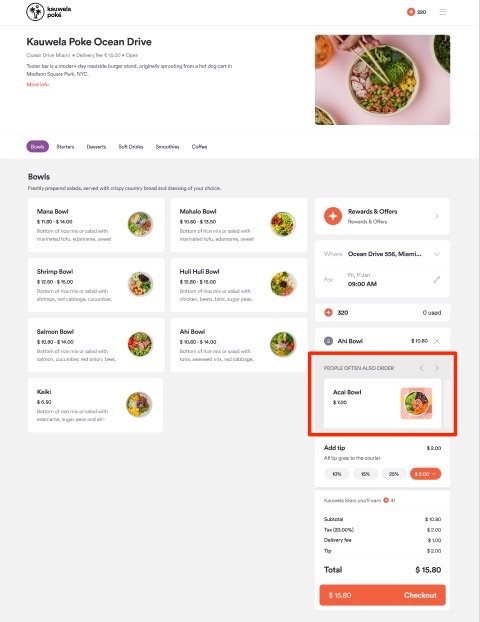
-
As dialog cross-sell provides better average cart total results and actively prompts every guest (by opening a cross-sell modal) to add cross-sell items to their cart after the guest clicks on ‘Checkout’ button.
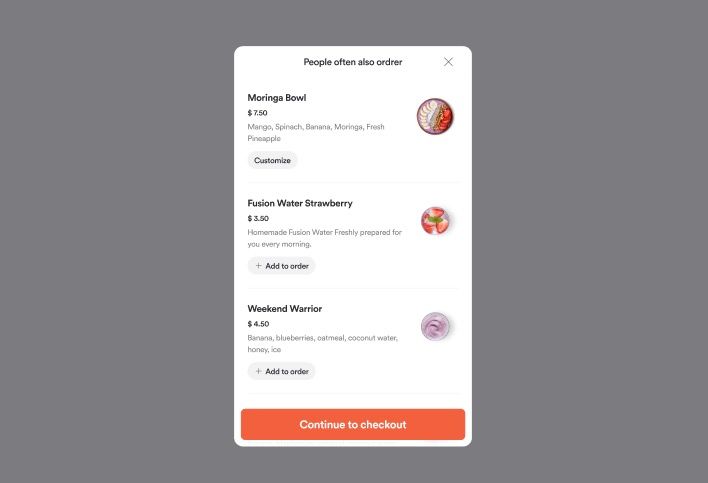
Set Up Cart-level Cross-Sell
- Select the Overview sub navigation of the Menu option of the side navigation bar on All Stores level.
- Click on Menu at the top bar
- Scroll down to the Cross-Selling option
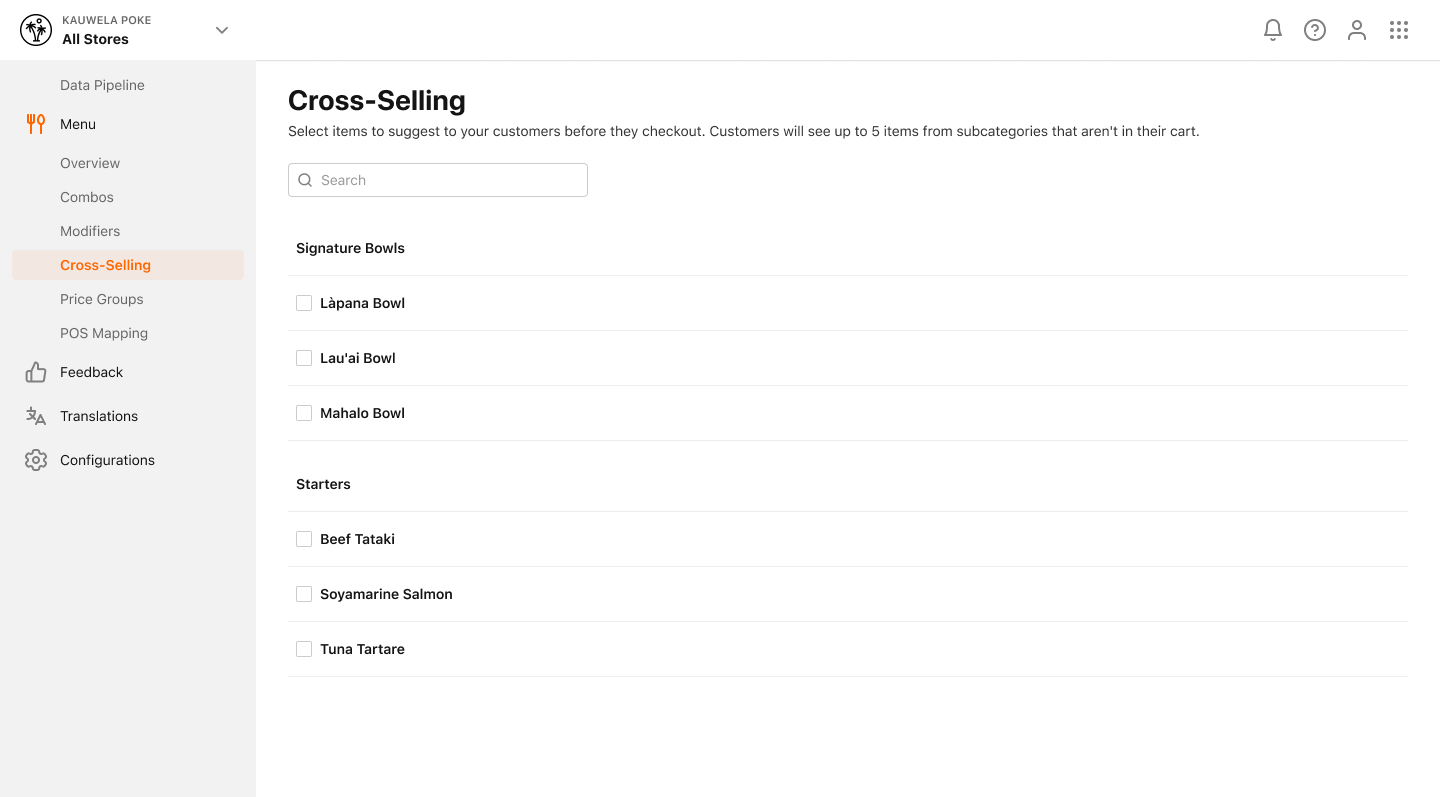
- The Cross-Selling modal shows a list of available Items in their Categories/Subcategories
- Use the Search bar to search for a specific Item by name
- Select the Items you want to be displayed as a suggestion. Select items to suggest to your customers before they checkout. Guests will see up to 5 items from subcategories that aren't in their cart.
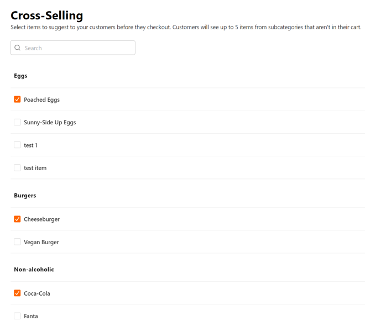
- Click Save to confirm the changes
To change the cross-sell placement your brand will be using on your ordering web app you need to go to Brand > All Stores > Menu > Preferences and choose between In cart or As dialog cross-sell
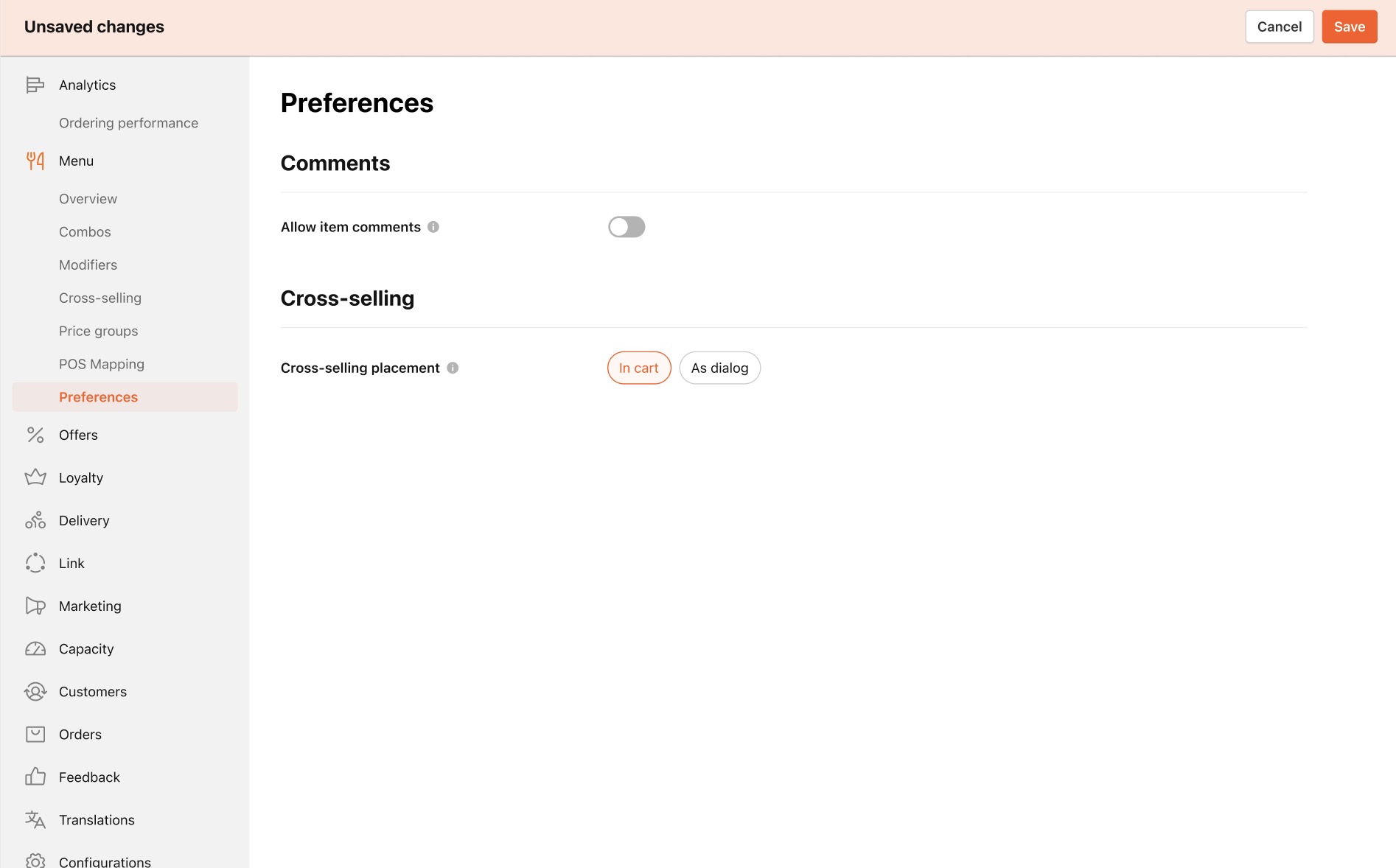
After you save the changes, you've successfully set up Cross-Selling that is now visible in the Kiosk, Mobile and Web app.
Set Up Product-Level Cross-Sell
Product-level cross-sell lets you pick upsell items for each product in your menu. When a guest opens that product, a "People also added" section appears in the product modal. Guests only see the items you've set for that product, not a generic brand-wide list.
This works independently from cart-level cross-sell. Turning one on or off has no effect on the other.
Step 1: Turn on Individual product suggestions
Product-level cross-sell requires a brand-level setting to be on before guests see per-product suggestions. You can configure individual product mappings at any time, but guests won't see them until you enable:
-
In the Management Center, navigate to Brand > All Stores > Menu > Cross-sell > Configuration.
-
Locate the product-level cross-sell toggle (individual product suggestions).

-
Turn the toggle on.
-
Click Save.
When this setting is off, no product-level suggestions appear anywhere on your menu, even if individual products are configured. Start here first if suggestions aren't showing up.
Step 2: Map cross-sell items to a product
Once the brand-level setting is on, you can configure which items appear as suggestions for each individual product.
-
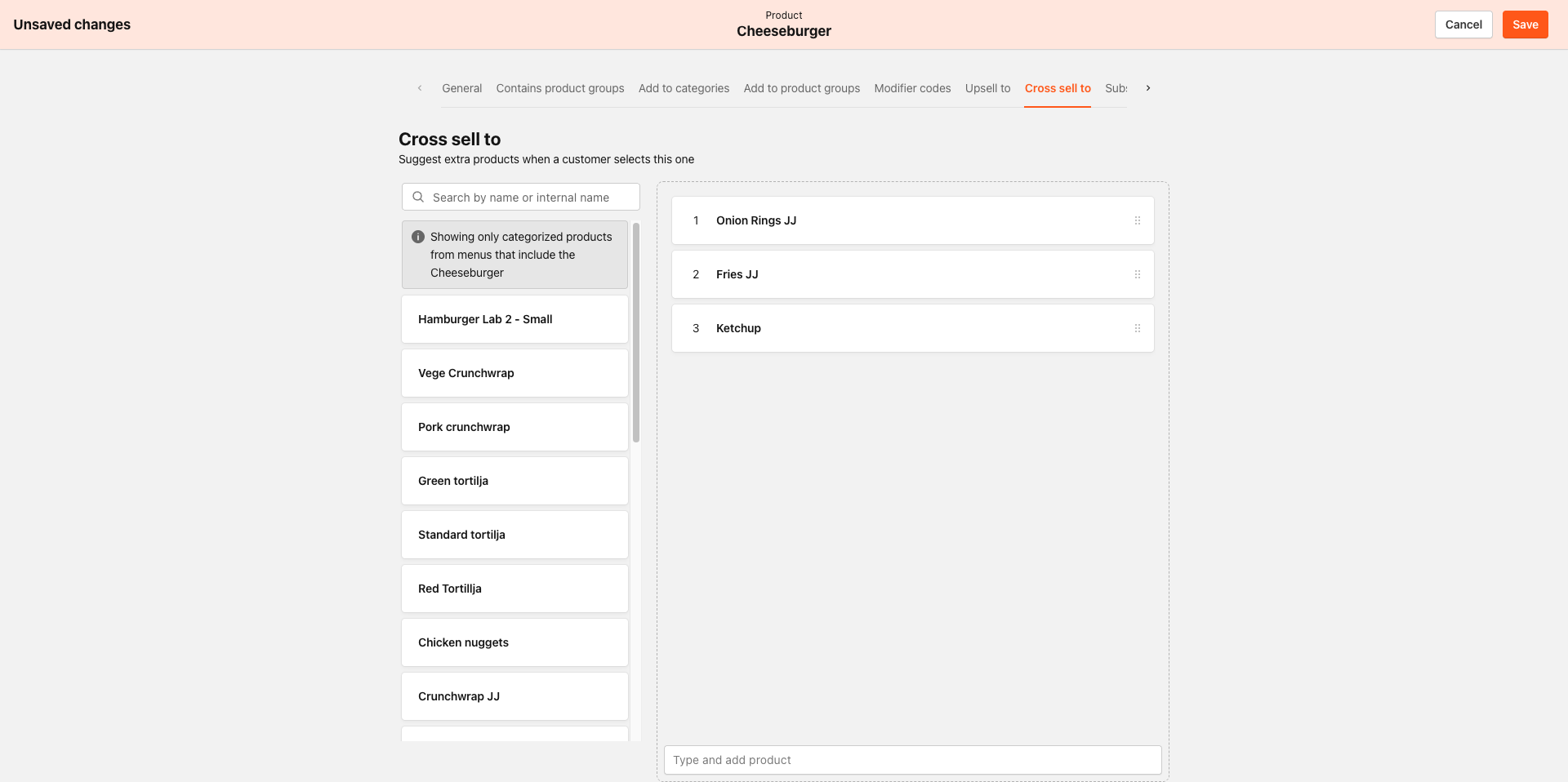
In the Management Center, navigate to Menu and open a product. Note: The Cross sell to tab only appears when you are editing a product at the brand level. It is not available for store-level product edits or virtual product containers.
-
Click the Cross sell to tab (next to Upsell to).
-
Use the search sidebar to find products from the same menu to add as suggestions.
-
Drag products into the mapping list and reorder them to set the display order guests will see.
-
Click Save.
To clear a product's mapping, remove all items from the list and click Save. When a product has no mapping, guests fall back to seeing the brand-wide cross-sell pool instead.
If a product in the mapping is deactivated, it stays saved in the Management Center but is hidden from guests automatically. You do not need to remove it from the mapping — it simply won't appear until the product is active again.
Configure Cross-Sell Rules
The Cross-Sell Configuration page lets you control which products the system can and cannot recommend, regardless of whether you use AI-driven or static suggestions. These rules apply to both engines.
To access the page, navigate to Brand > All Stores > Menu > Cross-Sell > Configuration in the Management Center.
You can create rules for In Cart and As dialog by selecting each under Cross-selling placement.
The configuration is organized into three rule categories: Product Controls, Category Controls, and Menu Controls.
Product Controls
Product Controls govern rules at the individual product level.
| Setting | Description |
|---|---|
| Never Recommend These Products | Blocks specific products from ever being recommended. Overrides all category rules. |
| Recommend Products Already in the Cart | Controls whether the system can suggest items the guest already has in their cart. Off by default. |
| Always Recommend These Products | Forces specific products to always be eligible for recommendation. Overrides category exclusions, product exclusions, and mutual exclusion rules. Appears only when "Recommend Products Already in the Cart" is off. |
| Never Recommend These Products (When Already in Cart) | Blocks specific products from being recommended only when they are already in the cart. Appears only when "Recommend Products Already in the Cart" is on. |
| Recommend Alcoholic Beverages | Controls whether alcoholic items can appear in recommendations. Off by default. |
| Product Exclusion Groups | Creates groups where, if one product is in the cart, others in the group cannot be recommended. Always-recommended products override these rules. |
| Block Recommendations by Cart Product | Blocks specific recommendations when a specific product is already in the cart (for example, if "Burger" is in the cart, do not recommend "Combo"). |
| Recommend Products With Required Modifiers | Controls whether products that require modifier selections (such as size or toppings) can be recommended. Off by default. |
| Minimum Product Recommendation Price | Blocks all products priced below the configured threshold from being recommended. |
| Maximum Product Recommendation Price | Blocks all products priced above the configured threshold from being recommended. |
| Recommend Products Higher Than the Highest-Priced Cart Item | Controls whether recommended items can be priced higher than the most expensive item in the guest's cart. Off by default. |
| Recommend Products Above Cart Total | Controls whether recommended items can exceed the guest's total cart value. Off by default. |
Category Controls
Category Controls apply the same logic as Product Controls, but at the category level.
| Setting | Description |
|---|---|
| Never Recommend These Categories | Excludes entire categories from ever being recommended. |
| Block Recommendations by Cart Category | If any product from a selected category is in the cart, blocks recommendations from another specified category. |
| Always Recommend These Categories | Forces selected categories to always be eligible for recommendation. Overrides category blocks. Appears when "Block Recommendations by Cart Category" is enabled. |
| Category Exclusion Groups | Groups where categories mutually block each other. For example, if any Sweet item is in the cart, no other Sweet items are recommended. Appears only when "Block Recommendations by Cart Category" is disabled. |
Menu Controls
Menu Controls let you exclude entire menus from cross-sell recommendations.
| Setting | Description |
|---|---|
| Never Recommend These Menus | Blocks all products from selected menus from being recommended. Useful for seasonal, regional, or time-limited menus such as Happy Hour. |
What Guests See
When a guest opens a product that has cross-sell configured, a "People also added" section appears in the product modal. Each suggestion card has one of two buttons:
Product-level cross-sell suggestions appear on the Web App only. They are not currently supported on Kiosk.
- Add to cart: Shown for items with no required choices. One tap adds the item, and the button switches to an Added state.
- Customize: Shown for items with required options or modifiers. Tapping opens that item's own modal so the guest can make their selections. Once they're done, they land back on the original product with the rest of the suggestions still there.
- If a product has no Cross sell to mapping, guests see suggestions from the brand-wide cross-sell pool instead (if configured).
If a product has both an Upsell to mapping and a Cross sell to mapping configured, guests currently see only the Upsell suggestions.
Guests can add as many suggestions as they want before adding the main product to their cart.
When no suggestions appear
- Even with the brand switch on, a product might show no "People also added" section. That's normal. It happens when the product has cross-sell turned off or has no items configured, when the configured items aren't priced for the current menu or location, or when those items fall outside their availability window for the current order type.
- If suggestions fail to load for any reason, the ordering flow continues and the section is left empty.
- The product has both a Cross sell to mapping and an Upsell to mapping configured — in this case, guests see only the Upsell suggestions.
