Multi-Language Menu Translations
Menu Translations let you display your brand's menu content in multiple languages. When a guest selects a language in the ordering app or on kiosk, PAR Ordering shows the translated names and descriptions you've entered. Translated content applies to menus, categories, products, modifier groups, section headers, cart items, order receipts, and order confirmation emails.
This article covers menu entity translations for brands using Menu v2 (NMG). If your brand uses Menu v1 (Classic), see How to Add Translations?.
Prerequisites
You need Brand Manager permissions to access this feature.
How Menu Translations Work
PAR Ordering supports multiple languages per brand. Each language is identified by an ISO 639-1 two-letter language code (for example, es for Spanish or fr for French). The language a guest's device or app requests determines which translations are returned.
When PAR Ordering finds a translation for the requested language, it returns the translated text alongside the original value. If no translation exists for a specific item, the app falls back to the stored default-language value. Guests always see something.
An inactive language behaves the same as a missing translation: the guest receives the default language content.
Translated content appears in these places:
- Menu: category names, product names and descriptions, modifier group names, section headers
- Cart: product names and modifier code names
- Order receipts and confirmation emails: names captured at the time of order placement
Manage Menu Languages
Before you can enter translations, you need to add at least one language to your brand.
Add a Language
-
In the Management Center, go to All Stores > Menu > Translations.
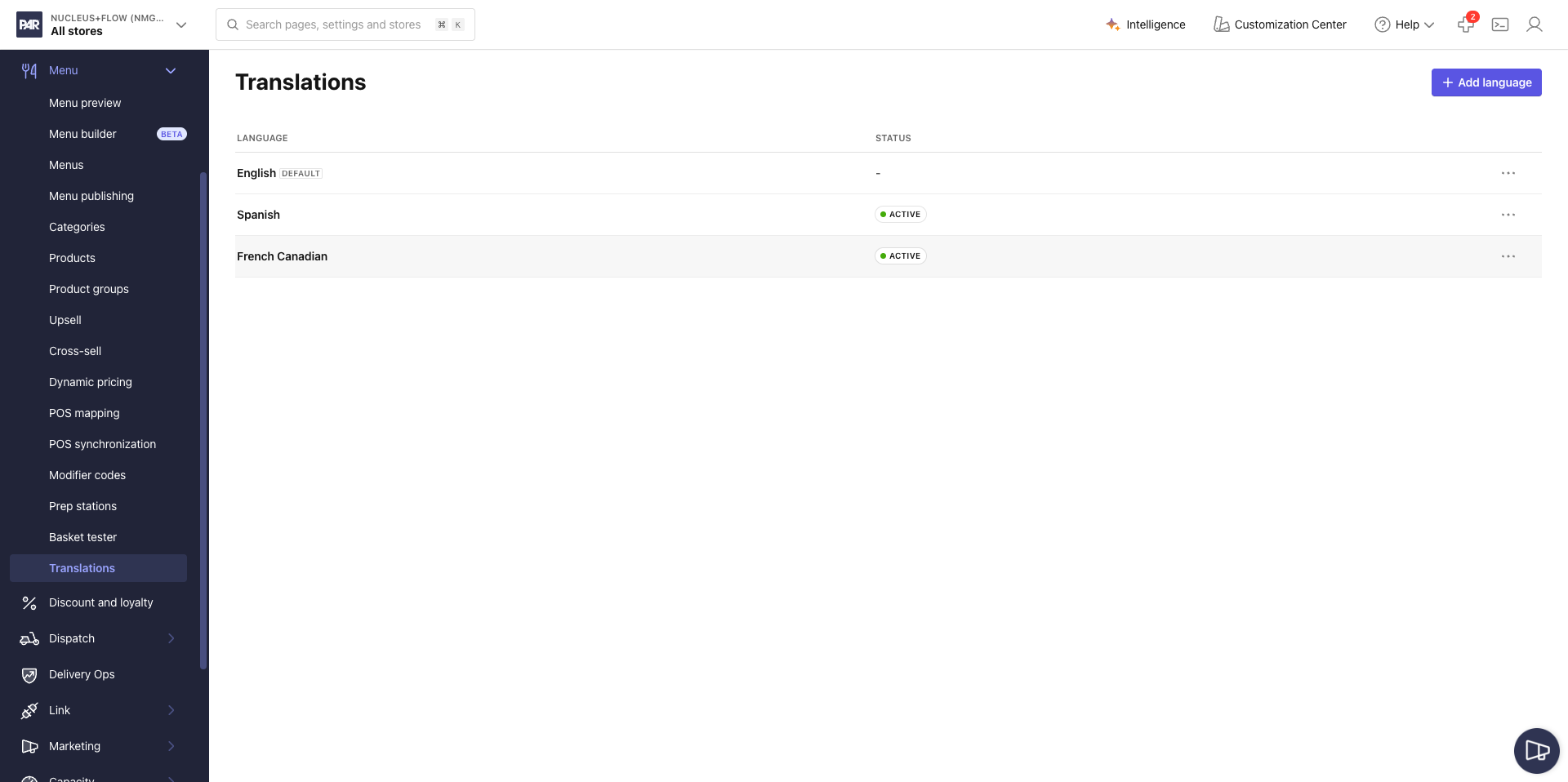
- Click Add Language.
- Enter a Language name.
- Enter the Language code using the ISO 639-1 two-letter format (for example,
es).
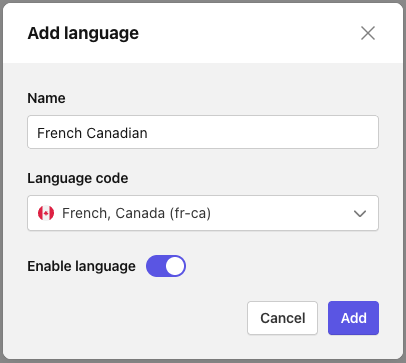
For a full list of language codes, see the List of ISO 639-1 codes on Wikipedia.
- Toggle the language on to make it active immediately.
- Click Save.
The language is now available in the Translations editor.
Edit a Language
- In the Management Center, go to All Stores > Menu > Translations.
-
Click the hamburger icon (⋮) next to the language you want to change.
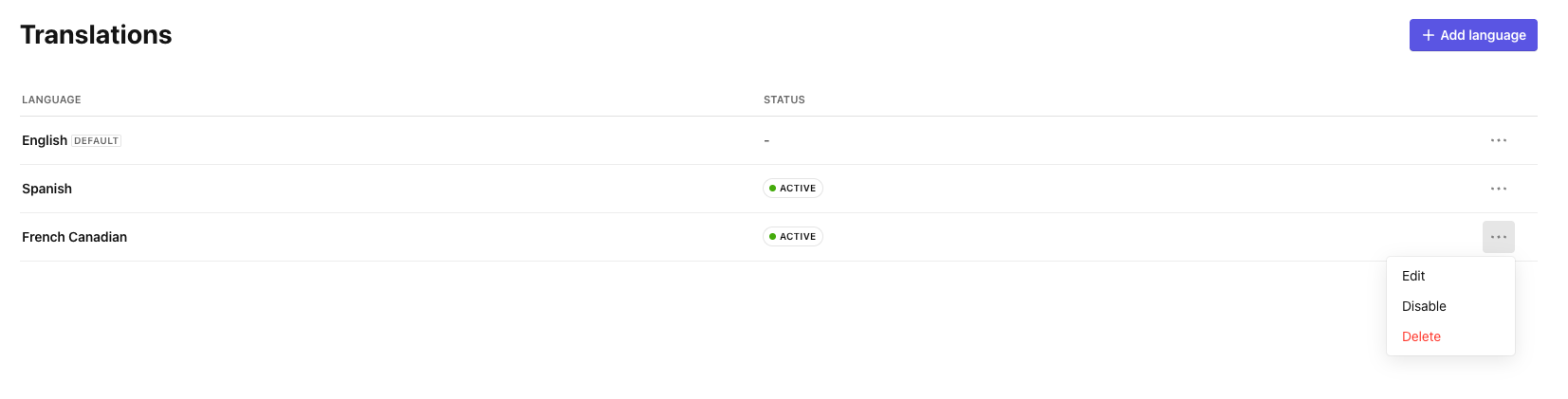
- Select Edit.
-
Update the name, code, or active state as needed.
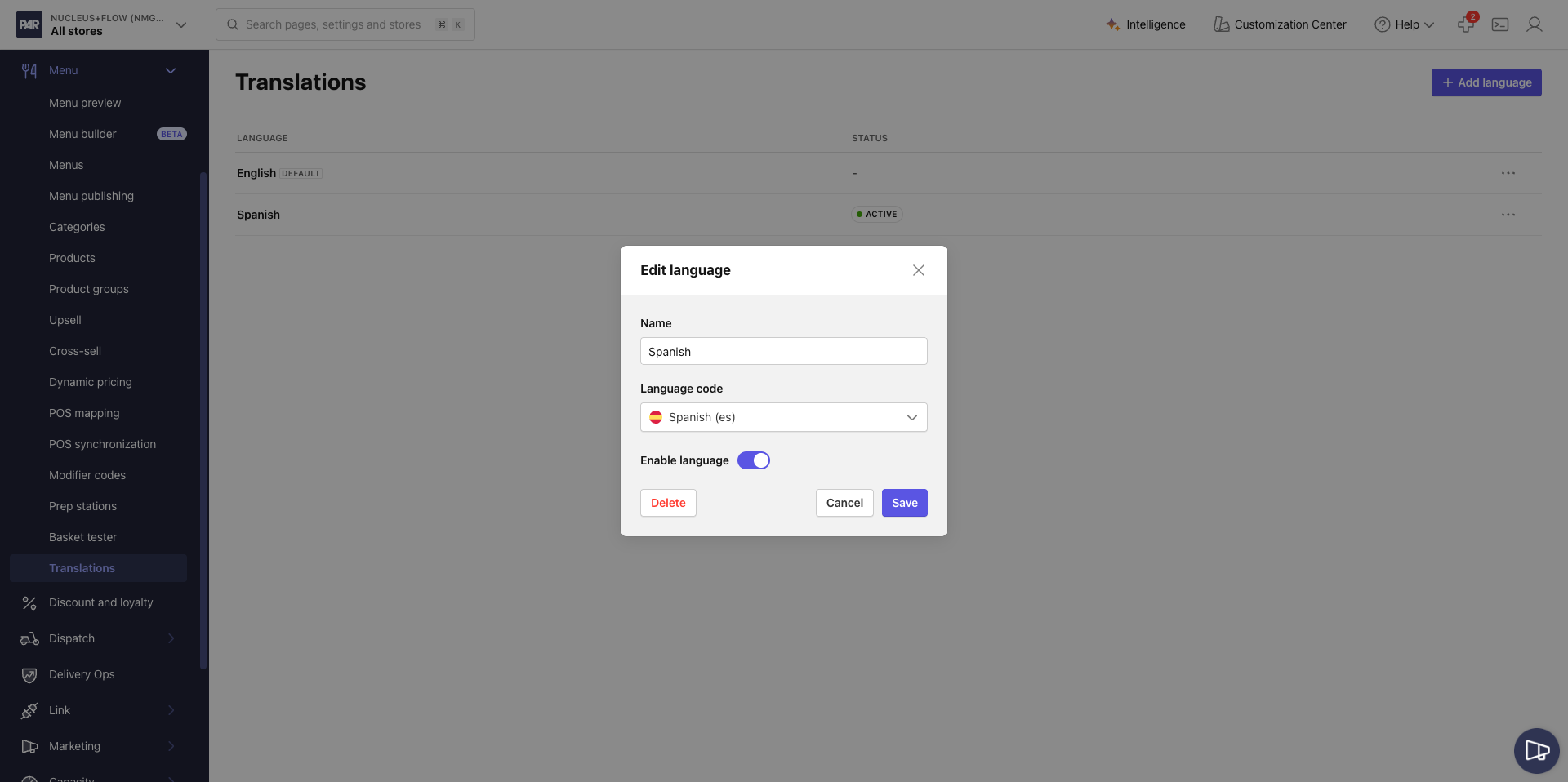
- Click Save.
You cannot disable or delete the default (source) language for your brand.
Disable or Delete a Language
- In the Management Center, go to All Stores > Menu > Translations.
- Click the hamburger icon (⋮) next to the language.
- Select Disable or Delete.
- Confirm the action in the dialog.
When you disable a language, guests who select it receive the default language content. The translations are preserved. Re-enabling the language restores them.
When you delete a language, all translations for that language are permanently removed.
Translate Menu Content
After adding a language, you can enter translations for each menu entity.
- In the Management Center, go to All Stores > Menu > Translations.
- Click the name of the language you want to work with.
- A new page opens with the translation options.
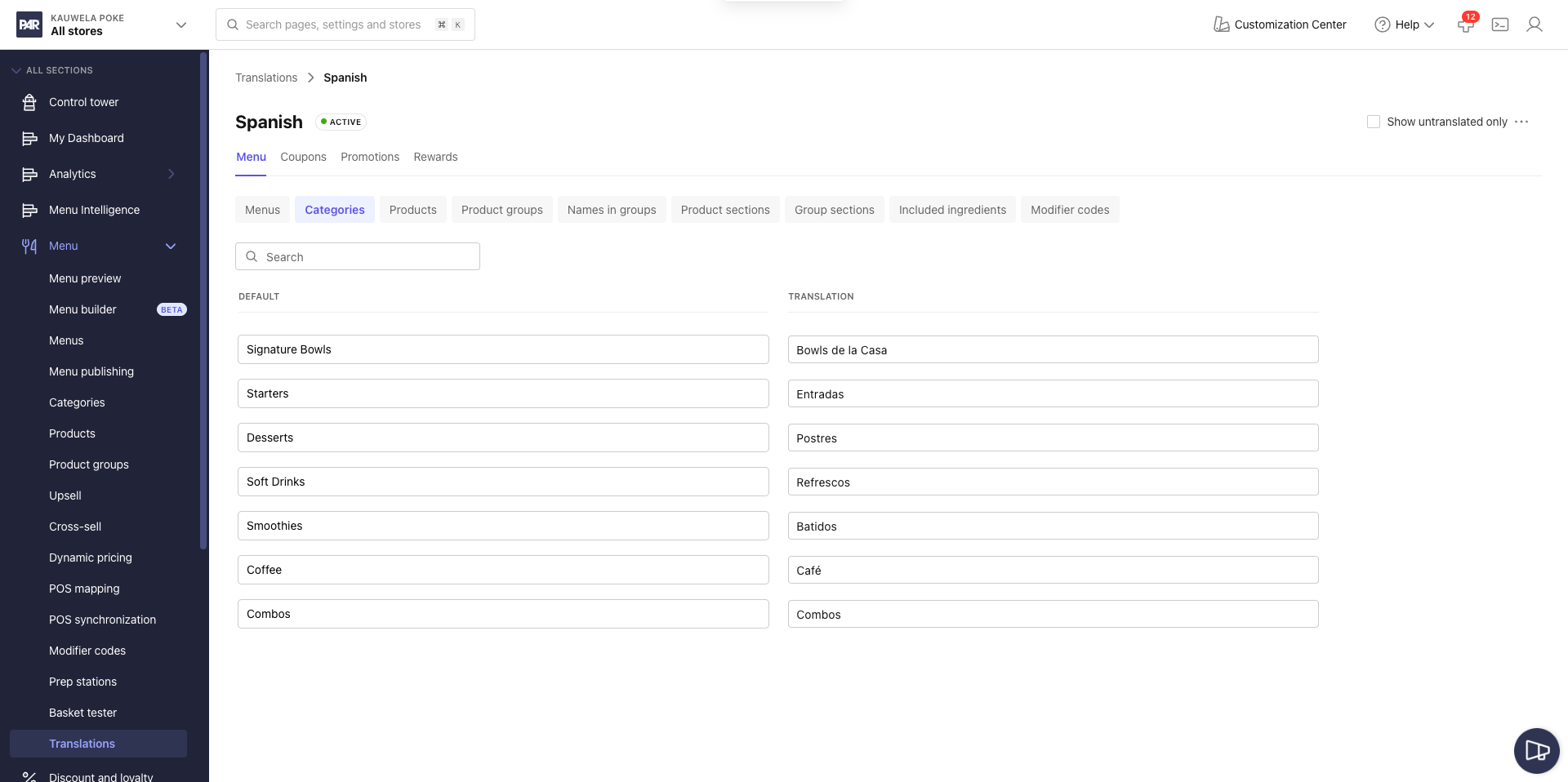
The Menu tab contains the following sections for v2 menus:
| Section | Fields you can translate |
|---|---|
| Menus | Name, description |
| Categories | Name, description |
| Products | Name, description |
| Product groups | Name (modifier groups, size groups, combo groups) |
| Sections | Name (section headers shown in the product modal) |
-
Select a section tab (for example, Products).
-
For each item, enter the translated text in the field to the right of the source language value.
A green checkmark appears next to the row once the translation saves.
-
To focus only on items that do not yet have a translation, select the Show untranslated only checkbox.
Translations save automatically as you type. You do not need to click a separate Save button for individual rows.
Translate Coupons, Promotions, and Rewards
The same Translations editor includes tabs for Coupons, Promotions, and Rewards. Select the tab, find the item, and enter the translated text.
Guest Experience
When a guest's ordering app or kiosk sends a language preference, PAR Ordering applies the translations you've entered.
-
Menu browsing: Category names, product names and descriptions, product group names, and section headers display in the selected language.
-
Cart: Product names and modifier names display in the selected language.
-
Language switching mid-session: If a guest changes language while shopping, the cart updates translated names on the next cart action (such as adding or removing an item).
-
Order receipts and emails: Translated names are captured at the time of order placement and appear in the receipt and confirmation email. Changes made to translations after an order is placed do not affect that order.
If no translation exists for an item in the selected language, the guest sees the original default-language value.
Notes
- Translated images are not supported. Only text fields (name and description) can be translated. Product and category images display the same image regardless of the selected language.
- Native iOS and Android apps: This feature covers the web app and kiosk channels. Translation behavior on native iOS and Android apps that are not built on the PAR Ordering web shell is not verified.
Frequently Asked Questions
What languages can I add? You can add any language with a valid ISO 639-1 two-letter code. PAR Ordering does not restrict which languages are available.
What happens if I add a language but don't enter any translations? If a language is active but has no translations, guests who select that language see the default language content for all items. PAR Ordering always falls back to the stored default value when no translation exists.
What happens if I disable a language? Guests whose app requests that language receive the default language content. Disabling a language does not delete the translations. Re-enabling the language restores them.
Can I see which items are missing translations? Yes. Use the Show untranslated only checkbox in the Translations editor to filter to items that have not yet been translated for that language.
Does changing a translation affect orders that have already been placed? No. Order receipts and confirmation emails use the translated names captured at the time of order placement. Existing orders are not affected by later translation changes.
Can I translate coupons, rewards, and promotions in the same screen? Yes. The Translations screen includes Coupons, Promotions, and Rewards tabs in addition to the Menu content.
Is there a way to bulk-update translations? Bulk translation updates are available through the PAR Ordering API. Contact your PAR representative or see the API Basics guide for details.
Related Documentation
- How to Add Translations? (general translation workflow for Menu v1)
- API Basics: Localization and Translation (
Content-Languageheader and translations object for API integrations) - Menu Search