PAR Games: Dynamic JWT Deployment Method
Games can be distributed using Dynamic JWT Tokens. This is the main deployment method for games being distributed from the Punchh platform, either through campaigns or the mobile app.
Configure the Dynamic JWT Game URL
- Navigate to the Link Configuration on the left side panel.
- Click the Enable Dynamic Tokens checkbox.
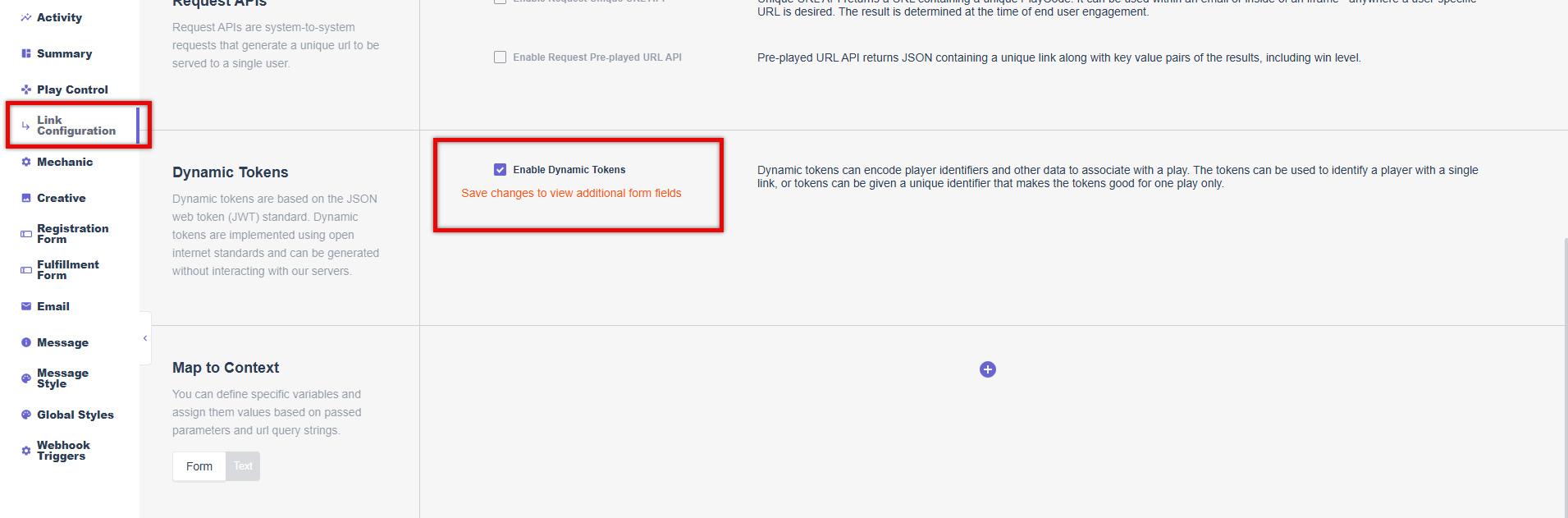
- Click Save Settings at the bottom of the page to view additional form fields.
- In the JWT Secret Key field, paste the secret key provided by your Punchh representative.
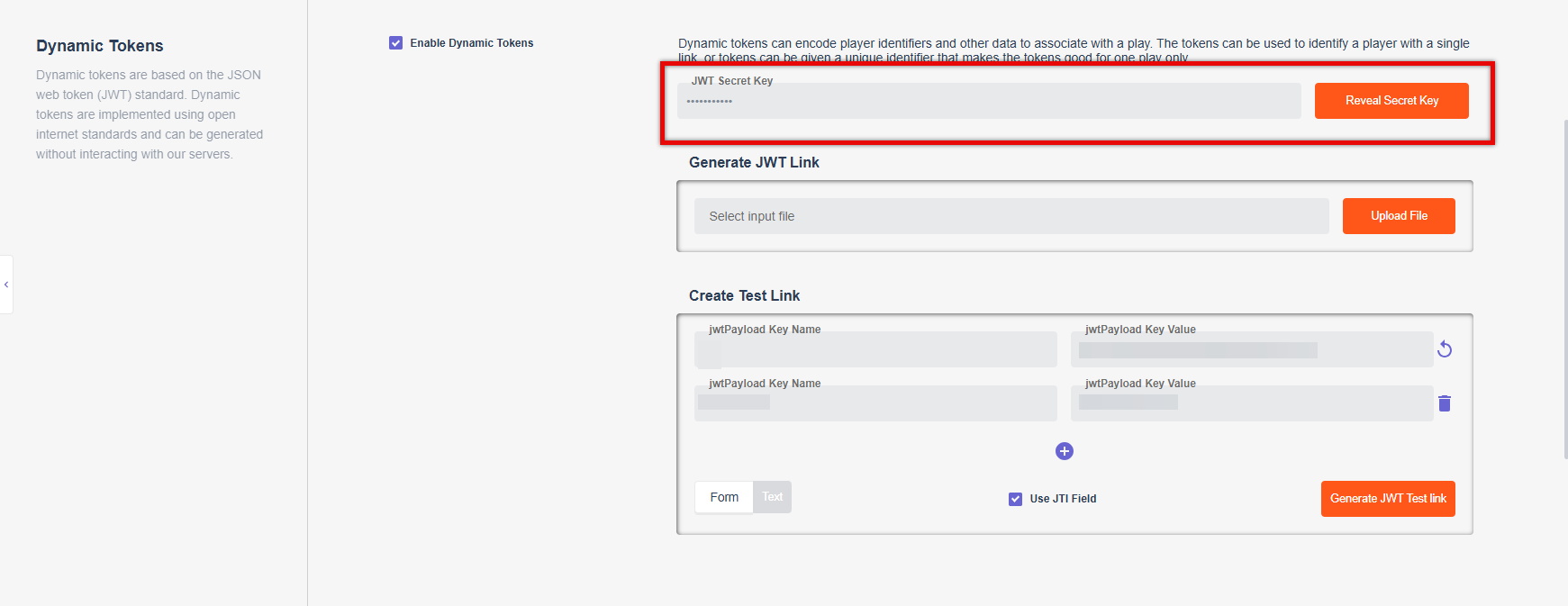
- Click Save Settings.
If the game is being distributed by a third-party integration, the tokens will need to be generated by manually uploading a CSV file. Refer to the Dynamic Tokens article in the PAR Developer Portal for additional information.
Map to Context Fields
- Under Link Configuration > Map to Context (below Dynamic Tokens), select the + icon.
- Enter the following details:

- Context Variable Name: user_id
- Source: Passed Parameters
- Passed Parameter Value: user_id
- Click Save Settings.
Note: This standard and should always be configured this way for every game using Dynamic JWT Deployment.
Create a Test Link
It is important to test the game link to ensure webhooks and prizes are being sent properly.
- Under Link Configuration > Dynamic Tokens, you’ll find a section called Create Test Link.
- Leave the first row key-value pair as is.
- In the second row, in the Key Name field, replace AccountID with user_id.
- In the Key Value field, enter the user_id of a test guest you want to generate the link for.
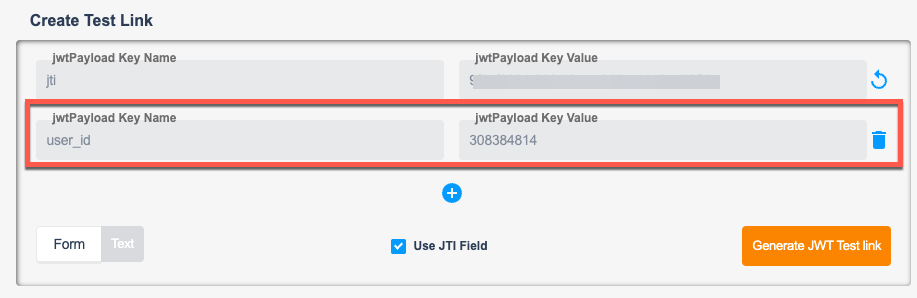
- Click the Generate JWT Test Link button.
- Copy the generated URL and paste it into your browser to test the flow.
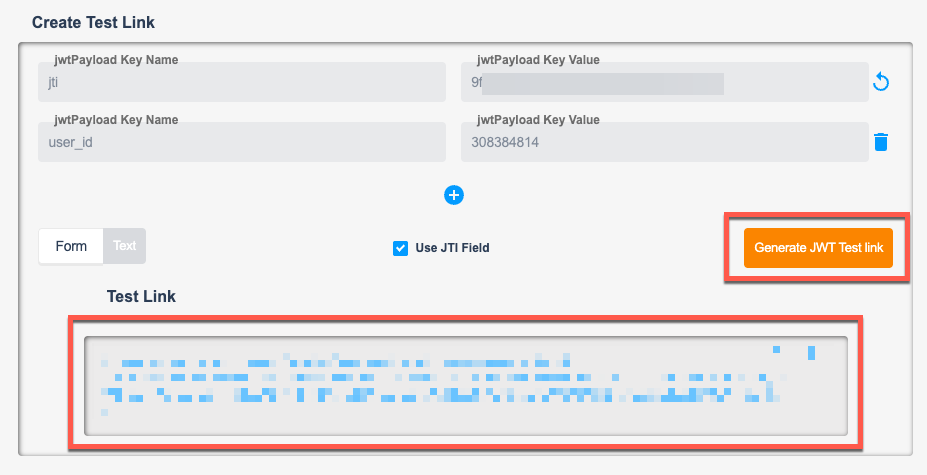
- The game is now launched in the browser.
- Play the game and check if the reward is successfully credited to the test account after a win.
- For additional support, navigate to Activity in the PAR Games dashboard and click Create Webhook CSV. This will create a report that details any errors or missing parameters within the call to Punchh.
For games using multiple types of prizes (e.g. points and rewards), play the game multiple times to ensure both types of prizes are being sent to the test account.
Getting the Game URL
You will need to have a sharable game URL to share the game in a campaign or on the mobile app.
- Navigate to the Summary tab on the left side panel
-
Copy the Dynamic Token URL through
token=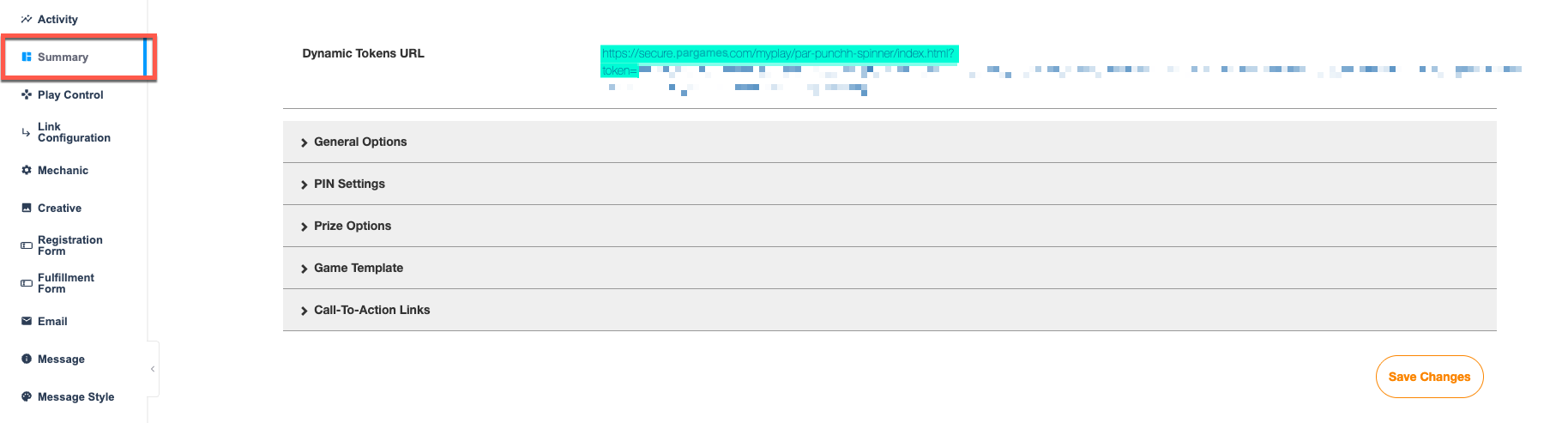
- Paste the URL into a text editor
-
Add {{{game_jwt_token}}} to the end of the URL (after
token=)
On the backend, the system automatically appends the user_id to the game URL and masks it by converting it to a token. This ensures that the game URL is generated at runtime and is unique for every player—meaning it cannot be shortened. - Copy and save the URL
This URL can now be added to the Games page on the Punchh platform. Refer to Managing Game URLs for additional information.
For more detailed instructions on distributing a game through Punchh campaigns, please refer to PAR Games: Campaign Distribution.