Month on Month Report
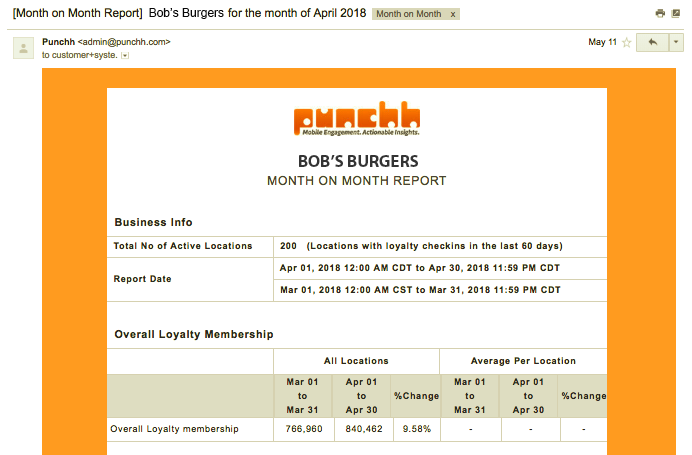
The Month on Month Report is an automatic report with month-over-month earnings and loyalty breakdowns containing business-wide KPI stats such as Loyalty Guest Count, Lift %, Average Loyalty Guest Spend, and Referral Growth, as well as per-location averages, when applicable. The report compares data for the previous two months.
The Month on Month report is automatically generated after the end of each month and sent to all of your company admins you've selected to receive it.
Metrics
The following metrics are included in the Month on Month Report. Notice that non POS-integrated businesses are unable to see metrics for data that must be pulled from a POS system.
| Screen | Description |
|---|---|
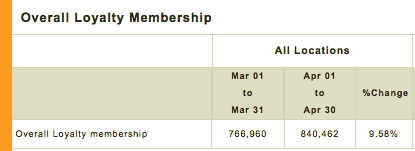 |
Overall Loyalty Membership The total number of guests in your loyalty program. These are guests who have signed up using your mobile app. This number does not include eClub-only guests. This is based on join date (the date that the guest joined the loyalty program) rather than created date (the date which the guest was created in the Punchh database). |
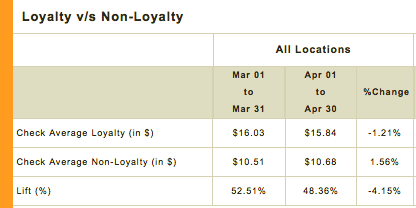 |
Loyalty vs. Non-Loyalty Compares the average check totals for guests in your loyalty program against anonymous, non-loyalty guests. Lift % refers to the relative difference in average check size between the two groups. Ideally, we'd like to see this at 5% or greater. It is possible to have a negative Lift % at the start of a new program, as new guests take advantage of sign up offer discounts. |
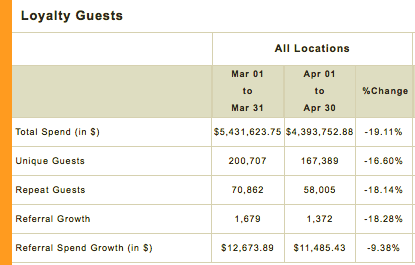 |
Loyalty Guests Displays the total spending made by and the total amount of unique loyalty guests who made a purchase during that monthly period. Repeat Guests refers to any loyalty guest with two or more checkins during the month. Referral Growth refers to the total number of new referrals who signed up that month, and Referral Spend Growth is a measure of how much those referred guests ended up spending. |
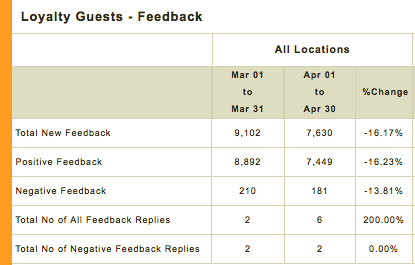 |
Loyalty Guests Feedback Tracks the feedback loyalty guests have submitted about your business through the mobile app. Positive and negative feedback are determined by the guest's rating (5 stars good, 2 stars bad) and sentiment language analysis (negative words such as "terrible", "bad", "burnt"). Feedback replies refers to messages sent to a guest using the Reply link accompanying their review in the Feedback section of your Punchh Dashboard. |
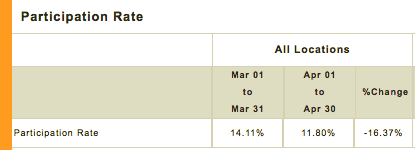 |
Participation Rate Participation Rate is determined by: If your business is non POS-integrated, this number will appear as missing/blank. |
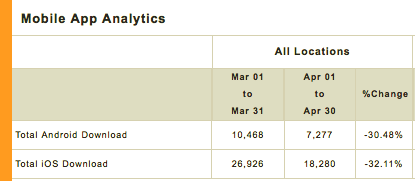 |
Mobile App Analytics Tracks the amount of times your mobile app was downloaded from either the Google Play Store (Android) or the Itunes Store (iOS). These numbers do not necessarily correlate with new users, because:
|
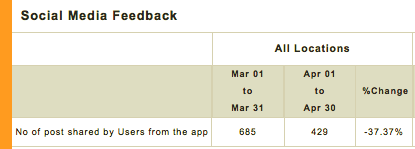 |
Social Media Feedback Guests who submit feedback through your mobile app are asked whether or not they would like to share their review on their Facebook Timeline. This metric tracks the amount of review/feedback posts shared by your guests during that month. |
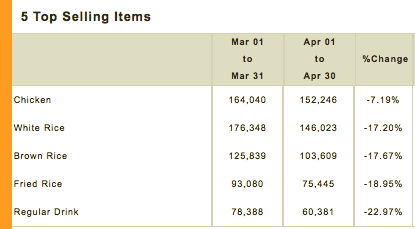 |
5 Top Selling Items Tracks the top items sold by your business during the month, as reported by POS data. Items are identified by corresponding Line Item Selectors / unique Item IDs. If your business is non POS-integrated, this number will appear as missing/blank. |
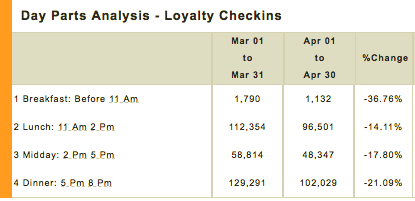 |
Day Parts Analysis - Loyalty Checkins Based on the Day Parts you define in Settings, this tracks the total amount of checkins made by your loyalty guests during certain time periods throughout each business day. |
Recipients
You can control which members of your business will receive the Month on Month report by setting permissions in each user's permission settings.
- Navigate to Administration > All Users, Roles and Permissions > Admins.
- Locate the admin user you want to receive the report, searching by name or email.
- Click the user's name to open their settings.
- Enter your Punchh password to make changes.
- Scroll down to the Email Notifications section and check the box for Month on Month Report.
- Click Update to finalize your changes.
Scheduling
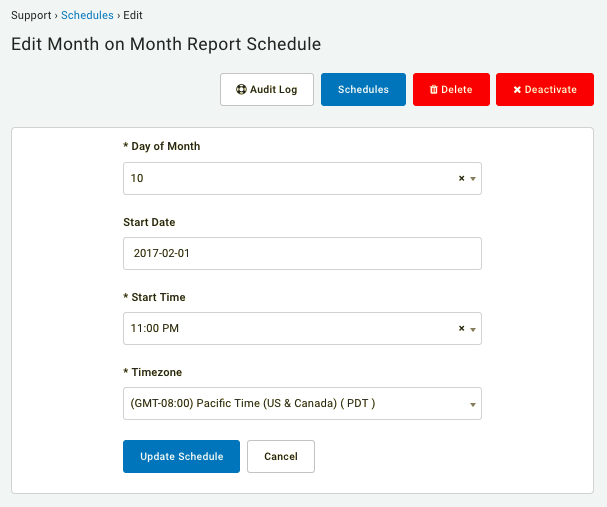
By default, the Month on Month report is scheduled to export at 11:00 pm on the 10th of each month. This ensures that any sort of checkin lags have been completed by the time of processing the report. However, if you need to change the default export time, you can choose a different day of the month and time of day in its scheduling settings located in Diagnostics > Schedules > Month on Month Schedule.