Loyalty Codes to Pay: QR Codes and Short Codes
Loyalty Pay is available at an additional cost. Contact your Punchh representative to learn more.
Loyalty Codes are the in-app identification methods in your Punchh-powered mobile app: QR Code and Short Code. Both allow guests to identify themselves as loyalty members, earn points, and (when enabled) redeem rewards and pay, all in a single interaction without a separate checkout step. This article explains how each Loyalty Code type works in the app, what the guest experience looks like, and which configuration options are available for your brand.
Note: Loyalty Codes are part of the Loyalty Pay suite. For a high-level overview of all Loyalty Pay channels, review the Loyalty Pay: Overview article.
How Loyalty Codes Work
Loyalty Codes is the parent term for both in-app identification methods:
- QR Code is a scannable code displayed on the guest's device screen
- Short Code is a 4-digit code the guest reads aloud or enters at the point of sale
When a guest uses a Loyalty Code, the transaction follows this sequence:
- The guest opens the mobile app and navigates to the scan screen.
- The guest presents their QR code (scanned by the POS) or reads their short code aloud.
- Punchh validates the code and resolves the guest's loyalty account.
- Loyalty fires, points are posted, and any eligible rewards are recognized.
- If payment is enabled, the transaction is authorized and closed in the same step.
Note: Both QR Code and Short Code require POS support for the respective code type. Additionally, Loyalty Pay (earn, redeem, and pay) requires a supported payment processor. Support varies based on your brand's tech stack. Contact your Punchh representative to confirm compatibility.
QR Code to Pay
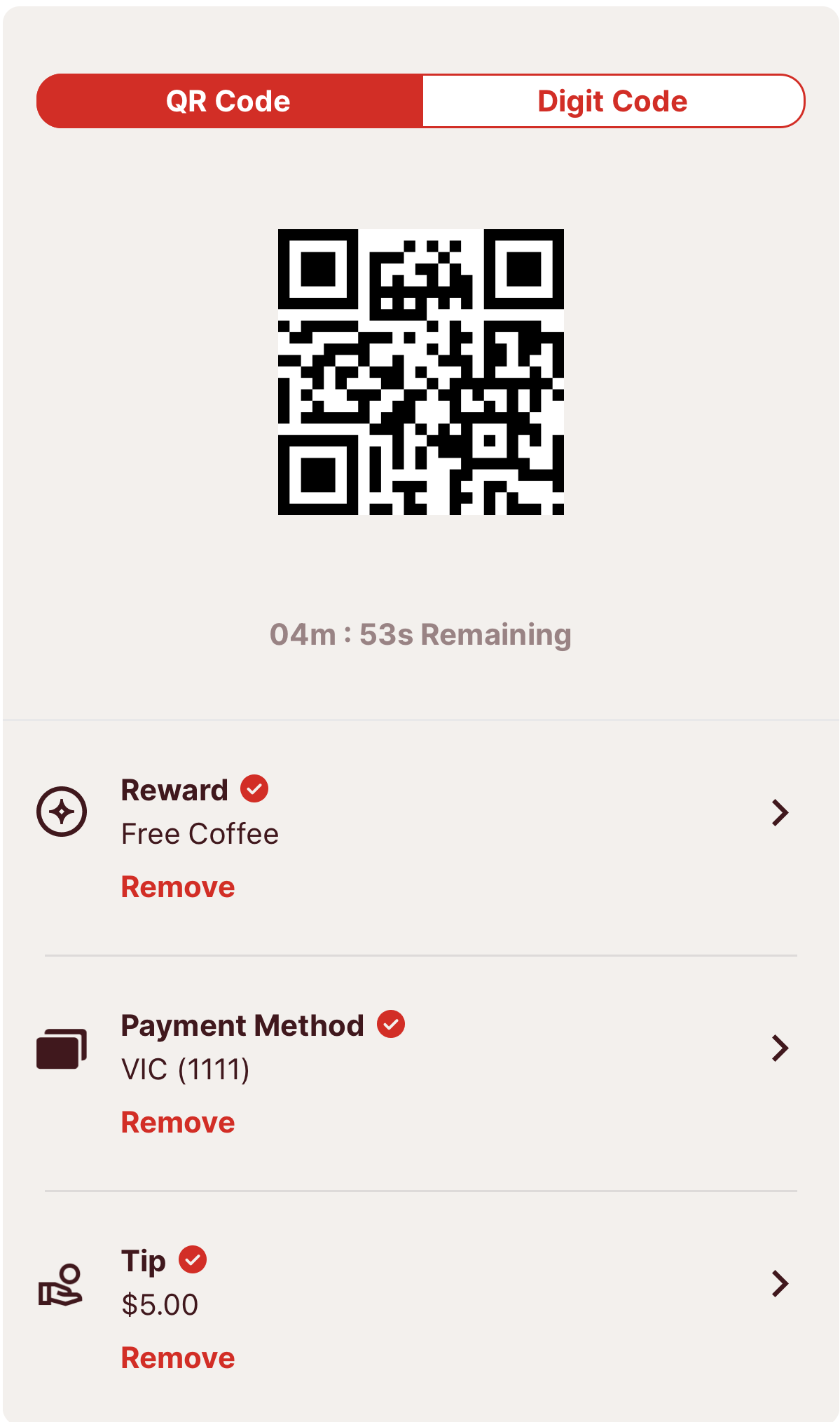
QR Code to Pay allows guests to identify, earn, redeem, and pay in a single scan. The guest opens the app, displays their QR code on the consolidated scan screen, and the cashier, kiosk, or terminal scans it. Loyalty is recognized, rewards are applied, and payment is processed in the same motion.
Guest Experience
- The guest opens the app and navigates to the scan screen. The QR code is displayed automatically.
- When a guest adds a reward, payment method, or tip, the QR code becomes time-limited and expires after a set period. The guest will see a timer on the code. If the code expires before they reach the POS, they can tap to regenerate it.
- The cashier, kiosk, or drive-thru terminal scans the QR code.
- Loyalty is recognized, and rewards are applied.
- Payment is authorized, and the transaction closes.
- Points post and the receipt confirms the transaction.
Short Code to Pay
Short Code to Pay is coming soon on the Mobile Framework
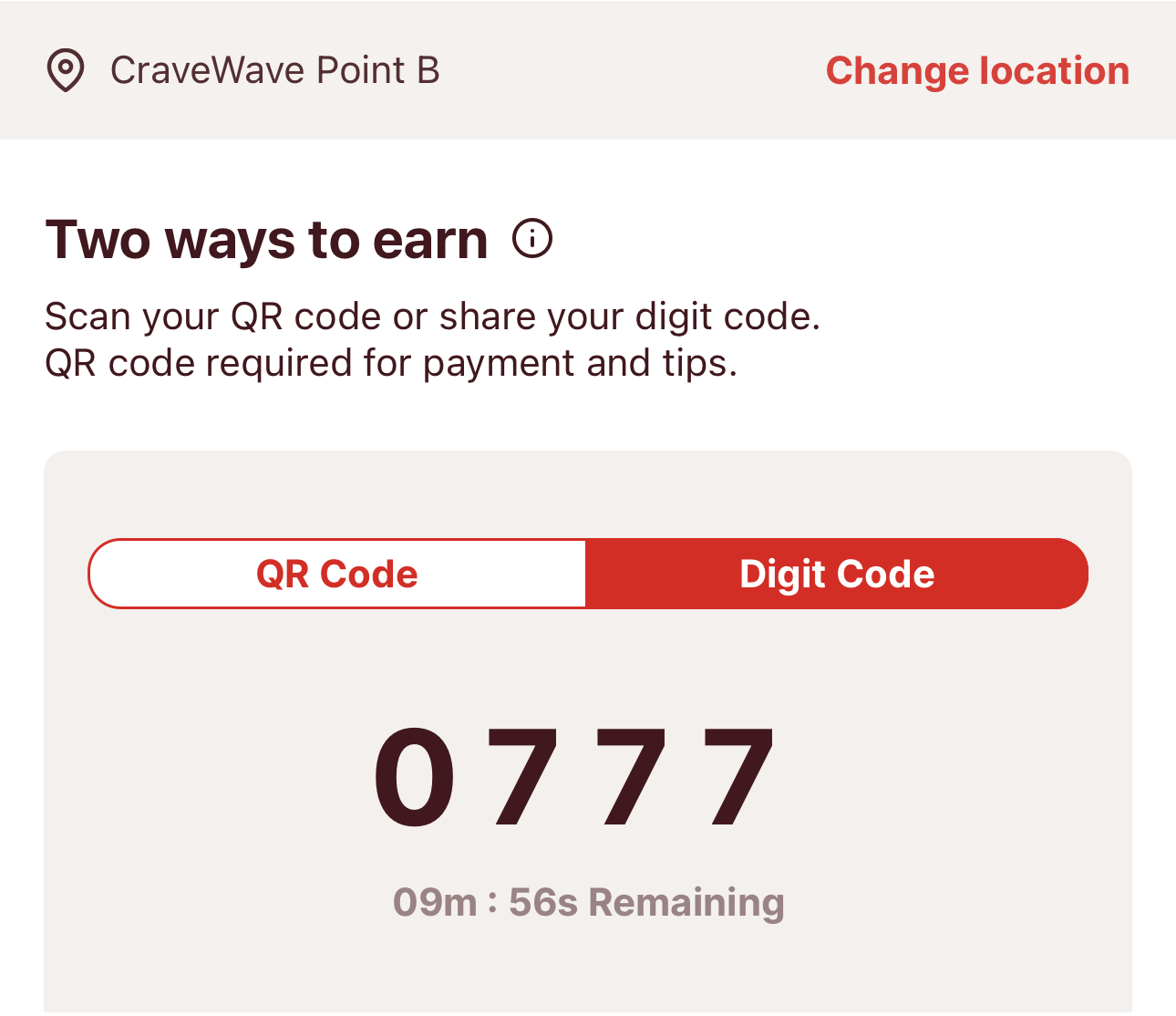
Short Code to Pay gives guests a 4-digit code they can read aloud at the drive-thru speaker, say at the counter, or provide over the phone. It removes the need for a QR scanner at those touchpoints and is the only Loyalty Pay capability that can capture loyalty before the guest reaches the POS window. By the time the guest pulls to the drive-thru window, their account has already been identified, rewards have been applied, and once payment is enabled, the transaction is authorized.
Guest Experience
Note: When short code is enabled for your brand, guests must select a location before a code can be generated. The app displays a location selection banner at the top of the scan screen. Without a location selected, the short code option is not accessible.
- The guest opens the app and navigates to the scan screen.
- If your brand supports both QR Code and Short Code, the 4-digit short code is displayed automatically when the guest switches to the Short Code tab. If your brand supports Short Code only, the guest must tap Show Digit Code to generate their code.
- Short codes are one-time use and expire after a set period. If the code expires before use, the guest can tap the Refresh Code icon to generate a new one.
- If the guest changes their reward selection, payment method, or tip amount after generating a code, they must tap Show Digit Code again to get an updated code.
- A 4-digit code appears on screen with a countdown timer.
- The guest reads the code aloud at the drive-thru speaker or provides it at the counter.
- The POS enters the code to look up the guest's account.
- Loyalty is recognized, rewards are applied, and (when enabled) payment is confirmed.
- Points post and the receipt confirms the transaction.
Short Code Capabilities
Short code can be configured to support different actions depending on your brand's setup:
| Short Code Configuration | What Guests Can Do |
|---|---|
| Earn only | Identify for loyalty and earn points; redemptions use a separate 7–8 digit redemption code |
| Earn + Redeem + Pay | Identify, earn, redeem rewards, and pay — all with one 4-digit code |
Note: When short code is set to earn only, and a guest adds a reward on the scan screen, the app automatically generates a 7–8 digit redemption code. The cashier or POS operator enters this code to apply the reward. This behavior mirrors how QR code handles redemptions at locations where payment is not supported.
Loyalty Codes in Your App
Both QR Code and Short Code appear on the consolidated scan screen in your mobile app. Depending on your brand's configuration, guests may see one of the following experiences:
| Display Configuration | What Guests See |
|---|---|
| QR Code only | QR code is displayed by default; no short code option is available |
| Short Code only | Guests tap Show Digit Code to generate a short code; QR code is not displayed. Code is not generated automatically. |
| QR Code and Short Code | Guests see separate tabs for QR Code and Digit Code and can switch between them |
Prerequisites and Configurations
Before guests can use Loyalty Codes in your app, the following must be in place:
- Loyalty Pay is enabled for your brand.
- For payment, your brand uses a supported payment gateway (PAR Pay or a supported alternate gateway).
- QR Code to Pay requires Mobile Framework v3.5 or later.
- Short Code for earning requires Mobile Framework v4.2 or later.
- Short Code to Pay (earn, redeem, and pay) requires Mobile Framework v5.0 or later.
- Short Code requires POS support. Contact your POS provider to confirm your POS supports Short Code lookup before enabling this feature.
Note: To enable Loyalty Codes and configure the options described in this article, contact your Punchh representative.
Your Punchh representative can configure the following for your brand:
- Code type: QR Code only, Short Code only, or both QR Code and Short Code available in the app
- Short code capabilities: Earn only, or earn + redeem + pay
- Location-level overrides: Specific locations can be set to support a different code type than the brand-level default
- Short code expiration time: The number of minutes before a short code expires (options: 5, 10, 15, or 30 minutes)
- Short code character type: Numeric only, or alphanumeric
Note: Available configuration options may vary based on your POS integration. Your Punchh representative can confirm which options are supported for your brand's setup.
Related Documentation
