Location Summary Report
The Location Summary Report in the Store Locations > All Store Locations section of your Platform includes deeper, more detailed information about each of your Punchh-connected locations, including detailed location information, redemption and checkin counts, as well as technical information such as each location's API Key and Short Keycode.
Report Details
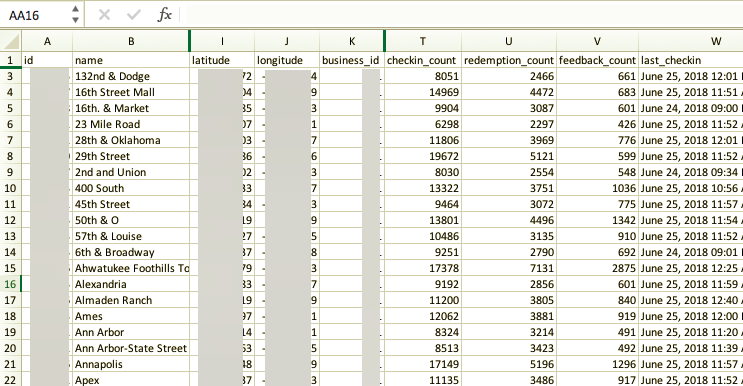
The CSV location summary report contains the following information about each of your locations:
Location Summary Report fields
- ID
Unique location ID, as identified in the Punchh system. - Status
Although the possible values for the 'status’ field are approved and disapproved, the report only includes approved locations. - Location Name
Chosen by you to identify each store within the Punchh Platform. - Store Number
How your company identifies the location. - Address
Street, City, State, Post Code, and Country. - Geographic Location
Latitude and Longitude coordinates. - Business ID
Your business's unique ID in the Punchh system. - Franchisee ID
For Franchisee-enabled businesses. Each location has a Franchisee ID associated with it. Locations may share this ID if the Franchisee oversees multiple locations. - Go Live Date
You'll only see this if a new location was added after initial implementation. - Location Email
Refers to the In-store email address, not necessarily the email address of connected admins or the individual(s) who receive location notifications. As specified in Location Settings. - Time Zone
As specified in your location settings. - Phone Number
As specified in your location settings. - POS Type
(Aloha, Brink, Toast, etc.) If blank, this only indicates it hasn't been specified in the location's settings. In either case, this information respects whatever the global business settings have been configured with. - Validation Type
Indicates the method by which loyalty transactions are performed at the POS (Bar Code, QR Code, Receipt Image, etc.). If blank, this only indicates it hasn't been specified in the location's settings. In either case, this information respects whatever the global business settings have been configured with. - Generate Barcodes
Can we generate barcodes for this location? Yes/No. - Checkin / Redemption Counts
Total for each type of loyalty action performed at each location (lifetime). - Feedback Count
Total amount of feedback given about the location by loyalty guests through your mobile app. - Last Checkin
Most recent guest checkin. There may be a short time lag based on how recently Punchh has received info from the POS. - Last Redemption
Most recent guest checkin and POS redemption. There may be a short time lag based on how recently Punchh has received info from the POS. - API Key
Unique authentication keys associated with that location's POS system for connecting to Punchh. - Short Key
Unique authentication keys associated with that location's POS system for connecting to Punchh.
Export a Summary Report
The summary report is generated as a CSV file and, upon scheduling, will immediately export to each of your chosen email recipients. From Store Locations > All Store Locations:
-
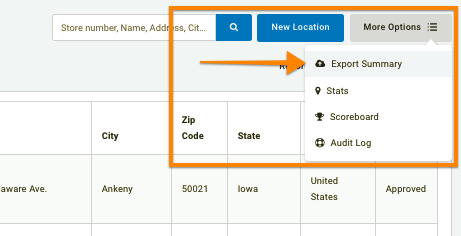
Click the More Options drop-down and select Export Summary to be taken to the scheduling page.
-
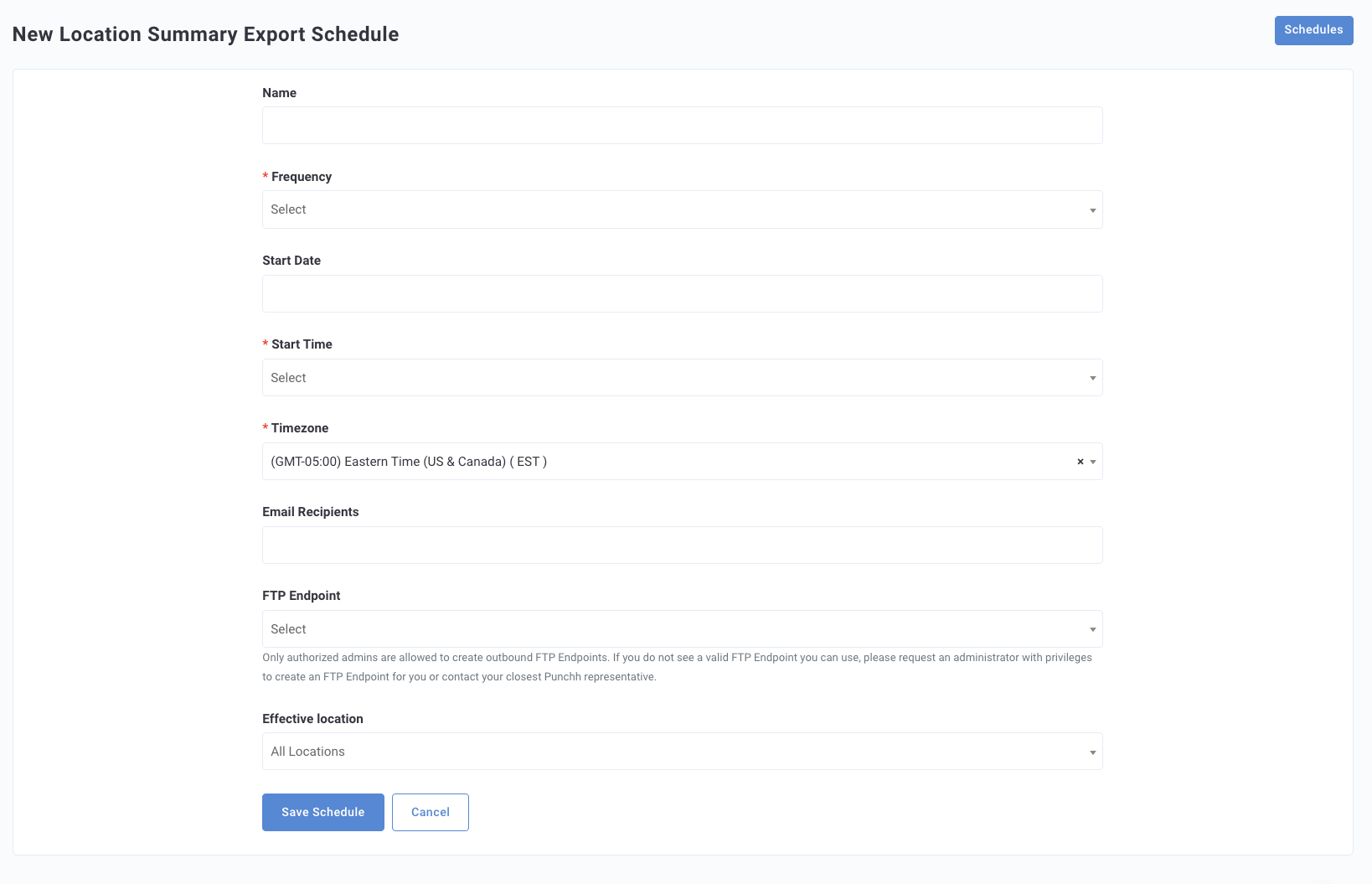
Complete the Schedules form.
-
Click Save Schedule to save and automatically run the export.
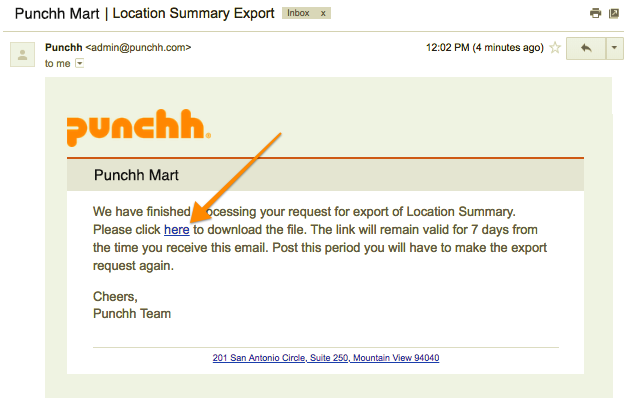
The report will be immediately generated and emailed out to all the recipients, though it may take a few moments, depending on the number of locations in your business. -
Open the email in your inbox. Click the link included in the email to download the CSV report.
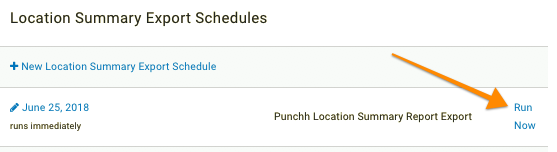
Once you've created a location summary report schedule, you can run the export again at any time in the future by navigating to Diagnostic > Schedules > Location Summary Export Schedules and clicking Run Now.