Location Scoreboard
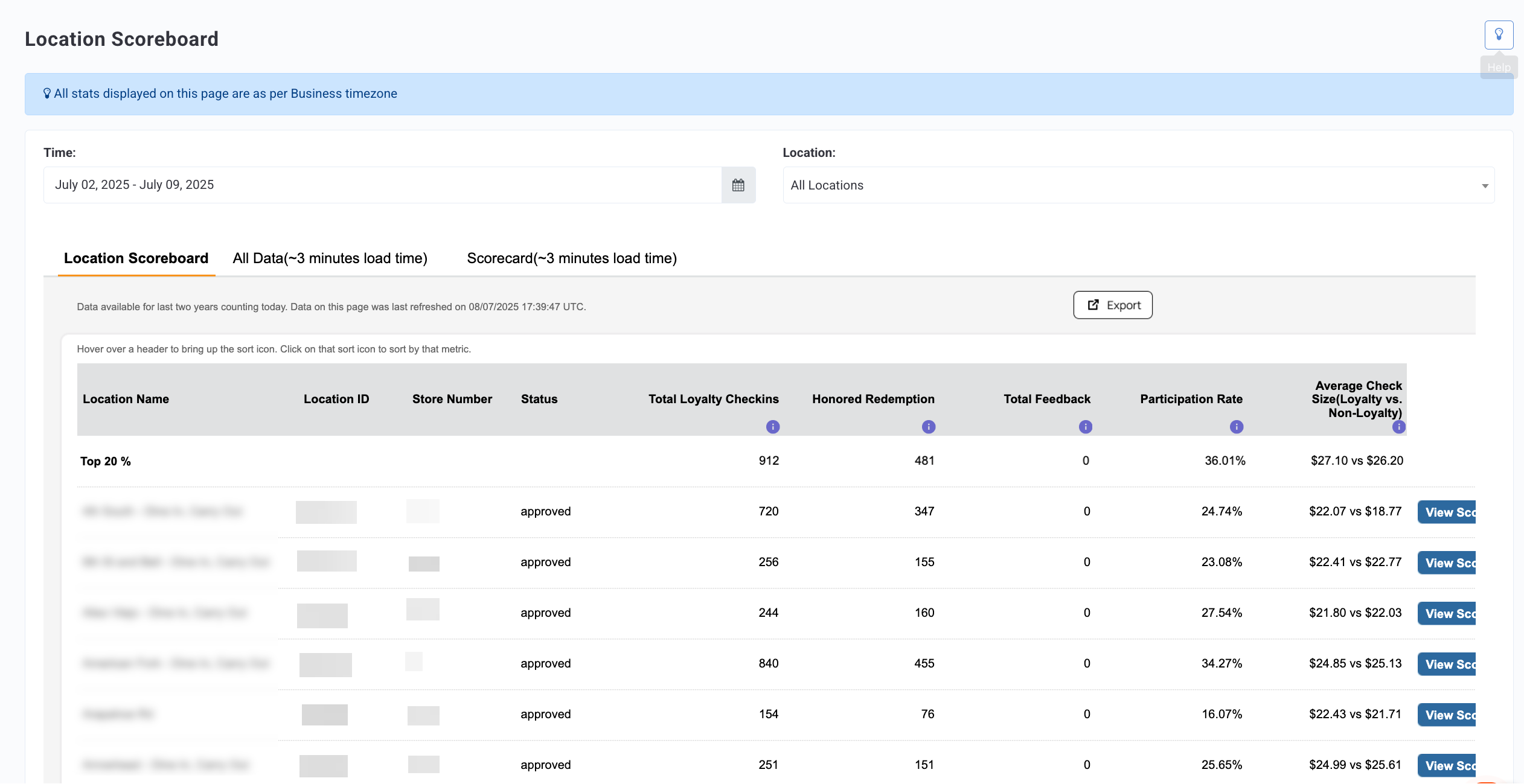
The Location Scoreboard allows you to view information such as checkins, redemptions, participation rate, and average check totals for each of your locations within the dashboard.
Additionally, from the Scoreboard page, you can export a Location Scorecard report to compare each store's benchmarks against the average of your top 20% performing stores company-wide. This allows you to see how each location is performing relative to a high-performing baseline.
Viewing the Location Scoreboard
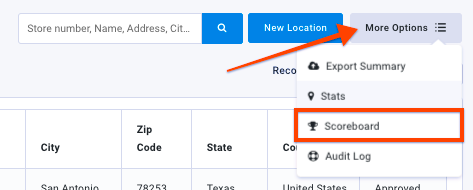
You can check out the Location Scoreboard in Store Location > Location Scoreboard. You can also indirectly access the Location scoreboard from Store Locations > All Store Locations > Location Scoreboard
You can filter the Location Scoreboard for specific Locations by using the Locations drop-down menu on the right.

The Location Scoreboard has three sections:
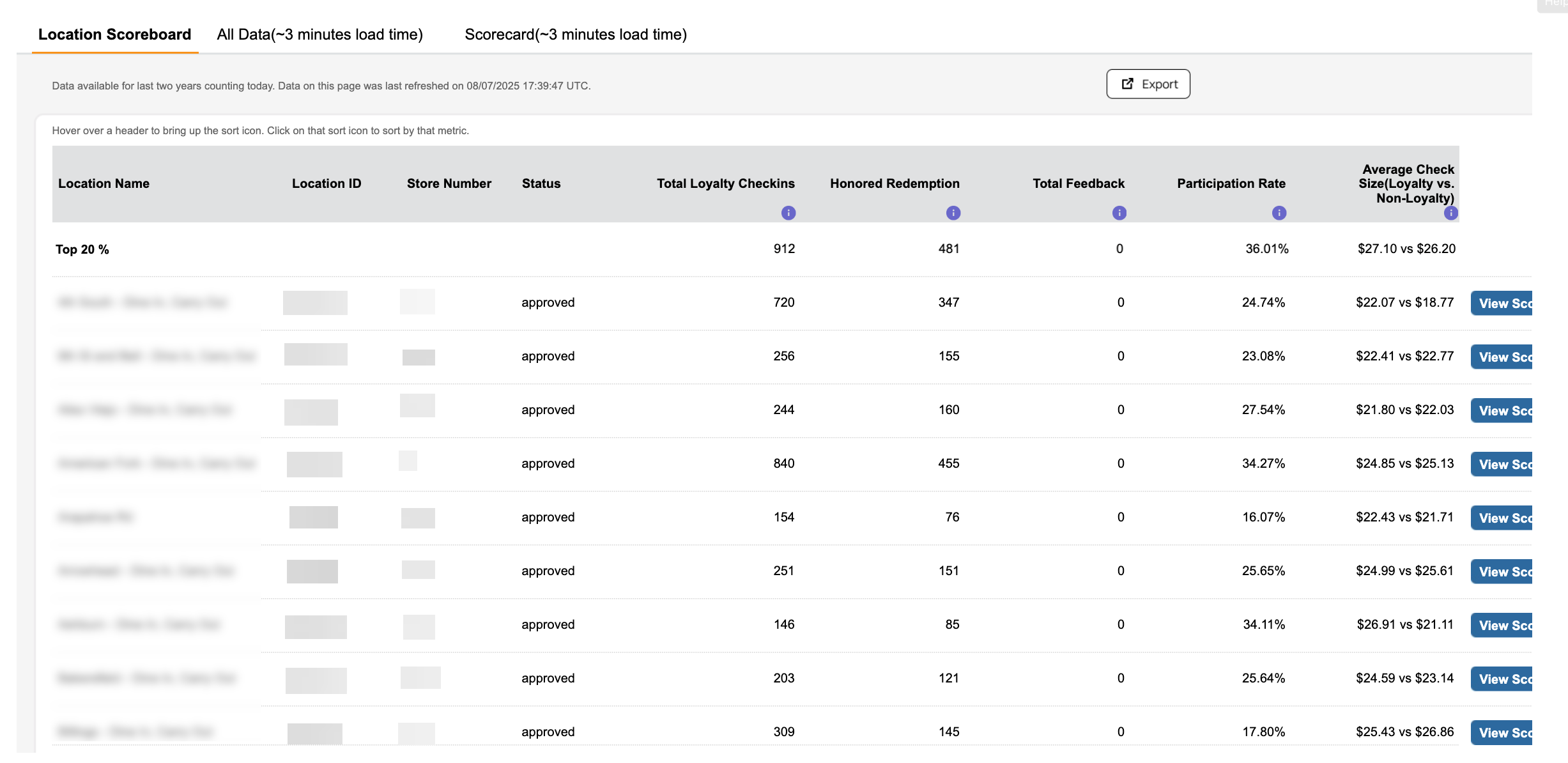
- Location Scoreboard: This is the section that shows up by default. It has all the non-user-specific data, such as Loyalty Checkins, Honored Redemptions, Total Feedback, Participation Rate, and Average check (Loyalty vs. Non-Loyalty).
- All Data: This section shows the user-related metrics, such as Unique Guests (Loyalty users who made at least one checkin in the date range under consideration at the given location) and New Guests.
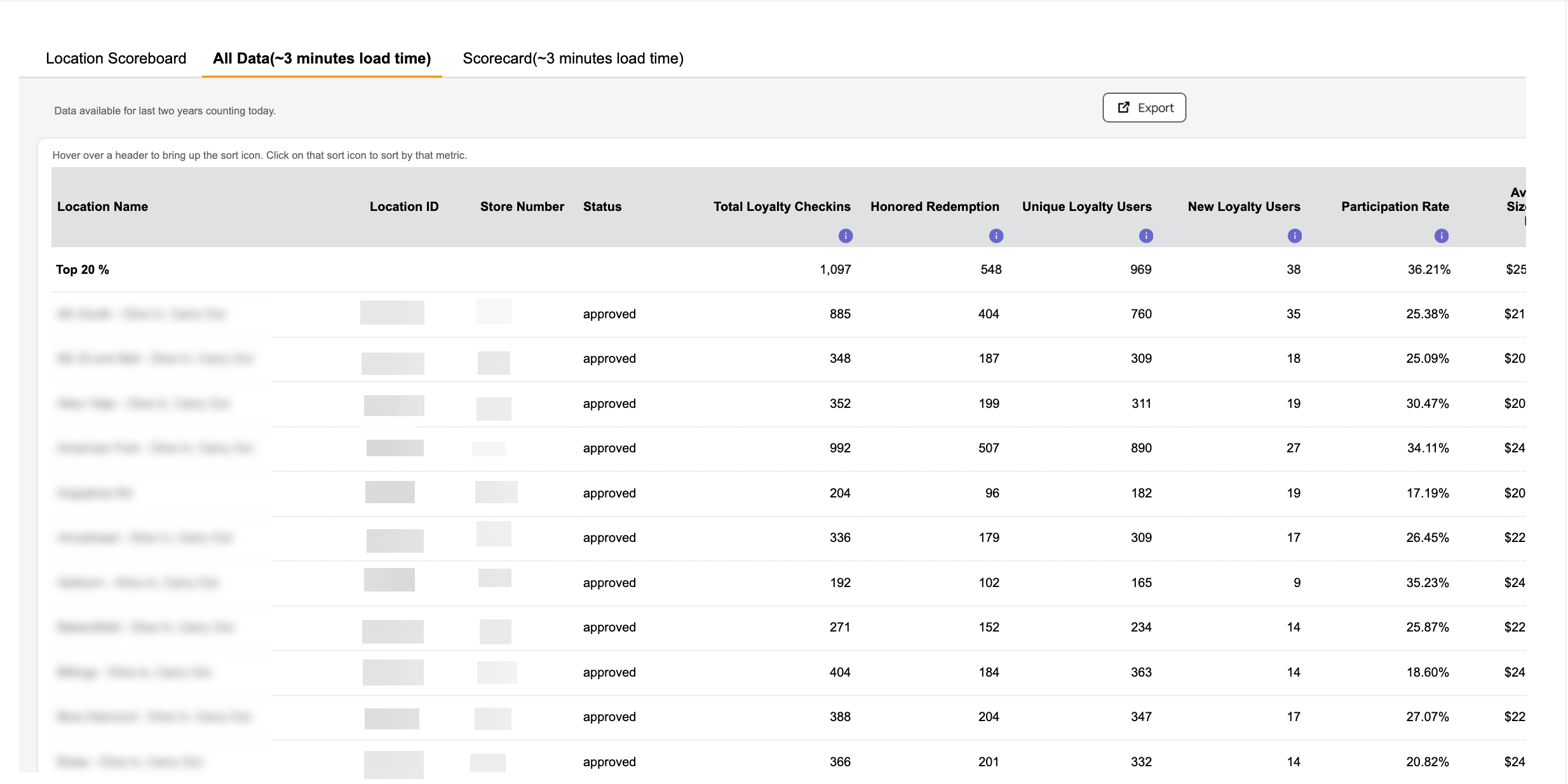
- Scorecard: When you click on Scorecard, this section is displayed. It compares a store’s performance with that of the average of the top 20% best-performing stores.
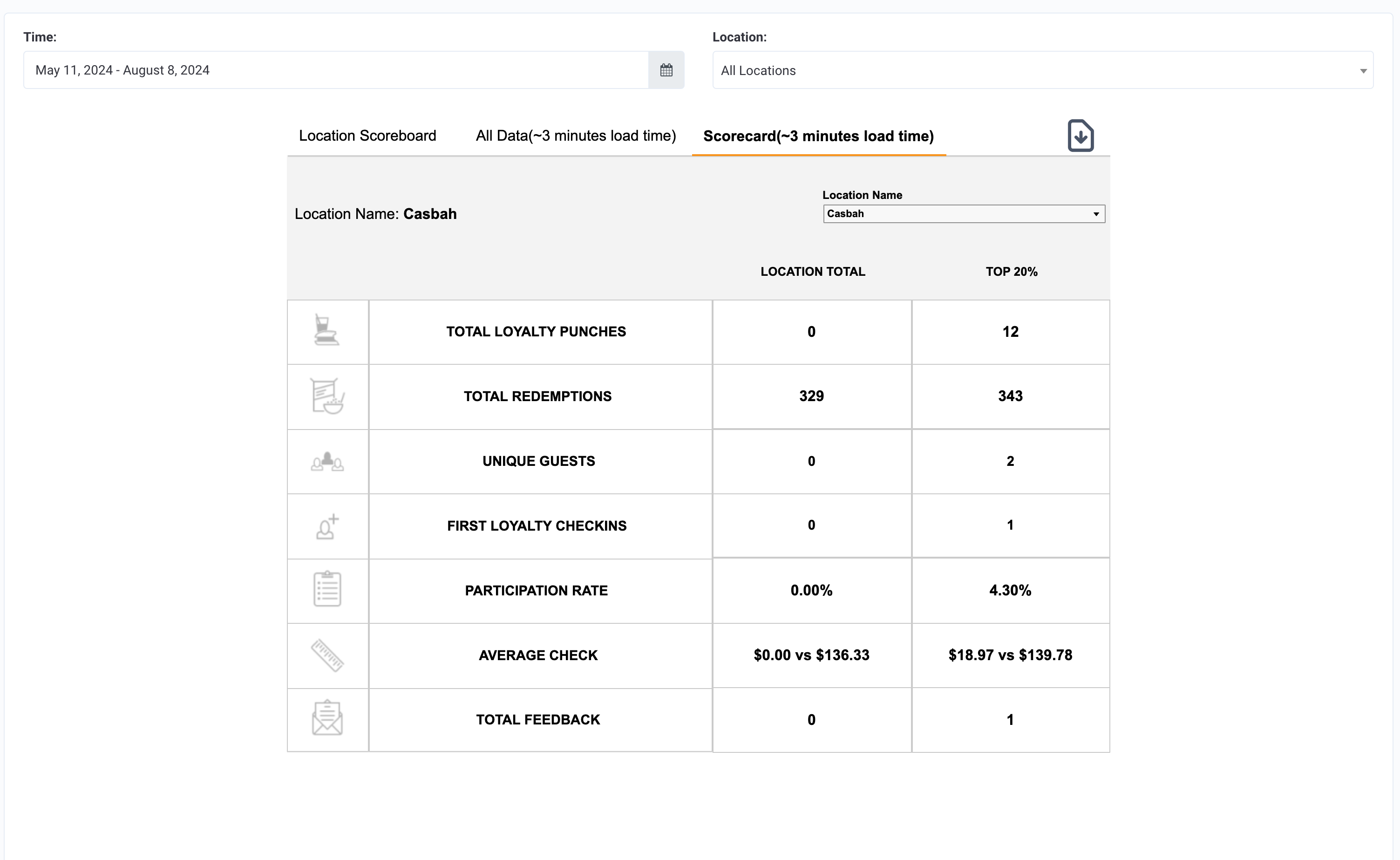
Note: It will take up to 3 minutes to load the data for All Data or Scorecard tabs.
Date Range Available
Data is made available for the last two years not counting today. For example, if today is 2024-Jul-24, the data from 2022-Jul-24 to 2024-Jul-23 is made available in the report.
Data Refresh Frequency
Data is refreshed both hourly and daily. The hourly refresh is incremental meaning whatever locations are present, the data for those locations specifically will be updated. The daily refresh is a full refresh, in which new locations are added or old locations are removed. This can be checked from the latest refresh data time stamp shown on the dashboard.
Note: Whenever there is no data for a location for a given date range, that location will not be shown. Only once data is available, and a daily refresh has occurred, will the location show in the report.
Metrics and Definitions
Below is a breakdown of the information included in the Location Scoreboard report (as it is displayed within the Punchh dashboard):
| Reporting Metric | Definition |
|---|---|
| Total Loyalty Checkins | Count of loyalty checkins for the given date range (based on the checkin creation date). |
| Honored Redemptions | Count of successful redemptions in the given date range, based on the redemption date. The redemption could be from any source: loyalty, campaigns, etc. |
| Total Feedback | Total amount of feedback received for the given date range (based on the feedback creation date). |
| Participation Rate | Percentage of Loyalty Transactions within the Total Transactions for the given date range (based on the actual transaction date). |
| Average Check Size (Loyalty vs Non-Loyalty) | Average. Receipt Amount (not earnable amount) per loyalty transaction vs. Average Receipt Amount per non-loyalty transaction (based on the actual transaction date). For Loyalty guests, the date of the transaction (and not the checkin) is considered, along with the receipt amount for that transaction (and not the earnable amount which is reported on the Landing Page). If the restaurant is non-POS integrated, this number will be incorrect or blank. |
| Unique Guests | Total count of unique guests who made a checkin at the selected location(s) within the chosen timeframe, based on the checkin creation date. |
| New Guests | Total count of unique loyalty users, who made their very first loyalty checkin at the selected location(s), with the checkin falling within the chosen timeframe, based on checkin creation date. |
Exporting
From the Store Locations > Location Scoreboard page, click the Export button at the top right. A CSV file containing all your Location Scoreboard information will be downloaded immediately to your local machine.

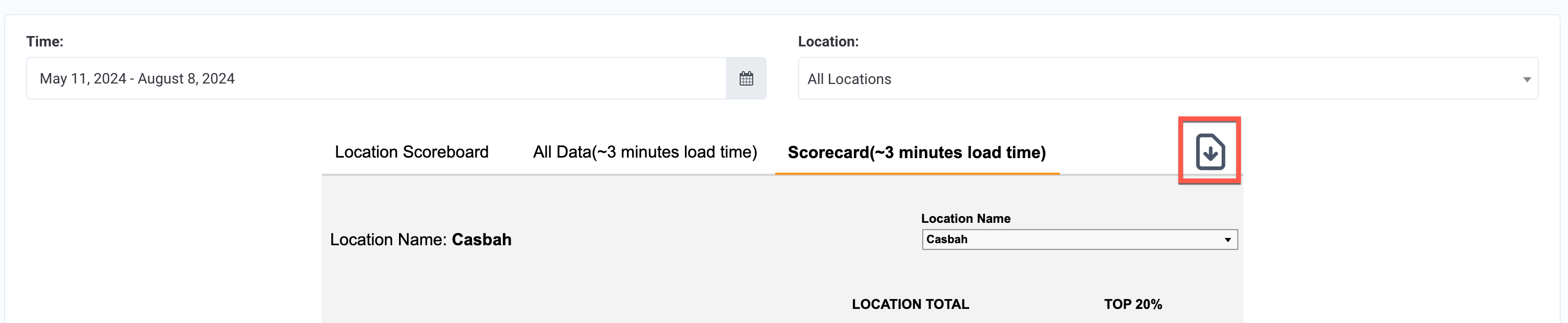
In addition, you could also export a location’s scorecard by clicking on the download icon as shown below: