Location Groups
Location groups are sets of your locations determined by you. You can group locations by region, POS type, or franchise owner. Location groups have many use cases, some examples include:
- Determining guest segments
- Filtering data from the dashboard, reports etc.
- Segmentation
- Campaign targeting
- Redeemable valid locations
- Coupon/promo valid locations
- Receipt tags
- Limiting platform permissions
When a Qualification Criteria is created and tied to a specific Location Group, a “snapshot” of that location group is created. This means that any updates made to the Location Group after the activation of the QC will not be reflected in the Qualification Criteria.
Important: If you need to update the Location Group for a Qualification Criteria, you must create a new Location Group and a new Qualification Criteria.
Create a New Location Group
- Navigate to Store Locations > Location Groups.

- Click Add New Location Group.
- The Locations tab opens.
- Use the search filters at the top to search for the specific locations. Click Apply Filter.
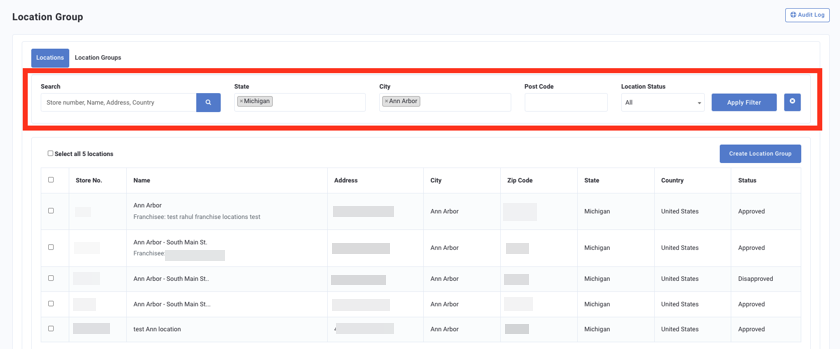
- To clear all filters, click the X icon on the right. This will not clear any selected locations.
- Select the checkbox next to the location(s) you want to add.
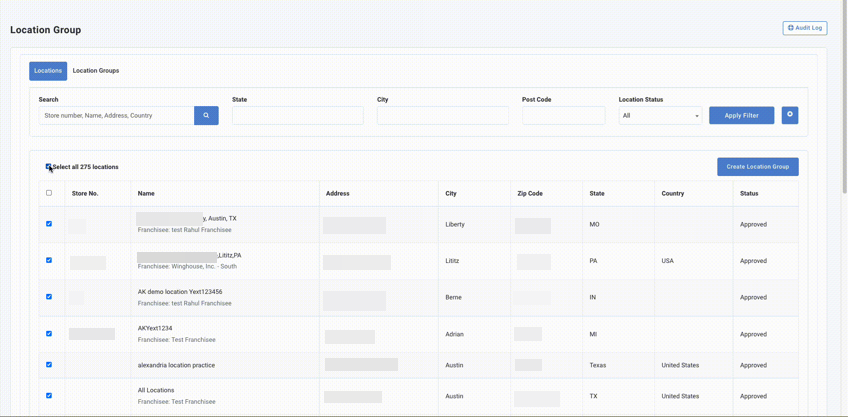
- To select all the locations that come up in a search, select the Select all box.
- To select all the location on the specific page (but not any following pages) select the checkbox in the table header.
- You can select locations from multiple searches.
- Click Create Location Group.
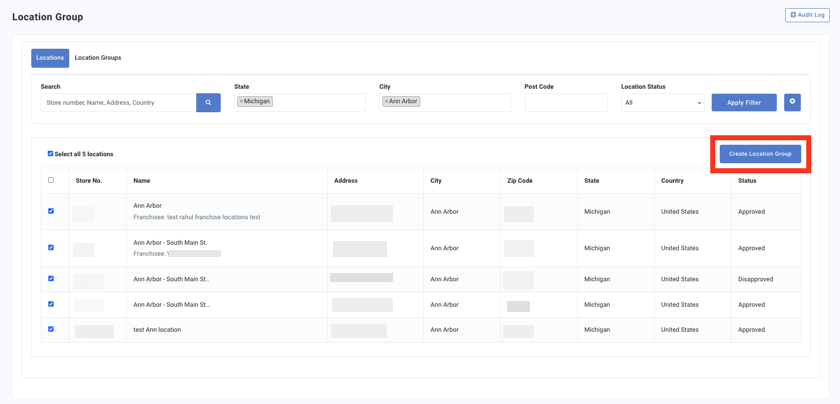
- A pop-up window appears. Add a Group Name for the location group.
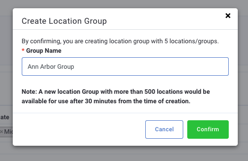
- Click Confirm.
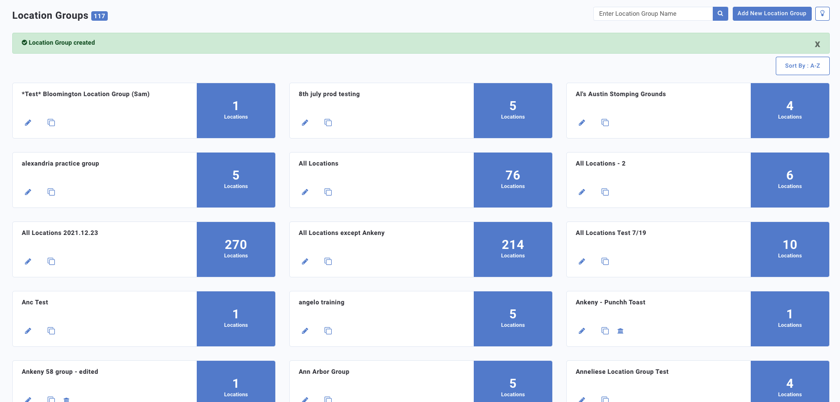
- Your location group has been created.
Bulk Upload
Instead of manually adding locations one by one as outlined above, you can upload them in bulk to each location group.
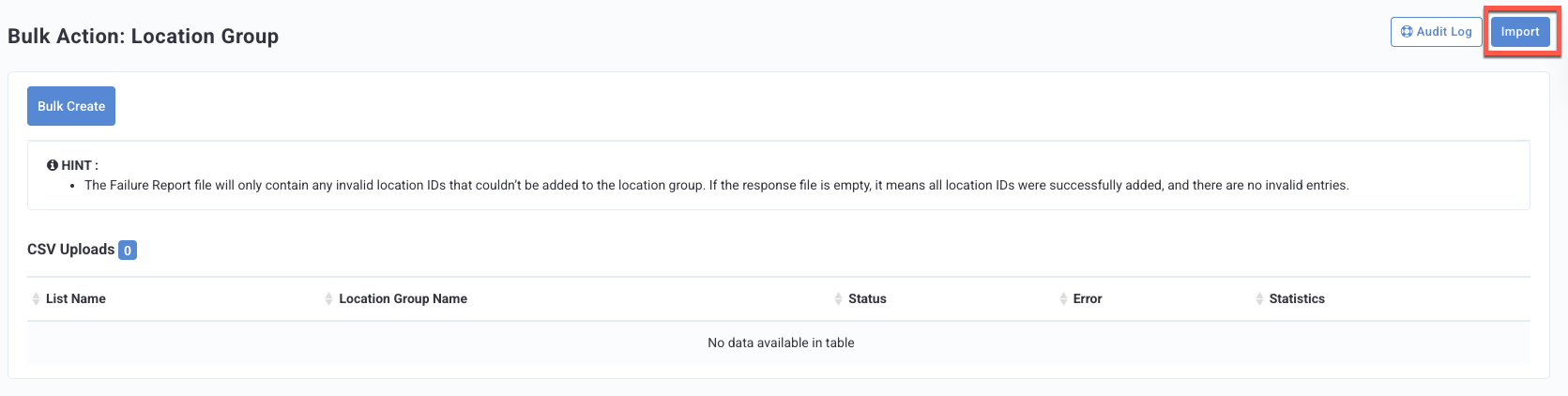
- From the Locations Group page, click Bulk Action in the top right corner.

- Click Import.
- Fill out the following fields:
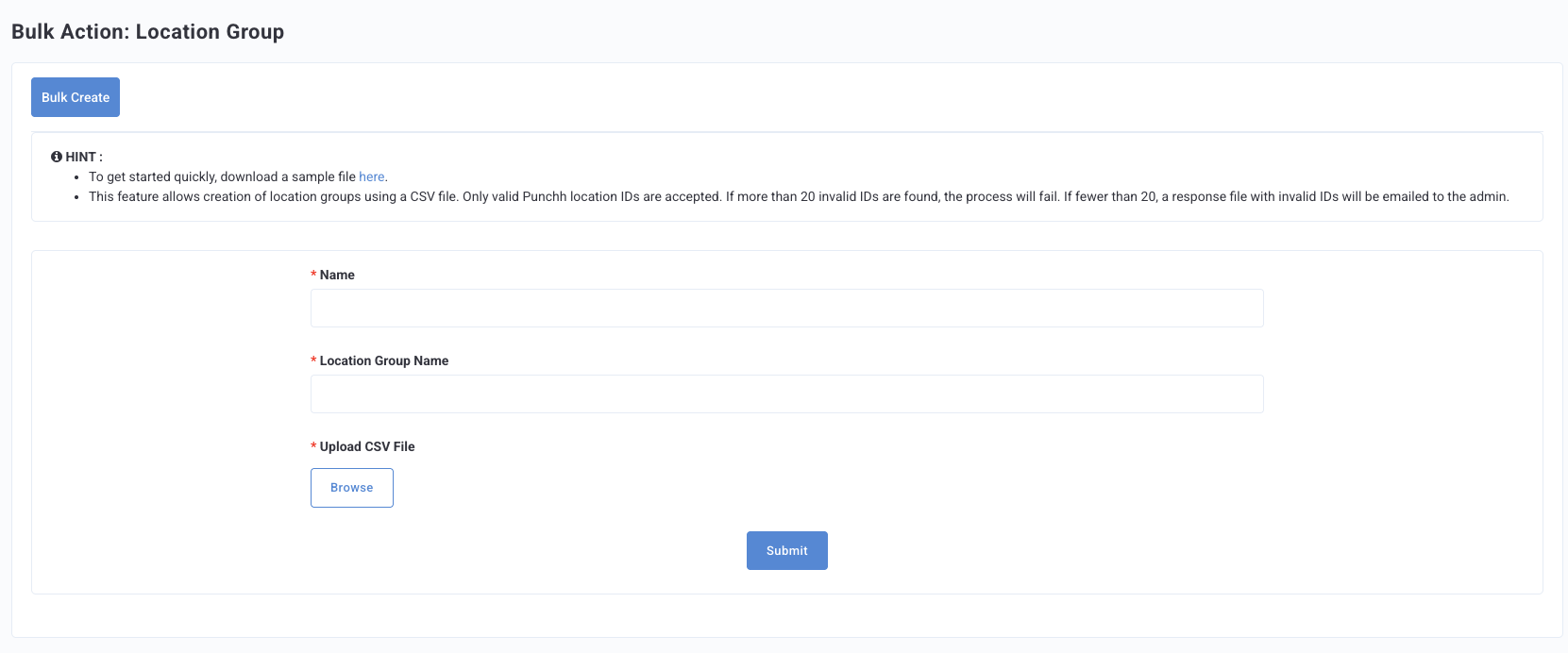
- Enter a Name for the list.
- Enter the Location Group Name.
- Upload CSV File: Only valid Punchh location IDs are accepted. If more than 20 invalid IDs are found, the upload will fail. If fewer than 20, a response file with invalid IDs will be emailed to the admin. (Tip: Remove duplicate IDs before uploading.) CSV file size is restricted to 15 MB. A sample CSV is available for download on the Import page.
- Click Submit.
- The Bulk Action page will update with the CSV file status.
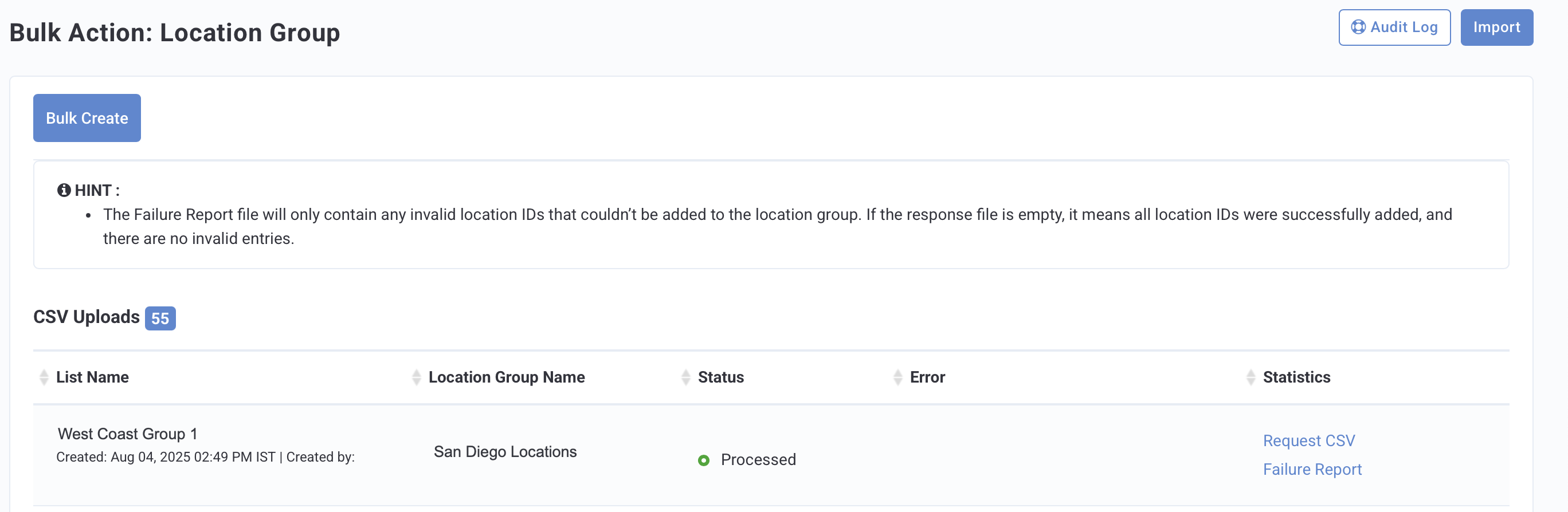
Previously, Franchisee Admins could view bulk uploads created by Business Admins / Superadmins. Now, Franchisee Admins can view only the bulk uploads created by themselves or other Franchisee Admins under the same Franchise.
Edit a Location Group
Note: You are unable to add a location to a location group if that group is currently associated with an active reward. An error message will appear if the location group currently has any active reward associations.
- You can edit a Location Group from two locations:
- Click the Edit (pencil) icon for a group.
- After clicking into a Location Group's details page, click the drop-down menu, and select Edit.
- The Edit Location Groups screen opens. The locations currently in the group are shown selected at the top of the list.
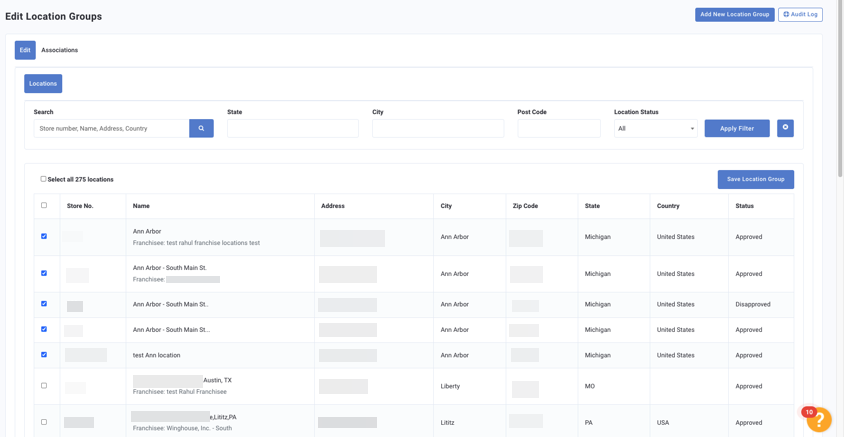
- To remove a location, clear the checkbox.
- To add a location(s), use the search functions at the top. Select the checkbox next to the location(s) you want to add.
Note: A location group must have a minimum of one (1) location.
- Click Save Location Group.
- A pop-up window appears. You can change the name of the group at this time.
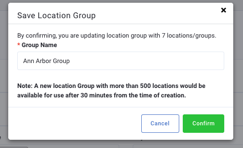
- Click Confirm.
- Your location group has been updated.
Duplicate a Location Group
- Click the Duplicate icon for a group.
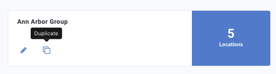
- The Duplicate Location Group screen opens.
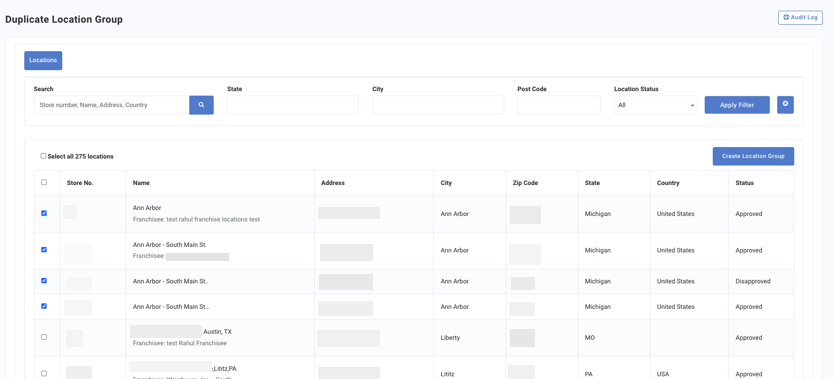
- You have the option to add or remove locations, if needed.
- Click Create Location Group.
- A pop-up window appears. The location group is automatically named "Copy of Location Group Name." You can edit this name as needed.
- Click Confirm.
- Your location group has been duplicated.

