Email Personalization
Content Based Email Personalization is a way to tailor email messaging to your guests based on their preferences, location, and any other characteristics you can target using guest segments.
By adding up to three additional segments (called Sub-segments) to a Mass Campaign you can send four distinct emails from the same campaign, each one featuring a different header, body, and footer image chosen to best resonate with its given segment.
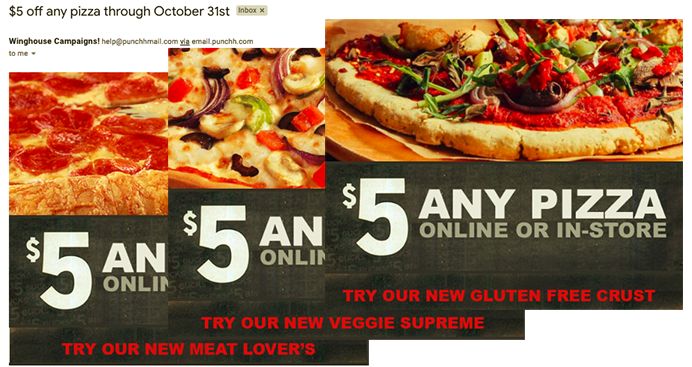
Here are some example use cases where Content Based Email Personalization may be used:
- To target guests with unique dietary restrictions such as vegetarian or gluten free.
- To localize content such as choosing which sports teams to feature in advertising for certain locations.
- To choose distinct marketing images that may perform better with certain guest age groups.
- To advertise foods based on guest purchase history (sandwiches for Sub-Segment 1, pizza for Sub-Segment 2, etc.)
Workflow
Content Based Personalization relies on segments in order to know which guests will see which email images. The more precise the segments, the more personalized email content can be used effectively. The workflow below is typical for creating personalized emails based on guests' self-reported preferences.
Step 1 - Add Profile Fields to gather guest information
To create a segment based on a guest's chosen preferences, you must first solicit that information. We can do so by adding custom Profile Fields that are presented to the guest as mandatory or optional during their initial signup process and/or in their guest profile where they may answer/edit later. Navigate to Guests >Profile Field Settings to add new fields/questions.
Added/modified Profile Fields will take immediate effect in your eClub widget, but an update is required before they will show up in your mobile app. Contact your Punchh CSM for assistance.
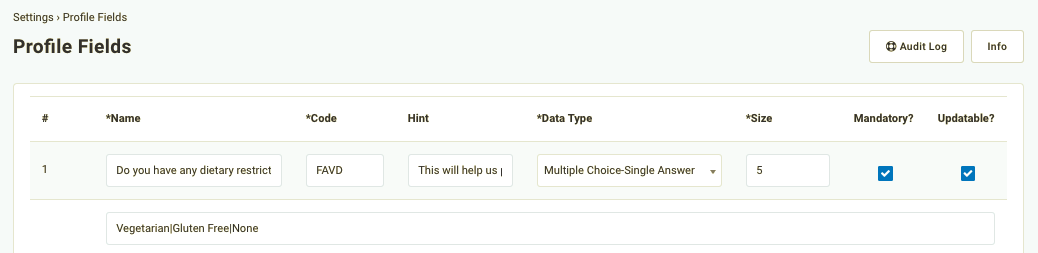
As you can see above, we've created a Multiple Choice-Single Answer profile field that asks guests "Do you have any dietary restrictions?". They may answer "Vegetarian", "Gluten Free", or "None". Once activated, we can create unique segments based on each of those answers (which we can use as Sub-Segments for making personalized email messages).
Step 2 - Create a new Guest with Profile Fields segment(s)
Based on the Profile Field example above, we can create a Guest with Profile Fields segment for each of our answers.
- Navigate to Guests > All Segments click the Create Segment button at the top right.
- Choose an easily identifiable Name and optional Description.
-
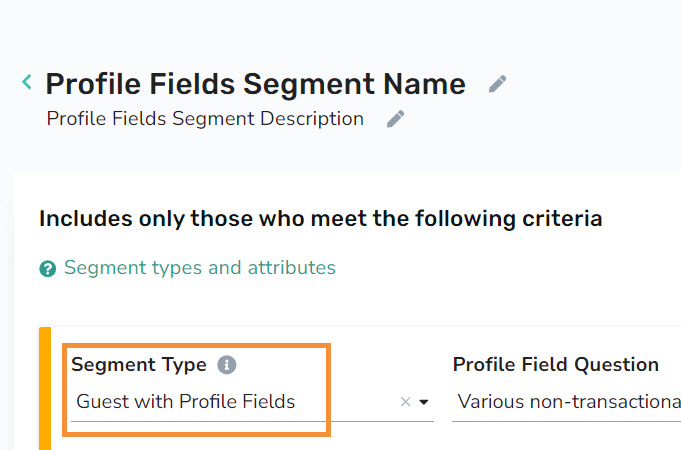
Set the Segment Type to Guest with Profile Fields.
-
Click the Profile Field Question drop-down to choose the question/field from which you'll choose an answer(s).
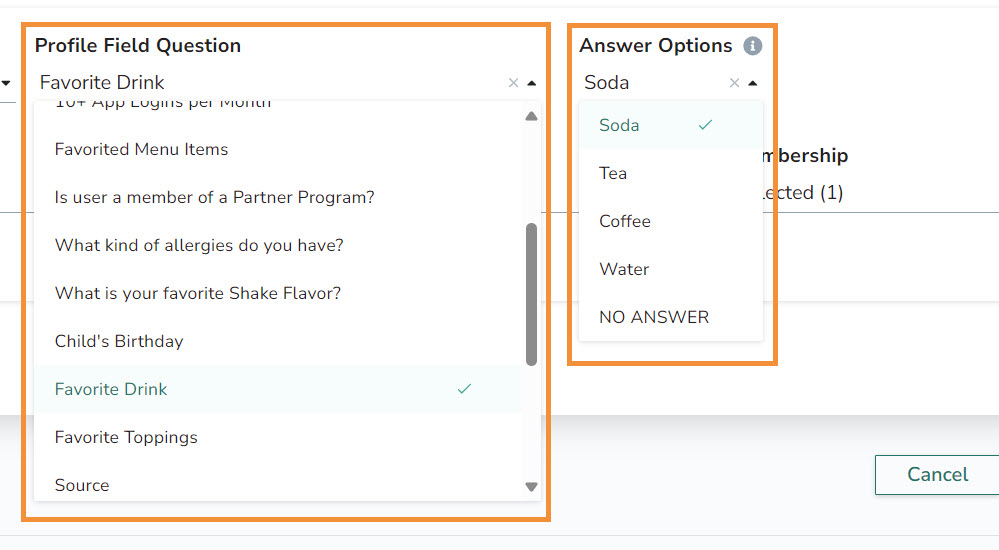
- Under Answer Options, you may choose from one or more answers you set for that question. Guests who have provided the selected answer(s) will be added to the segment.
- Click Save to finish.
- Repeat this process, creating a new segment for each answer.
Step 3 - Create a new Mass Campaign
Once we've created all the segments we want to target, it's time to create a new campaign. Content Based Personalization is compatible only with Mass Notification and Mass Offer campaigns.
-
Navigate to Marketing Automation >Campaign Management.
-
Click New Campaign at the top right. Set up your campaign as you would normally.
-
For Audience Type, select Segment.
This will be your campaign's Main Segment. Guests who fit into this segment and are not part of any Sub-Segments will receive the default email. (More about how this breaks down below.) -
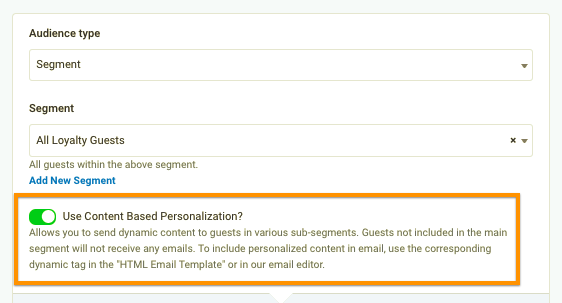
In Step 2 - Whom, click the Use Content Based Personalization toggle to reveal the Email Images and Sub-Segments fields.
-
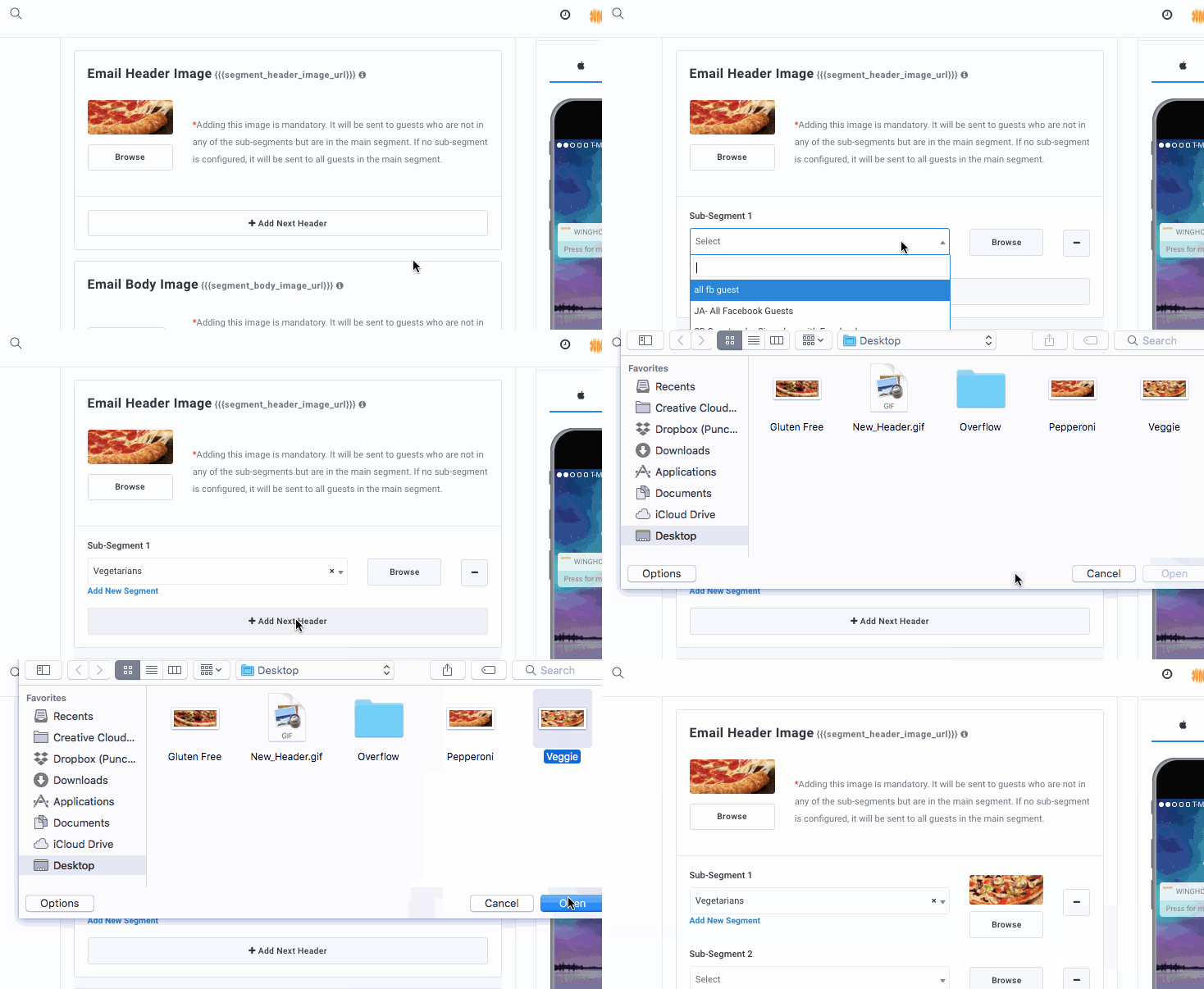
Under Email Header Image, click the Browse button to upload an image that will display for guests in your Main Segment who are not included in any Sub-Segment.
-
Click Add Next Header and select a Sub-Segment who will receive an alternate image along with the email message.
In the example above, we selected "Vegetarians" as the sub-segment, so we chose to use an image of a Veggie Pizza rather than a pizza with meat. -
Repeat the above step for each additional Sub-Segment.
-
Do the same for the Email Body Image and Email Footer Image, uploading a default image for each one (sent to the campaign's Main Segment) and any alternate images for each of your Sub-Segments.
Not setting alternate images for Sub-Segments for any one part of the email will result in the default image being sent to all segments. For example, you could choose alternate images for Sub-Segments 1 and 2 for the Email Header Image but not specify any alternates for Email Body Image. In this case, Sub-Segment 1 would see the personalized image for the header and the default image for the body.
-
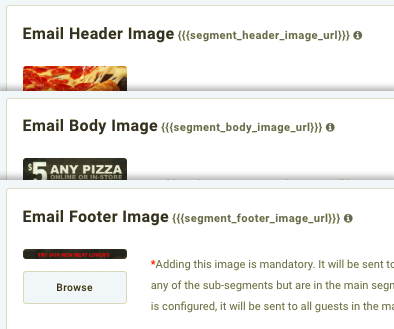
In order for the system to send dynamic content to guests in sub-segments, we have to add dynamic tags in either the Html Email Template field or in text boxes in the Email Editor.
{{{segment_header_image_url}}} for the Email Header Image, {{{segment_body_image_url}}} for the Email Body Image, and {{{segment_footer_image_url}}} for the Email Footer Image.
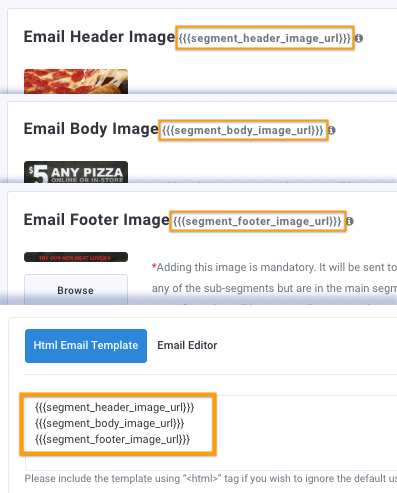
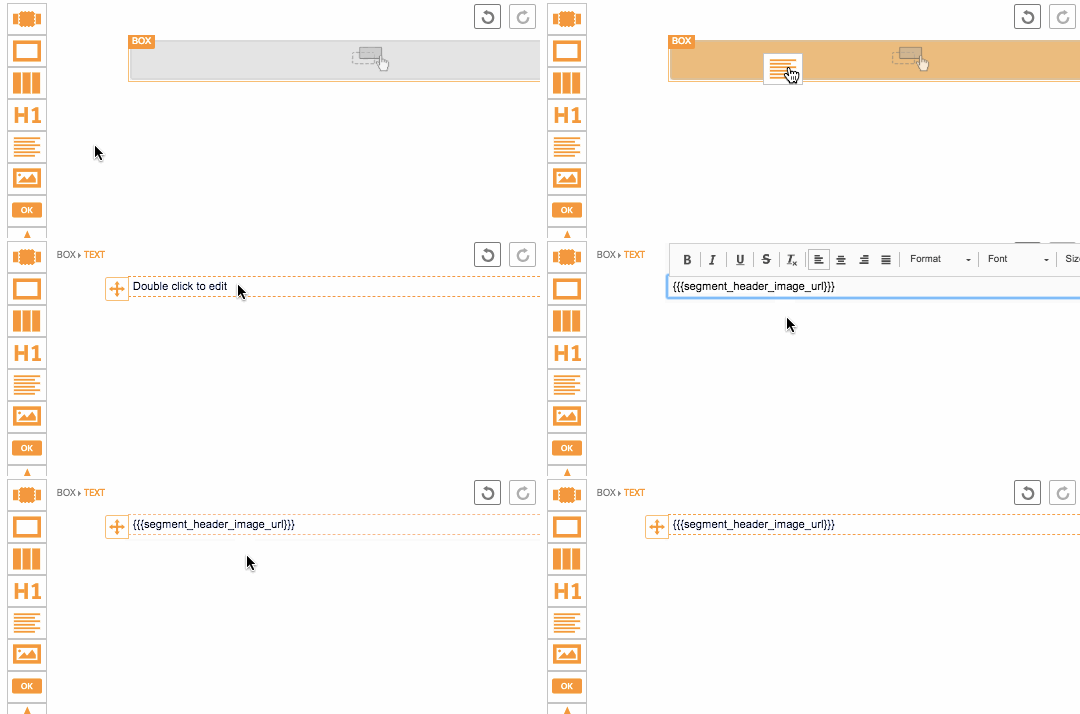
For Email Editor, put each dynamic tag in its own text box. You won't be able to see the images until you preview it.
-
Click Send Test Notification to send yourself a preview email (this will only be with the default, Main Segment images).
If you get an error when sending the test notification, save the campaign, re-enter, and try again. -
When you're satisfied, move on to Step 3 - When to save and Schedule the campaign.
Email Delivery Order
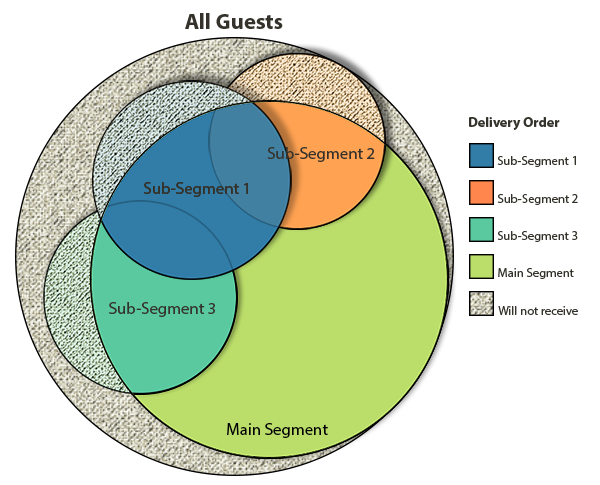
For each Mass Campaign using Content Based Personalization, in addition to the campaign's Main Segment, you may add up to three Sub-Segments who will receive alternate images for the Email Header, Body, and/or Footer images. This means that there are a possible four unique emails that will be routed to guests who fall into the main segment, with the messages following the order of:
- Sub-Segment 1 (within Main Segment)
- Sub-Segment 2 (within Main Segment)
- Sub-Segment 3 (within Main Segment)
- All remaining guests Main Segment
This means that guests belonging to Sub-Segment 1 but not part of the Main Segment will not be included, guests belonging to the Main Segment and Sub-Segment 2 and Sub-Segment 3 will receive the mail intended for Sub-Segment 2, and guests belonging to the Main Segment but not included in Sub-segments 1, 2, or 3 will receive the default email message. See the graphic below: