Profile Field Settings
This article was previously titled "Profile Fields."
Note: Implementing Profile Field Settings will require an app update. Work with your Customer Success Manager if you would like to add this functionality.
Looking to edit custom profile fields using the Punchh API? See Updating Custom Profile Fields With the Punchh Platform API on the Punchh Developer Portal.
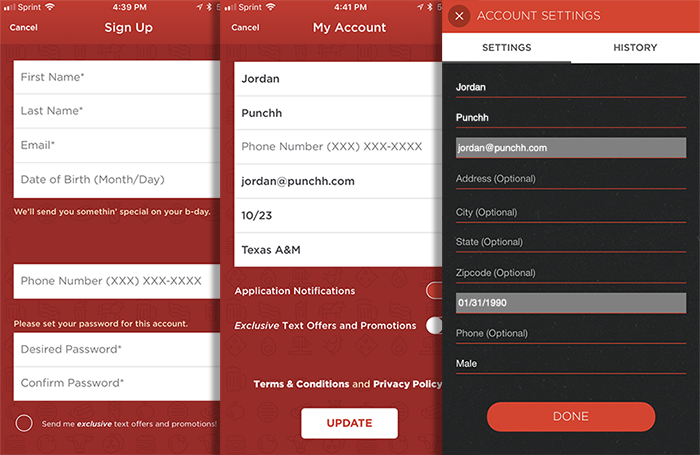
Guests in your loyalty program volunteer personal information such as their name, birthday, and location, either during initial mobile signup or later by updating their profile details in the app, based on the types of information (fields) you present to them.
For example, you may require all guests to enter their full name during signup in order to create their accounts. Or you may require they enter their marital status. You may include non-mandatory fields as well, such as address or gender. These non-mandatory fields may be completed at any time by the guest in their account profile (or they may never be completed). By default, you may choose from several common fields, or you can add your own using Custom Profile Fields.
Custom Profile Field Settings allow you to gather information from your guests that may be more specific to your business. You can ask for more detailed personal information, ratings, or even multiple-choice questions.
Configure Profile Fields
Assuming that Profile Fields have been enabled for your business, you can add and configure new fields by navigating to Guests > Profile Field Settings.
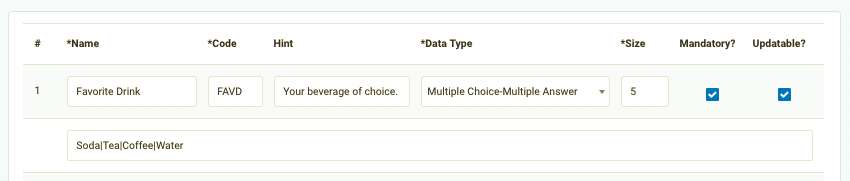
Complete out the following fields for each custom profile field you want to add:
- Name - This will appear as the field's title in the eClub widget.
- Code - A short code to identify the new profile field.
- Hint (optional) - This appears as small text below the field displayed in the eClub widget.
- Size - This field affects/limits certain settings based on the Data Type field you select. Review the table below to see how these two fields impact each other.
- Mandatory (optional) - Check this box to require this field be completed by the guest before they may complete the signup process.
- Updatable (optional)- Check this box if you want to allow the guest's response to be edited/updated at any time post-signup.
- Data Type - The type of data input you select here determines the type of response field presented to the guest:
| Data Type | Definition | Size Field | Example |
|---|---|---|---|
| Single Line | An open-ended response text field. | Number of characters in the text | If you enter “150” in the size field the guest's answer must be only 150 characters long. |
| Multiple Line | An open-ended response text field. | Number of characters in the text | If you enter “150” in the size field the guest's answer must be only 150 characters long. |
| Date/Time | This field includes a date picker (MM/DD/YYYY) along with an optional time of day. | Number of answers that can be selected | Enter “1” as the guest can only choose 1 date/time. |
| Date | This field includes a date picker (MM/DD/YYYY). | Number of answers that can be selected | Enter “1” as the guest can only choose 1 date/time. |
| Number | Clickable counter (or guest may enter a numeric value). | Number of answers that can be selected | Enter “1” as the guest can only choose 1 number. |
| This field will only accept a valid name@email.com formatted email address. | Number of characters in the text | If you enter “150” in the size field the guest's answer must be only 150 characters long. | |
| Phone | This field will only accept a 10-digit number (dashes will be ignored). | Number of characters in the text | Enter “10” as the guest can only enter a 10-digit number. |
| Rating | Multiple-choice drop-down. This data type accepts positive numbers only allowing you to create quantitative ratings. You can create segments based on Rating responses. When configuring this field, you must separate each response with a divider as such: "1|2|3|4|5". For qualitative ratings like "Great|Good|Okay|Poor", we advise you to use the Multiple Choice (Single Answer) data type described next. |
Number of answers that can be selected | Enter “1” as the guest can only choose 1 rating. |
| Multiple Choice (Single Answer) | Multiple-choice drop-down. The guest may choose only one answer. You can create segments based on Multiple Choice (Single Answer) responses. When configuring this field, you must separate each response with a divider as such: "Soda|Tea|Coffee|Water". There is no limit to the number of answers you can list. |
Number of answers that can be selected | Enter “1” as the guest can only choose 1 answer. |
| Multiple Choice (Multiple Answer) | Multiple-choice drop-down. The guest may choose more than one answer. You can create segments based on Multiple Choice (Multiple Answer) responses. When configuring this field, you must separate each response with a divider as such: "Pepperoni|Sausage|Cheese". There is no limit to the number of answers you can list. |
Number of answers that can be selected | If you enter ‘2’ in the size field the guest can only select up to 2 answers. We recommend entering the number of options available, so if there are 5 options enter “5”. |
Integrate Custom Profile Fields into eClub Widget
When setting up your eClub widget form, you'll select from several questions/mandatory fields the guest must complete in order to sign up. By default, these fields are limited to around 15 different options (the most common types of information you would typically gather from guests). However, if the default field types aren't quite enough, you can add fields to your eClub form using the Custom Fields you've created in Guests.
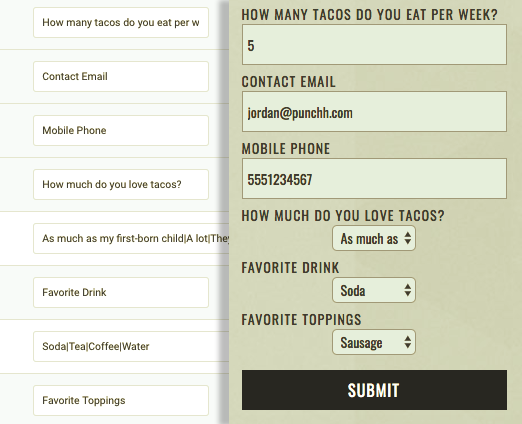
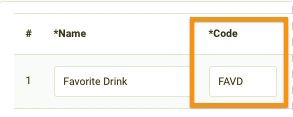
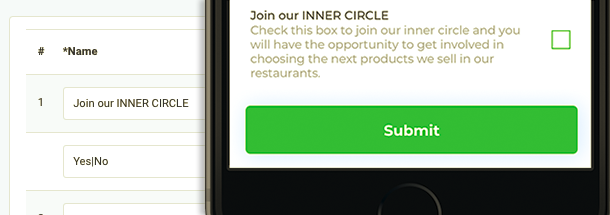
When you create new Custom Profile Fields, these fields are automatically added to the fields shown on your eClub signup widget. The "*code" is a short code used to identify the profile field. The best practice would be to ensure that no two fields share the same code.
Custom Fields in the Mobile App
You can work with your Punchh Customer Success Manager to add custom profile fields to your mobile app as part of the initial signup process. Adding custom fields to the mobile app requires modifying the app's code and thus requires an app update. Therefore it is recommended to decide on any custom fields during your initial implementation process before the launch of your app. Additionally, because they are separately hard-coded, the in-app custom fields are not dependent on what you've configured in Guests > Profile Field Settings. The only thing that must be the same is the "Code" shared by the field (in the eClub widget and the app).
Segment by Custom Profile Field Responses
When guests respond to a custom Multiple-choice question field (Rating, Single, or Multiple Answer), that response becomes available as a segment attribute:

Click the Profile Field Question drop-down to select the question field. The Answer Options field will populate based on the available responses to that question as you configured in Settings.
Enable Custom Profile Fields
If you don't see Profile Fields under Guests, it means that they are currently not enabled for your business. If you want to turn them on, contact your Punchh Customer Success Manager.
