Campaign Templates
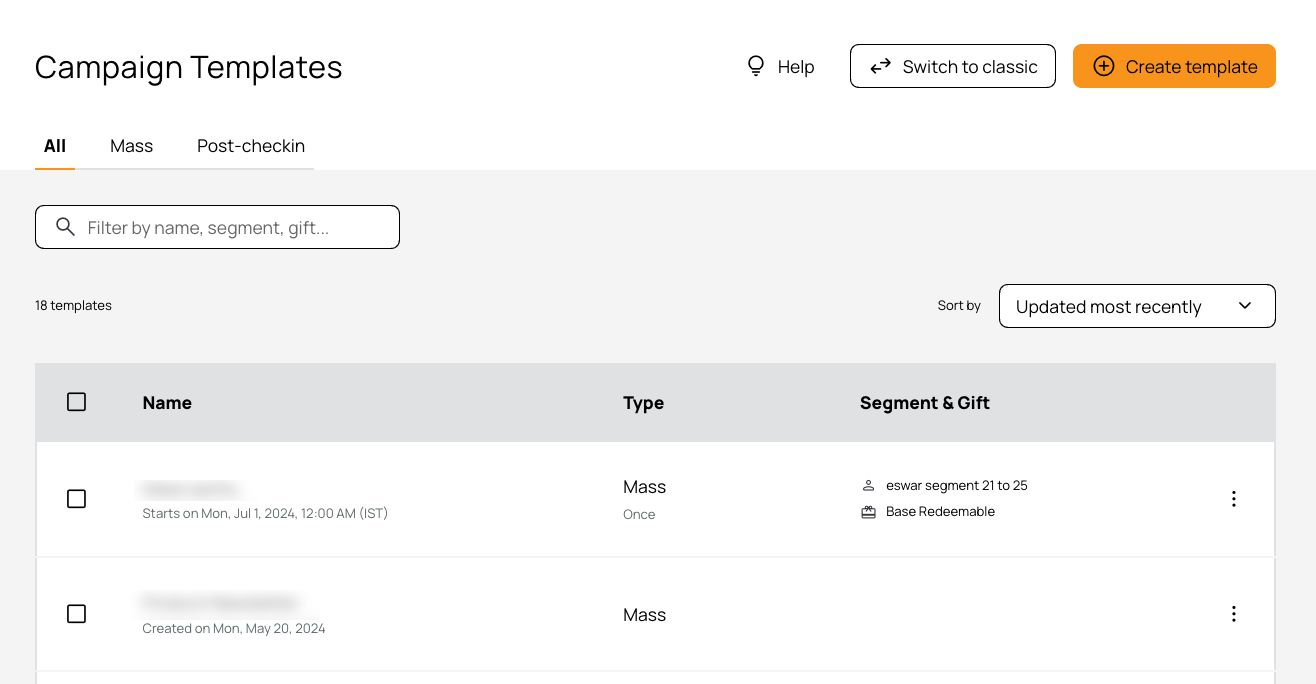
The Campaign Templates page is your one-stop shop for both admins and franchisees to view and manage the campaign templates for your brand. Franchisees within your brand can find and use approved campaigns for their location, while admins can create and manage all the campaign templates, all in a single location within the Punchh Platform.
Note: Currently, only Mass and Post-checkin Campaigns can be used as templates.
Franchisees
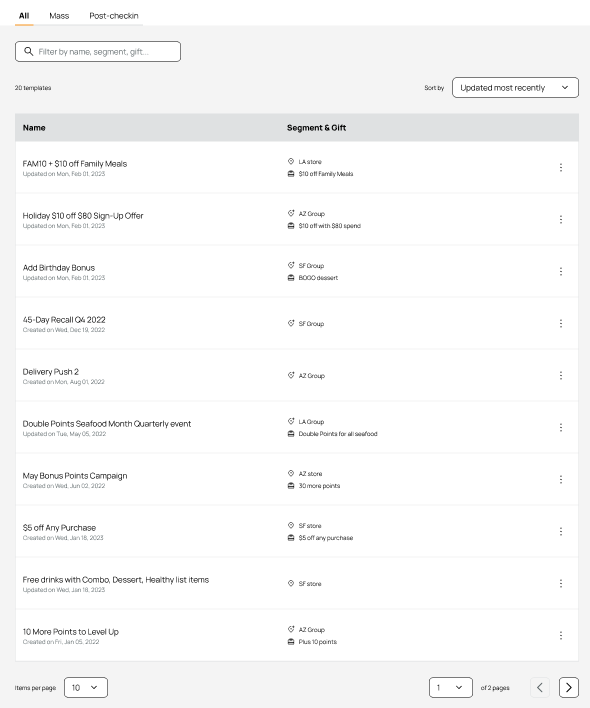
As a franchisee, you are able to view all available templates under Marketing Automation > Campaign Templates. Use the tabs (All, Mass, Post-checkin), search bar, and Sort by menu to find specific campaign templates.
Available Actions
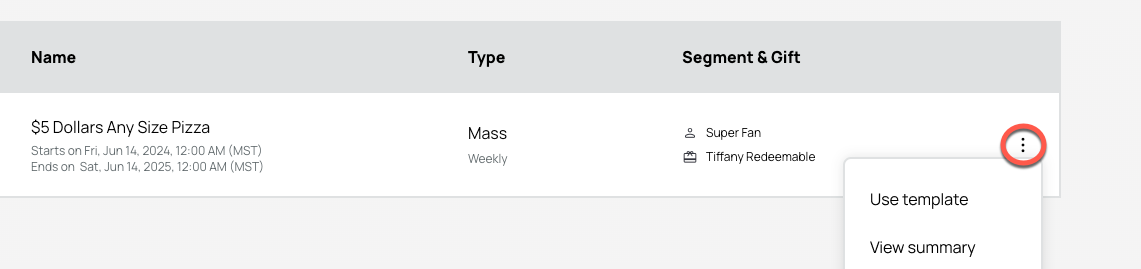
Select the three dots next to a template name to use the template as a campaign for your location, or view the summary.
Use template
- Once you select Use Template, you will be prompted to name your campaign.
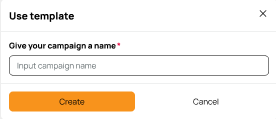
- Click Create.
- The three-step campaign workflow opens. You can make edits as necessary and schedule the campaign.
Refer to the Franchise article for more information on the available options when editing a campaign.
View Summary
- A side panel opens with the campaign details, start/end time, repeating details, and created and updated dates via the timeline (as applicable).
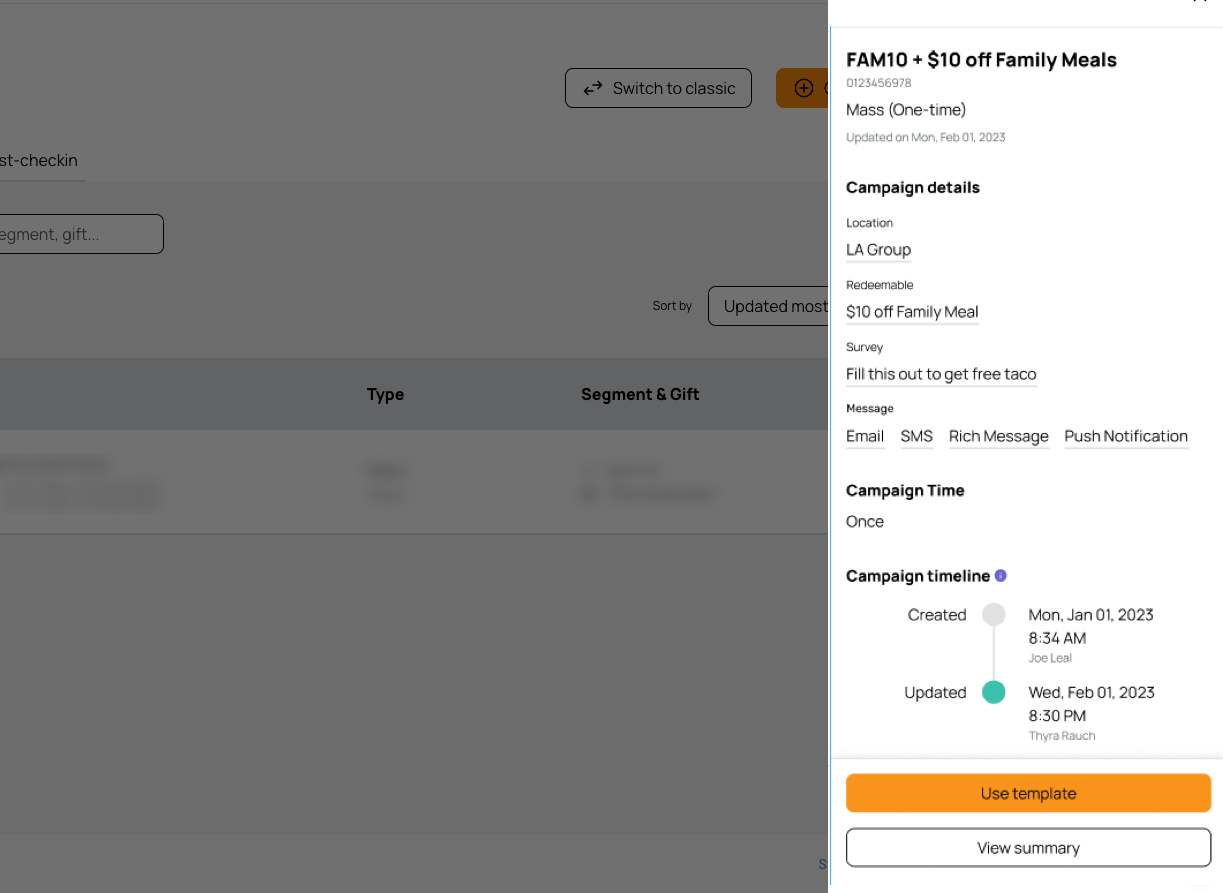
- Select Use Template to use this campaign, or View Summary to view the template summary page.
Admins
As an admin, you can create and manage all campaign templates under Marketing Automation > Campaign Templates. Use the tabs (All, Mass, Post-checkin), search bar, and Sort by menu to find specific campaign templates.
Create a Template
- Click Create template in the upper right corner.
- Select from Mass campaign or Post-checkin.
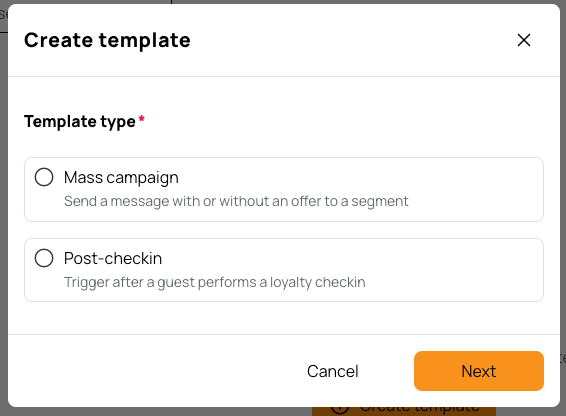
- Select whether or not to include an offer with this campaign.
- Create the campaign as normal with the three-step workflow.
- Make sure Available as Template? is toggle ON for the campaign to show as a template.
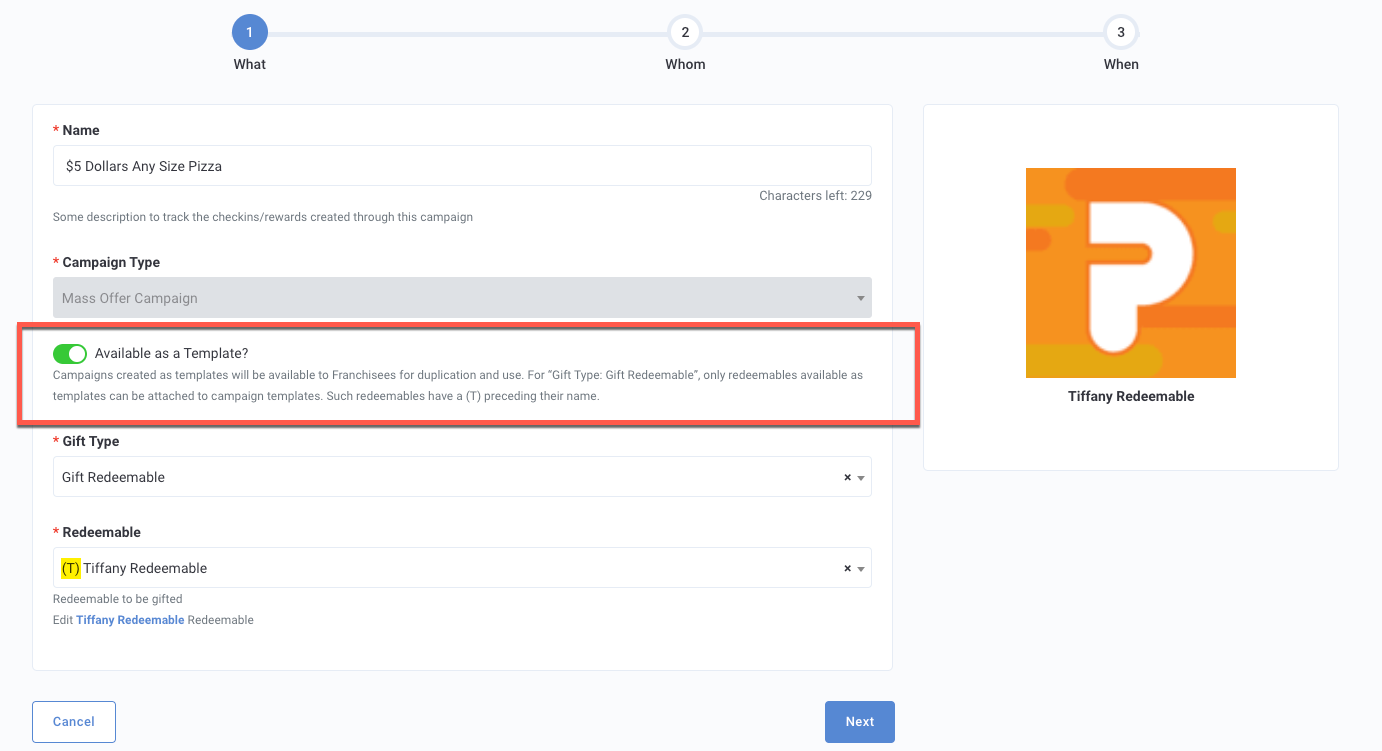
If using a Redeemable, make the chosen redeemable has been made as a template as well, shown with a (T) in front of the name. Review Redeemables for more information.
- Make sure Available as Template? is toggle ON for the campaign to show as a template.
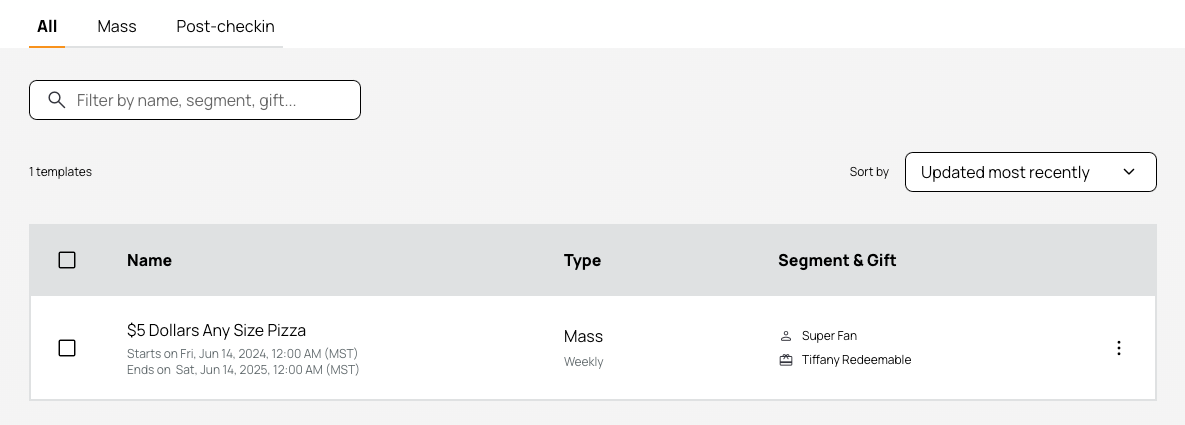
- After you are finished with your campaign template it will appear in the template list. (It will NOT appear in the list of your regular campaigns under Marketing Automation > Campaign Managment.)
More Actions
Select the three dots next to the template name for more options.
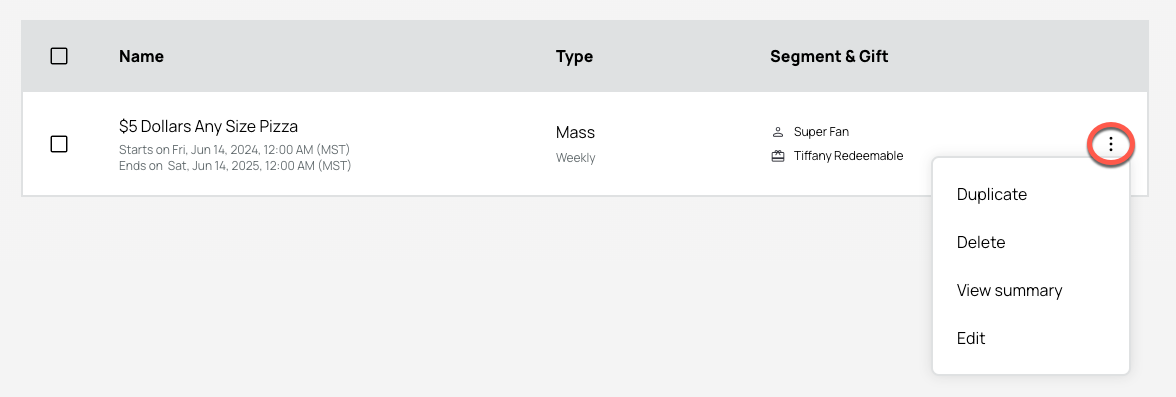
- Duplicate: Click to duplicate the template. The create campaign workflow will open with the name field populated as "Campaign Name - copy" and other fields filled in from the original template. You can then edit the template as normal.
- Delete: Permanently delete the template. You can also delete a template by selecting the check box next to the template name in the list and selecting Delete.
- View summary: Click to view the template summary page.
- Edit: Click to make further edits to the campaign template.
