Campaign Status Tracker
The Campaign Status Tracker is a visual tracking page to monitor the progress of a mass campaign's delivery to guests. The page shows real-time data for scheduled or processing campaigns only. The data will stay current by automatically refreshing every 5 minutes.
To access the Campaign Status Tracker:
- From the campaign's home page, click the campaign title to navigate to the summary page.
- Click the three dots menu in the right corner.
- Click Status Tracker.
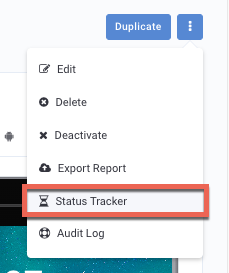
After a campaign has been fully delivered, the details on the Campaign Status Tracker page can be viewed on the Campaign Performance Page by clicking the three dots in the right corner and selecting Status Tracker.
Statuses
Scheduled
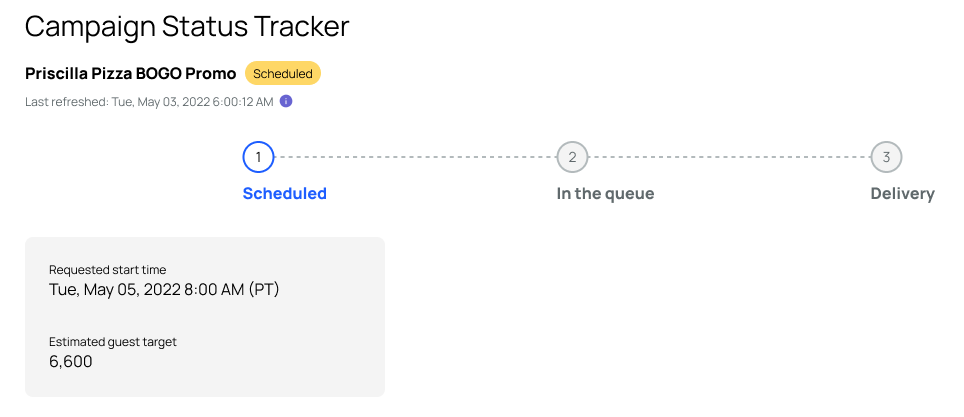
The Scheduled status applies to campaigns with a start time that has not yet arrived as shown above.
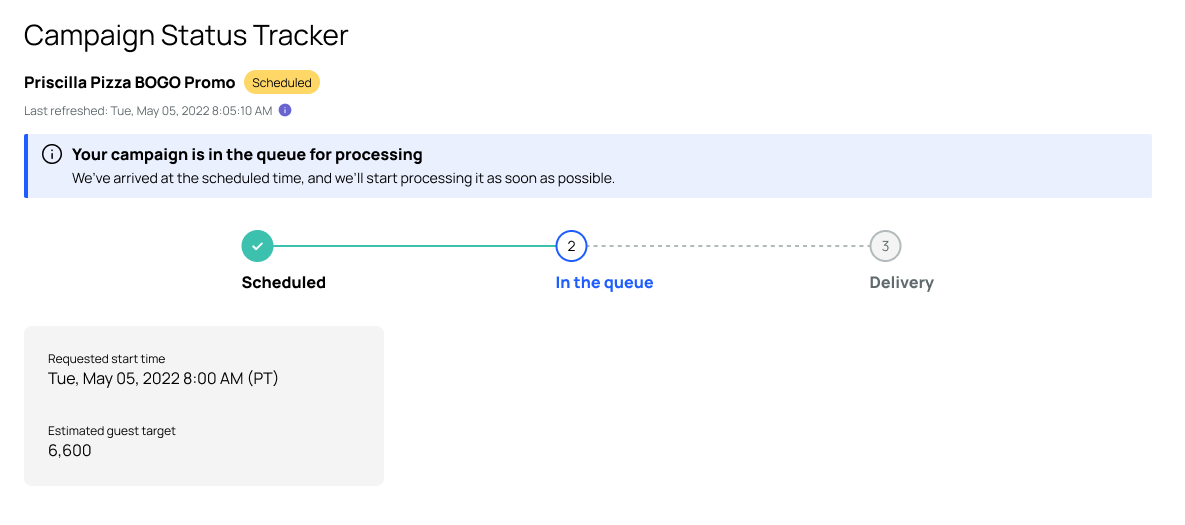
Or, once the start time has arrived the campaign shows Scheduled and moves to "In the queue" to start the delivery process.
When your campaign's start time kicks in, you might notice that its status doesn't immediately switch to processingon our status tracker. Don't worry – this just means your campaign is getting ready in the queue. We'll keep you updated with an info banner (shown above) saying it's queued up, while the status stays at scheduledfor a bit longer. Once your campaign begins delivering your messaging and/or offers to your guests, that's when you'll see the status change to processing (below). This transition usually takes about 5 to 10 minutes. Thanks for your patience as we get your campaign up and running!
Processing
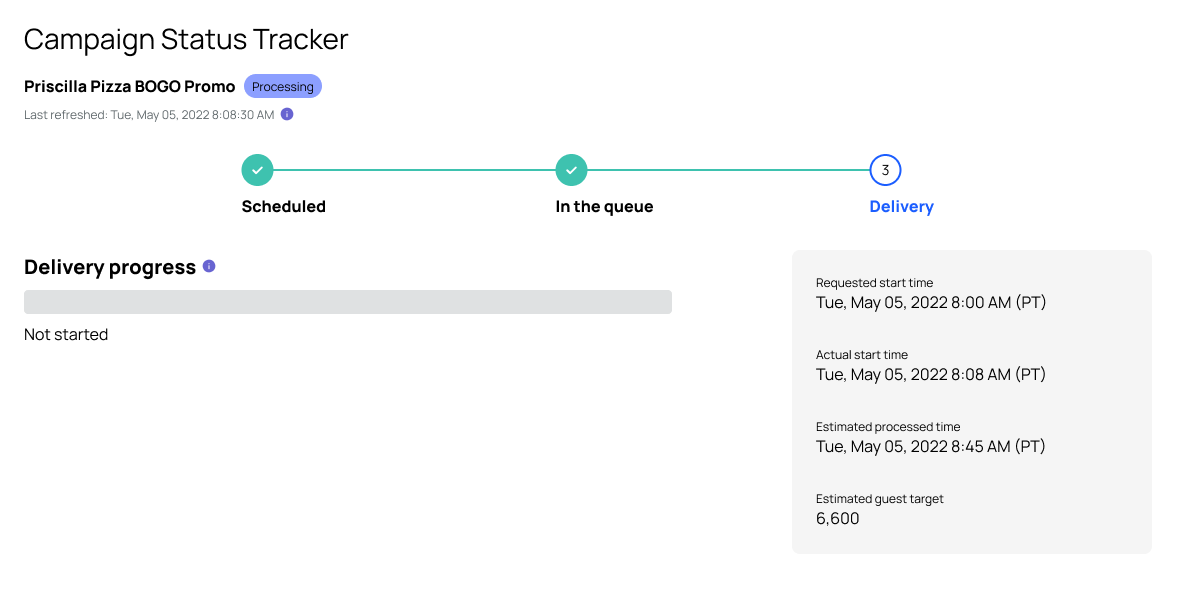
Once the campaign begins the delivery process, the status will change to Processing.
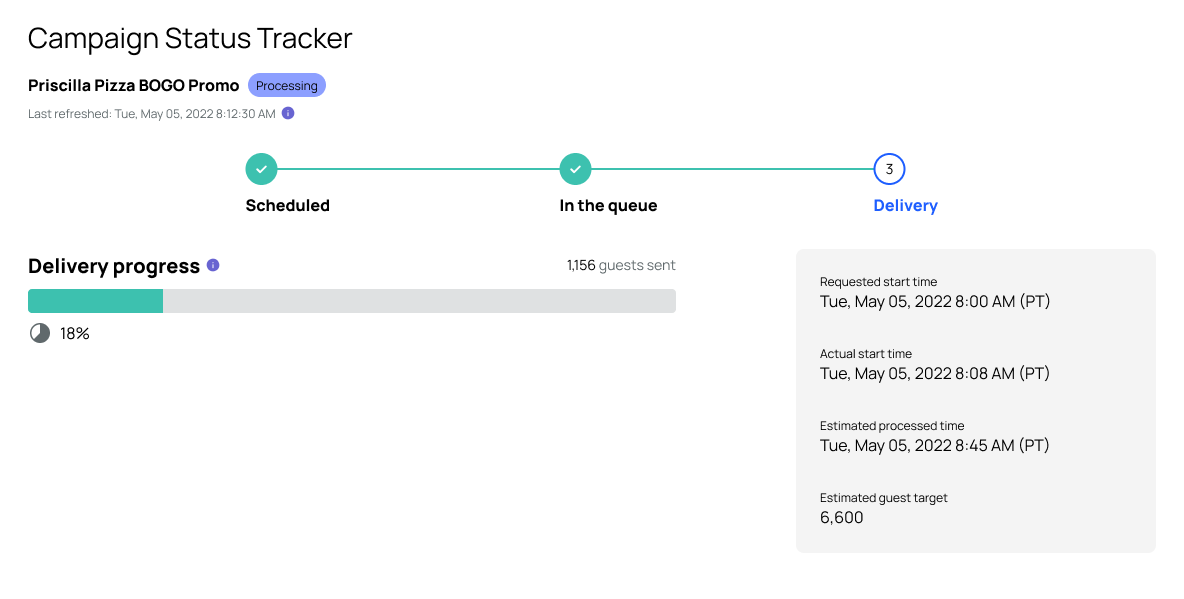 Once the delivery process has begun you can see the progression of your campaign on the Delivery progress bar. You can view the Requested start time(time the campaign was scheduled to start), Actual start time(time the campaign began its delivery process), and Estimated guest target (number of guests estimated to receive this campaign) on the right.
The Estimated guest target number is based on the system's last known segment size. This may vary slightly from the actual segment size that is determined at the time the campaign begins processing.
Processed
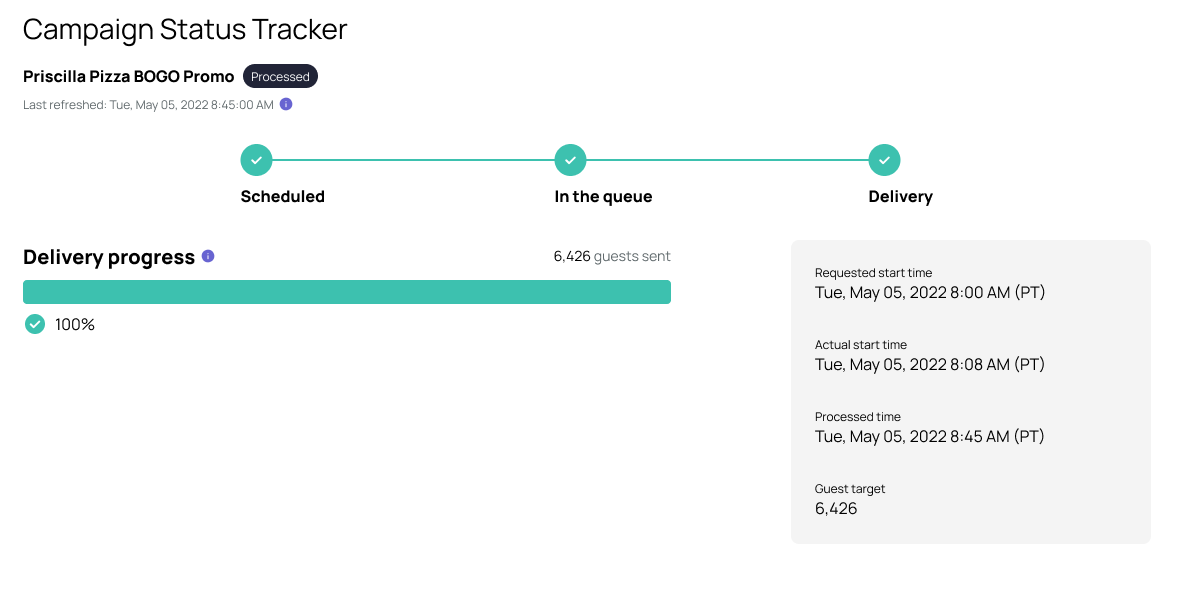
Once your campaign has completed its full delivery process, the status will change to Processed. You can view the Requested start time, Actual start time, Processed time (time when the delivery was completed), and the Guests targeted (number of guests that received the campaign) on the right.
Failed
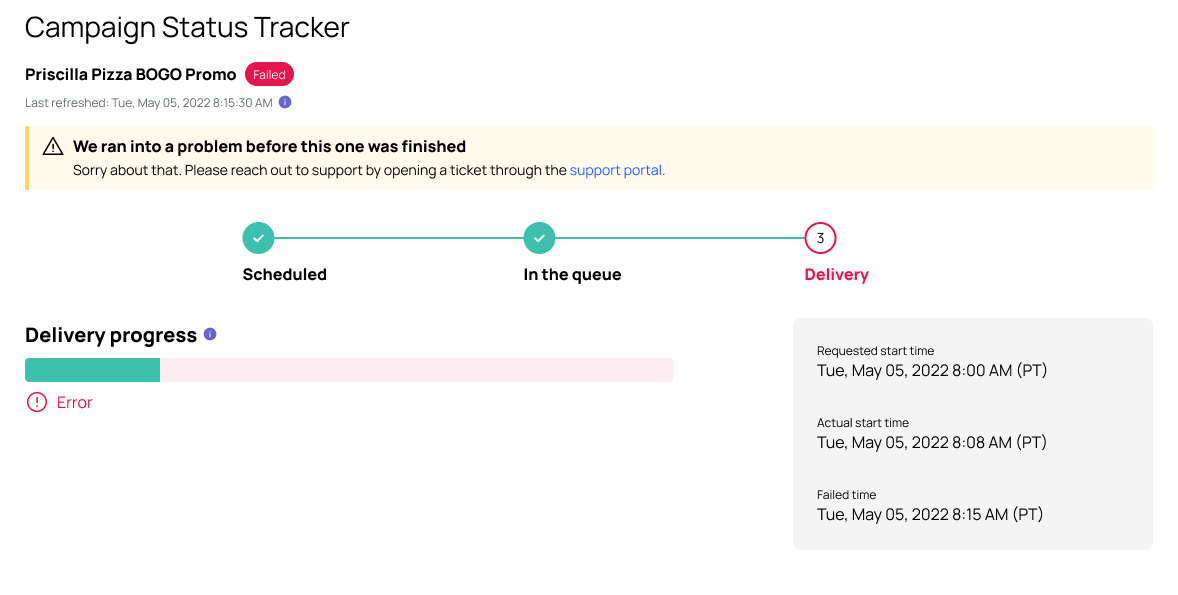
If an error occurs when processing your campaign, you will receive a Failed status. If this event occurs, please reach out to Punchh Support for assistance.
Stopped
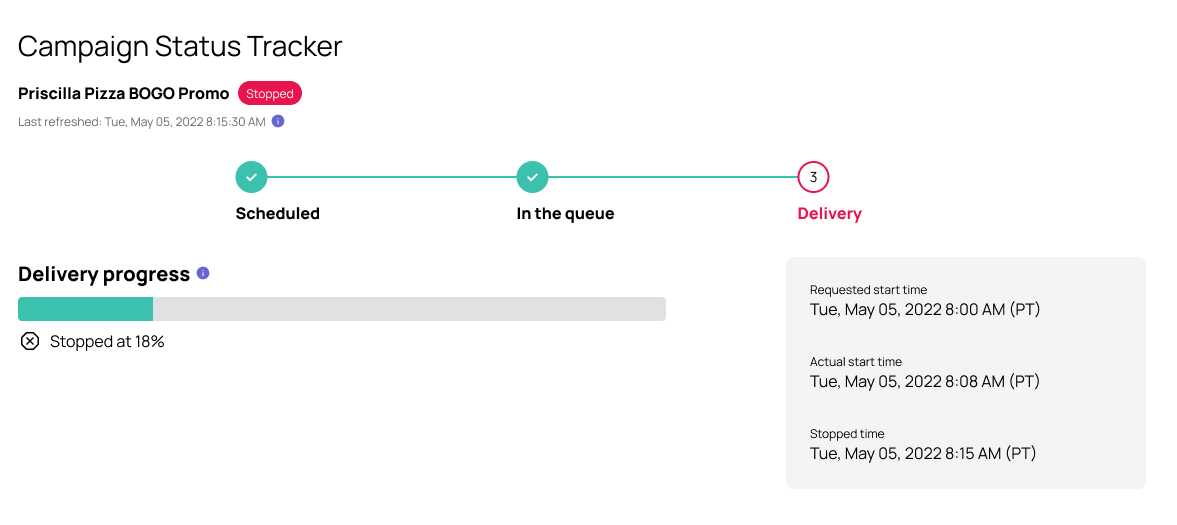
If you need to manually stop the campaign from processing, you will receive a Stopped status.
