Online Ordering
The Online Ordering tab contains sub-tabs with settings pertaining to ordering through the Customer Portal.
General
The General tab contains settings for basic functions of online ordering.
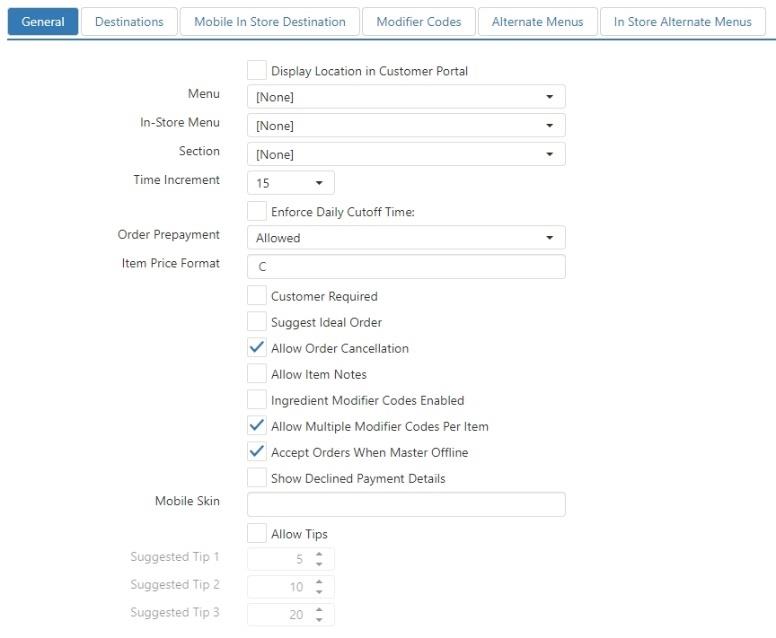
- Display Location in Customer Portal: Location is visible on the locations page in the Customer Portal.
- Menu: Menu to be displayed on the Customer Portal; online ordering is disabled when this is set to None.
- In-Store Menu: Menu to be displayed on Customer Portal mobile when in in-store ordering mode.
- Section: Section to be assigned to online orders.
- Time Increment: Use the drop-down list to select a value of between 5 and 60 minutes. This sets the time increments presented when selecting a pickup time or delivery time. For example, selecting 5 presents 1:00, 1:05, 1:10; selecting 20 presents 1:00, 1:20, 1:40; etc.
- Enforce Daily Cutoff Time: Do not allow online orders for the current date to be submitted after the specified time of day.
- This time is the time after which you cannot SUBMIT an order
- You cannot hit the "Submit Order" button after the Daily Cutoff Time, if configured
- You can place a future order with a Requested Time after the cutoff time (depending on the location hours and prep time...)
- This time is the time after which you cannot SUBMIT an order
- Order Prepayment:
- Allowed: Orders can be submitted with or without payment.
- Not Allowed: Orders can only be submitted without payment.
- Required: Orders can only be submitted with payment.
- Item Price Format: Formatting string for menu item prices (valid strings include c, n0, n2).
- Customer Required: Customer is required to be signed in prior to submitting online order.
- Allow Order Cancellation: Order cancelation page allows orders to be cancelled and link to the page is included in the footer of the confirmation email.
- Allow Item Notes: Note field is displayed with each menu item for customer to enter custom notes.
- Ingredient Modifier Codes Enabled: Modifiers listed for each modifier code is dependent on the item's list of ingredients and the modifier codes Applies To setting.
- Allow Multiple Modifier Codes Per Item: The same modifier can be added to the same item with different modifier codes.
- Accept Orders when Primary is Offline: Customer Portal and Ordering API accepts orders when the primary Register's connection status is offline.
- Show Declined Payments Details: Displays declined payment details to customers when a credit card transaction is declined.
- Mobile Skin: Name of the skin to be applied to Customer Portal Mobile.
- Allow Tips: Customers ordering online will be prompted to add a tip to their order.
- Suggested Tip N: Each field sets the percentage of the suggested tip link. The defaults are 5%, 10%, and 20%. When a customer clicks the associated link on the customer portal or mobile portal, the amount is automatically calculated and input into the tip field.
Destinations
The Destinations tab allows you to specify which destination or destinations an online order can be processed under (see Destinations).
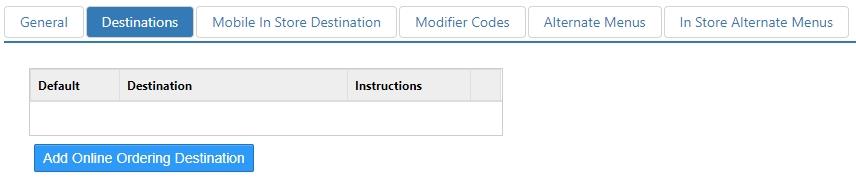
- Default: Destination is selected by default.
- Destination: Destination to display.
- Instructions: Additional information to display along with the name of the destination, and included on the order confirmation email.
Mobile In Store Destinations
The Mobile In Store Destinations tab allows you to specify which destination or destinations a mobile in-store order can be processed under (see Destinations).
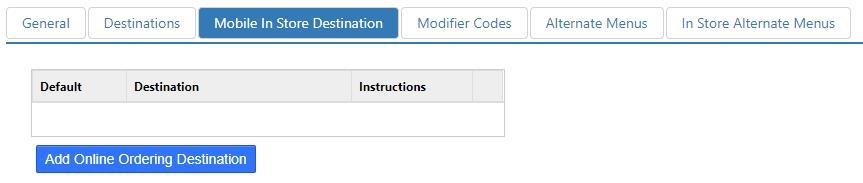
- Default: Destination is selected by default.
- Destination: Destination to display.
- Instructions: Additional information to display along with the name of the destination, and included on the order confirmation email.
Modifier Codes
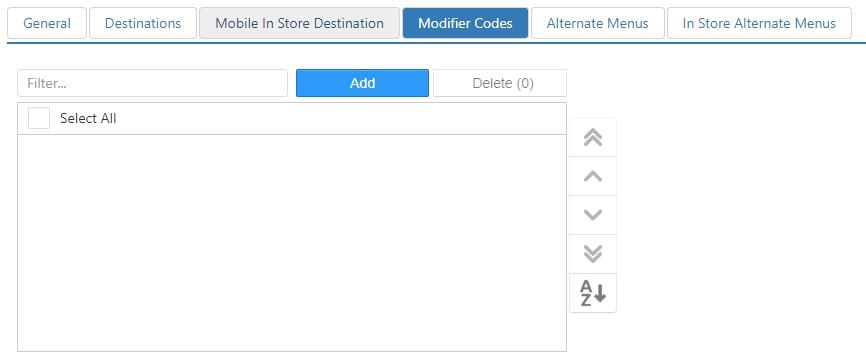
The Modifier Codes tab allows you specify which modifier codes are available on the Customer Portal.
Alternate Menus
Menu that can override the default menu displayed in Customer Portal.
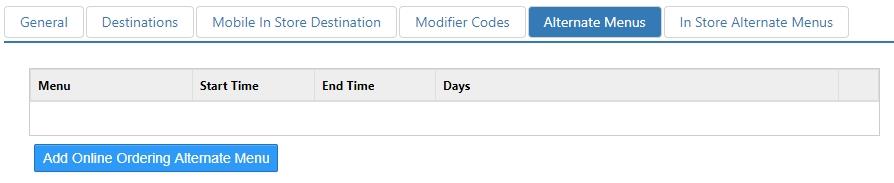
- Days: Days of the week that the menu is valid.
- Menu: Menu to display when enabled.
- Time Type: Selection used to specify alternate menu time periods.
- Start Time: Time of day the menu becomes valid.
- End Time: Time of day the menu is no longer valid.
In Store Alternate Menus
Menu that can override the default menu displayed in the Mobile Customer Portal for in-store orders.
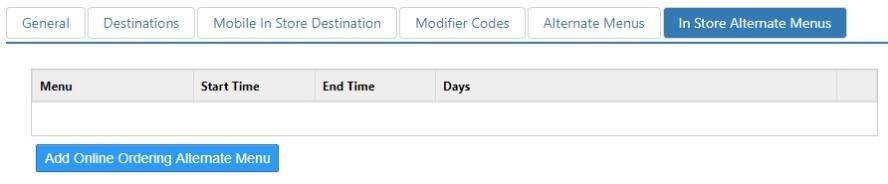
- Days: Days of the week that the menu is valid.
- Menu: Menu to display when enabled.
- Time Type: Selection used to specify alternate menu time periods.
- Start Time: Time of day the menu becomes valid.
- End Time: Time of day the menu is no longer valid.
