Future Orders
The Future Orders tab contains sub-tabs with settings that control how future orders are handled.
General
The General tab contains basic tools for how future orders are handled.
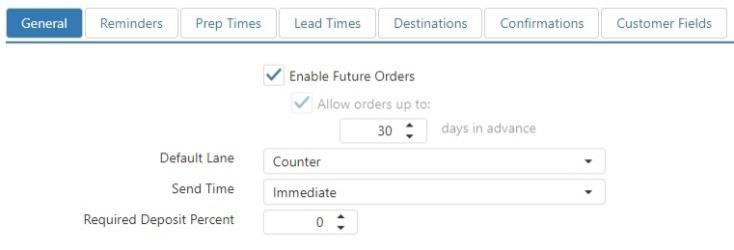
- Enable Future Orders: Future orders can be entered on the Register and accepted via Customer Portal and the Ordering API.
- Allow orders up to X days in advance: Number of days in the future that the request time can be set to.
- Default Lane: Lane in which future orders are to be added when they are automatically sent.
NOTE: If this is set to None, you will not see online orders or future orders at the register. - Send Time:
- Immediate: Future orders are sent to the kitchen as soon as they are finished, or accepted via Customer Portal or the Ordering API.
- Sent Time: Future orders automatically sent to the kitchen based on their calculated prep and lead time.
- Required Deposit Percent: Percent of the order total that is required be paid on the order before it can be finished.
Reminders
The Reminders tab controls how and when reminder emails are sent to customers.

- Send Order Reminder Email: Email is sent to remind the customer of their pending future order.
- Send X minutes before pickup time: Number of minutes prior to the order's request time to send the email.
- Default Message: Message included in the body of the email, before the order details.
- Email Template: Email template to use for the email to be sent.
Prep Times
The Prep Times tab allows you to set a minimum preparation time for orders and set custom prep times for certain kinds of orders.
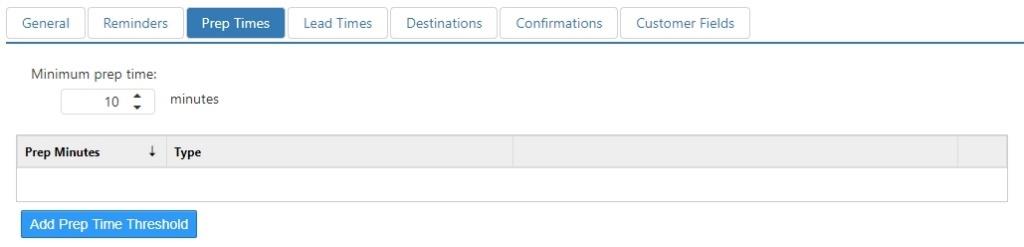
- Minimum Prep Time: Default minimum prep minutes to be used for all future orders.
- Prep Time Rules:
- Prep Minutes: Prep minutes to be used when order matches rule definition.
- Type:
- Item Count: Order contains a minimum number of items.
- Count: Minimum number of order items.
- Order Amount: Order total is equal to or exceeds a certain dollar amount.
- Amount: Minimum order total.
- Contains Item: Order contains a particular item.
- Item: Item that must exist on the order.
- Contains Item In Group: Order contains any items from a particular item group.
- Item Group: Item group containing qualifying items.
- Item Count: Order contains a minimum number of items.
Lead Times
Defines the rules for calculating the lead time minutes required for a future order. Prep time is calculated as the Minimum Lead Minutes, or the highest Lead Minutes on all matching rules.
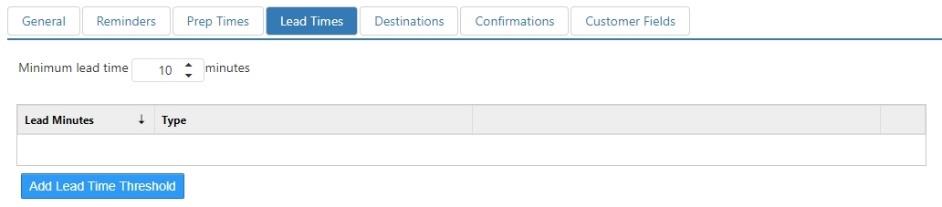
- Minimum Lead Time: Default minimum lead time minutes to be used for all future orders.
- Lead Time Rules:
- Lead Minutes: Lead time minutes to be used when order matches rule definition.
- Type:
- Item Count: Order contains a minimum number of items.
- Count: Minimum number of order items.
- Order Amount: Order total is equal to or exceeds a certain dollar amount.
- Amount: Minimum order total.
- Contains Item: Order contains a particular item.
- Item: Item that must exist on the order.
- Contains Item In Group: Order contains any items from a particular item group.
- Item Group: Item group containing qualifying items.
- Item Count: Order contains a minimum number of items.
Destinations
Defines the destinations that are available to choose from on the 'Set Future Order' screen on the Register.
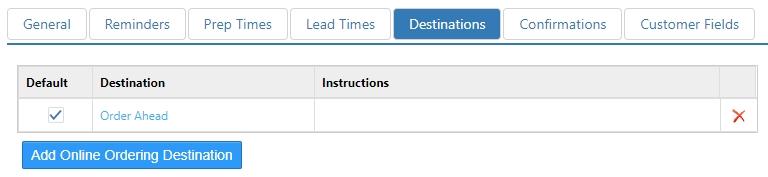
- Default: Destination is selected by default when no destination is set on the future order.
- Destination: Destination to display.
- Instructions: Included on the order confirmation email.
Confirmations
The Confirmations tab controls how order confirmation emails are sent.
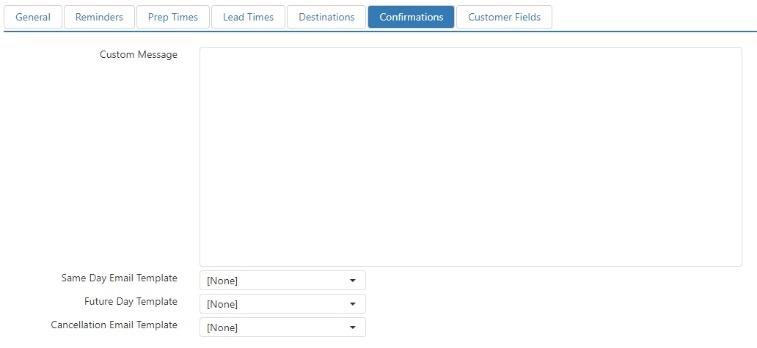
- Custom Message: Message included in the body of the confirmation email, before the order details.
- Same Day Email Confirmation: Email template to use for the email that is sent when a future order for the current business date is accepted via the Customer Portal or Ordering API.
- Future Date Email Template: Email template to use for the email that is sent when a future order for a date later than the current business date is accepted via the Customer Portal or Ordering API.
- Cancellation Email Template: Email template to use for the email that is sent when a future order is cancelled via the Customer Portal or Ordering API.
Customer Fields
Defines the customer fields that are visible and required when creating a new customer record on the Register via the 'Set Future Order' screen.
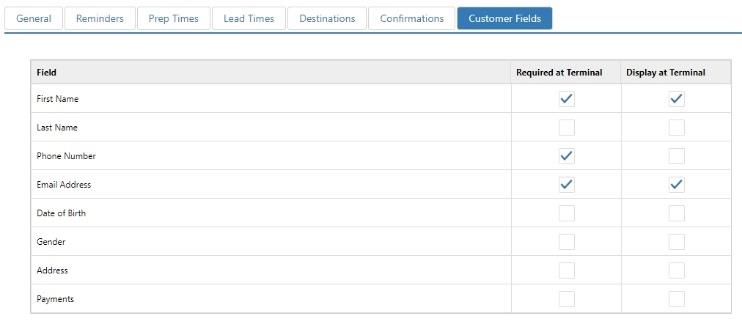
- Display at Terminal: Field is visible on the 'Customer Details' screen on the Register.
- Required at Terminal: Valid data must be entered into the field before the customer record can be saved.
