Customer Display
The Customer Display tab contains sub-tabs that control a customer-facing display.
Line
The Line tab is where you enter the scrolling message to be displayed on the customer display.
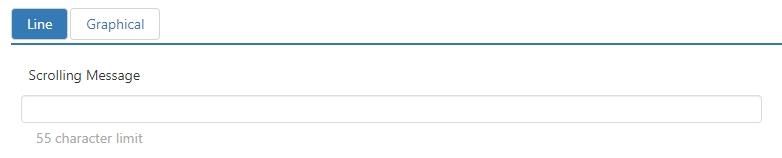
- Scrolling Message: Text that is to scroll across the customer facing 2-line VFD on the terminal when the Register application is idle.
Graphical
The Graphical tab is where you set up the graphical components of the customer display.
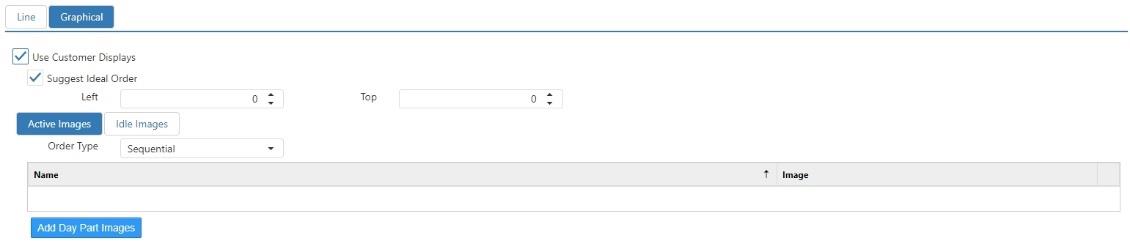
- Use Customer Displays: Display the 'Customer Display' system panel on the Register application.
- Suggest Ideal Order: NO LONGER USED.
- Left: Number of pixels from the left edge of the screen to display the 'Customer Display' panel.
- Top: Number of pixels from the top edge of the screen to display the 'Customer Display' panel.
- Active Images: Images to display when an employee is logged into the Register, image changes each time the current order changes.
- Order Type:
- Sequential: Display images in order sorted by the image name.
- Random: Randomly display images in no particular order.
- Order Type:
- Idle Images: Images to display when no employee is logged into the Register.
- Timer: Number of seconds between the image changing.
- Order Type:
- Sequential: Display images in order sorted by the image name.
- Random: Randomly display images in no particular order.
