Kitchen
The Kitchen tab contains settings for kitchen displays.
General
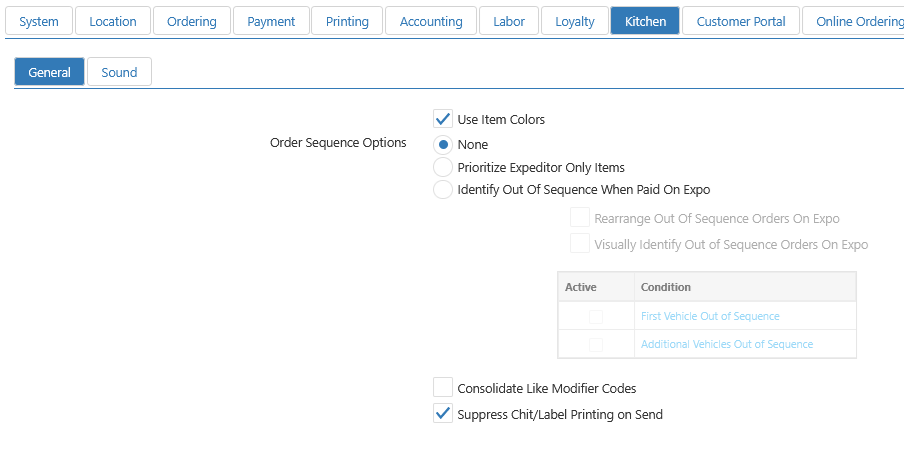
- Use Item Colors: Order item is displayed in the Kitchen Color defined on the item, rather than the colors defined on the Kitchen View.
- Order Sequence Options:
- None
- Prioritize Expeditor Only Items: Moves expo only items to the front of the queue
- Identify Out of Sequence When Paid on Expo: Identifies out of sequence orders per the options below
- Rearrange Out of Sequence Orders on Expo: Re-shuffles the expo queue if orders become out of sequence
- Visually Identify Out of Sequence Orders on Expo: Identifies out of sequence orders with custom styles defined by the user
- Consolidate Like Modifier Codes: Consolidate modifiers into groups based on the modifier code (ADD, NO, HALF, etc.) on both kitchen displays and printed kitchen chits.
- Suppress Chit/Label Printing on Send : When enabled, kitchen chits and labels are not printed when an order is sent to the kitchen.
- Void item chits are never suppressed — they always print regardless of this setting.
Note: Suppress Chit/Label Printing on Send works with two settings in Kitchen Queues:
-On Bump Print to
-Print All on First Bump
Sounds

-
Add Kitchen Sound: Click this button to add a row to the list.
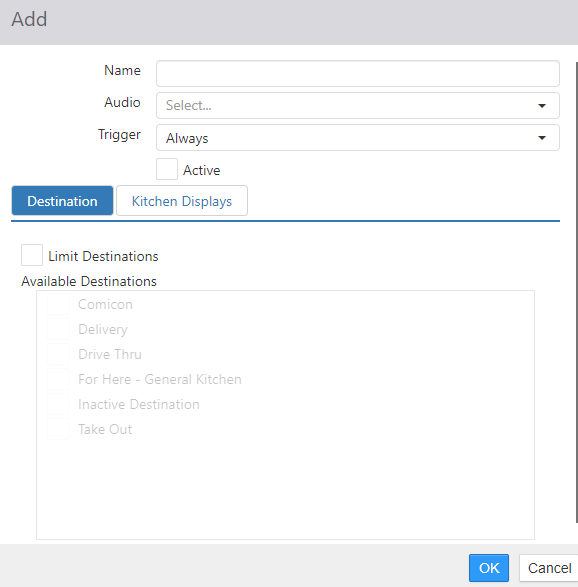
- Name: Name of the sound.
- Audio: Select the sound file that is played.
- Trigger: Select the event that triggers the sound.
- Always: Plays sound every time an order is sent to the kitchen.
- Empty Displays Only: Plays sound only when an order is sent to the kitchen and no other orders are currently on the kitchen display.
- Active: Check the box to activate the sound.
-
Destination: Select the order destination(s) that triggers the sound event.
-
Kitchen Displays: Select the kitchen display(s) that triggers the sound event.
Important Note: For the kitchen to play sounds, the items must be included in a video group and attached to a kitchen queue.
