Accounting
The Accounting tab contains sub-tabs with settings that pertain to how various accounting activities are recorded and calculated.
General
Contains the control to set the first day of the week.
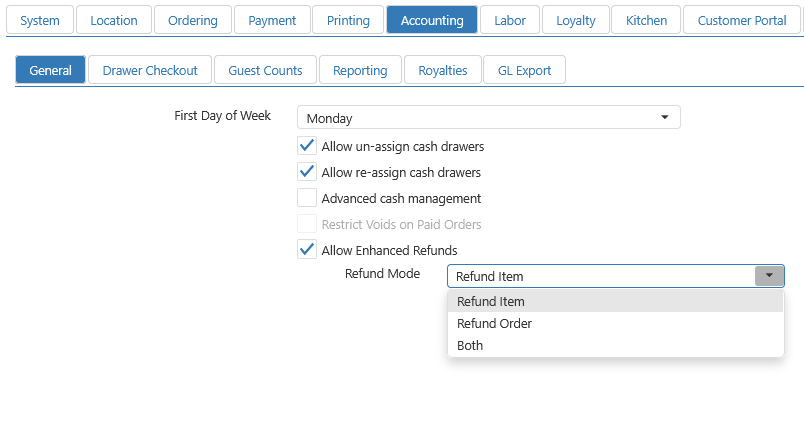
- First Day of Week: Determines the first day of the accounting week and the weekly/biweekly pay periods.
- Move Cash Drawers: Managers can move cash drawers between terminals without employees having to go through the checkout process. This can be useful if an employee needs to move from one terminal to another on the same shift.
- Re-assign Cash Drawers: Managers can re-assign cash drawers from terminals without employees having to go through the checkout process. This can be useful if an employee needs to go on break and have another employee fill in for them.
- Advanced cash management: Opts the user into the Advanced Cash Management workflow with enhanced Count Drawer and Cash Skim workflows.
- Restrict Voids on Paid Orders: Restricts the modification of paid orders, directs the employee to perform a refund instead.
- Allow Enhanced Refunds: Ensures unpaid orders must be emptied prior to initiating a refund.
- Refund Item : allows a cashier to refund one or more items from the closed order
- Refund Order : allows the cashier to refund the entire order
- Both : allows the cashier to refund items as well as the entire order
Important Notes:
- When refunding a combo meal or an item with modifiers, the entire combo or item is always refunded, not just a single component. -For example, if a customer ordered a burger combo and only wants to return the drink, the full combo will be refunded.
- If the Recall Order screen shows individual components and only one is selected, the system will still automatically refund the entire combo or item.
- Any change to the Allow Enhanced Refunds option in Settings Editor requires the registers to restart when published
- Once a refund has been started and the system creates the linked refund transaction, no items can be added, removed, or changed. This applies to both Refund Item and Refund Order flows.
- If a cashier selects the wrong item by mistake, they can cancel the refund and start over; they cannot modify it after it has been created.
- Multiple refunds on the same original order are allowed; however, the combined total of all refunds can never exceed the amount of the original order.
- If there is a discount or promotion on an order, the Refund Item button will be disabled. If you want to allow Refunds on orders with a discount and/or promotion, it is recommended that Allow Enhanced Refunds be set to Refund Order or Both.
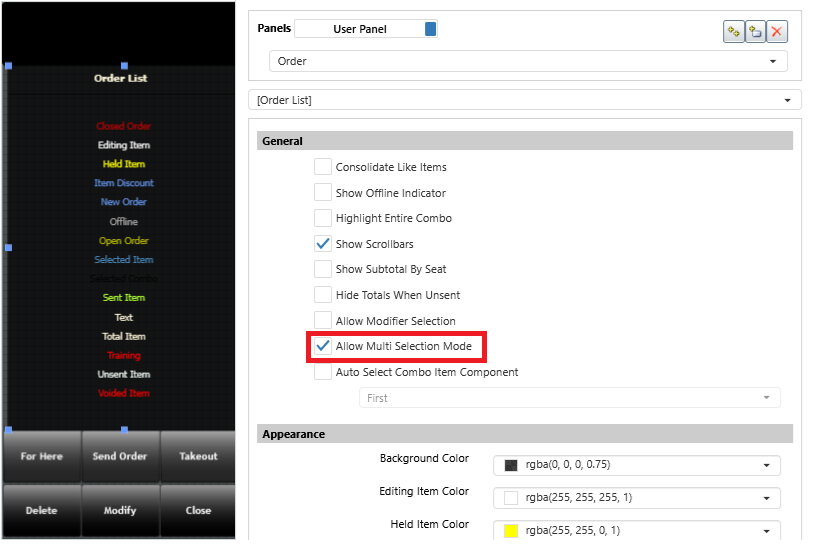
- When Allow Enhanced Refunds is set to either Refund Item or Both, and you want to choose more than one item on the order, Allow Multi Selection Mode must be enabled.
- Allow Multi Selection Mode is located in Layout. Find the Order List panel and click on it.
Drawer Checkout
Contains controls that pertain to drawer checkout and accounting for cash.
-
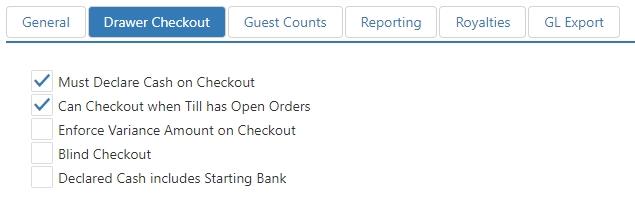
Must Declare Cash on Checkout: Employee is prompted to enter declared cash when checkout is performed via either the 'Checkout' button behavior or the 'Manage Drawers' screen.
-
Can Checkout when Till has Open Orders: Cash drawer can be checked out when open non-future orders exist that have payments associated with the till.
-
Enforce Variance Amount on Checkout: Declared cash at checkout or via the `Edit Checkout' button behavior must be within the valid variance cash amount of the calculated cash. Valid cash variance is defined in the Edit Tender dialog for the Tender Type of Cash with a Default Amount of $0.00. See Tenders.
NOTE: Only one tender with a Tender Type of Cash can have a Default Amount of $0.00. Any additional Cash tenders must be assigned a non-zero value for Default Amount. -
Blind Checkout: Do not pre-populate the declared cash prompt with the calculated cash amount.
-
Declared Cash includes Starting Bank: System expects the declared cash amount to be all cash in the drawer, including the starting bank that was declared when the drawer was assigned.
Guest Counts
Contains settings pertaining to how the number of guests is counted.
![Guest Counts tab with a Guest Count Method dropdown set to [None] and an Allow Zero Guest Count checkbox](/docs/par-pos/055517143865-image0308.png)
- Guest Count Method:
- None: Do not track guest count.
- Prompt on Create Party: Prompt employee to enter guest count when table, tab, or order is opened.
- By Item Group: Calculated based on the items ordered.
- Item Group: Item group that contains the items which count towards the guest count.
- Factor: Weight each item ordered from the selected item group carries towards the order's guest count.
- By Seat Count: Equals the number of seats on the table.
- Allow Zero Guest Count: When Guest Count Method is set to Prompt on Create Party, guest count greater than zero must normally be entered in order to continue. Which this box is checked, a guest count of zero is considered valid.
Reporting
Contains settings pertaining to how certain accounting categories are calculated in reports.
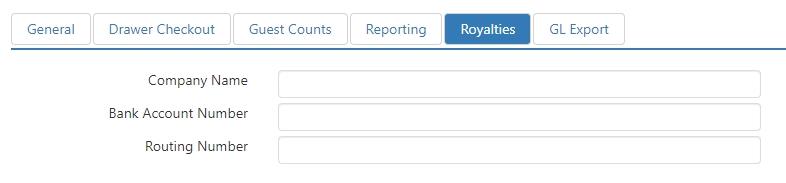
- Company Name: Company name that is to appear on the Royalties by Location report.
- Bank Account Number: Bank account number that is to appear on the Royalties by Location report.
- Routing Number: Bank routing number that is to appear on the Royalties by Location report.
GL Export
This section defines how sales data is to be mapped to general ledger account numbers in the various export formats.
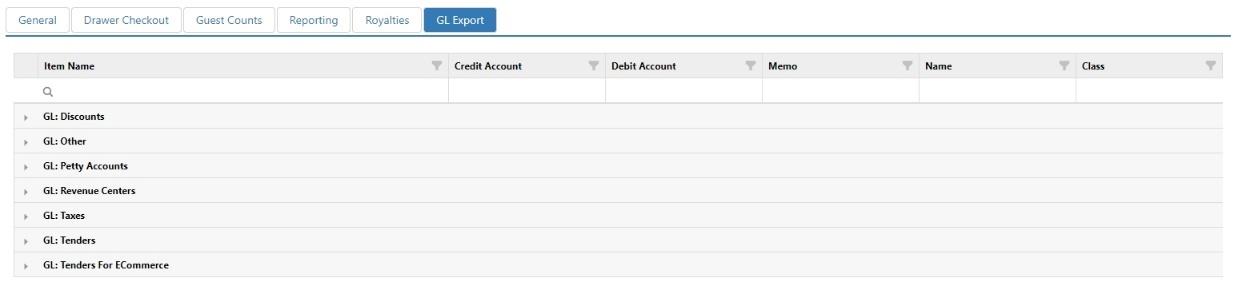
- Credit Account: GL account to be credited.
- Debit Account: GL account to be debited.
- Memo: Included in various sales export formats.
- Name: Included in various sales export formats.
- Class: Included in various sales export formats.
