Tenders
Tenders define the form of payment applied to an order.
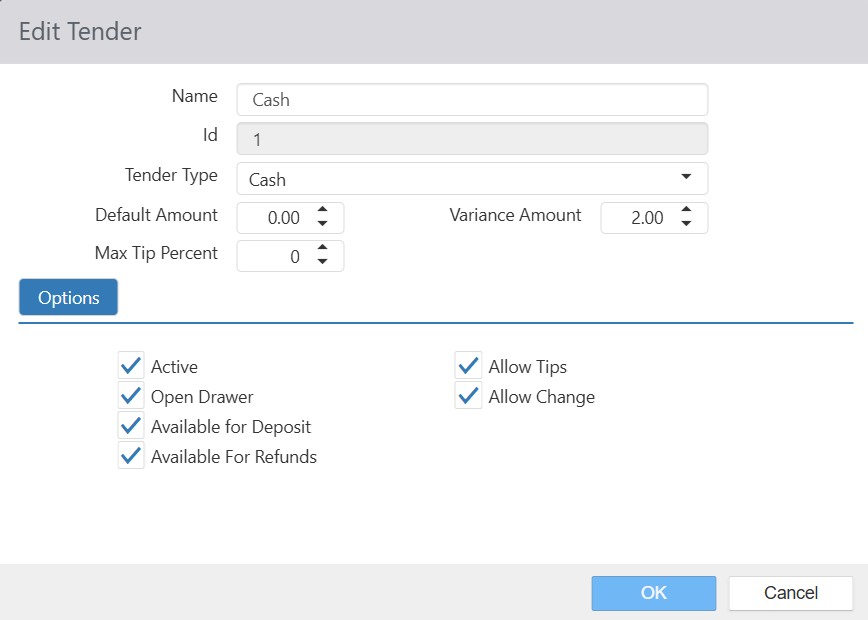
- Name: Name of the tender.
- Id: System generated identifier of the tender.
- Tender Type:
- Cash
- Check
- Credit Card:
- Card Type: Type of credit card.
- Requires Authorization: Payment must be authorized by a third-party processor.
- Debit
- EBT: Enables EBT Payment on the register.
- Card Type: "EBT Cash Benefit" (taxable) or "EBT Food Benefit" (non-taxable)
- External
- Used for 3rd party payments for digital/online orders
- Used with the Aurus Tip Adjust on the register.
- Gift Card:
- Card Type: Type of credit card.
- Requires Authorization: Payment must be authorized by a third-party processor.
- Gift Certificate
- House Account
- Default Amount: Amount that displays in the tender dialog. If default value is 0, the Amount defaults to the balance due.
- Variance Amount: The amount of variance allowed on the tender.
- Max Tip Percent: The maximum tip allowed on the tender.
- Options:
- Active: Tender can be applied as payment or future date order deposit via the `Tender' button behavior.
- Open Drawer: Open the cash drawer when `Tender' button behavior executes.
- Available For Deposit: Can be used for future date order deposits.
- Show for Refunds: For "External" Tender Type only. Allows the store to process refunds for external payment types (DoorDash, UberEats, etc.) for more accurate accounting.
- Allow Tips: Tip field is visible on the tender dialog; payments are available in the `Adjust Tips' screen when tender Type is set to Credit Card.
- Allow Change: Allow cash to be returned to the guest when payment amount exceeds the balance due.
- Allow Tip Adjust On Register: When tender Type is set to Credit Card or Gift Card and Requires Authorization and Allow Tips option selected, allows the tip to be adjusted at the register via 'Adjust Tips' or 'Adjust Payment' buttons.
- If both Requires Authorization and Allow Tips options are selected, tips are automatically allowed at the register.
