Tables, Tares & Taxes
Tables
Tables define the properties of physical tables in the restaurant, which are represented by the Table control.
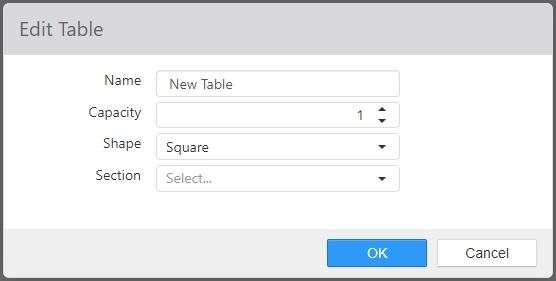
- Name: Name of the table.
- Capacity: The number of seats to display on the Table control, and the default guest count when the table is opened.
- Shape: Shape of the Table control.
- Section: Section assigned to new orders on parties assigned to the table.
Tares
Tares are weight allowances for the packaging of weighed order items, such as a plate or cup.
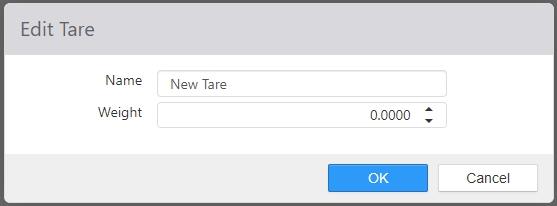
- Name: Name of the tare.
- Weight: Weight of the tare, measurement type is determined by the Price Per setting on the measured item.
Taxes
Taxes are defined for calculating and collection of sales taxes.
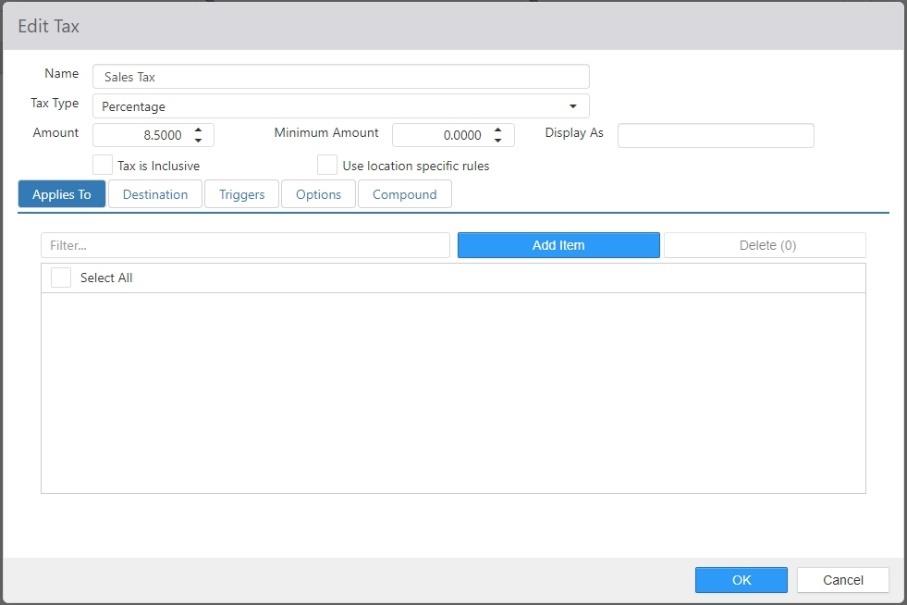
-
Name: Name of the tax.
-
Tax Type:
- Percent: Percent of the qualifying order item's price.
- Flat Fee: Fixed dollar amount per order.
-
Amount: Percent or dollar amount to be applied, depending on the Tax Type.
-
Minimum Amount: Minimum amount to be applied per qualifying order.
-
Display As: An alternative name that prints on the receipt.
NOTE: If multiple taxes are given the same Display As name, they will be combined on receipts. -
Tax is Inclusive: When checked, tax is included in price of item.
-
Use location specific rules: Which checked, PAR POS uses embedded, location-specific tax tables.
NOTE: This feature is currently only for use in Florida locations. -
Applies To tab: Items in the Selected Items list will have this tax applied to them.
-
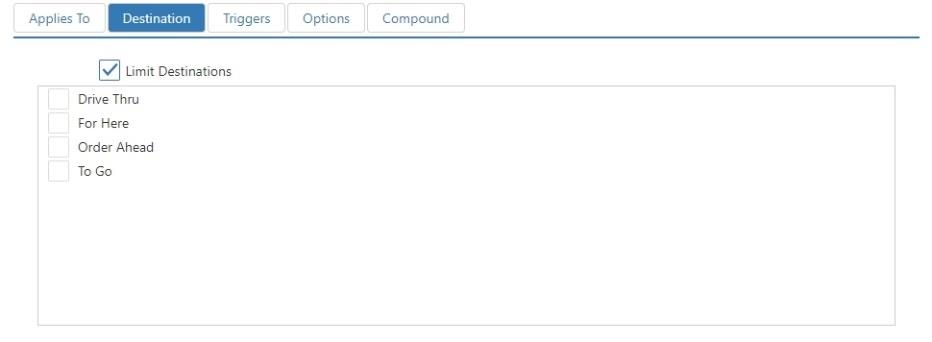
Destinations tab: When Limit Destinations is checked, the tax only applies to the selected destinations.
-
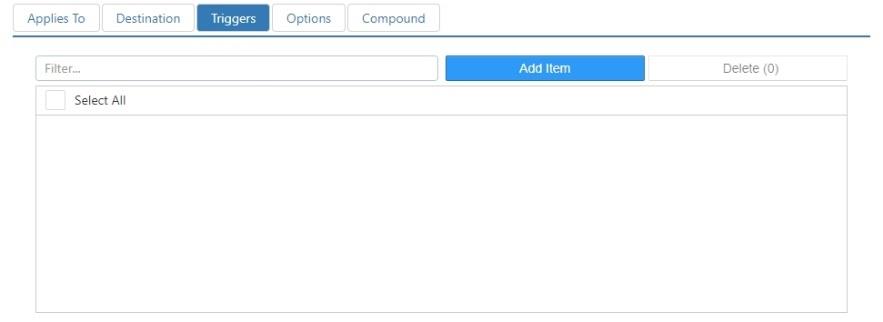
Triggers tab: Modifiers in the Selected Items list will result in the tax being applied to the root item.
-
Options Tab:
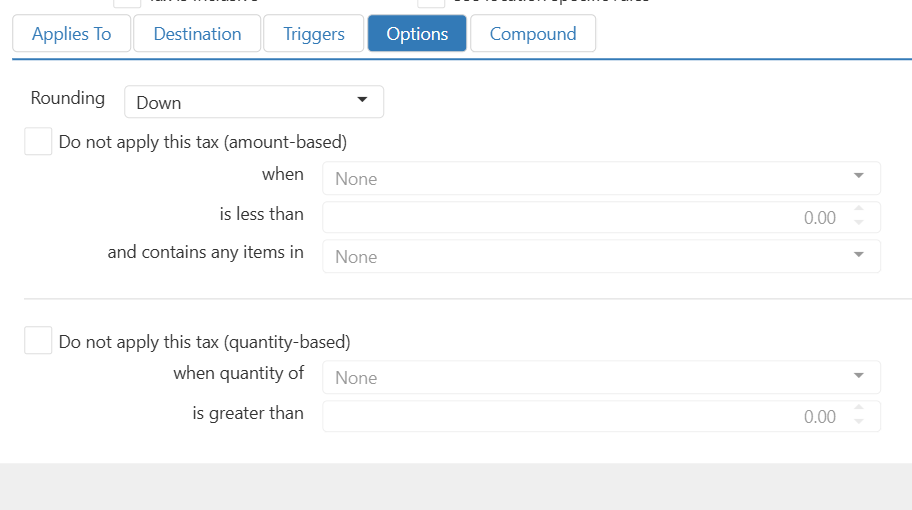
- Rounding: Select how taxes will be rounded when a calculation results in fractional cents.
- Up: Rounds up to the next higher cent.
- Down: Rounds down to the next lower cent.
- Nearest: Rounds to the nearest cent.
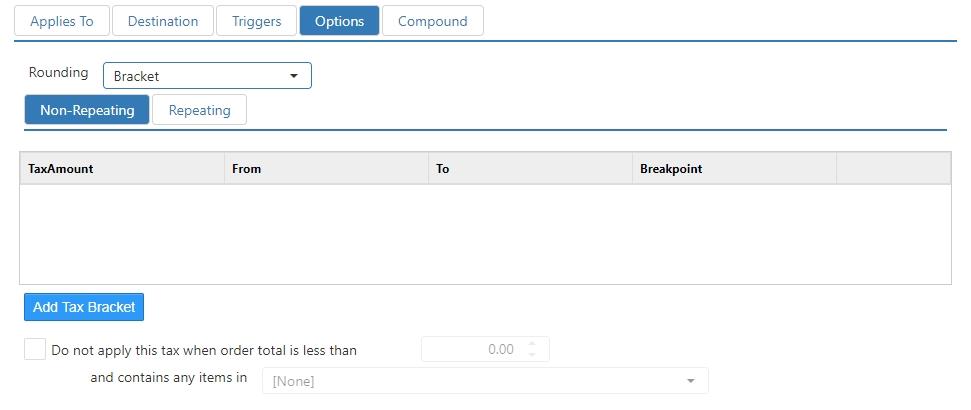
- Bracket: Selecting Bracket displays two lists: Non-Repeating and Repeating.
- Do not apply this tax: Check the check box if you want to exclude the tax based on an Order Total or Order Subtotal amount or by the quantity of a certain item or item type.
-
For tax exclusion based on order total/subtotal amount:
- when: Choose Order Total or Order Subtotal.
- is less than: Choose the [$ amount] value.
- and only contains any items in: Choose certain items up to a given price from having the tax applied.
-
For tax exclusion based on item/item type quantity:
- When Quantity of: select the item or item type from the dropdown to be excluded from tax.
- Is Greater than: select the quantity of the item or item type that triggers the tax exclusion.
-
Non-Repeating: For rows where the intervals are not repeated, such as for the first dollar, where the taxation rate often includes a point below which no tax is charged.
NOTE: No matter how many rows are entered on the Non-Repeating sub-tab, the system does not use those values to extrapolate any additional taxable order totals. Therefore, if rows are only entered on the Non-Repeating sub-tab, then the maximum tax calculated will be the value in the lowest row. -
Repeating: For establishing a pattern of tax brackets. When you enter a number of rows in the Repeating sub-tab to establish the pattern, the system extrapolates based on the established pattern for values above what is entered. NOTE: It is recommended that ten or more rows be added on the Repeating sub-tab so that the system can accurately repeat the pattern for all order totals.
-
'Add' button: Inserts a row in either the Non-Repeating or Repeating list.
- Tax Amount: The amount of tax charged.
- From: The lowest order total for which the Tax Amount is charged.
- To: The highest order total for which the Tax Amount is charged.
- Breakpoint: The number of cents between From and To, inclusive.
-
- Do not apply this tax: Check the check box if you want to exclude the tax based on an Order Total amount.
- is less than: Choose the [$ amount] value.
- and only contains any items in: Choose certain items up to a given price from having the tax applied.
- Rounding: Select how taxes will be rounded when a calculation results in fractional cents.
-
Compound Tab:

- Tax is Compound: When this box is checked, the tax is considered to be compound.
- Sort Priority: The order in which compound taxes are applied. The lowest priority is applied first.
NOTE: For compound taxes to work, two or more taxes must be created with the Tax is Compound check box selected and a Sort Priority set for each.
