Surcharges
Surcharges are additional fees that can be applied to an order and are excluded from reported sales.
-
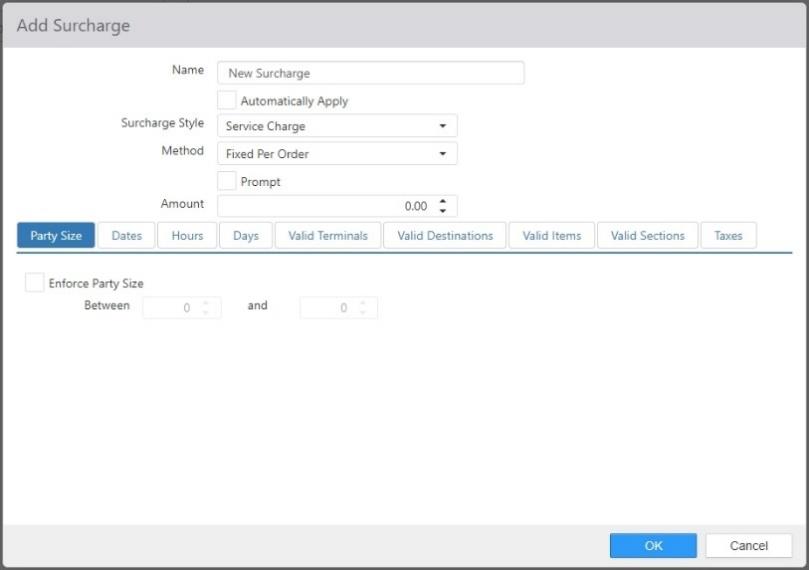
Name: Name of the surcharge.
-
Automatically Apply: Surcharge is automatically applied to qualifying orders.
-
Surcharge Style:
- Gratuity: Surcharge is considered to be paid in cash to the employee that owns that order, accounted for similar to tips.
- Service Charge: Surcharge is considered to be retained by the restaurant.
- Non-Cash Adjustment: Allows the restaurant to take the interchange fee which it has to give to the processors for a credit card payment from the guest. If the guest pays by cash, they do not have to pay the interchange fee. If the guest pays through credit card, the interchange fee is added to the bill amount.
-
Method:
- Fixed Per Order: Amount is a fixed dollar applied amount per order, regardless of the order items.
- Fixed Per Item: Amount is a fixed dollar amount applied for each qualifying item.
- Percentage Per Order: Amount is a fixed percentage of the sub-total per order, regardless of the order items.
- Percentage Per Item: Amount is a fixed percentage of the item price applied for each qualifying item.
-
Prompt: Prompt employee to enter amount when surcharge is applied.
-
Amount: Dollar amount or percent of order sub-total to be applied. Percentage can be any rational number between .01 and 100, inclusive.
-
Party Size tab: When Enforce Party Size is checked, the surcharge can only be applied when the guest count is within the given range.
-
Dates tab: When Enforce Date Ranges is checked, the surcharge can only be applied when the date is within the given range, as defined by StartDate and EndDate.

-
Hours tab: When Enforce Time Range is checked, the surcharge can only be applied during certain times of day, as defined by StartTime and EndTime.

-
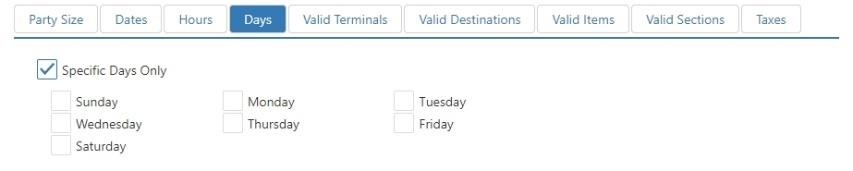
Days tab: When Enforce Days is checked, the surcharge can only be applied on the checked days of the week.
-
Valid Terminals tab: When Limit Terminals is checked, the surcharge can only be applied on the selected terminals.

-
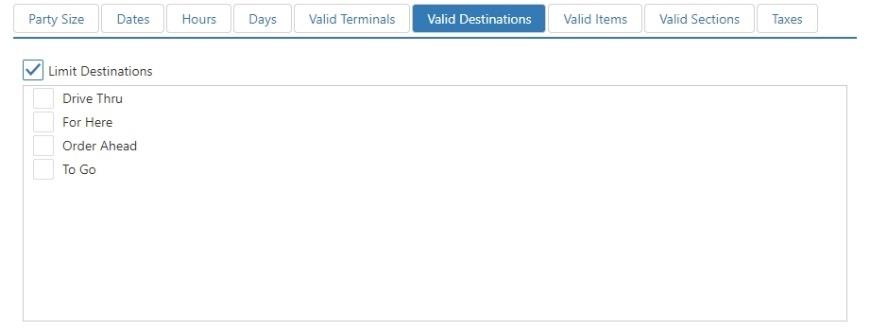
Valid Destinations tab: When Limit Destinations is checked, the surcharge can only be applied to the selected destinations.
-
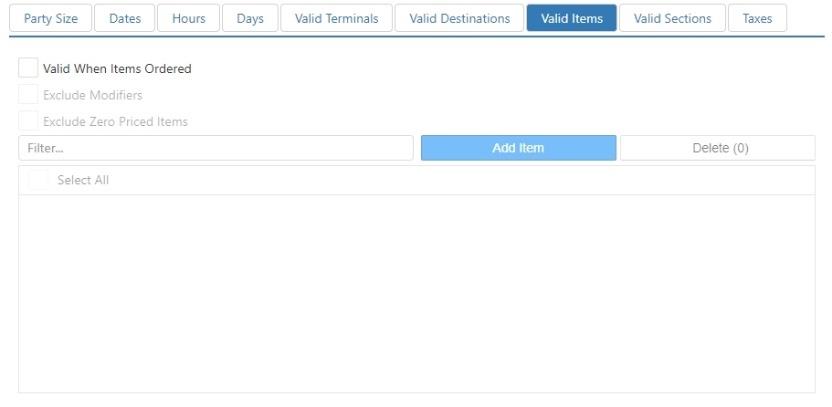
Valid Items tab: When Valid When Items Ordered is checked, the surcharge can only be applied to orders that contain one of the items listed in Selected Items. You can also choose to Exclude Modifiers and Exclude Zero Priced Items.
-
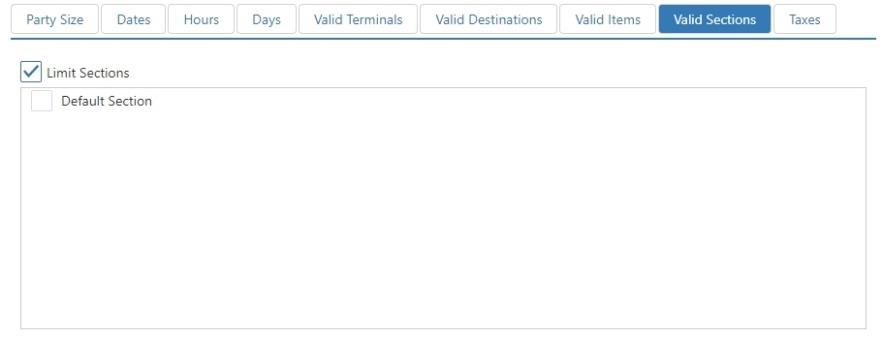
Valid Section tab: When Limit Sections is checked, the surcharge can only be applied to the selected sections.
-
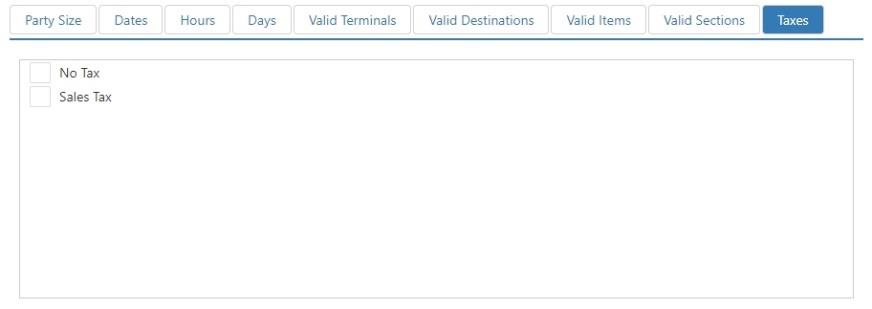
Taxes: Taxes to be applied to the surcharge.