Configuration: Promo Codes
Promo codes are single-use codes tied to specific promotions (as set up in Settings Editor; see). The Promo Codes page allows you to view, create, and manage single-use promotion codes.
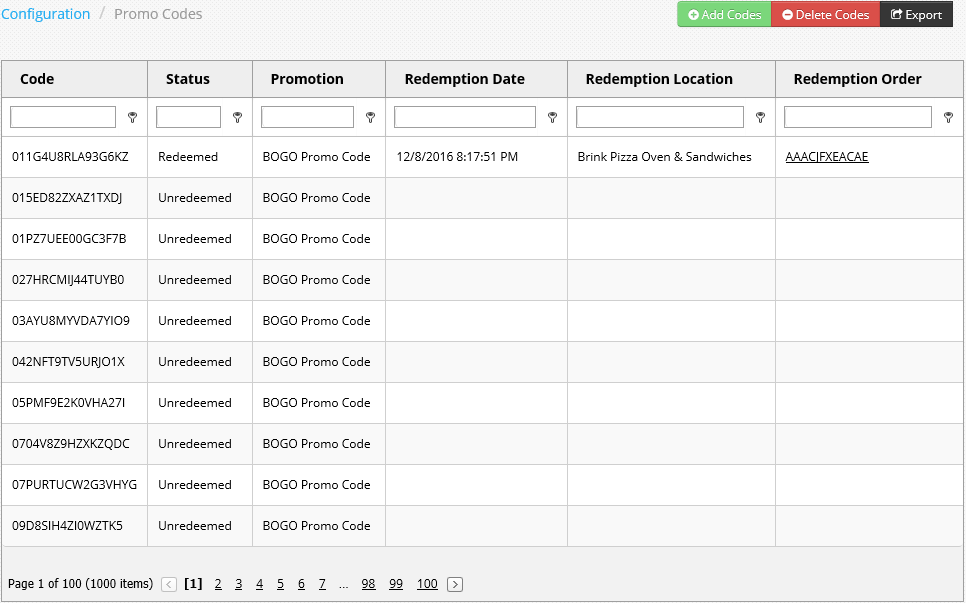
Promo Codes page in Administrator Portal
-
Code: Displays the single-use code.
-
Status: Shows whether the code is redeemed or unredeemed.
-
Promotion: Shows the promotion associated with the code.
-
Redemption Date: Shows the date and time that the code was redeemed. If the code has not been redeemed, this is blank.
-
Redemption Location: Shows the location where the code was redeemed. If the code has not been redeemed, this is blank.
-
Redemption Order: Displays the order ID for the order that the code was used for. The order ID is a link to the Order Detail page (see Open Orders and Pending Orders). If the code has not been redeemed, this is blank.
Add Promo Codes
To add codes for a particular promotion, click the Add Codes button to open the Add Single Use Promotion Codes page.
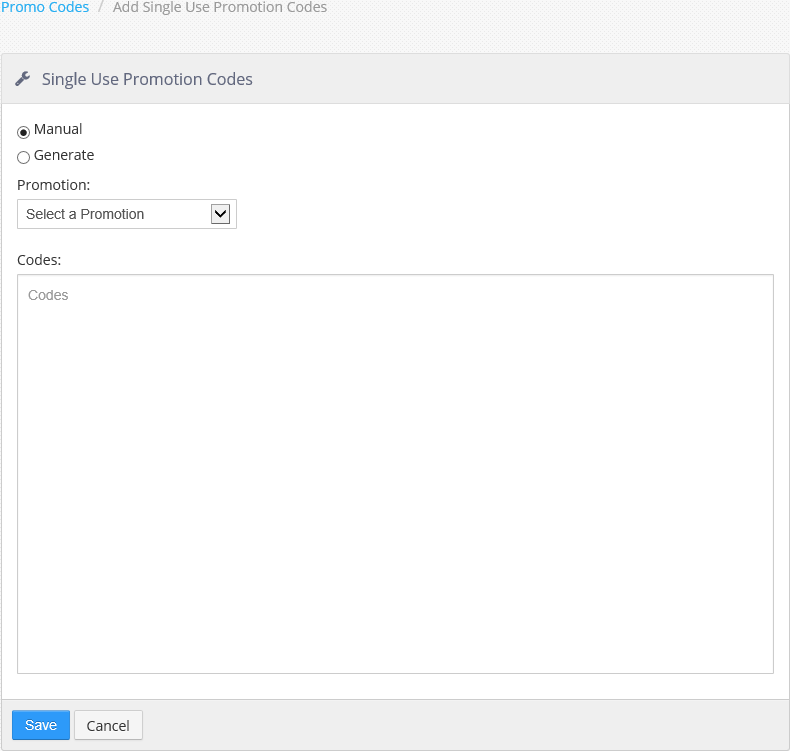
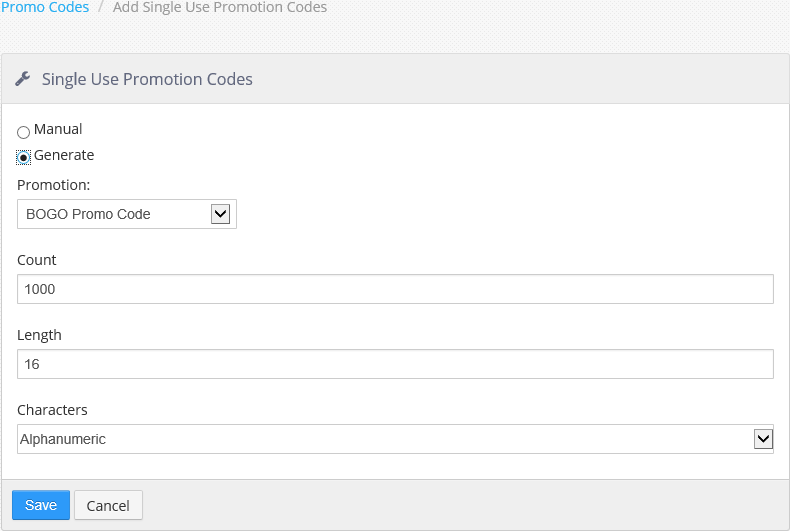
Add Single Use Promotion Codes page, manual entry (left) and auto-generation (right)
-
Manual: Select this option to create codes manually. When Manual is selected, the Codes text area is displayed.
-
Generate: Select this option to have Administrator Portal generate a set of codes based on a set of parameters. When Generate is selected, the Count field, Length field, and Characters drop-down list are displayed.
-
Promotion: Use the drop-down list to select the promotion for which the codes will be created.
-
Codes (only displayed if Manual is selected): Enter each code on a new line.
-
Count (only displayed if Generate is selected): Enter the number of codes you wish to create.
-
Length (only displayed if Generate is selected): Enter the number of characters that you wish the generated codes to have.
-
Characters (only displayed if Generate is selected): Use the drop-down list to select one of the options:
-
Alpha: The code will consist of letters.
-
Numeric: The code will consist of numbers.
-
Alphanumeric: The code will consist of a mixture of numbers and letters.
-
NOTE: When Save is clicked, the system creates a .zip file called SingleUsePromotionCodeResults.zip which contains a .csv file of all the promotion codes. It is strongly recommended that you save this file so that you can use it later as an aid to distributing the codes to customers.
Delete Promo Codes
Click the Delete Codes button to open the Delete Single Use Promotion Codes page.
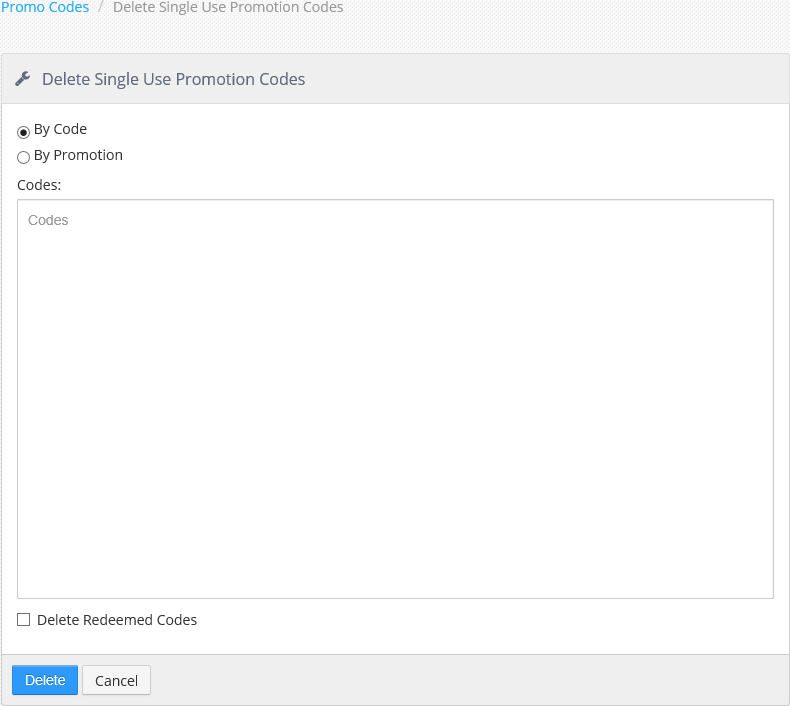
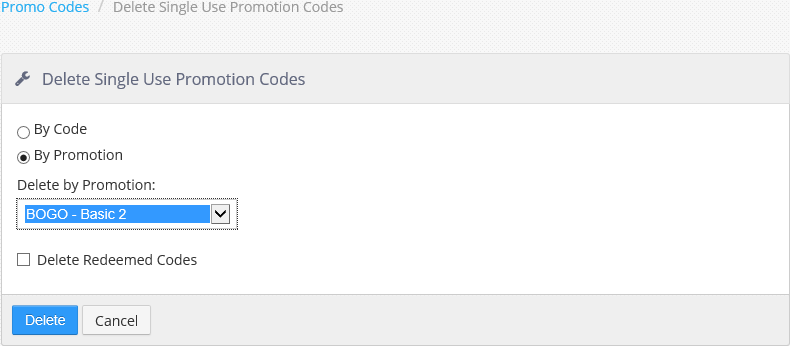
Delete Single Use Promotion Codes page, by code (left) and by promotion (right)
-
By Code: Select this option to delete codes by entering them manually. When By Code is selected, the Codes text area is displayed.
-
By Promotions: Select this option to delete all codes associated with a particular promotion. When By Promotion is selected, the Delete by Promotion drop-down list is displayed.
-
Codes (only displayed if By Code is selected): Enter the codes you wish to delete, each code on a new line.
-
Delete by Promotion (only displayed if By Promotion is selected): Select the promotion associated with the codes you wish to delete.
-
Delete Redeemed Codes: Check this box if you wish to delete redeemed codes as well as unredeemed codes.
Click the Export button to export all current codes as a .csv file.
