Configuration: Roles & Users
Roles
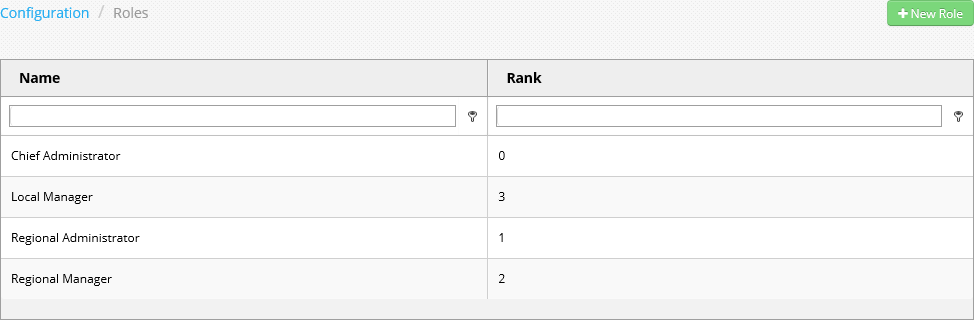
Roles control the areas and functions of the Admin Portal and Settings Editor that a user (see Users) can access. Ranks can be assigned to roles to limit which other users a given user can view or edit. Roles are created by clicking the + New Role button in the upper right to open the Role configuration page. Existing roles can be edited by clicking the role's name in the list.
Roles list
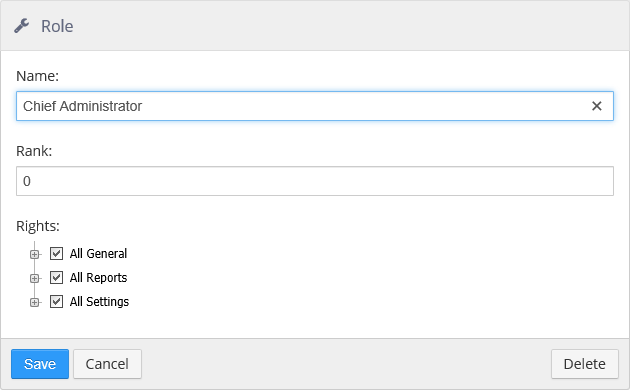
Role configuration page
-
Name: The name of the role.
-
Rank: The rank of the role. Rank 0 is always the highest rank.
Users of Rank 0 can view and edit all other users. Users of Rank 1 or lower can only view or edit users below their level. For example, a Rank 2 user cannot view or edit other Rank 2 users or any user with a higher rank, but can view and edit users of Rank 3 or lower. -
Rights: Functions that are visible and allowed.
Users
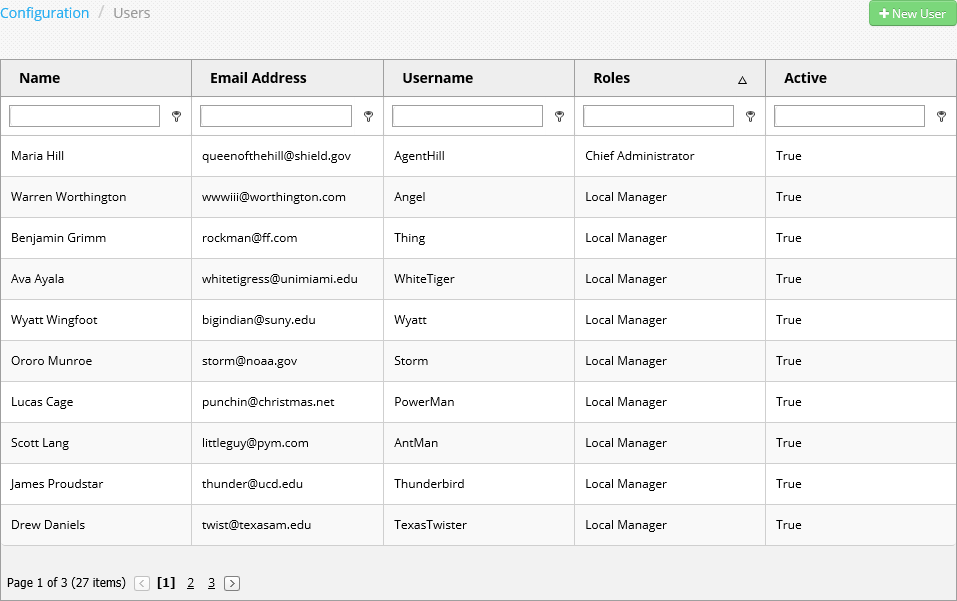
Users are people that can login and access the Admin Portal. Access limitation is controlled by assigning Roles to the user (see Roles). New users are added by clicking the + New User button in the upper right to open the user configuration page. Existing users can be edited by clicking the user's name in the list.
Users list
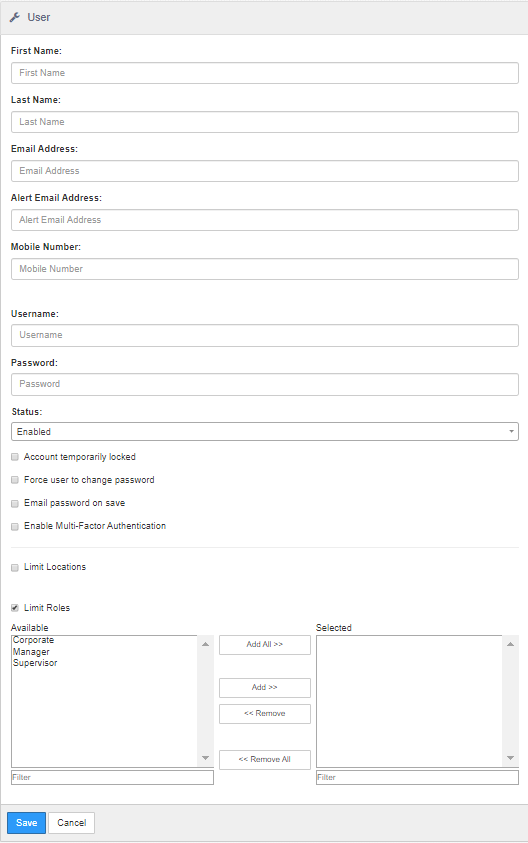
User configuration page
-
First Name: First name of the user.
-
Last Name: Last name of the user.
-
Email Address: Email address of the user for account notifications.
-
Alert Email Address: Email address to which alerts are sent.
-
Mobile Number: Used for Multi-Factor Authentication (if applicable)
-
Username: Username used for logging into the Admin Portal.
-
Password: Password used to log into the Admin Portal.
-
Status:
-
Enabled: User can login to the Admin Portal.
-
Disabled: User cannot login to the Admin Portal.
-
-
Account temporarily locked: User is not allowed to login due to excessive failed login attempts, automatically resets after 30 minutes.
-
Force user to change password: User is required to create a new password the next time they login.
-
Email password on save: Generate an email to the user's email address that contains Admin Portal URL, username, and password.
-
Enable Multi-Factor Authentication: Place Holder for future development (MFA)
-
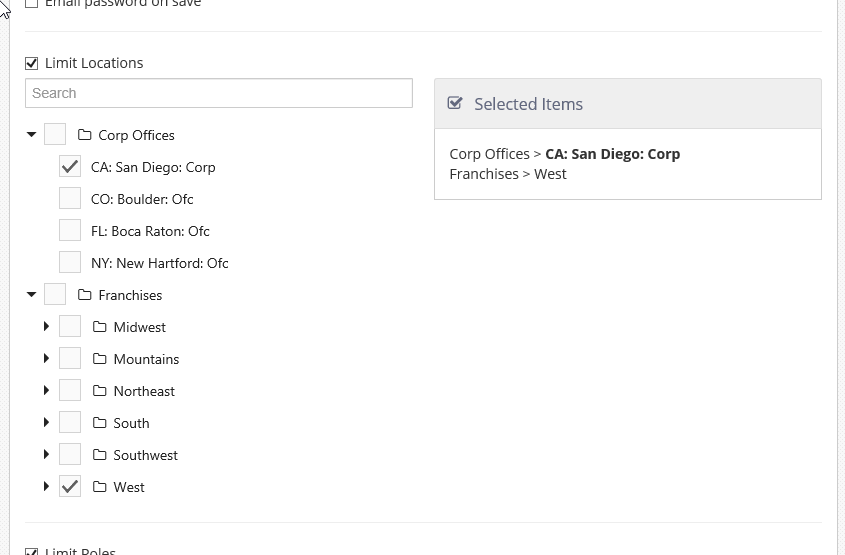
Limit Locations: User only have access to the selected locations.
-
Limit Roles: User only has access to functions allowed by the selected roles.
When Limit Locations is checked, the location selector is expanded. Locations are displayed in the Location Groups hierarchy (see Location Groups).
Limit Locations section of the User configuration page