Configuration: Tokenization & Processing
Tokenization
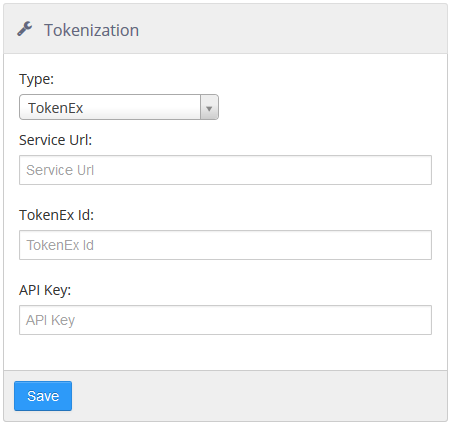
The Tokenization page is where the third-party tokenization provider settings for the group are configured for storing credit cards. These values are provided by PAR POS Software Support.
Tokenization page
Processor Settings
The Processor Settings section is where you input processor level settings for gift card processors. Currently, there is only one processor that requires these settings, The Customer Connection.
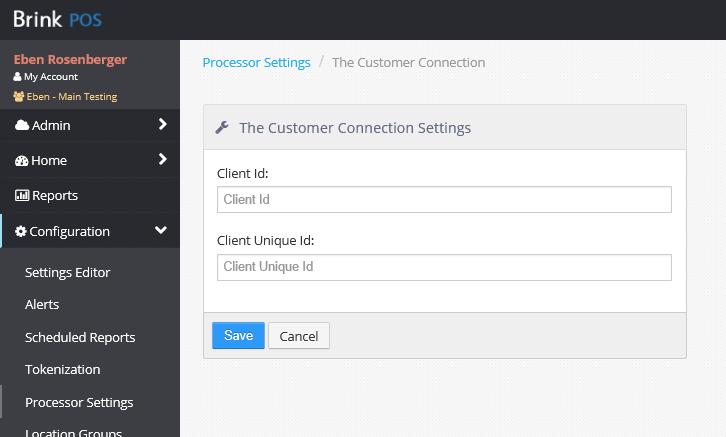
The Customer Connection Client ID entry screen
-
Client Id: Enter the two-digit number given to you by The Customer Connection.
-
Client Unique Id: Enter the alphanumeric code given to you by The Customer Connection. This code comes in the following format: XXXXXXXX-XXXX-XXXX-XXXX-XXXXXXXXXXXX.
Location Groups
Location groups allow you to arrange locations in a hierarchical fashion. Location groups can be nested to create subgroups, and locations can belong to more than one location group. Location names and numbers (which appear on reports and in Settings Editor) can also be edited here. This feature replaces both Locations and Report Groups from previous versions of PAR POS.
Location Groups page
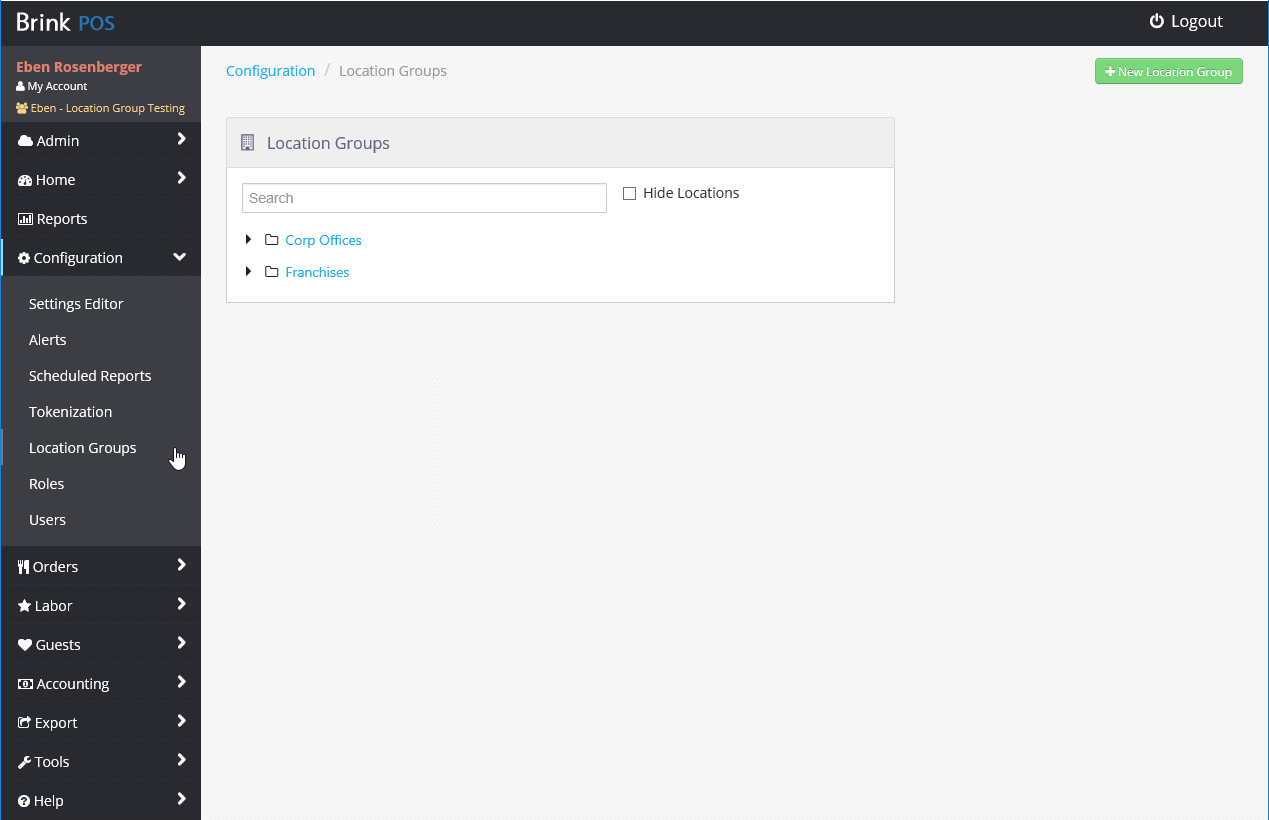
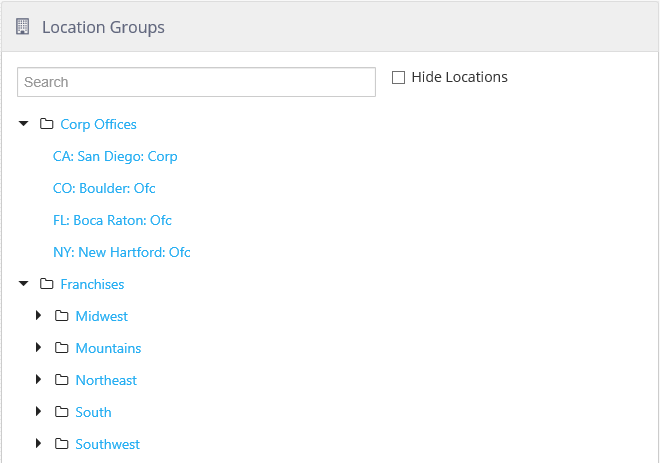
Top level location groups are displayed by default. They are expanded by clicking the arrows beside them. Locations that are not part of a location group are also listed on this page.
Location Groups expanded to show subgroups and locations
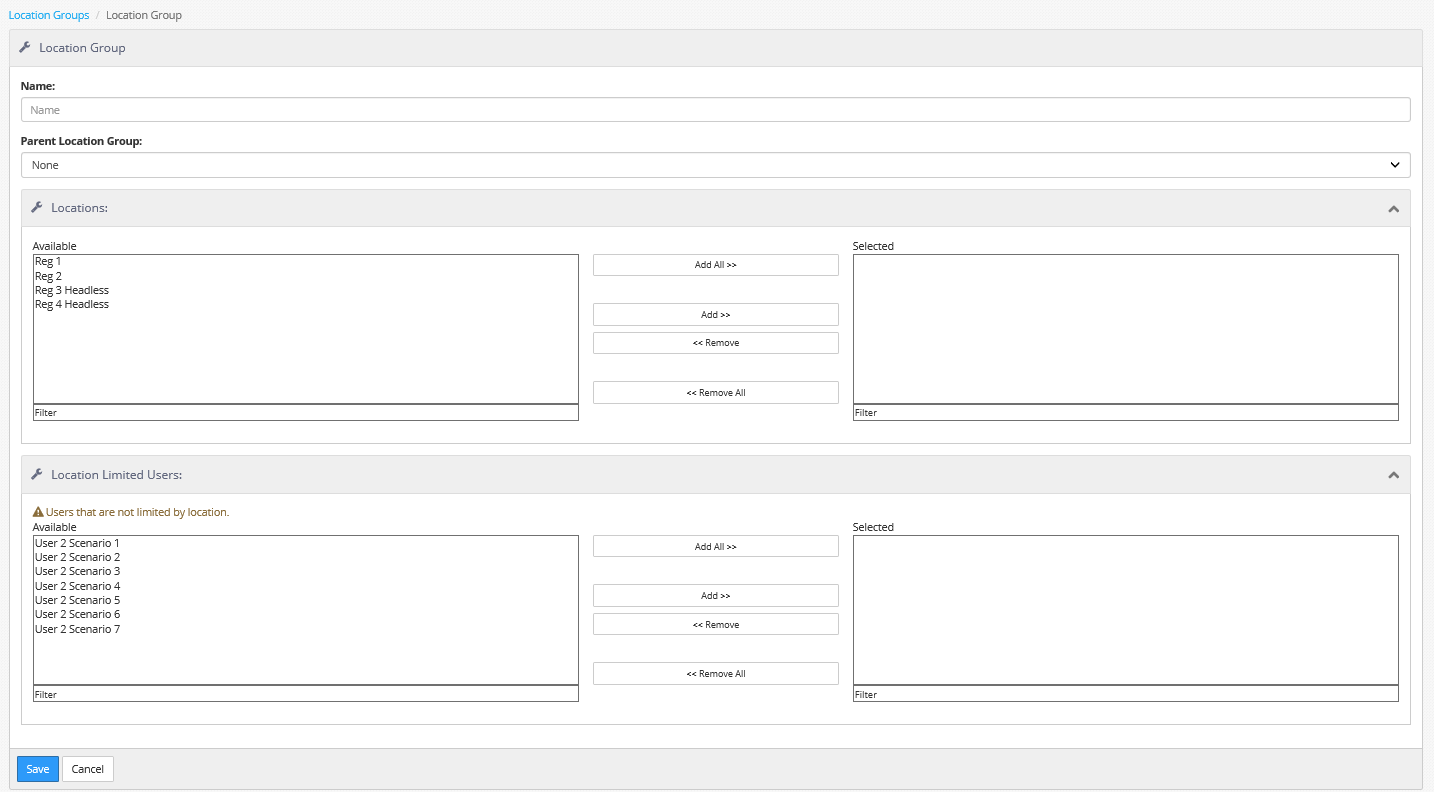
A location group is created by clicking the + New Location Group button in the upper right to open the Location Group configuration page. Existing location groups can be edited by clicking the location group's name in the list.
Location Group configuration page
-
Name: The name of the location group.
-
Parent Location Group: The location group that this location group is nested under. To make a top-level location group, select None.
-
Locations:
-
Available: The list of locations that can be added to this location group.
-
Selected: The locations that are included in this location group.
-
-
Location Limited Users:
-
Available: The list of Administrator Portal users who can be assigned to this location group.
-
Selected: The users who are assigned to this location group.
NOTE: Assigning a user to a location group limits that user's access to the location group only. This is the same as using the Limit Locations check box on the User configuration page (see Users).
-
