Configuration: Alerts & Scheduled Reports
Alerts
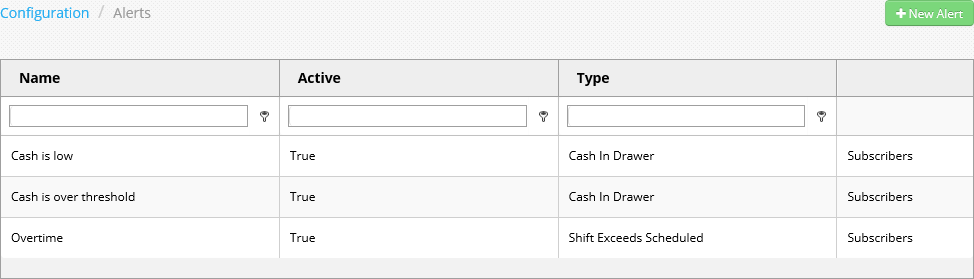
Alerts are notifications that are sent via email which are triggered by system events that match certain conditions. New alerts are configured by clicking the +New Alert button in the upper right to open the Alert configuration page. Existing alerts can be edited by clicking the alert's name in the list.
Alerts list
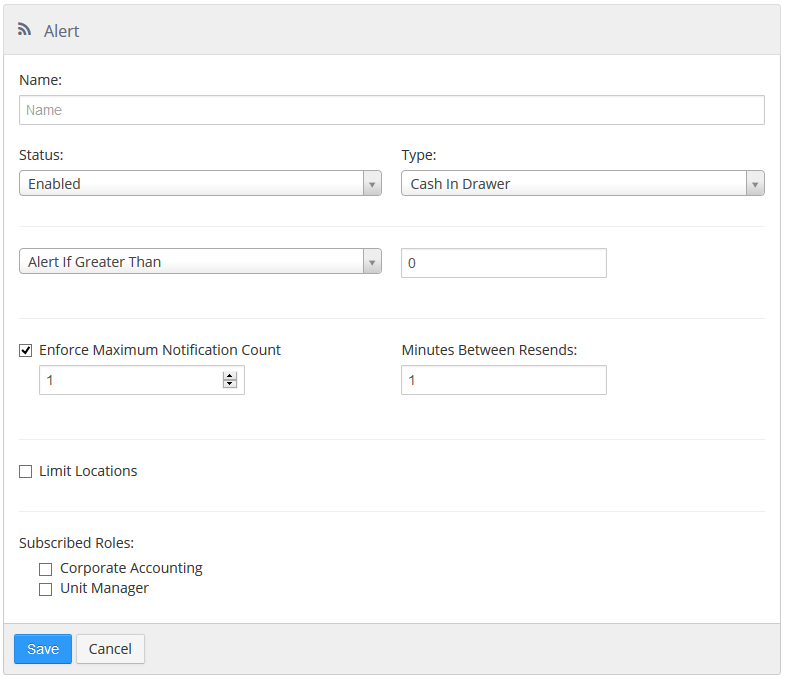
Alert configuration page
-
Name: Name of the alert.
-
Status:
-
Enabled: Alert will be sent when conditions are met.
-
Disabled: Alert will not be sent.
-
-
Type:
-
Auto Clock Out: Send alert when shift is ended by the end of day process.
- Limit By Job: Only send the alert for the selected jobs.
-
Cash In Drawer: Send alert when calculated cash in a cash drawer is over or under a specific amount.
-
Condition:
-
Alert If Greater Than: Sent alert when cash exceeds dollar amount.
-
Alert If Less Than: Sent alert when cash is under dollar amount.
-
-
-
Customer Assigned: Send alert when a customer is assigned to an order.
- Generate alert for reopened orders only: Only send the alert when the customer is assigned to an order that was previously closed.
-
Discount Amount - Send alert when discount applied to an order is over or under a specific amount.
-
Condition:
-
Alert If Greater Than: Sent alert when discount exceeds dollar amount.
-
Alert If Less Than: Sent alert when discount is under dollar amount.
-
-
Generate alert for reopened orders only: Only send the alert when the discount is applied to an order that was previously closed.
-
Exclude approved discounts: Do not sent alert when discount was authorized by another employee.
-
Exclude employee discounts: Do not sent when the 'Employee Discount' button behavior is used.
-
Exclude loyalty discounts: Do not send when discount is applied via loyalty reward redemption.
-
-
Item Availability: Alert is sent when an item is marked "Unavailable", when the available amount reaches a certain amount, or when an item's available amount falls below a specified threshold. Options include:
-
Alert if Greater Than "X"
-
Alert if Less Than "X"
-
Alert if Not Available
-
-
Overtime: Send alert when an employee goes from regular time to overtime.
- Limit By Job: Only send for shifts clock in under the selected jobs.
-
Paid In/Out: Send alert when paid in or paid out transaction is over or under a specific amount.
-
Condition:
-
Alert If Greater Than: Sent alert when cash exceeds dollar amount.
-
Alert If Less Than: Sent alert when cash is under dollar amount.
-
-
-
Promotion Amount - Send alert when promotion applied to an order is over or under a specific amount.
-
Condition:
-
Alert If Greater Than: Sent alert when promotion exceeds dollar amount.
-
Alert If Less Than: Sent alert when promotion is under dollar amount.
-
-
Generate alert for reopened orders only: Only send the alert when the promotion is applied to an order that was previously closed.
-
Exclude approved promotions: Do not sent alert when promotion was authorized by another employee.
-
Exclude auto-applied promotion: Do not send when the promotion is automatically applied.
-
-
Refund: Alert is sent when refund transactions of specified values are processed on the POS. Options include:
-
Alert if Greater Than "X"
-
Alert if Less Than "X"
-
-
Shift Exceeds Scheduled: Send alert when shift time exceeds the time scheduled.
-
Condition:
-
Alert If Greater Than Schedule By: Sent alert when shift exceeds scheduled time by specified number of minutes.
-
Alert If Less Than Schedule By: Sent alert when shift exceeds scheduled time less the specified number of minutes.
-
-
Limit By Job: Only send for shifts clocked in under the selected jobs.
-
-
Void Amount - Send alert when items voided on an order are over or under a specific amount.
-
Condition:
-
Alert If Greater Than: Sent alert when voided amount exceeds dollar amount.
-
Alert If Less Than: Sent alert when voided amount is under dollar amount.
-
-
Generate alert for reopened orders only: Only send the alert when items are voided on an order that was previously closed.
-
-
-
Enforce Maximum Notification Count: Number of times to send the alert for each occurrence.
-
Minutes Between Resends: Number of minutes to wait before sending the alert again for the same occurrence.
-
Limit Locations: Only send the alert for the selected locations.
-
Subscribed Roles: User roles that are to automatically subscribe to the alert.
Scheduled Reports
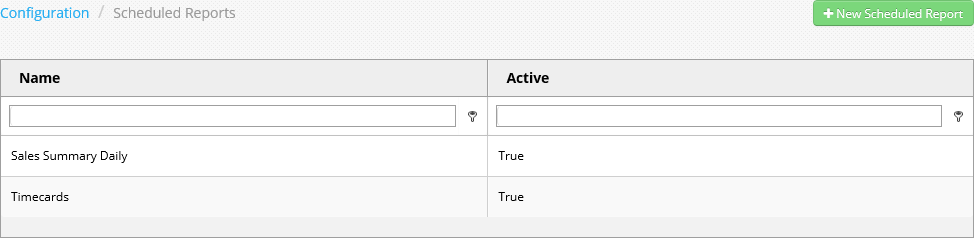
Scheduled reports define reports that are automatically generated and sent via email at a particular time or system event. New scheduled reports are configured by clicking the +New Scheduled Report button in the upper right to open the Scheduled Report configuration page. Existing scheduled reports can be edited by clicking the scheduled report's name in the list. Note that viewing and editing is only available to users that have access to all locations within the scheduled report.
Scheduled Reports list
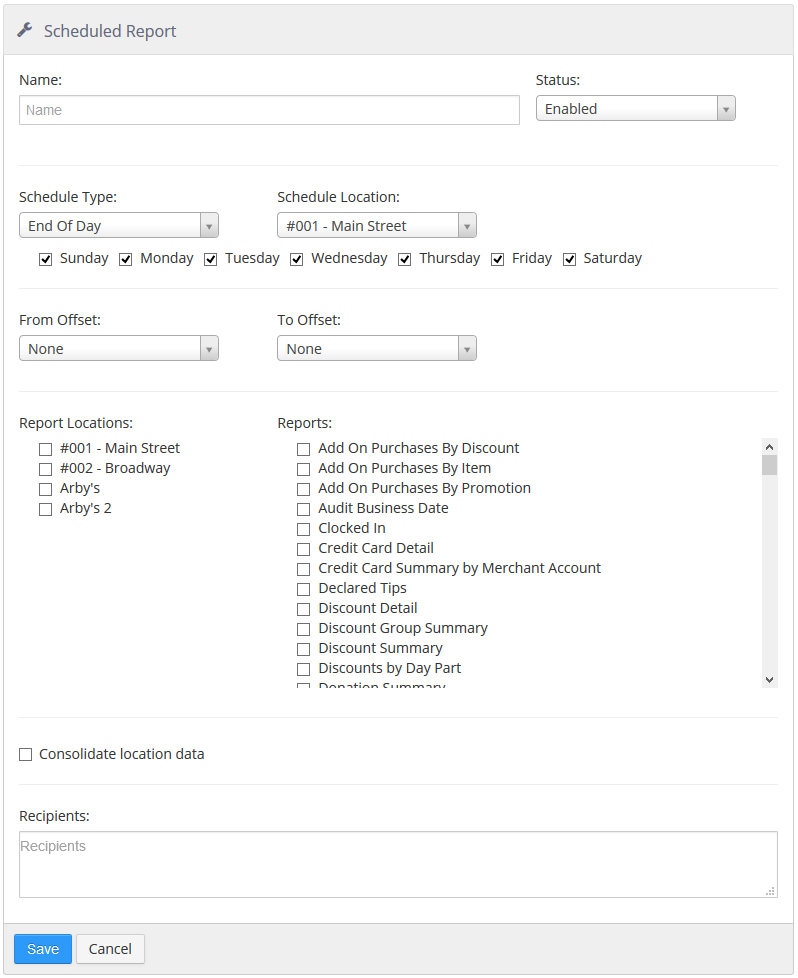
Scheduled Report configuration page
-
Name: Name of the scheduled report.
-
Status:
-
Enabled: Reports will be sent.
-
Disabled: Reports will not be sent.
-
-
Schedule Type:
-
End of Day: Reports are sent when the end of day process runs at the schedule location.
-
Specific Time: Reports are sent at a specific time at the schedule location.
-
-
Schedule Location: Location that determines when the reports are sent, either by EOD or time zone.
-
Days of Week: Reports are sent on the checked days of the week.
-
From Offset: Number of days to go back when determining the start of the date range for the report.
-
To Offset: Number of days to go back when determining the end of the date range for the report.
-
Report Locations: Locations for which reports are to be generated.
NOTE: The Report Locations list does not show locations in the Location Groups hierarchy (see Location Groups). Locations are simply listed in alphabetical order.
-
Reports: Reports that are to be generated and attached as PDFs to the email.
-
Consolidate Location data: Generate one report for all locations that includes aggregate data.
-
Recipients: Email addresses to send the reports to.
