Configuration: Changesets
Changeset Publisher
Changeset Publisher is a tool that allows you to package a group of changesets and publish that package to selected locations on a scheduled date. This tool is comprised of three steps, including selecting which existing changesets you want to package on the Changeset Publisher page, then selecting which locations will receive that package, and when the package should be published to those locations on the Configure Changeset Package page.
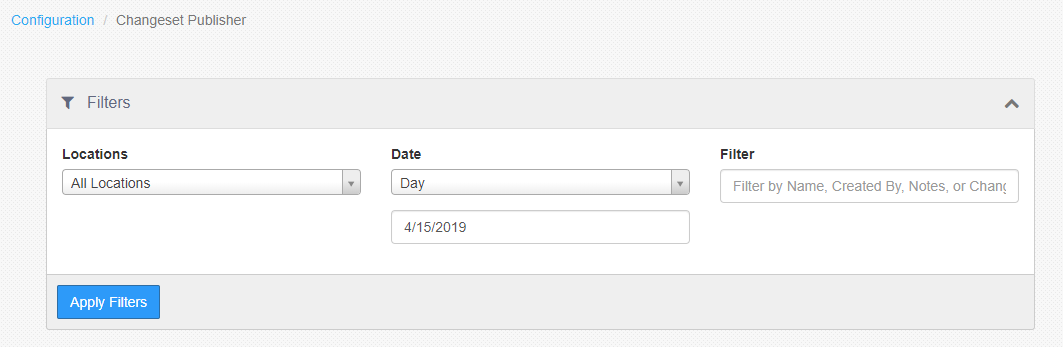
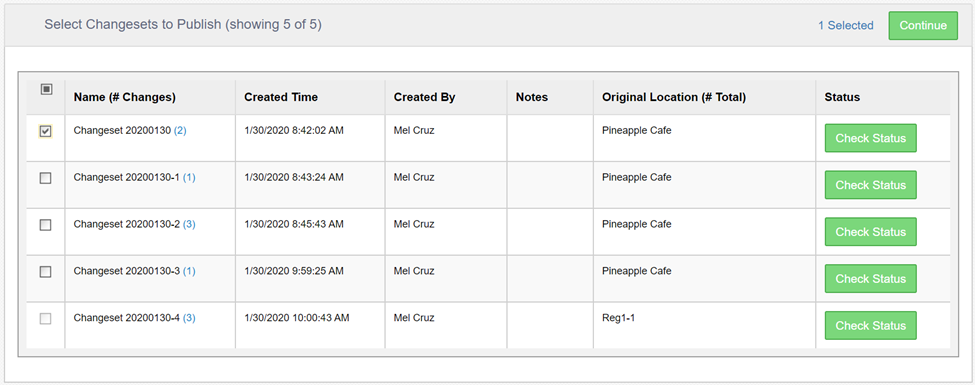
The Changeset Publisher page is made up of a Filtering tool, to help find existing changesets by date, name or location, and the Changeset Publisher grid to select and view all the details of a changeset.
Filtering tool
Changeset Publisher grid
-
Name (# Changesets): Name of Changeset with the total count of changes. You can click on the count to view all changes made to which entities.
-
Created Time: Date and time that the changeset was first published. Time displayed matches the user's time zone.
-
Created By: Full name of the user who first published the changeset. Changesets published by an external API call will not have a creator displayed.
-
Notes: Any notes added to the changeset when it was created. If the note text runs longer than the width of the Notes column, the note text will be cut off with ellipsis and the user can hover over to display the complete view of all notes for that changeset.
-
Original Location (# Total): Name of the original location at which the changeset was first published. The count of other locations to which the changeset has been published will be displayed where you can click and open a dialog that lists all of the locations to which the changeset has been published. This will include any pending scheduled publishes as well.
-
Status: Clicking the "Check Status" button brings up a popup that allows you to view the detailed status of the specific changeset.
Changeset Status
Changeset Status Popup
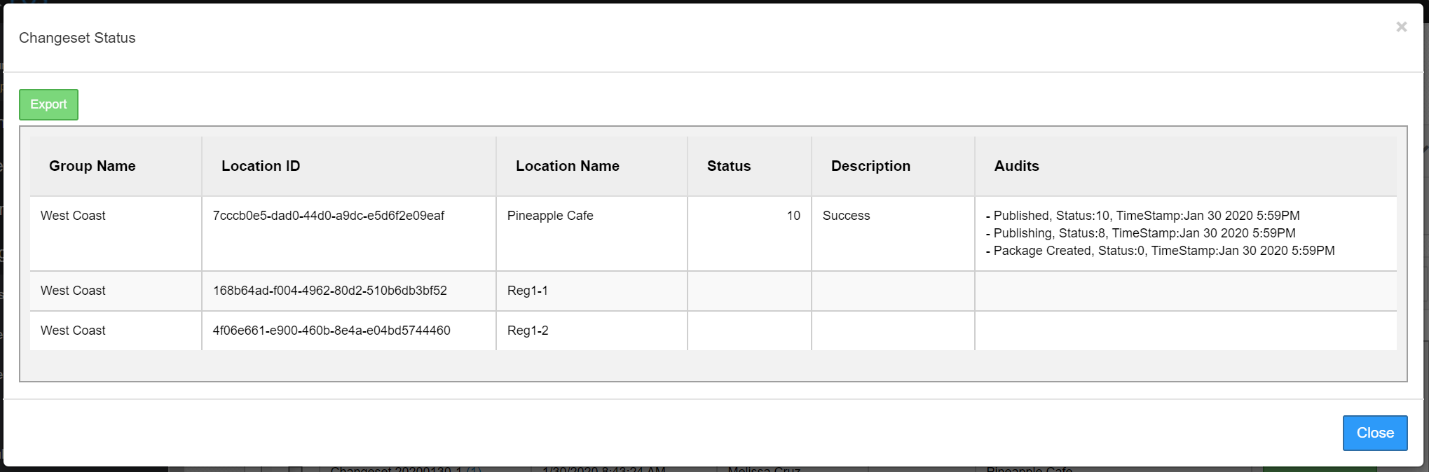
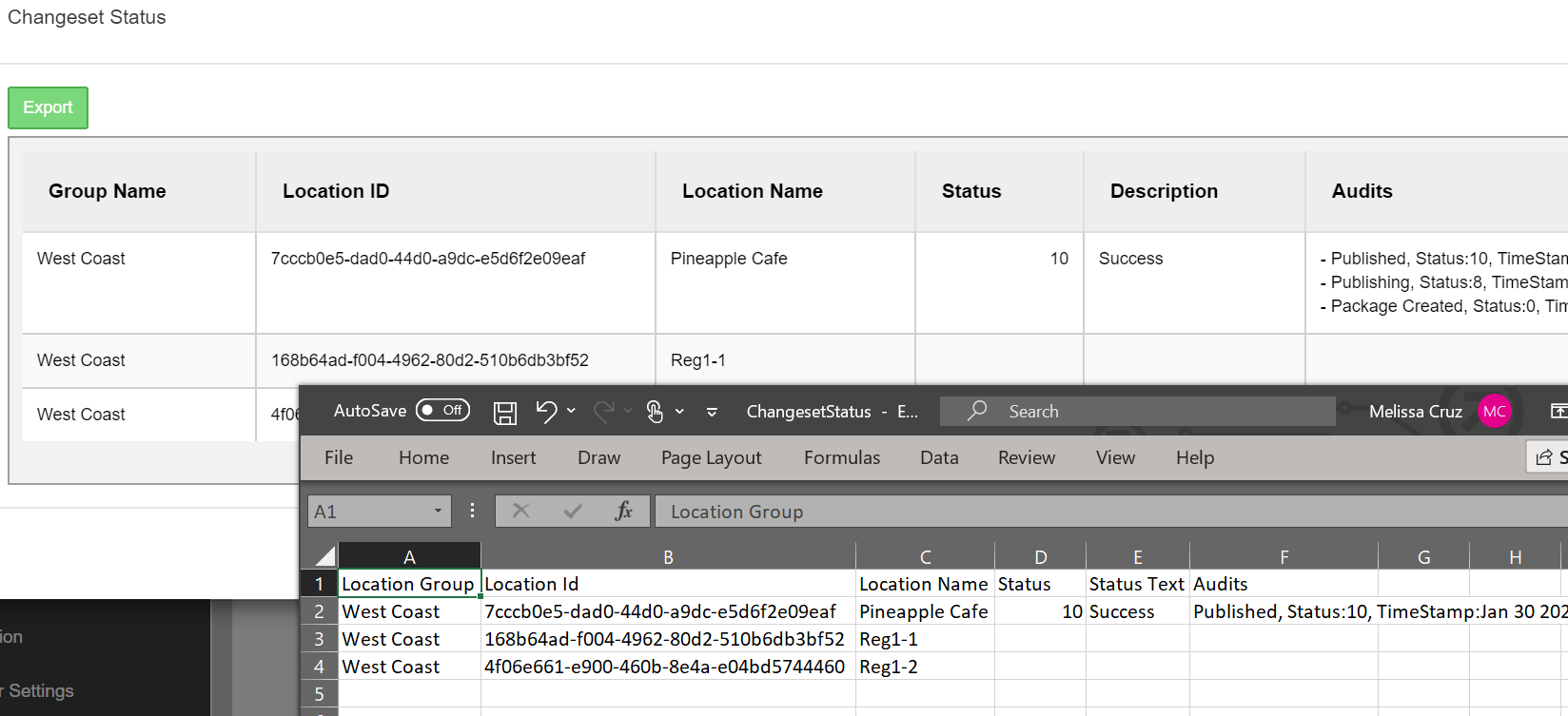
This popup displays all locations and sorts the ones with statuses to the top of the table. You are also able to use the "Export" button at the top left corner to download the table to a .csv file
Export of Changeset Status
Status Codes
| Value | Status | Description |
|---|---|---|
| 0 | Unprocessed | Changeset Created |
| 4 | Validating | Validating Changeset |
| 6 | Scheduled | Changeset Scheduled for Publishing |
| 8 | Publishing | Currently Publishing |
| 10 | Published | Changeset Published |
| 12 | Cancelling | Cancelling Changeset |
| 14 | Cancelled | Changeset Cancelled |
| 200 | Failed | Changeset Failed -- Cannot Retry |
| 210 | TransientFault | Changeset Failed -- Can Retry |
| 220 | HardFault | Changeset resulted in Error |
Configure Changeset Package
After clicking "Close" on the Changeset Status popup, selecting a changeset and clicking the Continue button from the Changeset Publisher page, you will be brought to the Configure Changeset Package page. This page can only be accessed via the Changeset Publisher.
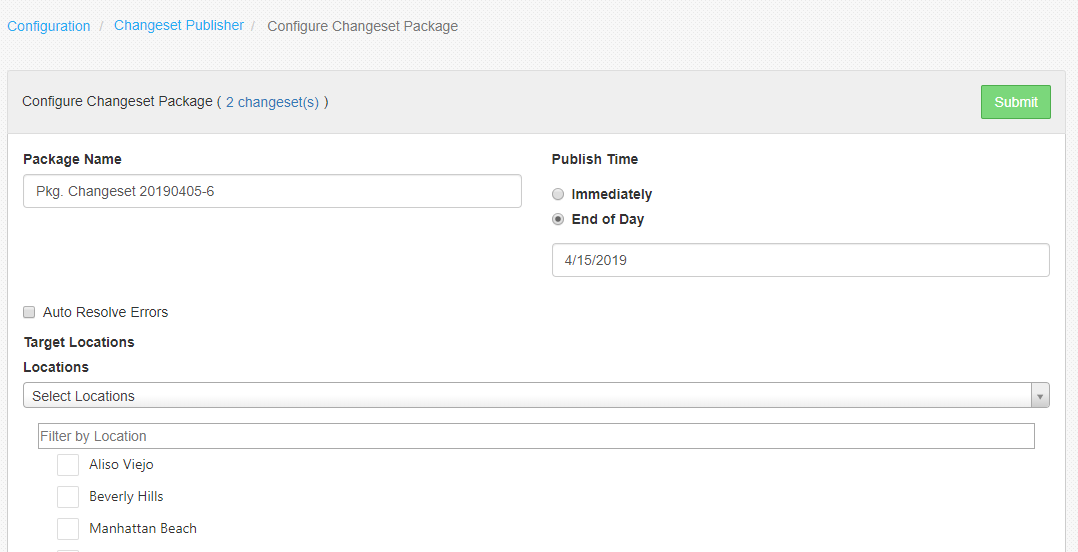
On the Configure Changeset Package page, you can name the package, select the target locations that you want to publish to, and determine the publish time of when you want the package to be published.
Configure Changeset Package page
-
Package Name: Name your package in the Package Name text field. Any text is allowed in the name, including special characters and spaces.
-
Target Locations: Select the locations that the package will be published to.
-
Locations:
-
All Locations: Select every location in the grid.
-
Select Locations: Select individual target locations or select each location's group checkbox (if applicable) which will select all the locations in that group at once.
-
-
Publish Time:
-
Immediately: The package will be published to target locations immediately.
-
End of Day: The package will be published to target locations upon completion of the selected date's End of Day process. The limit to scheduling a future date is two (2) weeks into the future.
-
-
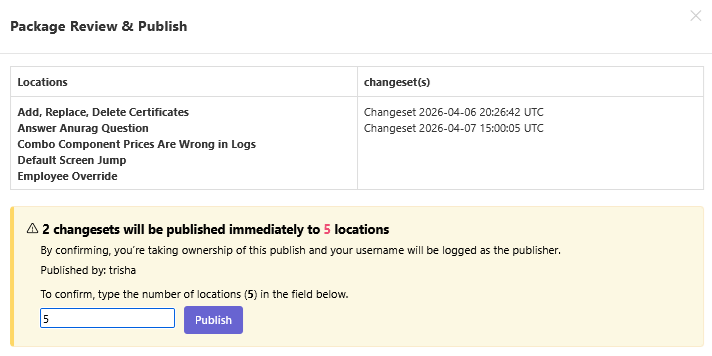
Submit: Before a package is submitted for publishing, the system will automatically run a pre-validation check to identify and flag any potential errors. Once you are ready to proceed, click the Publish button. A confirmation window will appear, prompting you to enter the number of locations the package will be sent to. The Publish button will not be enabled until the correct number has been manually entered, ensuring the package is distributed accurately before final submission.
Changeset Packages
The Changeset Packages page is the most informative part of the Changeset Publisher tool. Every package, created from either from Settings Editor or in Changeset Publisher, can be viewed and in some cases, modified, from the Changeset Packages page.
You can access the Changeset Packages page using the navigation panel in Admin Portal or as the final page in the process of creating a changeset package. This page is made up of a Filtering tool, to help find published changeset packages by date, name or location, and the Changeset Packages grid to view all the details of a changeset package.
Filtering tool
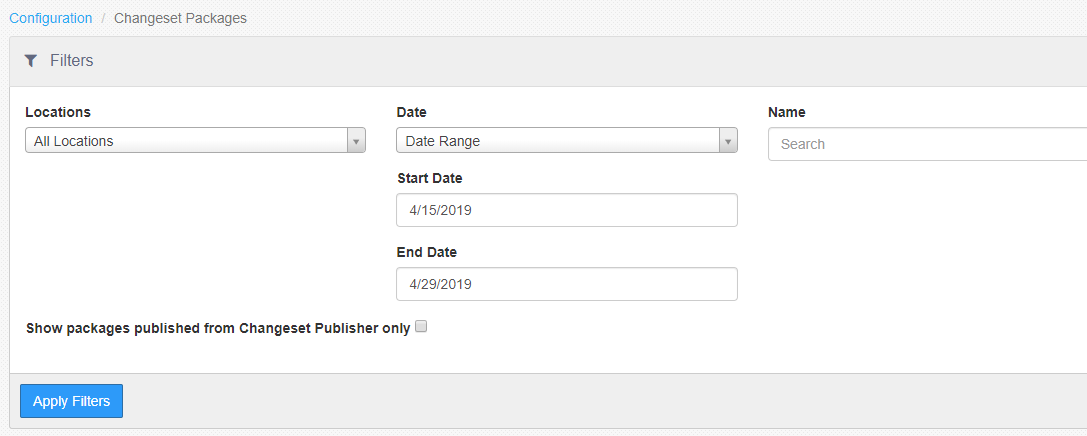
- Show packages published from Changeset Publisher only: Unchecked by default. Filters for packages only created from Changeset Publisher.
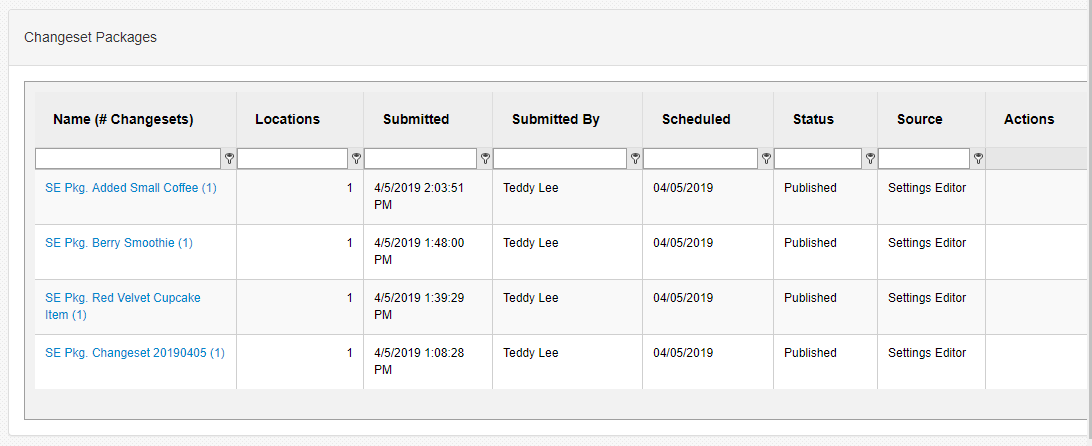
Changeset Packages grid
-
Name (#Changesets): Package's name with the number of changesets in the package in parentheses. Selecting the package name hyperlink allows you to view the details of the package, including the changeset details and target locations.
-
Locations: The number of locations selected for the package. For scheduled packages, the count does not include locations that have been cancelled.
-
Submitted By and Submitted: User who submitted the package and when the package was submitted.
-
Scheduled: The scheduled date that the package will be published. Immediate publishes will have a scheduled date of the current business date at time of submission.
-
Status: The package's publish status.
-
Source: Where the package was created. This will be from Changeset Publisher or Settings Editor
-
Actions:
-
Edit: Brings you back to the Changeset Publisher page to make edits to the package. This action is only available if the package has not attempted to publish yet.
-
Cancel: Cancels your package to all target locations. This action is only available if the package has not attempted to publish yet.
-
Retry: Immediately retries publishing the package to failed locations only; locations that were already successfully publish will be ignored.
-
Download Errors: Admin Level users only -- exports a .csv containing failed changeset details for expedited diagnosis.
-
Changeset Package Details
Selecting the Package's name from the Changeset Packages page will bring you to the Changeset Package detail page. The purpose of this page is to give you insight into every target location's publish status at the time as well as all the changesets in the changeset package.
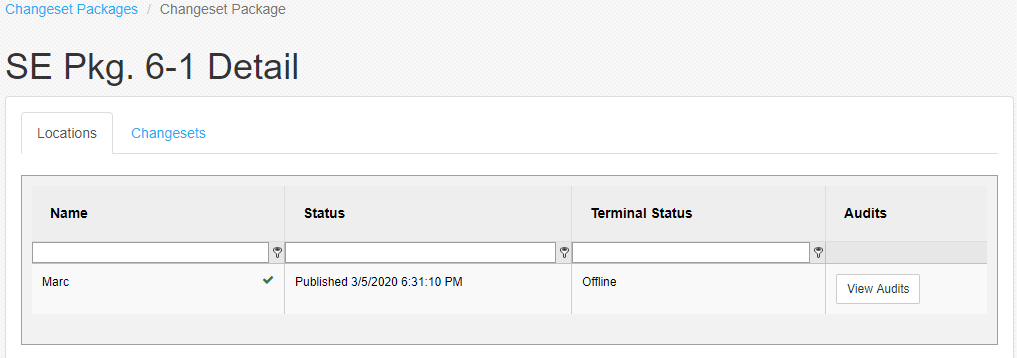
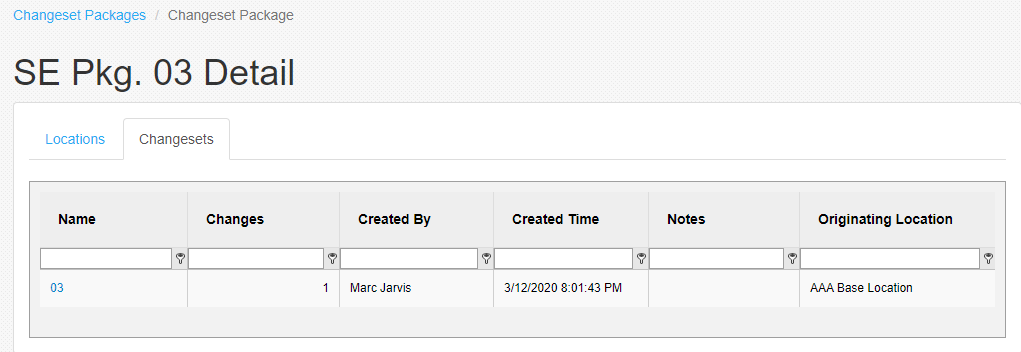
The Changeset Package detail page will include two tabs; the Locations tab and the Changeset tab. The Locations tab will give you a view of all the target locations in your package and their respective publish status. The Changesets tab will give you a view all the changesets included in the package.
Detail page; Locations tab
-
Name: Name of the location receiving the package's changesets.
-
Status: Location's publish status and the day/time that status was last received.
-
Terminal Status: The connectivity status of the location's primary terminal (register). The status can be either Online or Offline.
- The terminal status can be immensely helpful when trying to trouble shoot for a location that has been retrying for a while. Because the successful publish of a package requires the location's primary register to be online at the time, if you see that your location has a terminal status of offline, bringing that primary register online would most likely resolve that location's publish wait time.
-
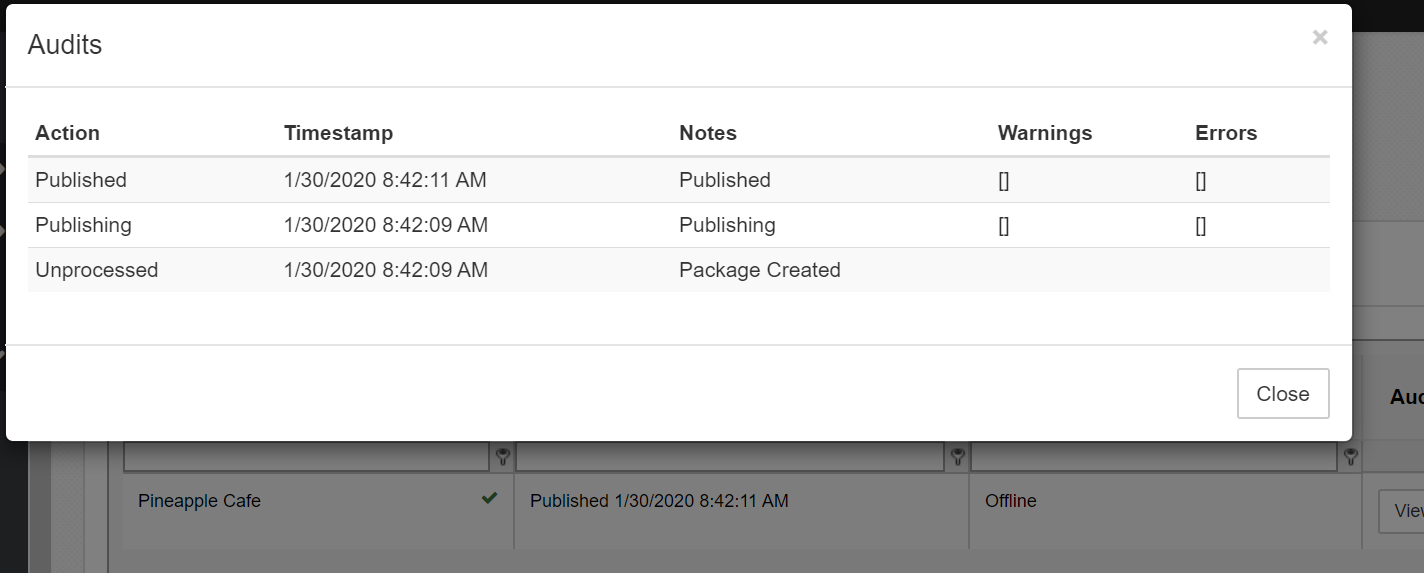
Audits: Clicking the "View Audits" button brings up a popup to display a summary of the logs and statuses associated to the changeset package.
Audits popup
Detail page; Changesets tab
-
Name: Name of the Changeset. You can click on the changeset name to view all changes made in XML format.
-
Changes: Number of changes made in the changeset.
-
Created By: Name of the person who created the changeset.
-
Created Time: Day and time that the changeset was created. The created time is defined as the time the changeset was published.
-
Notes: Any notes included in the changeset when it was published. Notes are typically included to help remind the user what changes they made in the changeset.
-
Originating Location: The original location that the changeset was created from.
