Active Order Failures
Overview
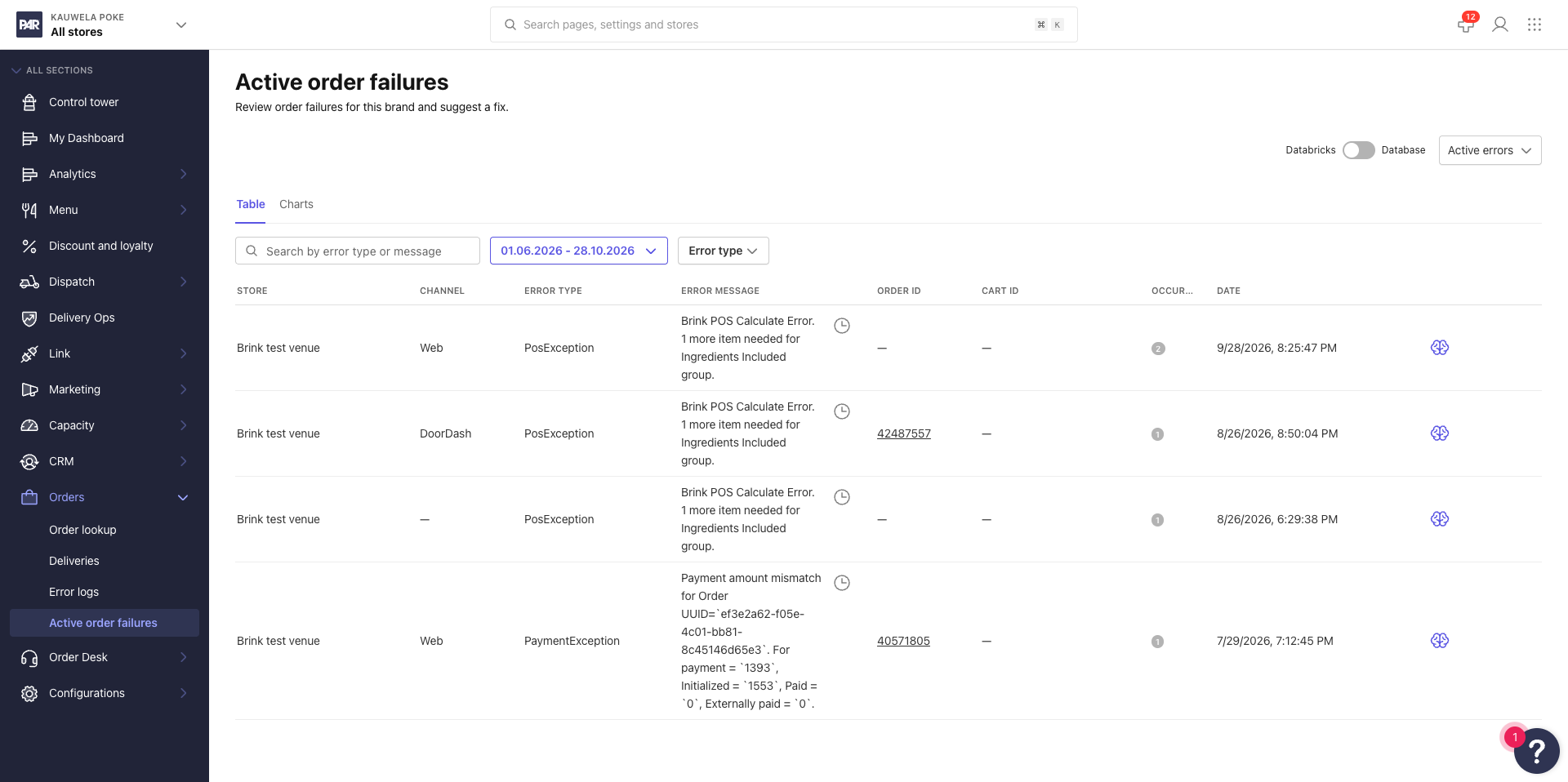
The Active Order Failures page shows live POS order-injection failures across your stores in real time. When an order fails to reach the POS at checkout, it appears here with the error type, the affected store, and how many times it has occurred. Use this page to catch POS configuration problems before they affect more guest orders.
Prerequisites
Access to the page depends on your role:
| Role | Access |
|---|---|
| Super Admin | Global view of all brands and stores |
| Brand Manager | Per-store view of their brand's stores |
| Area Manager | No access |
| Store Manager | No access |
The Suggest steps feature (the brain icon) is available to Super Admins only. Brand Managers can view failures but cannot request troubleshooting suggestions.
Navigate to Active Order Failures
- Super Admin: Go to Admin Panel > Active order failures.
- Brand Manager: Navigate to your store and click Orders > Active order failures from the store-level menu.
Read the Failures Table
The failures table lists live POS order-injection errors grouped by store and error type. Each row shows:
- The store where the failure occurred
- The error type
- An occurrence count displayed as a colored tag
By default, payment declines and invalid pickup time errors are filtered out of the list. To include them, select Show all errors.
Filter the Table
Use the search box to search by store name, error type, or error message. You can also filter by date range (Last 2 days, Today, Yesterday, Last 7 days, or a custom range) and by error type to narrow results to a specific category, such as PosException.
Investigate a Failure
Suggest Steps (Super Admin Only)
To get troubleshooting guidance for a failure, select the brain icon on the row.
The Suggest steps panel opens with the brand, store, error type, and live error message. Troubleshooting steps are pulled from the Error Dictionary when a published entry matches the error. If no published entry exists, draft catalog steps are shown. If neither is available, the platform generates steps from the live error message.
For tip-not-supported errors, the suggested steps target your POS tip configuration. They do not instruct you to turn off Tips in Management Center.
Resolve, Snooze, or Hide a Failure
Each row has three icon-only actions:
| Icon | Action | What it does |
|---|---|---|
 Brain |
Suggest steps | Opens troubleshooting guidance (Super Admin only) |
 Clock |
Hide for 10 minutes | Temporarily snoozes the row in both the Active and Resolved views |
 Eye |
Move back to active | Restores a row from the Resolved errors view |
Resolve a Failure
- Open the Suggest steps panel for the row.
- Select Resolve at the bottom of the panel.
- In the confirmation modal, select Mark this error as resolved.
The row moves to the Resolved errors view. If the same error occurs again, it returns to the active list automatically.
Hide an Error Type
To stop an error type from appearing in the active list, use the hide option on the catalog row. You can restore hidden errors from the Hidden errors view, or by re-enabling Show in Active order failures on the matching Error Dictionary entry.
View Resolved and Hidden Errors
Two additional views sit alongside the main failures list:
- Resolved errors shows failures you have marked as resolved. Use the eye icon to move any row back to the active list.
- Hidden errors shows error types you have hidden from the active list. Restore them here or from the Error Dictionary.
Snooze (Hide for 10 minutes) is available in both the Active and Resolved views.