Basket Testing
Basket Tester lets you confirm that your published menu items and modifiers are correctly mapped to your POS. No real order is placed and no store coordination is needed. Select items from a published menu, run a test, and get a pass/fail result. If anything fails, the report names the exact item so you can fix the mapping before a guest order is affected.
Use Basket Tester after you update your menu, during new store onboarding, or any time you want to verify that your online menu routes correctly to the POS.
Prerequisites
Before you run a test, confirm the following:
- You have Menu & Products access in Management Center at the store or brand level where you want to test.
- The store has an active POS connection on a supported POS system. Basket Tester currently supports Brink, Toast, Simphony Gen2, Next, and PosApiV2.
- The menu you want to test is published. Draft menus are not available for testing.
Basket Tester is not available for stores on inclusive tax. If your store is on inclusive tax, the Basket Tester page explains why testing is unavailable.
If your store has a POS integration but it is not on the supported list above, the page explains that a supported integration is required and does not display tester controls.
Run a Test
Basket Tester is located under Menu > Basket Tester in the Management Center. It is available at both the store level and the brand level.
The page has three panes: Test Configuration on the left, the Basket items to test tree in the middle, and the Report on the right.
Step 1: Choose what to test
In the Test Configuration pane, select a Store group (if testing from the brand level), Menu, Order type, and Channel to test.
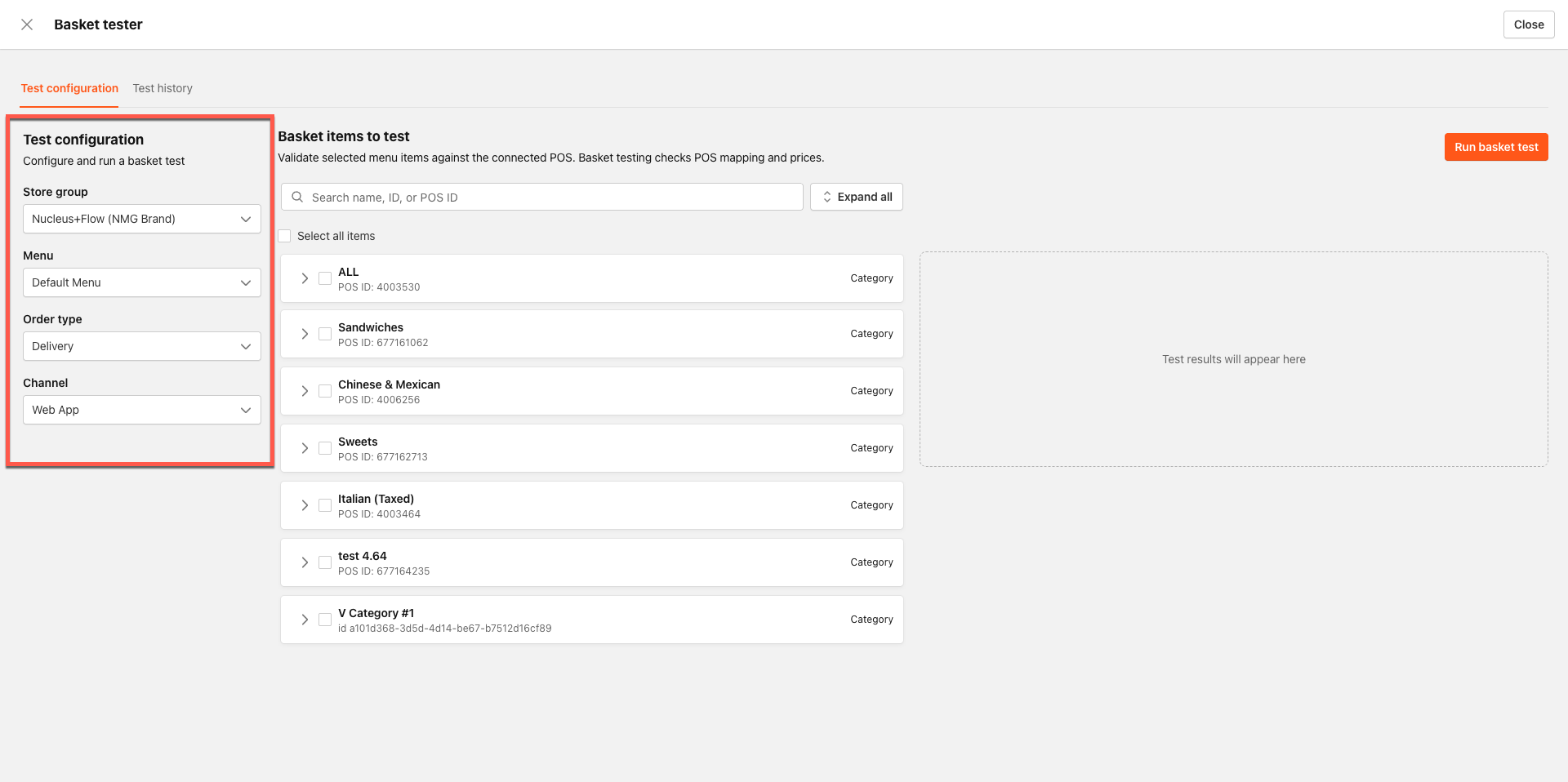
Order type and channel options are drawn from the menu you selected. The Test button stays inactive until all three are selected.
If you change the selected menu after making selections, the order type and channel options update to match the new menu.
Step 2: Select items from the menu tree
The Basket items to test pane shows your published menu as a tree, organized by menu, category, product, group, and modifier. Every node has a checkbox.
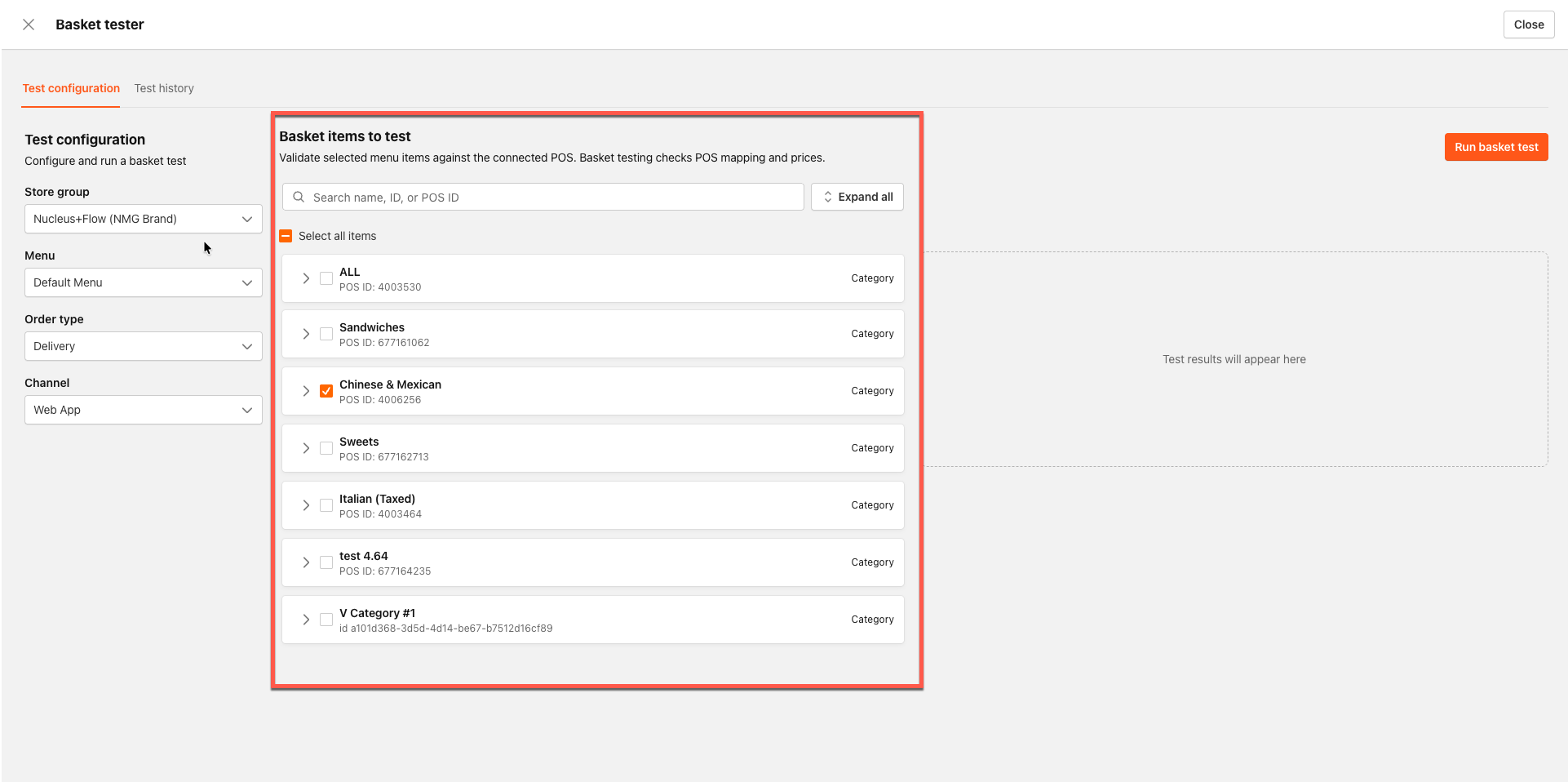
- Select a parent node to select everything beneath it.
- Use the search box to find items by name, internal ID, or POS ID.
- When you select a product with a required modifier group, the group resolves to a valid default automatically. You do not need to select required modifiers manually.
For product groups with no maximum and more than ten options, Select All selects up to ten options rather than all of them.
Step 3: Run the test
Click Run Basket Test.
While the test runs, a progress indicator shows two stages: building the basket, then checking with the POS. You can select Cancel at any time to stop the test. A cancelled test is reported as aborted.
Read Your Results
When the test finishes, the Report pane shows the result.
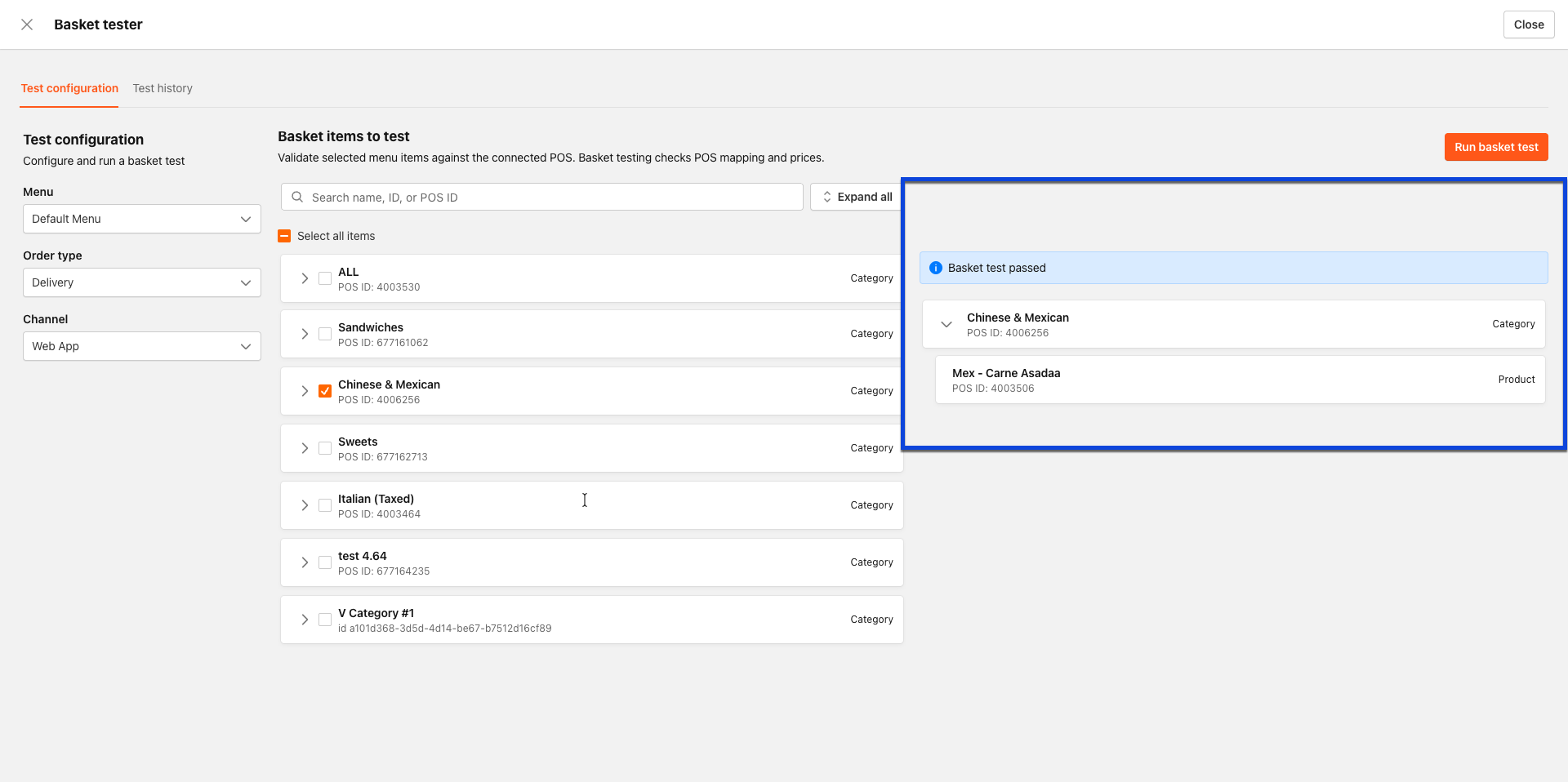
- When the test passes, a success message confirms that all tested items are correctly mapped.
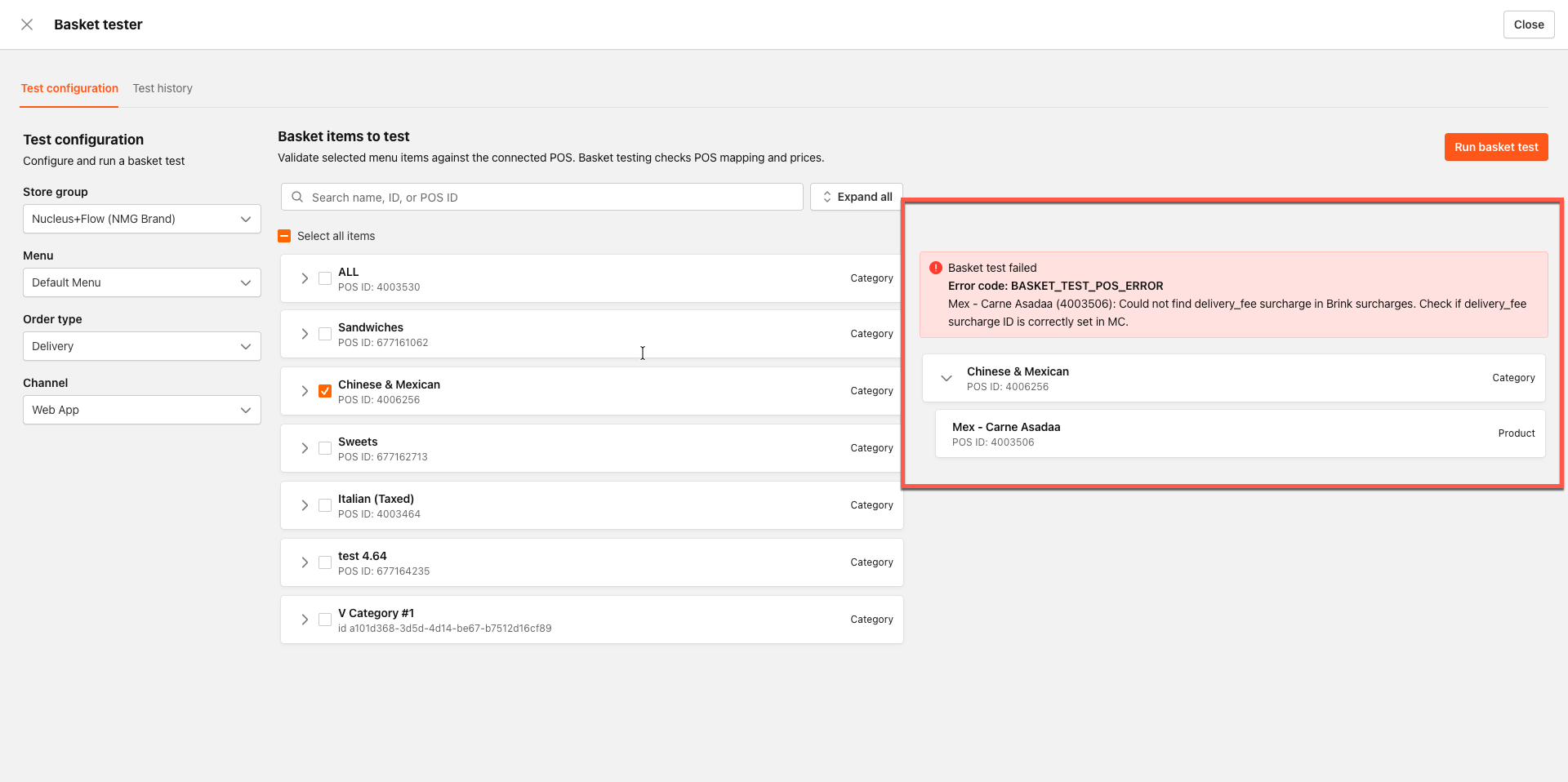
- When the test fails, the report names the item that caused the problem and explains why. The test stops at the first problem it finds. It reports that one issue, not a full list.
| Failure type | When it's caught | What you see |
|---|---|---|
| An item or modifier has no POS ID | Before the POS is called | Test fails; the item with no POS ID is named |
| A selection breaks a modifier group rule (min or max) | Before the POS is called | Test fails; the product and the broken rule are named |
| The POS rejects an item | At the POS | Test fails with the POS error and the product name |
| The POS is unreachable or times out | At the POS | Test fails as a connectivity problem; no partial pass is shown |
Test results are available for a short time after a run and are not saved as a long-term record. Copy the cart ID from the report before you close it. If you contact PAR Support about a test, share the cart ID so the support team can look at the same basket you tested.
After a failure, fix the mapping issue in your menu and run the test again. When you run a new test, the new result replaces the previous one.
What Basket Tester Does Not Check
Basket Tester confirms that your items have POS IDs and that the POS accepts the basket. The following are outside its current scope:
- Price comparison between your online menu and the POS (this is covered elsewhere in PAR Ordering)
- Tax, fee, discount, or daypart validation
- Draft or unpublished menus
Test History
The test history tab shows all previous basket tests and their results.
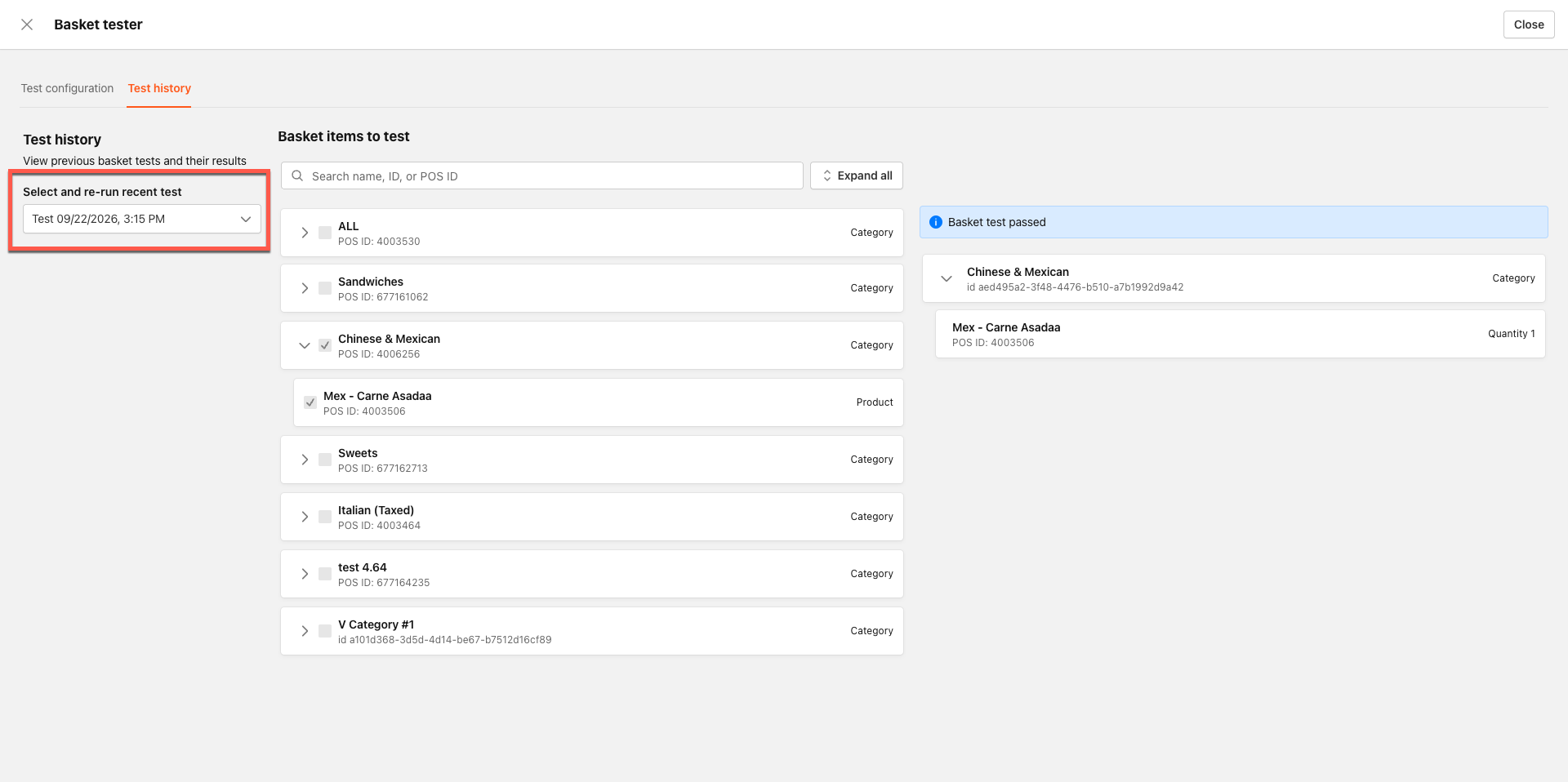
- Use the drop-down menu to select and re-run a recent test.
- They are listed by date and time.
- Once selected, the rest of the screen is populated with the menu items that were selected and the results.
