Brand and Store Tax Rates
Overview
Tax Rate Visibility lets you see the tax rates pulled directly from your connected point of sale (POS) in the PAR Ordering Management Center. The Taxes and Fees page displays these rates as a read-only table at both the store and brand level, so you and your team can verify that the correct rates are in place without leaving the Management Center.
Tax rates in the Management Center are read-only. You cannot add, edit, or remove rates from this page. Rates are pulled automatically from your connected POS and appear here after a menu sync has run.
Prerequisites
This feature is available for PAR Ordering v2 brands only. If your brand is on v1, the Taxes and Fees page continues to display your existing tax classes without change.
How Tax Rates Work
Tax rates in PAR Ordering come from your connected POS — not from manual entries in the Management Center. Understanding how rates are applied helps you interpret what you see on the Taxes and Fees page.
- Third-party marketplace orders (for example, orders placed through DoorDash, Uber Eats, or Grubhub) use the tax rates stored per product that were pulled from your POS during sync.
- First-party orders (orders placed through your mobile app, web app, or kiosk) read tax directly from the POS at checkout in real time. Nothing on the Taxes and Fees page affects first-party tax behavior.
You do not need to enter tax rates by hand in the Management Center. Rates appear automatically once a sync has run.
Rates are grouped by POS tax-rate ID. If your POS has two rates with the same percentage value but different IDs, they appear as separate rows — one per unique ID.
Navigating to the Taxes Tab
- Log in to the Management Center.
- In the left navigation, go to Configurations > Taxes and Fees.
- Select the Taxes tab.
Viewing Rates at the Store Level
The Tax Rates table lists the tax rates pulled from your connected POS for the selected store, aggregated from the store's products. Each distinct rate appears once, keyed by its POS tax-rate ID.
At the store level, the Taxes tab shows rates for the selected store only. At the All Stores scope, the Taxes tab shows a consolidated view of rates across your entire brand. See Viewing Rates at the Brand Level below.
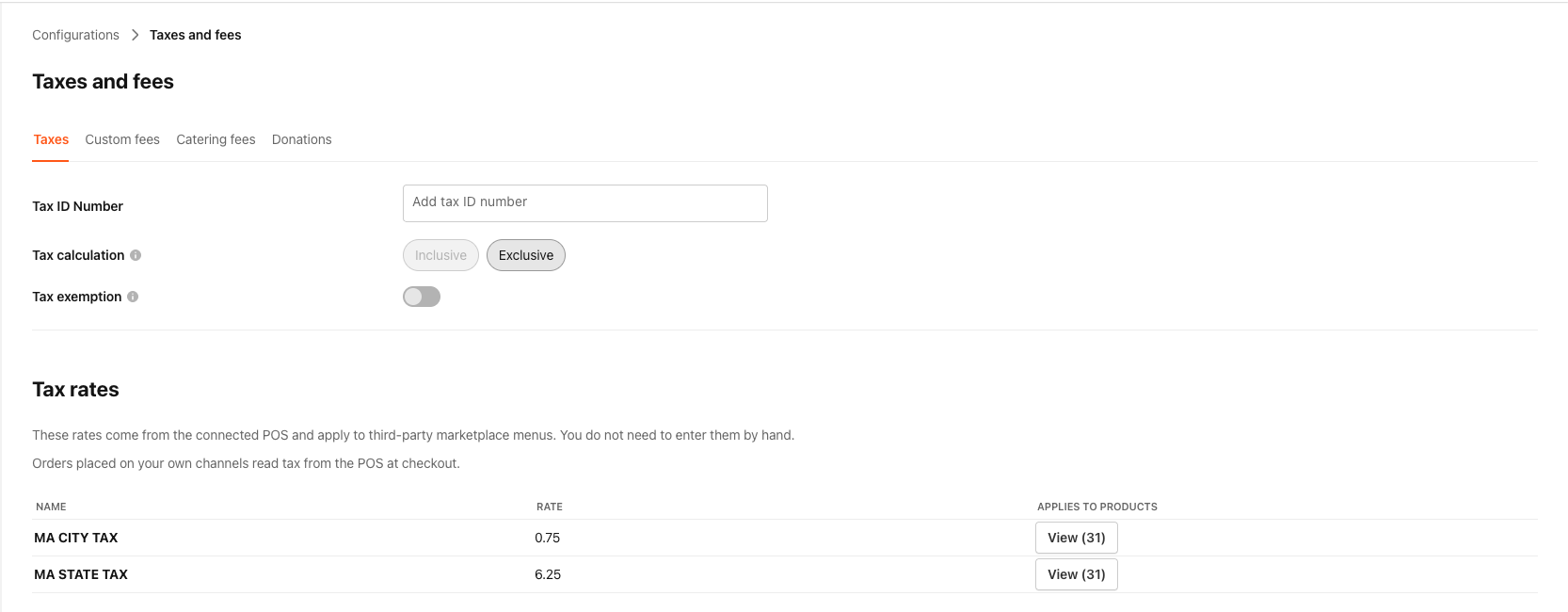
| Column | Description |
|---|---|
| Name | The tax rate name as it appears in your POS. The POS tax-rate ID is displayed beneath the name as a secondary line. |
| Rate | The tax rate value (for example, 7.25). Rates are displayed exactly as stored — no rounding is applied. |
| Applies to POS destinations | The raw destination IDs the rate is scoped to. This column appears only when your connected POS provides destination data. If your POS does not supply destination data, this column is absent. A rate with no destinations set applies to all destinations. |
| Applies to products | A View control that opens a searchable list of all products this rate is attached to. |
If no POS-pulled rates exist for the selected store — for example, if a menu sync has not yet run — the table displays an empty state explaining that rates are pulled from the connected POS and will appear after a sync.
Legacy manually-created tax classes are not shown in this table. They are retained in the database but no longer displayed on v2 brands.
Viewing Products Attached to a Rate
Select View in the Applies to products column for any rate to open a read-only list of all products that rate is attached to. The list shows each product's name and POS ID. You can search the list by product name or POS ID. For rates attached to a large number of products, the list is paginated.
Tax rates that have no products attached are not shown in the Tax Rates table.
Viewing Tax Rates on a Product (Store Scope)
When you open a product from the store-scoped product view, a read-only section on the product detail page lists the tax rate or rates attached to that product. This section shows the tax name, rate value, and POS tax-rate ID for each attached rate. When your POS provides destination data for a rate, the applicable destination IDs are also shown. Fields not present in the POS data are omitted rather than shown as empty.
This section is only visible when viewing a product at the store scope. At the All Stores scope, the section is hidden or displays a note indicating that tax rate details vary by store and can be viewed by opening a specific store.
This section includes a reminder that the rate data is POS-sourced and applies to third-party ordering only.
Viewing Rates at the Brand Level
When you view the Taxes tab at the All Stores scope, you see a consolidated list of all POS tax rates across your brand, grouped by POS tax-rate ID.
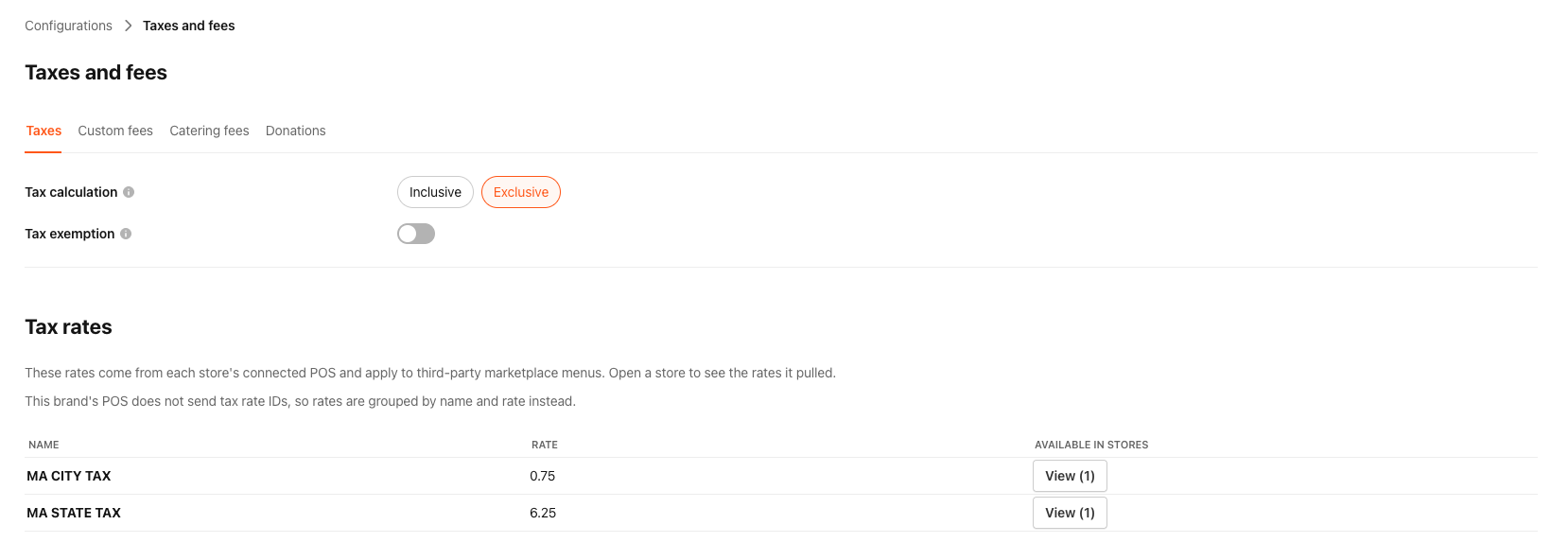
| Column | Description |
|---|---|
| Name | The shared tax rate name across stores carrying this rate. The POS tax-rate ID is displayed beneath the name. If the name differs across stores, the field shows varies by store. |
| Rate | The shared rate value. If the value differs across stores, the field shows varies by store. |
| Applies to POS destinations | The shared destination IDs, if your POS provides them. Absent if your POS does not supply destination data. Shows varies by store if destinations differ. |
| Available in stores | A View control that opens a searchable list of the stores carrying this rate. Selecting a store opens that store's Taxes and Fees page directly. |
If no store in your brand has synced rates, the table shows an empty state explaining that rates come from each store's POS and will appear after a sync.
Multi-Location Tax Configuration
For brands operating across multiple locations, each store may have different tax rates depending on how rates are configured in your POS. Because rates are stored per store and pulled from the POS during sync:
- The store-level Taxes tab shows only the rates for the store you have selected.
- The All Stores Taxes tab gives you a brand-wide view and flags any rates where the name, value, or destinations differ across stores — displayed as varies by store.
- If a rate is present in some stores but not others, the Available in stores list shows only the stores that carry it, making it easy to identify which locations may need attention.
Frequently Asked Questions
- Do I need to enter tax rates in the Management Center? No. Tax rates are pulled directly from your connected POS during menu sync and appear automatically. Manual entry has no effect on sync or on the rates applied to orders.
- Why are there no rates showing in the table? If the table is empty, a menu sync may not have run yet for the selected store. Once a sync completes, any rates configured in your POS appear automatically. Also confirm that your store is on PAR Ordering v2 — this feature is not available on v1 brands.
- Why don't I see a rate I know is in my POS? Tax rates that have no products attached to them are not shown in the Management Center, even if the rate exists in your POS. If a rate is missing, confirm that it is attached to at least one product in your POS and run a sync.
- Do the rates I see here affect my first-party orders? No. First-party orders (mobile app, web app, kiosk) read tax from the POS at checkout in real time. The rates displayed in the Management Center apply to third-party marketplace orders only.
- Can I edit or remove a tax rate from this page? No. All rates on this page are read-only. To change a tax rate, update the configuration in your POS. The change will appear in the Management Center after the next sync.
- What is a POS Tax Rate ID? This is the unique identifier your POS assigns to each tax rate. If two rates have the same percentage value but different IDs, they appear as separate rows in the table.
- What does "varies by store" mean in the brand-level view? It means the selected field — such as the rate value or applicable destinations — is not identical across all stores carrying that rate. Select View in the Available in stores column to see each store's individual configuration.
- Why does the Applies to POS destinations column not appear? This column only appears when your connected POS provides destination data on the rate. If your POS does not supply this data, the column is absent. This applies at both the store and brand level.
