Management Center - Keyboard Shortcuts
Context
Using MC is easy and intuitive, but why not make it even better and even faster? We always want to make your life easier, so we added another useful functionality - keyboard shortcuts.
This will make navigating around your Menu even quicker.
We will be adding more shortcuts in the future - stay tuned and bookmark this page to stay on top of the new additions!
Essential information
- Keyboard shortcuts are page specific and can’t be used across different pages
- It's possible to add custom shortcuts. This means that using any key or combination of keys (that isn't in use yet) is doable
- When an input is focused, shortcuts are not available. Users can only toggle the list (ctrl/cmd + /) and have a quick overview of all shortcuts available
The list of keyboard shortcuts
| Command | Shortcut |
|---|---|
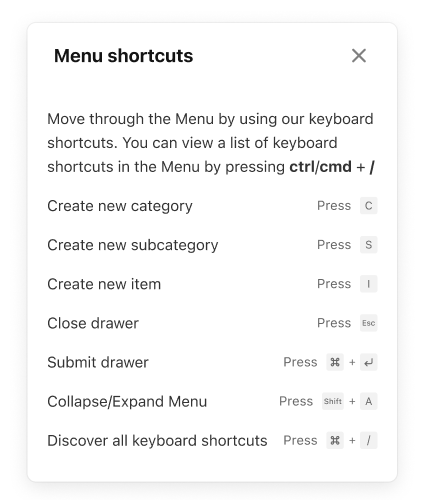
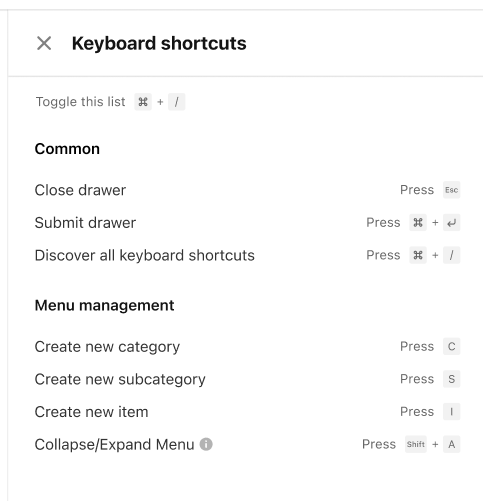
| Save (Submit) in the drawer | Press Ctrl/Cmd + Enter |
| Close the drawer | Press Esc |
| Collapse/Expand the list | Press Shift + A |
| Add new category | Press C |
| Add new subcategory | Press S |
| Add new item | Press I |
| Add new modifier | Press M |
| Add new modifier group | Press G |
| Add new combo | Press C |
| Duplicate | Press D |
| Manage visibility | Press Ctrl/Cmd + Alt/Option + V |
| View a list of shortcuts in the Menu | Press Ctrl/Cmd + / |
What if I forget about them?
No worries! They are always displayed in the tooltip when you hover your mouse over different page components, as well as in the dropdown action list, depending on the place you're in within the MC:
Overview page:
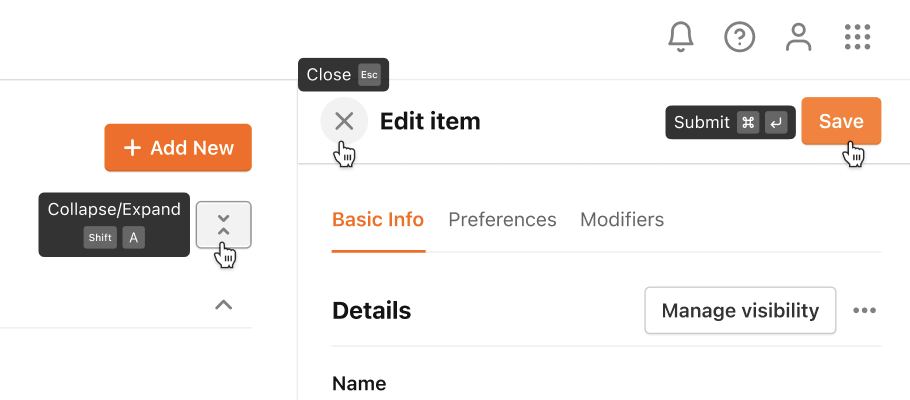
|
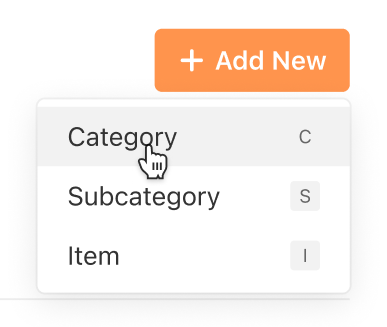
|
|---|
Combos page:
The shortcuts are displayed on mouse-hover in the tooltip:
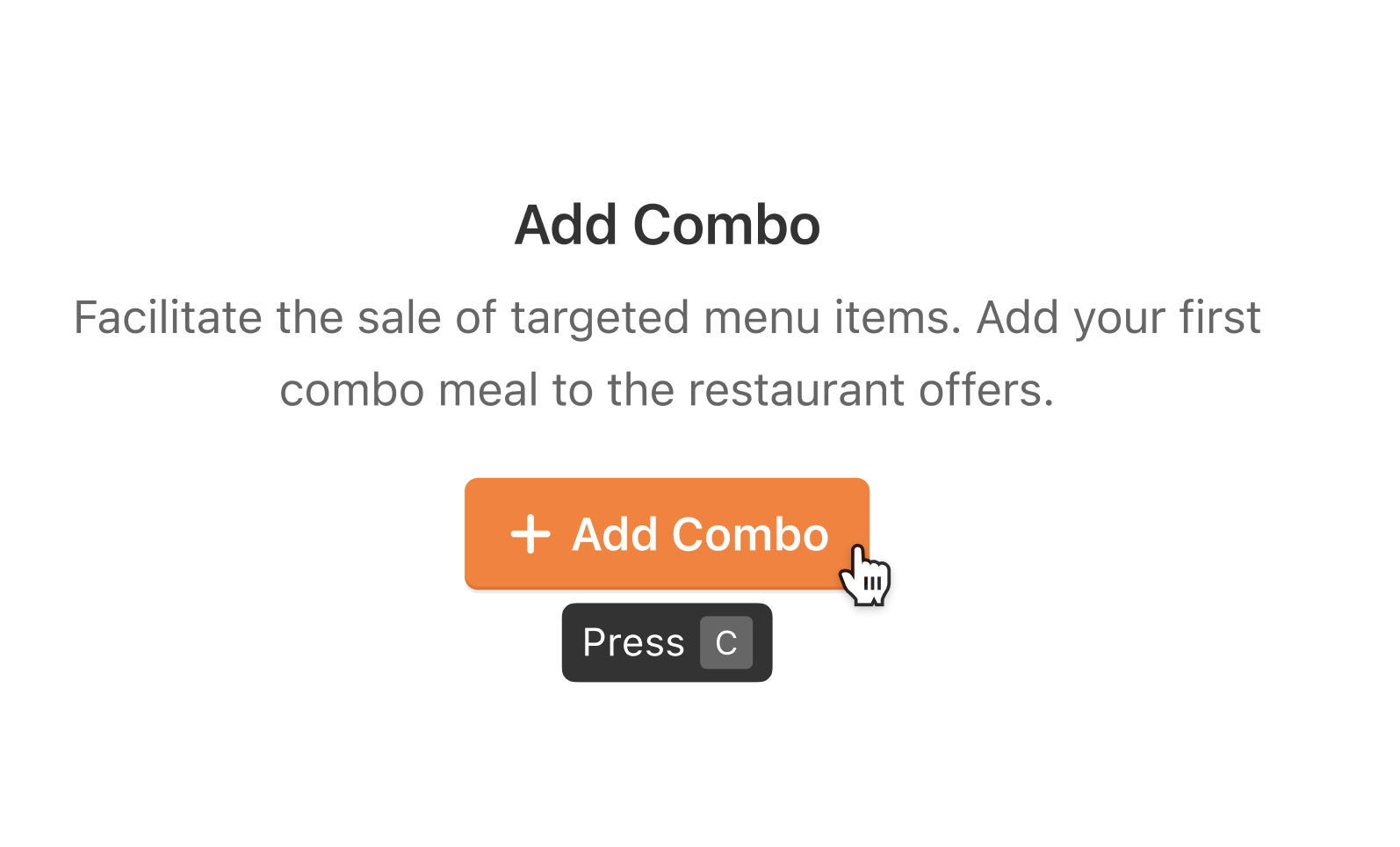
Modifiers page:
The shortcuts are displayed in the dropdown action list:
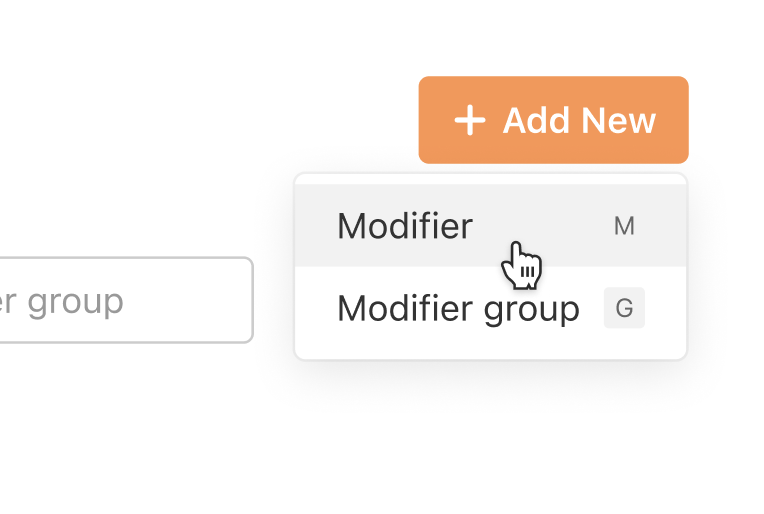
Reference guide
And here's one more thing to keep handy. We divide shortcuts into:
- Flag (popup) component (displayed bottom right in the MC) should be a common place for the shortcuts announcement
- Keyboard shortcut drawer should be a common place for adding the list of shortcuts across the app
| Flag (popup) component | Keyboard shortcut drawer |
|---|---|
|
|
