Order Error Logs
Context
This dashboard is used to present all the Order errors. It captures:
- all Orders which failed and were not accepted as an Order in the PAR Ordering platform
- all Orders which were captured but failed and could not be fulfilled
What does it show?
It shows statistics per Store or Stores.
How does it work?
Here's a breakdown of this feature:
Security
The dashboard has a row level security applied - this controls data segmentation.
Data refresh
The data updates live, with a presumed lag of 15 minutes.
Filters

-
Stores
Store filter allows you to select one Store or particular multiple Stores -
Store Code
Store Code filter allows you to select a Store or multiple Stores by referencing a Brand's internal Store coding system, This will filter down the data just to these set Store(s)
-
Error type
Error type allows you to filter on specific error types such as POS exceptions, Order validations, and more -
Customer
This filter allows you to filter data down by a specific Customers' Orders
-
Order types
Order type filter allows you to filter Orders by the type which the Customer requested, for example to identify if you have configuration issues related to a specific Order type -
Channels
Channel allows you to filter by the application where the Order was placed. Thanks to that, you may identify if you have configuration issues related to a specific Channel application -
External Channel
This lets you to filter by specific External Channel Aggregator and see if you have configuration issues here -
POS Ticket ID
The POS Ticket ID filter allows you to pin point the specific POS ticket that was impacted by the error -
Date range
The date range filter allows you to define the date range for which you want to look at the data - it is based on the Order's creation date (the date that Order was placed, in this format: DD.MM.YYYY)
-
Time range
This allows you to define the specific time range in which and Order was placed for. It is based on the Order's creation time (the time that Order was placed, in this format: HH)
This is based on your Brand's time zone
Views
Table View
This shows a high level overview of the Orders impacted by errors:
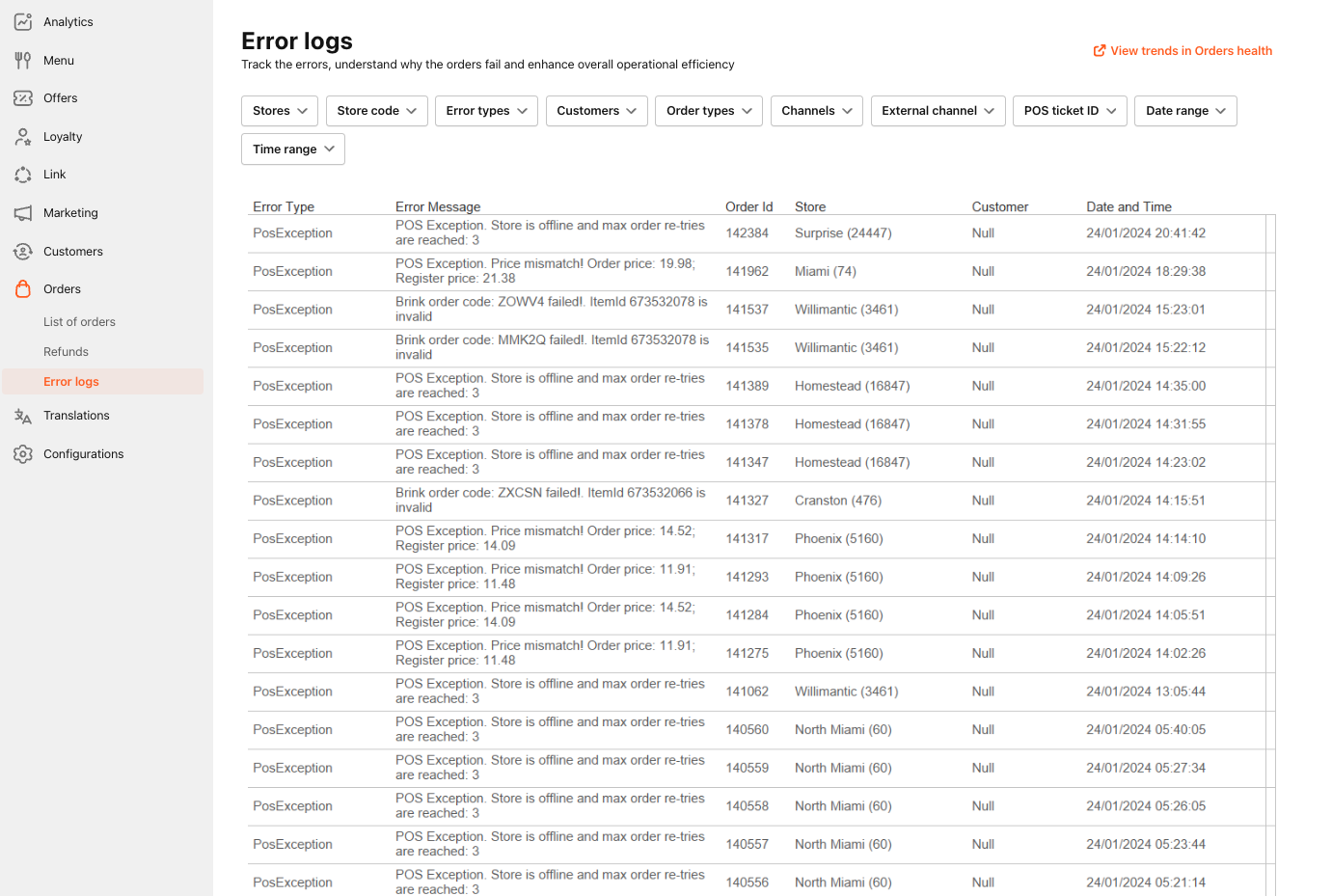
This view will show you:
- Error type
- Error message
- Order ID
- Store name
- Customer
- Date and Time of the order
Drawer
By selecting either Error type or Error message, this will open a Drawer which providers you with Order details:
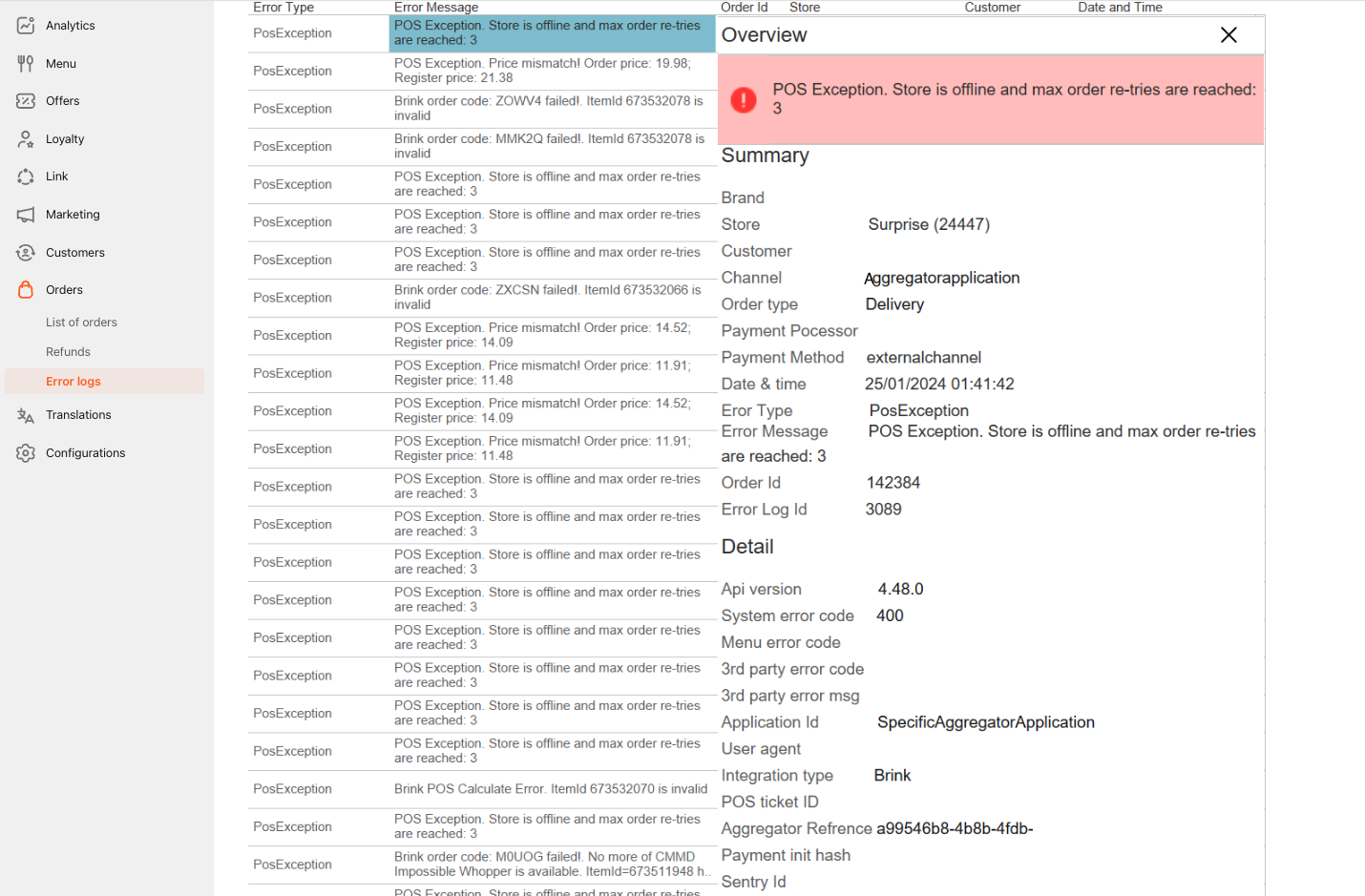
Drawer's Variables
Summary
- Brand - Brand name
- Store - Store name
- Customer - the registered Customer who placed the Order, NULL represents a guest check out
- Channel - the Channel application the Order was placed on
- Order type - the type of the Order placed
- Payment processor - the payment processor used to process the Order
- Payment method - the payment method the Customer used to place the Order
- Date & time - the date and time the order was placed (Brand time zone)
- Error type - the error type classification
- Error message - the error message received
- Order ID - the Order ID (if it says NULL, Order failed prior to hitting the PAR Ordering platform)
- Error log ID - the error ID
Detail
- API version - the version of the API in which the error occurred
- System error code - the error code logged by the system
- Menu error code - the specific error code for PAR Ordering
- 3rd party error code - the error code passed by the External Channel Aggregator
- 3rd patry error message - the error message passed by the External Channel Aggregator
- Application ID - the ID of the application that was used to place the Order
- User agent -the software the used to place the Order
- Integration type - the POS integration type
- POS ticket ID - the POS ID of for the Order
- Aggregator reference - the specific Aggregator reference
- Payment init hash - unique identifier of the transaction
- Sentry ID - PAR Ordering internal sentry tracking ID
