SOCi Location Services Implementation
Overview
The SOCi Location Services integration harnesses the functionality of the Punchh Platform APIs, enabling the injection and dynamic update of restaurant store location data.
Requirements
Admin account in Punchh with Business Manager level access or higher and all necessary access permissions enabled. The permissions must include the following:
- Settings Advanced (needed for admin users access to generate the business admin key)
- Dashboard API Access (needed to enable API access and authentication for the business admin key)
- POS Support
The brand must be a paid listings customer in SOCi. The following settings for Listings will need to be enabled for the brand by the SOCi Implementations team:
- platform_of_record
- listings
A Super Admin account in SOCi with the following access is required to configure business admin keys and stack URLs:
- Punchh_Listings extension
- extension_marketplace
- mass_link access
Punchh business admin key (provided by the brand's business admin in the Punchh platform)
Punchh stack URL (provided by Punchh)
Step 1
The brand's admin will need to generate a business admin key in the Punchh platform:
- Go to Administration > All Users, Roles and Permissions > Admins.
- Select each admin user's account with appropriate permissions from the list.
- Click the Generate Business Admin Key button at the bottom of the page.
- Copy this key for configuration in the SOCi platform.
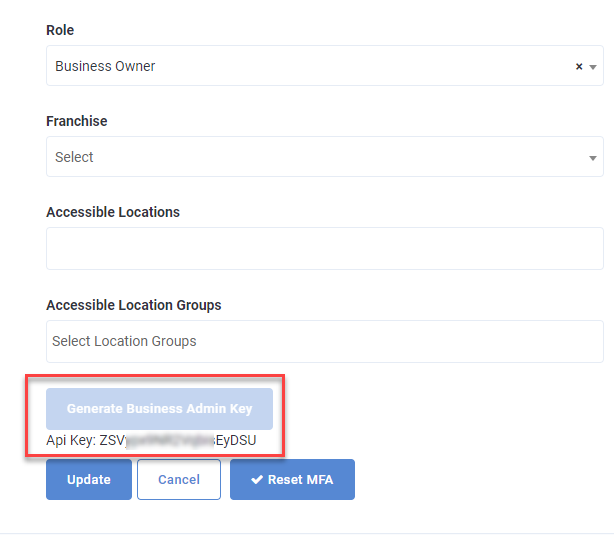
If the Generate Business Admin Key button is missing, this is likely due to one of the following:
- The role assigned to the admin does not have the ‘Dashboard API’ access permission enabled or Business Manager/Owner settings enabled.
- The role assigned to the admin does not have the Business Manager/Owner settings enabled.
If the business admin key is re-generated by the admin in Punchh, the current key will no longer pass validation. This will break the integration between SOCi and Punchh.
Step 2
The SOCi super admin will need to flag the correct Punchh URL and enter the business admin key in Punchh’s Marketplace card to configure the Punchh integration:
- Go to Extensions > Punchh_Listings.
- Enter the Punchh-generated business admin key into the Punchh API key field.
- Select the provided server name via the radial dial options inside.
- Select either a 12-hour or 24-hour format.
- Click Save.
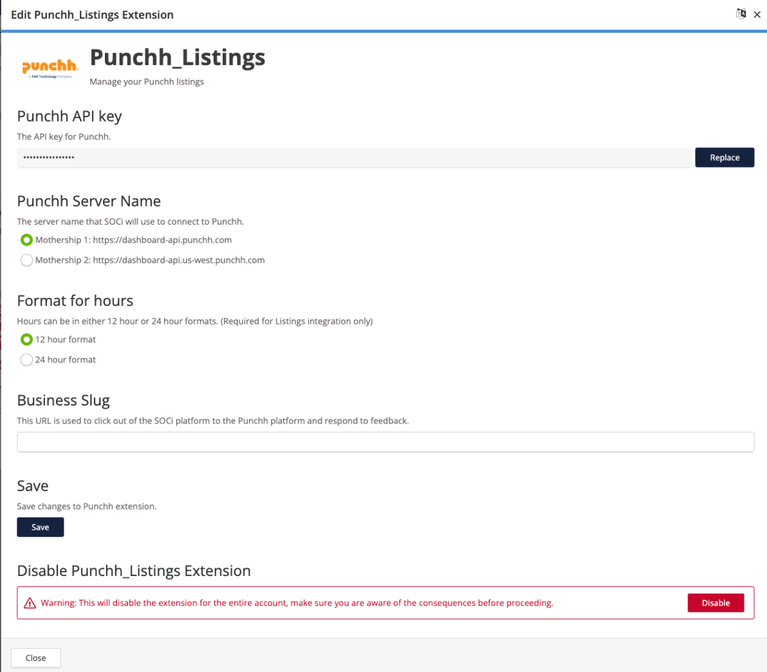
The Marketplace extensions labels Punchh as “Punchh_Listings”, but this card is applicable to both reviews and listings.
